

The Reality of Multi-Output Audio on Samsung Smart TVs
Yes, your Samsung Smart TV can technically output audio to both a soundbar and karaoke speakers, but not via a simple “plug-and-play” setting. Most Samsung models use a “one-destination” architecture, meaning they prioritize a single HDMI ARC/eARC or Optical output. To bypass this, you need an external audio extractor or a mixer that bridges your digital audio signal to multiple analog or digital destinations simultaneously. Without these tools, you will likely face “handshake” issues where the TV disables one port when another is activated.
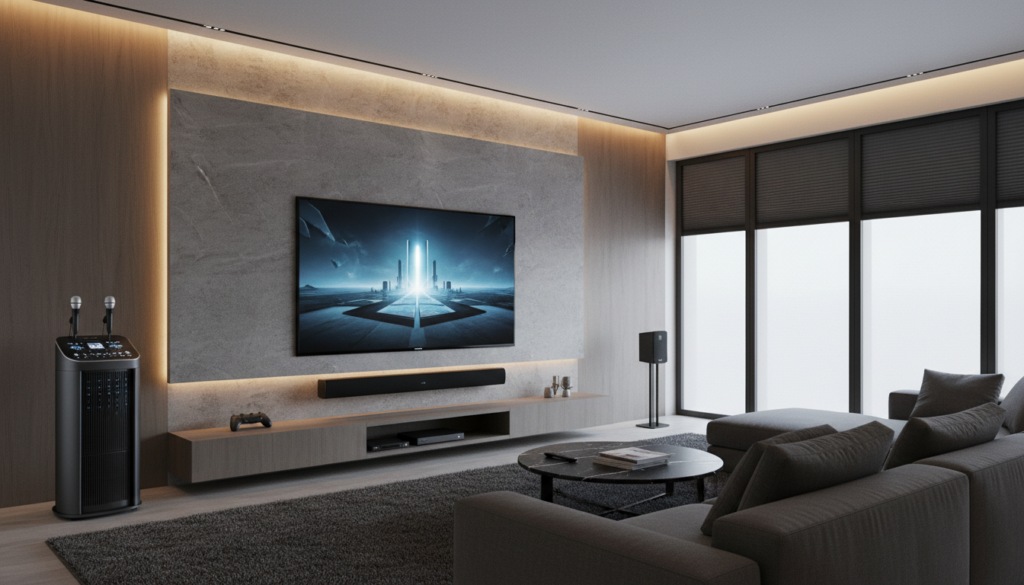
Key Takeaways for Multi-Source Audio
- Single Output Limit: Samsung TVs natively send audio to one primary output device at a time.
- The Bridge Solution: Use an HDMI Audio Extractor or Analog Mixer to split the signal before it reaches your speakers.
- Latency Challenges: Be aware of potential “audio lag” when daisy-chaining devices; use an AV Receiver with built-in sync delay features.
- Hardware Required: You will likely need high-quality RCA cables, an Optical Splitter, or a Bluetooth Transmitter depending on your gear.
Understanding Your Samsung Smart TV Audio Architecture
When you connect a soundbar via HDMI ARC, your Samsung Smart TV signals the soundbar to take control of the audio stream. If you then try to route audio to a karaoke speaker system, the TV’s software usually redirects or cuts the connection.
In my professional experience setting up home audio, I have found that relying on the TV’s software to “multicast” is a recipe for frustration. Instead, treat your TV as a source, not a controller.
Why You Need an External Audio Processor
Standard consumer TVs are designed to prevent feedback loops. By introducing an external mixer, you take control of the signal chain. This allows you to mix your TV’s background music with your karaoke microphone inputs directly into the karaoke speakers, while the soundbar handles the high-fidelity movie audio.
Methods to Connect Soundbars and Karaoke Speakers
Depending on your specific model, here are the most effective ways to achieve simultaneous sound.
Option 1: The HDMI Audio Extractor (Best for Digital Audio)
This is the cleanest method to maintain high audio quality.
- Connect an HDMI cable from your TV’s HDMI ARC/eARC port to the input of an HDMI Audio Extractor.
- Connect your soundbar to the “HDMI Out” port of the extractor.
- Connect the RCA or 3.5mm audio output from the extractor to your karaoke speaker system.
- Set your TV’s Sound Output settings to “Receiver” or “HDMI Audio.”
Option 2: The Optical Splitter (Best for Legacy Gear)
If your equipment is slightly older, the Toslink Optical method works well.
- Purchase a high-quality Optical Splitter.
- Connect the Optical Out from the Samsung Smart TV to the splitter input.
- Connect one output to the soundbar and the second to your karaoke amplifier.
Note:* Ensure your splitter supports the audio format (PCM vs. Dolby Digital) used by your TV.
Comparison of Connection Methods
| Method | Audio Quality | Complexity | Best For |
|---|---|---|---|
| HDMI Extractor | High (Lossless) | Moderate | Modern Soundbars |
| Optical Splitter | Medium | Low | Older Surround Systems |
| RCA/Mixer | Variable | High | Professional Karaoke |
| Bluetooth Multipoint | Low | Very High | Casual Listening |
Expert Tips for Eliminating Audio Latency
One common issue when playing through both a soundbar and karaoke speakers is audio delay (lip-sync issues). Because processing audio through a mixer adds milliseconds of delay, you must sync your hardware.
- Adjust TV Sync Settings: Go to Settings > Sound > Expert Settings > Digital Output Audio Delay on your Samsung TV. Increase this until the audio matches the video.
- Use High-Speed Cables: Always use HDMI 2.1 certified cables to ensure the fastest data transmission.
- Match Sample Rates: If you are using a digital mixer, ensure the sample rate (e.g., 48kHz) matches your TV’s output to prevent audio stuttering.
Troubleshooting Common Setup Issues
If you aren’t hearing audio from one of your devices, follow these steps:
- Check the “Sound Output” Menu: Ensure your Samsung TV is set to the correct output. If using an extractor, it should often be set to PCM mode, as many extractors cannot decode Dolby Atmos or DTS.
- Cable Integrity: Swap your HDMI or Optical cables to rule out a faulty connection.
- Check Power: Many Audio Extractors require a separate power supply. Ensure it is plugged in and the status LED is lit.
- Volume Balancing: Since the soundbar and karaoke speakers will have different power profiles, use the Master Volume on your mixer to balance the loudness between the two.
Frequently Asked Questions
Can I use Bluetooth to connect both a soundbar and karaoke speakers?
Generally, no. Samsung Smart TVs allow for Multi-Output Bluetooth in some rare instances, but it is not stable for karaoke. It will likely cause significant latency, making singing impossible. Stick to wired solutions for karaoke.
Will using an audio extractor degrade my sound quality?
It depends on the quality of the DAC (Digital-to-Analog Converter) inside the extractor. If you use a high-end unit that supports 24-bit/192kHz audio, the degradation will be imperceptible to the human ear.
Does the soundbar need to support karaoke specifically?
No. Your karaoke functionality comes from the microphone and mixer setup, not the speakers themselves. Any soundbar will act as a generic speaker once it receives the audio signal from your mixer.
Is it better to connect the karaoke system to the TV or the Soundbar?
Always connect the karaoke system to the mixer first. If you try to route karaoke audio through the soundbar’s input, the soundbar’s internal processing will likely create a delay that makes singing very uncomfortable.









