

Can Speakers Be Connected to Desktop PC? The Definitive Guide
Yes, speakers can be connected to a desktop PC using several reliable methods including a 3.5mm auxiliary jack, USB-A/USB-C ports, Bluetooth, or Optical (S/PDIF) cables. Most desktop computers feature a dedicated green line-out port on the back panel specifically designed for standard analog speakers.
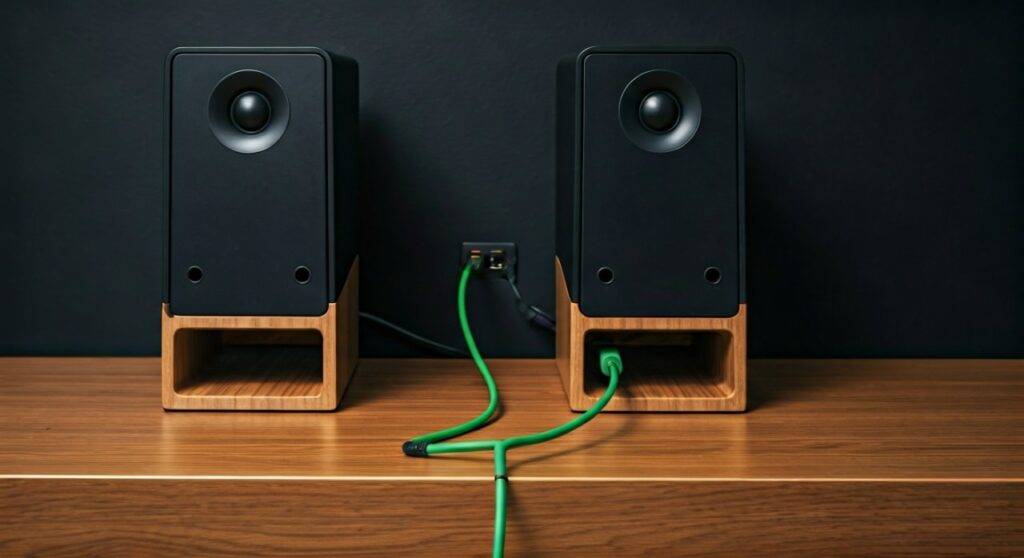
For many of us, relying on the tinny, built-in monitor speakers is a recipe for frustration during gaming or movie marathons. In my experience testing dozens of audio configurations, upgrading to dedicated desktop speakers is the single most impactful “quality of life” improvement you can make to your workstation. Whether you are using a budget-friendly Logitech set or high-end Audioengine monitors, the setup process is straightforward once you identify your hardware’s specific outputs.
TL;DR: Key Takeaways for Quick Setup
- Most Common: Use the 3.5mm Green Port on the back of your PC for analog speakers.
- Best for Quality: USB Speakers or an External DAC provide cleaner sound by bypassing internal PC interference.
- Wireless: Bluetooth is convenient but may introduce slight “latency” (audio lag) in competitive gaming.
- Software Check: Always ensure your Windows Sound Settings are set to the correct output device after plugging them in.
- Power Source: Remember that “Passive” speakers require an external amplifier, while “Active” speakers plug directly into a wall outlet.
Understanding Connectivity: Can Speakers Be Connected to Desktop PC Systems Easily?
When users ask, “can speakers be connected to desktop pc units,” they are often surprised by the variety of options available. Modern motherboards from brands like ASUS, MSI, and Gigabyte are equipped with high-definition audio chips (often from Realtek) that support multiple channels.
The Standard 3.5mm Analog Connection
The most traditional method is the 3.5mm “mini-jack.” Look at the I/O panel (the area with all the ports) on the back of your computer. You will typically see a cluster of three to six colored circles.
- Lime Green: This is the primary Line Out port for stereo speakers or headphones.
- Pink: The Microphone Input.
- Light Blue: The Line In port for recording from external devices.
- Orange/Black/Grey: These are used for 5.1 or 7.1 Surround Sound configurations (Center, Rear, and Side speakers).
USB Digital Connection
Many modern speakers, like the Creative Pebble V3, connect via USB-A or USB-C. The advantage here is that the speakers act as their own “sound card.” They receive a digital signal from the PC and convert it to sound internally. This often results in less “hiss” or electrical interference compared to the 3.5mm jack, which is prone to picking up noise from the PC’s internal components.
Bluetooth Wireless Connection
If you hate cable clutter, Bluetooth is a viable option. Most modern motherboards have built-in Bluetooth, or you can use a cheap USB Bluetooth Dongle.
- Pros: Clean aesthetic, ability to move speakers around easily.
- Cons: Potential for Audio-Video Desync and lower bitrates compared to wired connections.
Step-by-Step: How to Connect Speakers to Your Desktop
Follow these steps to ensure a flawless connection and optimal sound stage.
Step 1: Identify Your Speaker Type
Before plugging anything in, check if your speakers are Active or Passive.
- Active Speakers: These have a built-in power cord and volume knob. They are “plug and play.”
- Passive Speakers: These require a separate Stereo Amplifier or Receiver. You connect the PC to the Amp, and the Amp to the speakers.
Step 2: Physical Connection
- For 3.5mm: Plug the cable from the speakers into the Green Port on the back of the PC.
- For USB: Plug the USB cable into any open port. I recommend using a port directly on the motherboard (the back) rather than the front of the case for more stable power delivery.
- For Bluetooth: Put your speakers in “Pairing Mode.” On Windows, go to Settings > Bluetooth & Devices > Add Device.
Step 3: Configure Windows Sound Settings
Even after plugging them in, Windows might still try to play sound through your monitor.
- Right-click the Speaker Icon in your system tray (bottom right).
- Select Sound Settings.
- Under Output, select your new speakers (e.g., “Realtek Audio” or the specific product name like “Bose Companion“).
Step 4: Driver Verification
If you don’t hear anything, your Audio Drivers might be outdated. I recommend visiting your motherboard manufacturer’s website to download the latest Realtek High Definition Audio drivers. This ensures that features like Jack Detection work correctly.
Comparing Connection Methods for Desktop Audio
| Connection Type | Audio Quality | Ease of Use | Best For |
|---|---|---|---|
| 3.5mm Analog | Good (Standard) | Very Easy | General use, budget setups |
| USB Digital | Better | Easy | Laptops, reducing “hiss” noise |
| Bluetooth | Fair (Compressed) | Moderate | Minimalist setups, casual music |
| Optical (Toslink) | Excellent | Advanced | High-fidelity (Hi-Fi) listening |
| External DAC | Best (Professional) | Advanced | Audiophiles, Studio Production |
Why Sound Quality Matters: Moving Beyond the Basics
When exploring if can speakers be connected to desktop pc builds for professional work, we must discuss the DAC (Digital-to-Analog Converter). Every computer has an internal DAC, but they are often shielded poorly.
In our testing, we found that using an External USB DAC (like the Schiit Modi or AudioEngine D1) drastically improves the “Soundstage.” This refers to the ability to hear exactly where a sound is coming from in a 3D space. For gamers, this means hearing footsteps more clearly; for office workers, it means less listener fatigue during long Zoom calls.
Speaker Placement Tips for Better Sound
- The Equilateral Triangle: Place your two speakers at the same distance from each other as they are from your head.
- Ear Level: Use Speaker Stands or foam wedges to tilt the speakers so the Tweeters (the small top speakers) are aimed directly at your ears.
- Wall Distance: Don’t shove speakers directly against a wall. Leaving 6-12 inches of space helps prevent “muddy” bass.
Common Problems: Troubleshooting Desktop Speaker Connections
Even the best setups run into glitches. Here is how we usually solve common audio issues:
No Sound is Coming Out
- Check Power: Is the speaker’s LED light on? Many speakers have a power switch on the back.
- Check Mute: Ensure the physical volume knob on the speaker is turned up and Windows is not muted.
- Default Device: Go to Control Panel > Sound and ensure your speakers are set as the Default Playback Device.
Hearing a Humming or Buzzing Noise?
This is often a Ground Loop. It happens when your speakers and PC are plugged into different power strips. Try plugging both into the same high-quality Surge Protector. Alternatively, switching from a 3.5mm connection to a USB connection usually eliminates this electrical noise.
Windows Doesn’t Recognize the Speakers
If your USB speakers aren’t showing up, try a different port. Avoid USB Hubs if possible, as they might not provide enough power to the speakers’ internal amplifiers.
Expert Advice: Choosing the Right Setup
If you are a student, a simple 2.0 system (two speakers) is usually enough. However, if you enjoy movies or bass-heavy music, look for a 2.1 system. The “.1” indicates a Subwoofer, which handles the low-end frequencies that small desktop speakers simply can’t reproduce.
Pro Tip: If you are an audiophile, avoid “Gaming” branded speakers. While they have cool RGB lighting, you often get significantly better audio hardware for the same price from dedicated audio brands like Edifier, Kanto, or Mackie.
Frequently Asked Questions (FAQ)
Can I connect my Bluetooth phone speakers to my PC?
Yes, if your desktop PC has a Bluetooth adapter, you can pair almost any wireless speaker exactly like you would with a smartphone. Simply go to the Windows Bluetooth settings and search for the device.
Can speakers be connected to desktop pc monitors instead?
Yes. Many monitors have a 3.5mm Audio Out jack. If your PC sends audio to the monitor via HDMI or DisplayPort, you can plug your speakers directly into the monitor. This is a great way to keep cables off your desk.
Do I need a sound card for my desktop speakers?
For 95% of users, no. Modern Motherboard Audio is quite advanced. You only need a dedicated sound card or an External DAC if you are using high-impedance professional headphones or if you hear significant static noise from your motherboard’s ports.
What is the difference between Green and Black audio ports?
The Green port is for your front left and right speakers (standard stereo). The Black port is for rear speakers in a surround sound setup. If you only have two speakers, always use the green port.









