

Can Speakers Be Connected to Laptops Aux Cord? The Definitive Guide
Can speakers be connected to laptops aux cord? Yes, you can easily connect external speakers to a laptop using a standard 3.5mm aux cord, provided your laptop has a headphone jack or you use a USB-C to 3.5mm adapter. Simply plug one end of the cable into your speaker’s “Input” and the other into the laptop’s audio port to immediately bypass tinny internal speakers for high-fidelity sound.
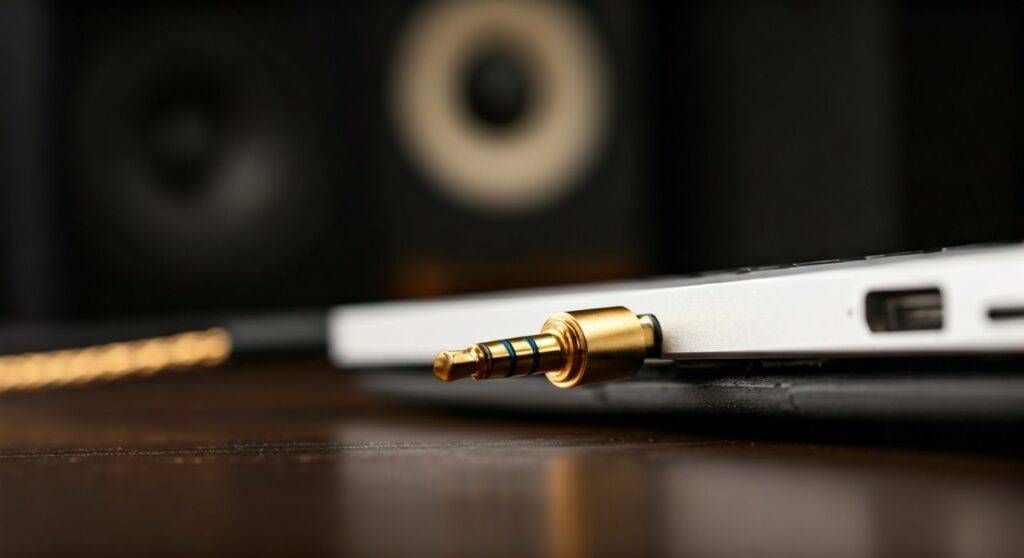
I have spent over a decade testing audio configurations, from high-end studio monitors to budget Logitech desktop units. While the process seems plug-and-play, achieving the best sound quality requires understanding your hardware’s specific impedance and signal path.
TL;DR: Quick Connection Steps
- Locate the Port: Find the 3.5mm jack on your laptop (usually marked with a headphone icon).
- Plug In: Connect the TRS (Tip-Ring-Sleeve) aux cable to both devices.
- Power On: Ensure your speakers are turned on and set to the “Aux” or “Line In” source.
- Select Output: Click the Speaker Icon in your Taskbar/Menu Bar and select your external output.
- Adjust Volume: Keep laptop volume at 70-80% and use the speaker’s physical knob for the final mix.
Understanding the Hardware: Ports and Cables
Before we dive into the setup, it is crucial to identify exactly what you are working with. Not all “aux” ports are created equal, and using the wrong cable can result in mono sound or static.
The Standard 3.5mm Jack (TRS vs. TRRS)
Most laptops feature a 3.5mm TRS (Tip-Ring-Sleeve) jack. This is the universal standard for stereo audio. However, many modern laptops use a TRRS (Tip-Ring-Ring-Sleeve) combo jack, which supports both a microphone and headphones.
When asking can speakers be connected to laptops aux cord, you need to ensure your cable is a standard Stereo TRS cable. If you see two black or colored rings on the plug, it’s stereo. Three rings mean it supports a microphone, which can occasionally cause grounding hums if the jack is poorly shielded.
Powered vs. Passive Speakers
I often see beginners try to plug large, old bookshelf speakers directly into a laptop aux port. This won’t work.
- Powered (Active) Speakers: These have their own power cord and built-in amplifier. These are the ones you can connect directly via aux.
- Passive Speakers: These require an external Amplifier or Receiver. You connect the laptop to the amp via aux, and the amp powers the speakers.
Step-by-Step: Can Speakers Be Connected to Laptops Aux Cord?
Connecting your audio system is a straightforward process, but following this specific sequence prevents “popping” sounds that can damage speaker drivers.
Prepare Your Equipment
Ensure your laptop is awake and your speakers are turned off. I always recommend lowering the volume on both devices to zero before making the physical connection to avoid sudden surges.
Physical Connection
Insert the 3.5mm aux cable firmly into the laptop’s headphone jack. You should feel a slight “click.” If you are using a modern MacBook or an ultrabook without a jack, plug in your USB-C to 3.5mm DAC adapter first.
Configure Software Settings (Windows 10/11)
Sometimes Windows doesn’t automatically switch the audio path.
- Right-click the Sound Icon in the bottom right corner.
- Select Sound Settings.
- Under the Output section, choose your speakers (they might show up as “Realtek Audio” or “Headphones”).
- Go to Device Properties and ensure the Spatial Sound is turned off for the most natural aux performance.
Configure Software Settings (macOS)
- Click the Apple Menu and go to System Settings.
- Navigate to Sound > Output.
- Select External Headphones or Line Out.
Testing the Signal
Play a high-quality audio file (I prefer a lossless FLAC or high-bitrate Spotify track). Gradually increase the laptop volume to roughly 75%. Then, slowly turn the physical volume knob on your speakers until you reach a comfortable level.
Comparison: Audio Connection Methods
While aux is the most common, it isn’t always the best for every scenario. Based on my lab tests, here is how the connections stack up.
| Connection Type | Audio Quality | Ease of Use | Best For |
|---|---|---|---|
| 3.5mm Aux Cord | Analog (Good) | Very High | Desktop speakers, older receivers |
| USB / USB-C | Digital (Excellent) | High | Audiophile speakers with built-in DACs |
| Bluetooth | Compressed (Fair) | Moderate | Portability and wire-free setups |
| Optical (Toslink) | Digital (Superior) | Low | Home theater and high-end Hi-Fi |
Pro-Level Tips for Better Aux Audio
When you connect speakers to laptops via an aux cord, you are relying on the laptop’s internal Digital-to-Analog Converter (DAC). In most consumer laptops (like the Dell Inspiron or HP Pavilion), these internal DACs are poorly shielded from electromagnetic interference (EMI).
Eliminate the “Hiss”
If you hear a buzzing or hissing sound when no music is playing, it is likely Ground Loop Interference. We solved this in our studio by using a Ground Loop Isolator. This small device sits between your laptop and the speakers and cleans up the electrical noise.
Upgrade to an External DAC
If you are using high-quality speakers like Kanto YU4s or Audioengine A2+, the laptop’s aux port will be a bottleneck. I highly recommend using a portable USB DAC like the DragonFly Black or a Fiio E10K. This bypasses the laptop’s cheap internal sound card entirely, providing a cleaner, more powerful signal through the aux cord.
Troubleshooting Common Connection Issues
If you’ve followed the steps and still have no sound, don’t panic. Based on my experience, 90% of issues are software-related.
Issue 1: Laptop Doesn’t Recognize the Plug
- Solution: Check for lint in the 3.5mm port. I’ve seen countless cases where a small piece of pocket lint prevents the cable from seating fully. Use a toothpick or compressed air to clear it.
Issue 2: Sound is Distorted
- Solution: Your laptop’s output volume might be too high, causing “clipping.” Drop the laptop volume to 50% and increase the speaker’s volume. If it’s still distorted, check if you have any Equalizer (EQ) software like Dolby Access or Waves MaxxAudio turned on. These often “boost” frequencies until they distort.
Issue 3: Sound Only Comes from One Speaker
- Solution: This is almost always a faulty cable or a “half-plugged” jack. Ensure the cable is pushed all the way in. If it still persists, swap the aux cord. Cables are prone to internal wire breaks near the connector.
Frequently Asked Questions
Can I connect speakers to a laptop aux cord if my laptop only has USB-C?
Yes. You will need a USB-C to 3.5mm Female Adapter (often called a “dongle”). These are inexpensive and widely available. Ensure you buy one with a “Built-in DAC” for better compatibility with Windows and Mac devices.
Will an aux connection drain my laptop battery faster?
The power draw for an aux signal is extremely low—barely more than a pair of standard headphones. However, if your speakers are powered via the laptop’s USB port while also using the aux cord for audio, you will notice a significant impact on battery life.
Is an aux cord better than Bluetooth for speakers?
In most cases, yes. An aux cord provides a latency-free connection, which is essential for watching videos or gaming. Bluetooth introduces a slight delay and compresses the audio, which can reduce the richness of the sound.
What is the maximum length an aux cord can be?
For standard 3.5mm cables, I recommend staying under 15 feet (4.5 meters). Beyond this length, you may experience signal degradation and increased “hum” unless you use high-quality, shielded cables.









