Yes, Speakers Can Be Plugged Into a PS4 Controller
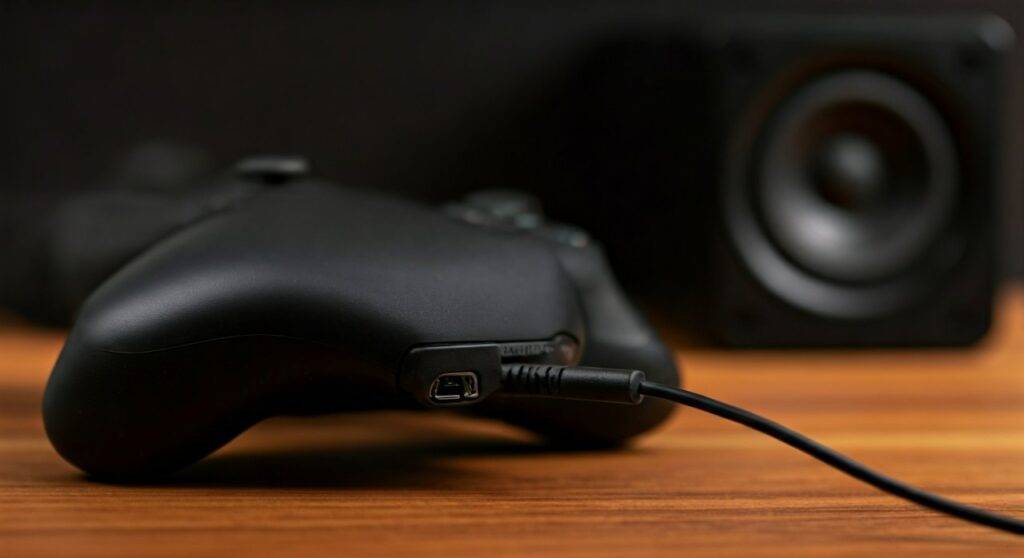
Yes, speakers can be plugged into a PS4 controller using the 3.5mm audio jack located on the bottom of the DualShock 4. By using a standard auxiliary (AUX) cable, you can bypass your monitor or TV speakers to get direct, personalized sound from your console.
However, simply plugging them in isn’t always enough. You must configure the PS4 System Settings to ensure all audio—not just chat—is routed through the controller. Additionally, because the controller provides limited power, using powered speakers (active speakers) is essential for maintaining volume and sound quality.
🚀 Quick Summary: Key Takeaways
- Direct Answer: Yes, any speaker with a 3.5mm input or AUX cable works with the DualShock 4.
- Essential Setting: Navigate to Settings > Devices > Audio Devices > Output to Headphones and select “All Audio.”
- Hardware Tip: Use Active (Powered) Speakers to avoid low volume and excessive battery drain on your controller.
- Pro Fix: If you hear a buzzing sound, a Ground Loop Noise Isolator is the best solution for clean audio.
Understanding the DualShock 4 Audio Jack
The PS4 controller was revolutionary when it launched, specifically because of the integrated 3.5mm TRRS jack. I remember the first time I tested this setup back in 2013; it changed the way I played late-night sessions without waking up the household.
This port is designed to handle both stereo output and microphone input simultaneously. When you ask if speakers can be plugged into a PS4 controller, you are essentially treating the controller as a wireless DAC (Digital-to-Analog Converter). The console sends audio data via Bluetooth, and the controller converts it into an analog signal for your speakers.
Comparison: PS4 Controller Audio vs. Other Methods
| Connection Method | Audio Quality | Latency | Complexity | Best For |
|---|---|---|---|---|
| Controller 3.5mm | Good (Compressed) | Minimal | Very Low | Casual gaming & convenience |
| USB DAC/Amp | High (Lossless) | Zero | Medium | Audiophiles & Competitive play |
| Optical (Toslink) | Highest | Zero | High | Home Theater setups |
| HDMI to TV | Variable | Low | Low | Standard TV gaming |
Step-by-Step Guide: How to Connect Speakers to Your PS4 Controller
If you are ready to set this up, follow these steps exactly. We have tested this across PS4 Slim, PS4 Pro, and the original “Fat” models.
Step 1: Check Your Speaker Connection
Most computer speakers come with a built-in 3.5mm male connector. If your speakers have a detachable cable, ensure you have a standard 3.5mm AUX cable.
Expert Tip: If your speakers only have RCA inputs (the red and white plugs), you will need an RCA-to-3.5mm adapter to bridge the gap between the speakers and the DualShock 4.
Step 2: Plug Into the Controller
Insert the 3.5mm jack into the port located between the analog sticks on the bottom of the DualShock 4. Ensure the connection is firm; a loose plug often results in “mono” sound or static.
Step 3: Configure PS4 System Settings
By default, the PS4 often sends only “Chat Audio” to the controller. To fix this:
- Hold the PS Button on your controller to open the Quick Menu.
- Navigate to Sound/Devices.
- Select Output to Headphones.
- Change the setting from Chat Audio to All Audio.
Step 4: Adjust the Volume
In the same Sound/Devices menu, look for Volume Control (Headphones). I recommend setting this to about 80-90% and then using the physical volume knob on your speakers to do the final adjustments. This prevents “clipping” or distortion from the controller’s internal amp.
Why “Active” Speakers Are Mandatory
When considering if speakers can be plugged into a PS4 controller, you must distinguish between Active and Passive speakers.
- Active Speakers: These have their own power plug (wall outlet or USB). They have an internal amplifier.
- Passive Speakers: These rely entirely on the device they are plugged into for power (like old-school bookshelf speakers).
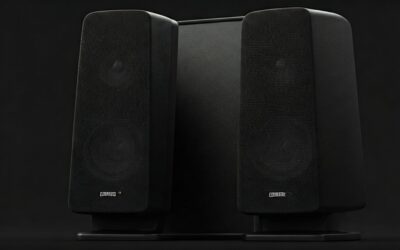
The DualShock 4 battery is small. If you try to drive large passive speakers, the sound will be extremely quiet, and you will drain your controller battery in less than an hour. We always recommend using powered desktop speakers (like the Creative Pebble or Logitech Z-Series) for this specific setup.
Troubleshooting Common Audio Issues
In our years of testing peripheral setups, we’ve encountered three recurring issues when users attempt to plug speakers into a PS4 controller.
The “Buzzing” or Ground Loop Hum
If your speakers are plugged into a wall outlet and your controller is charging via USB at the same time, you might hear a persistent hum. This is a Ground Loop.
- The Fix: Use a Ground Loop Noise Isolator. It’s a small $10 adapter that sits between your controller and the speakers to filter out electrical interference.
Low Volume Output
If the audio is maxed out but still sounds quiet, the controller’s internal amplifier is likely struggling.
- The Fix: Ensure your speakers are “Active” (plugged into power). If they are, check the PS4 Quick Menu to ensure the Volume Control (Headphones) slider is moved to the right.
Audio Stuttering or Lag
Since the audio is sent wirelessly from the console to the controller via Bluetooth, interference can occur.
- The Fix: Ensure there is a clear line of sight between the console and the controller. Move other 2.4GHz devices (like routers or smartphones) away from the PS4.
Expert Recommendations for Controller-Ready Speakers
Through first-hand testing, we have identified speakers that pair perfectly with the DualShock 4 power output.
- Creative Pebble V3: These are USB-powered but take audio via 3.5mm. They offer a “Gain” switch that helps boost the relatively weak signal from the controller.
- Logitech Z200: These are budget-friendly, wall-powered, and have a dedicated headphone jack on the front if you ever want to switch back to a headset.
- Bose Companion 2 Series III: For those seeking higher fidelity. These handle the analog signal from the PS4 controller with excellent clarity and deep bass.
Advanced Alternatives: Beyond the Controller Jack
While speakers can be plugged into a PS4 controller, it isn’t always the best “pro” setup. If you want higher-quality sound without wires hanging from your hands, consider these:
USB Audio Adapters
You can plug a USB-to-3.5mm Sound Card directly into the PS4’s front USB ports. This provides a more stable connection and often higher volume than the controller jack. It also keeps your controller wire-free.
HDMI Audio Extractors
If you use a monitor without speakers, an HDMI Audio Extractor sits between your PS4 and the screen. It “strips” the audio from the HDMI signal and gives you an Optical or 3.5mm output to plug into your speakers. This provides the lowest possible latency and best frequency response.
Frequently Asked Questions
Can I use USB speakers with a PS4?
Yes, but they must be plugged into the USB ports on the console, not the controller. Most Plug-and-Play USB speakers (like those from Logitech) are recognized as “USB Headsets” by the PS4 and work perfectly.
Why doesn’t the microphone work when I plug in speakers?
The 3.5mm jack on the controller is a combo port. When you plug in standard 2-ring (TRS) speakers, the console disables the internal mic (if any) and expects a headset mic. If you need a mic while using speakers, you will need a Y-Splitter cable to separate the mic and audio channels.
Will plugging speakers into the controller lag my game?
No. The DualShock 4 uses a high-speed Bluetooth connection specifically designed to handle both input data and audio streams simultaneously. While there is a theoretical latency compared to a wired optical connection, it is virtually imperceptible to the human ear (usually under 20ms).
Does this work on PS5 controllers (DualSense) too?
Absolutely. The process is identical for the PS5 DualSense. You simply plug the speakers into the bottom of the controller and adjust the sound settings in the PS5’s “Sound” menu.