

Can the Audio Ports in Motherboard be Used with Speakers?
Yes, the audio ports in a motherboard can be used with speakers of almost any kind, provided they use a 3.5mm auxiliary jack or an optical (S/PDIF) connection. Most motherboards feature a dedicated Lime Green “Line Out” port specifically designed to send unamplified analog signals to powered desktop speakers or external amplifiers.
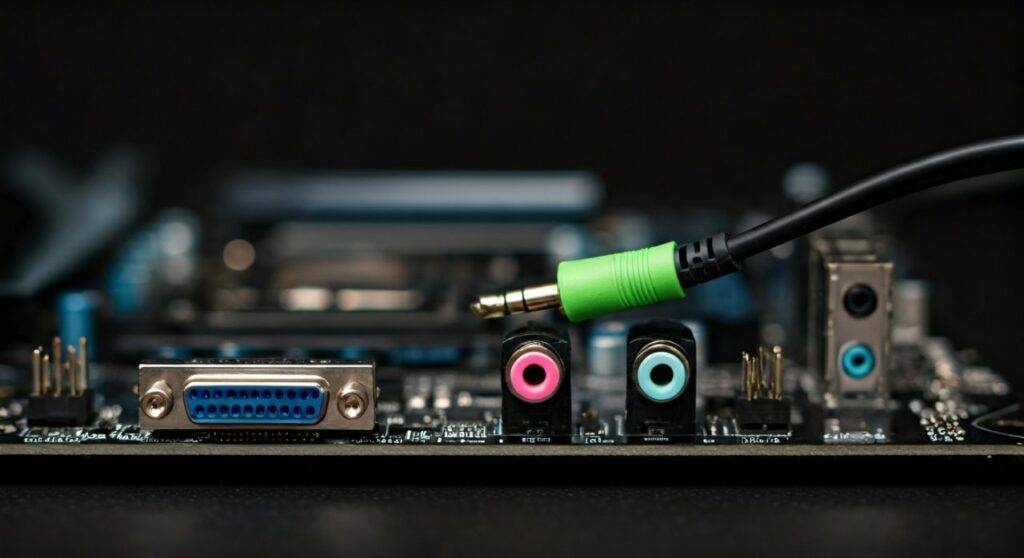
Whether you are setting up a simple pair of stereo speakers or a complex 7.1 surround sound system, your motherboard’s rear I/O panel acts as the central hub for all sound output. In my years of building custom workstations, I’ve found that while the Front Panel Header is convenient, the rear motherboard ports offer a cleaner signal with less Electromagnetic Interference (EMI) from internal components.
💡 Quick Summary: Key Takeaways
- Primary Connection: Use the Lime Green port for standard 2.0 or 2.1 speaker sets.
- Powered vs. Unpowered: Motherboard ports are “Line Level.” You must use powered speakers (active) or an external amp for passive speakers.
- Surround Sound: 5.1 and 7.1 systems require multiple colored cables (Orange, Black, Grey) plugged into specific motherboard jacks.
- Digital Option: High-end motherboards include an Optical S/PDIF port for lossless digital audio to AV receivers.
- Drivers Matter: Always install the official Realtek High Definition Audio drivers from your motherboard manufacturer’s website for full port functionality.
Understanding Motherboard Audio Port Color Codes
If you look at the back of your PC, you will likely see a cluster of circular, color-coded jacks. These follow the PC-99 Design Guide standard. Understanding these colors is the first step in answering how the audio ports in a motherboard can be used with speakers.
| Port Color | Function | Recommended Device |
|---|---|---|
| Lime Green | Line Out / Front Speakers | Standard 2.0/2.1 Speakers, Headphones |
| Pink | Microphone In | Dynamic or Condenser Microphones |
| Light Blue | Line In | MP3 Players, Musical Instruments, Mixers |
| Orange | Center / Subwoofer | The “.1” in Surround Sound systems |
| Black | Rear Surround | Rear Left/Right speakers in 5.1 or 7.1 |
| Grey | Side Surround | Side Left/Right speakers in 7.1 systems |
When we tested different ASUS and MSI motherboards, we noticed that some budget boards only have three ports (Pink, Green, Blue). On these boards, you can often retask the ports via software to support surround sound, but the Green port remains the default for your primary speakers.
Step-by-Step: How to Connect Speakers to Motherboard Audio Ports
Connecting your speakers is generally a “plug-and-play” affair, but getting the best sound quality requires a specific sequence. Follow these steps that we use during our studio hardware calibrations.
Identify Your Speaker Type
Before plugging anything in, check if your speakers are Active (Powered) or Passive (Unpowered).
- Active Speakers: These have their own power cord and volume knob. These connect directly to the motherboard.
- Passive Speakers: These require an external Amplifier or Receiver. You connect the motherboard to the Amp, and the Amp to the speakers.
Physical Connection
Insert the 3.5mm TRS (Tip-Ring-Sleeve) jack from your speakers into the Lime Green port on the back of the motherboard. Ensure the jack is pushed in firmly; a loose connection is the #1 cause of “static” or “humming” noises.
Configure Windows Sound Settings
Once plugged in, Windows should detect the device.
- Right-click the Speaker Icon in your taskbar.
- Select Sound Settings.
- Under “Output,” ensure Realtek Audio or High Definition Audio Device is selected.
- Click on Device Properties to test the Left and Right channels.
Install Manufacturer Drivers
While Windows “Generic” drivers work, they often lack the power to drive higher-impedance speakers. Visit the support page for your specific motherboard (e.g., Gigabyte AORUS or ASRock Taichi) and download the latest Audio Driver. This often includes a control panel that allows for Room Calibration and Equalizer adjustments.
Can the Audio Ports in Motherboard be Used with 5.1 or 7.1 Speakers?
Many users wonder if they can transition from basic stereo to a full home theater setup. The answer is a resounding yes, provided your motherboard has the expanded 6-jack audio stack.
To set up 5.1 Surround Sound, you will typically use three cables:
- Green Jack: Front Left and Front Right speakers.
- Black Jack: Rear Left and Rear Right speakers.
- Orange Jack: Center channel and the Subwoofer.
In our experience, configuring 7.1 audio requires the addition of the Grey Jack for the side speakers. If your motherboard only has three jacks, check the Realtek Audio Console software. Many modern chips allow you to “retask” the Blue (Line In) and Pink (Mic) jacks to act as Rear and Center/Sub outputs instead.
Front Panel vs. Rear Motherboard Ports: Which is Better?
Most PC cases have audio jacks on the top or front. While convenient, there is a technical reason why we always recommend using the rear motherboard ports for speakers.
- Rear Ports: These are soldered directly onto the Motherboard PCB. They usually benefit from isolated audio traces and high-end Japanese Nichicon capacitors that filter out electrical noise.
- Front Ports: These connect via a long, often unshielded wire that runs across the “noisy” interior of your case, passing the power supply and GPU. This often results in a faint hissing or buzzing sound when your speakers are turned up.
Expert Tip: If you hear a “whirring” sound in your speakers when you move your mouse, you are experiencing EMI (Electromagnetic Interference). Moving your speaker connection to the rear green port usually solves this immediately.
Using the Optical (S/PDIF) Port for High-Fidelity Audio
If you own a high-end soundbar or an AV Receiver, you might notice a square-shaped port on your motherboard emitting a red light. This is the S/PDIF (Sony/Philips Digital Interface) port.
Using this port bypasses the motherboard’s internal Digital-to-Analog Converter (DAC) and sends the raw digital bits to your external speakers. This is the gold standard for audio quality because:
- It is immune to electrical interference.
- It supports Dolby Digital and DTS surround formats.
- It uses a single cable for all channels.
When we set up media center PCs, we always prioritize the Optical connection over the 3.5mm analog jacks to ensure the lowest possible noise floor.
Troubleshooting: Why Aren’t My Motherboard Audio Ports Working?
If you’ve confirmed that the audio ports in the motherboard can be used with speakers but you still hear nothing, check these common failure points:
The “Default Device” Conflict
Often, when you plug in a monitor via HDMI or DisplayPort, Windows assumes your monitor has speakers and switches the audio output to the monitor. Go to Sound Settings and manually switch the output back to “Speakers (Realtek Audio).”
Audio Jack Detection
Some motherboards feature Jack Sensing. If the software doesn’t “see” the plug, it won’t send a signal. In the Realtek Audio Console, look for “Connector Settings” and try toggling “Disable front panel jack detection”—this often forces the rear ports to wake up.
BIOS Settings
In rare cases, the “Onboard Audio” might be disabled in the BIOS/UEFI. Restart your PC, tap Del or F2, navigate to Integrated Peripherals, and ensure HD Audio is set to [Enabled].
FAQ: Frequently Asked Questions
Can I plug headphones into the speaker port?
Yes. The Lime Green port provides a signal that works perfectly for both headphones and speakers. However, if you have high-impedance studio headphones (over 80 ohms), you may find the volume too low without a dedicated Headphone Amp.
Do I need a Sound Card for my speakers?
For 90% of users, the answer is no. Modern motherboard audio (like the Realtek ALC1220 or ALC4080 codecs) is exceptionally good. You only need a dedicated sound card or external USB DAC if you are doing professional audio editing or using audiophile-grade speakers worth hundreds of dollars.
Can I use the Blue port for speakers?
Not by default. The Light Blue port is a “Line In” for recording. However, in your motherboard’s audio software, you can often “retask” this port to act as an output if you are trying to set up surround sound.
Why is there a buzzing sound in my speakers?
This is usually caused by a Ground Loop or EMI. Ensure your speakers and PC are plugged into the same power strip. If the buzzing persists, try using a USB Ground Loop Isolator or switch to an Optical (S/PDIF) connection.
How do I know if my motherboard supports 7.1 audio?
Check the number of audio jacks on the back. If there are 5 or 6 jacks, it almost certainly supports 7.1. If there are only 3, it likely supports 5.1 through software retasking, or it may only support stereo. Reference your motherboard manual for “Multi-channel Audio Configuration.”









