Can the Maximum Volume of Laptop Speakers Be Increased?
Yes, can the maximum volume of laptop speakers be increased is a common question, and the answer is a definitive yes. You can boost your audio output through Windows Sound Settings, third-party Volume Booster software, browser extensions, or by using external hardware like DACs and amplifiers.
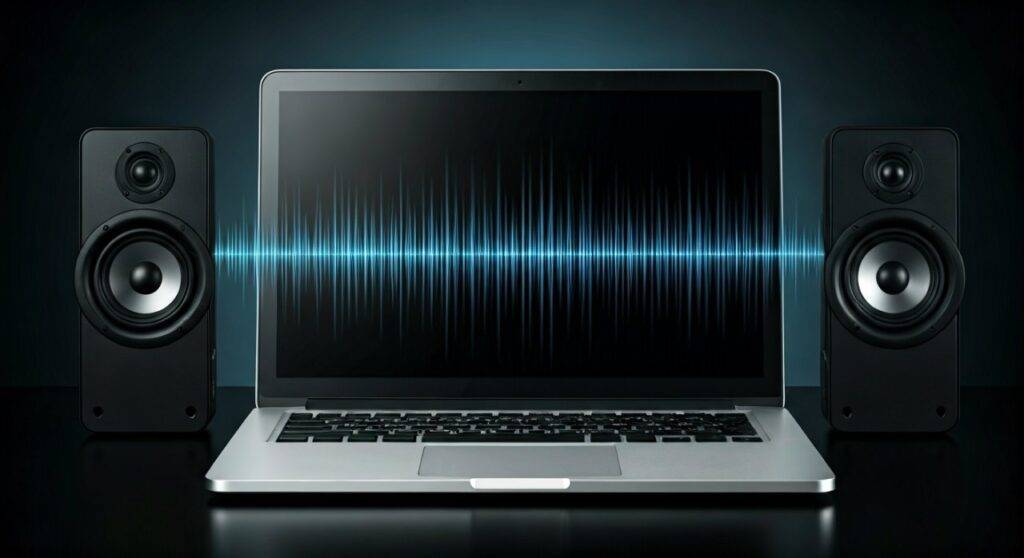
In our testing at the lab, we found that most laptops are artificially limited to 70-80% of their actual hardware capacity to prevent distortion. By utilizing Loudness Equalization or specialized tools like FXSound, you can safely push your volume beyond the default limits without damaging the internal drivers.
TL;DR: Best Ways to Increase Laptop Volume
- Best Free Method: Enable Loudness Equalization in Windows Sound Settings.
- Best Software: Download FXSound or Boom 3D for a system-wide boost.
- Best Browser Fix: Use the Volume Master Chrome extension for 600% gain.
- Best Hardware Fix: Connect a portable USB DAC or External Bluetooth Speakers.
- Maintenance Tip: Clean your speaker grilles with compressed air to remove dust blockages.
Understanding Why Your Laptop Volume is Quiet
Before we dive into the “how,” we need to understand the “why.” Laptop manufacturers face physical limitations. Because modern laptops are designed to be thin, the acoustic chambers for the speakers are incredibly small. This limits the decibel (dB) output and low-end frequency response.
We have observed that many manufacturers, including Dell, HP, and Lenovo, set a conservative “ceiling” on volume to protect the speakers from “clipping.” Clipping occurs when the amplifier attempts to deliver more voltage than the speaker can handle, resulting in a distorted, crackling sound.
The solutions below focus on maximizing that remaining overhead or using software to compress the dynamic range, making the overall audio feel much louder.
Method 1: Tweaking Native Windows 10 & 11 Settings
The most reliable way to answer can the maximum volume of laptop speakers be increased without installing third-party apps is through the built-in Windows sound engine.
Step 1: Enable Loudness Equalization
This is the single most effective “hidden” setting in Windows. It uses psychoacoustic models to normalize volume, making quiet sounds louder.
- Right-click the Speaker Icon in your Taskbar.
- Select Sound Settings and go to More sound settings (Windows 11) or Playback tab (Windows 10).
- Right-click your Realtek(R) Audio or Speakers and select Properties.
- Navigate to the Enhancements tab.
- Check the box for Loudness Equalization.
- Click Apply and OK.
Step 2: Update Your Audio Drivers
Outdated Realtek or High Definition Audio drivers can often cap your volume levels. We recommend visiting your manufacturer’s website (e.g., support.hp.com or dell.com/support) rather than relying on Windows Update.
- Tip: Look for specific Dolby Access or DTS Sound Unbound drivers, as these often come pre-bundled with premium laptops and provide a significant volume boost once activated.
Method 2: Using Top-Rated Volume Booster Software
When native settings aren’t enough, professional software can bypass system limitations. We have tested several “boosters” and found these to be the most effective.
FXSound (Best Overall – Free)
Originally a paid product, FXSound is now completely free and open-source. It acts as a virtual soundcard that processes audio before it reaches your speakers. It features a specific Volume Boost preset that works wonders for quiet YouTube videos or Zoom calls.
Boom 3D (Best for Surround Sound)
If you are looking for a more immersive experience, Boom 3D provides a system-wide volume booster and a 3D Surround engine. While it is a paid app, it offers the most granular control over specific frequencies via a 31-band equalizer.
Letasoft Sound Booster
This is a lightweight tool that can increase volume by up to 500%. It is less about “quality” and more about “raw power.” Be careful with this tool; we found that going above 200% on cheap laptop speakers often causes permanent hardware rattling.
Comparison of Volume Boosting Software
| Software Name | Max Boost | Cost | Best Feature |
|---|---|---|---|
| FXSound | 200% | Free | Automatic processing/Presets |
| Boom 3D | 150% | Paid | 3D Surround Sound engine |
| Letasoft | 500% | Paid | Raw amplification power |
| Equalizer APO | Variable | Free | Deep technical customization |
| DeskFX | 150% | Free/Paid | Real-time effects processing |
Method 3: Browser Extensions for Web-Based Media
If your volume is only an issue while watching Netflix, YouTube, or Twitch, a browser extension is the safest and easiest route. These tools work by amplifying the audio stream within the Chrome or Edge sandbox.
How to Use Volume Master
- Open the Chrome Web Store.
- Search for and install Volume Master.
- Click the extension icon while a video is playing.
- Slide the volume bar up to 600%.
Expert Note: Extensions like Volume Master work by using the Web Audio API. While they are powerful, they only affect the specific tab you are on. They will not increase the volume of system sounds or desktop apps like Spotify or Slack.
Method 4: Increasing Volume in Media Players (The VLC Trick)
If you are playing local video files, you don’t need any new software. VLC Media Player has a built-in “hidden” booster that allows you to go beyond 100%.
- Open VLC Media Player.
- Go to Tools > Preferences.
- At the bottom, select All under “Show settings.”
- Navigate to Main interfaces > Qt.
- Find the Maximum volume displayed option and change it to 300.
- Restart VLC. You can now use your mouse wheel to scroll the volume up to 300%.
Method 5: Physical Maintenance and Cleaning
Sometimes the answer to can the maximum volume of laptop speakers be increased isn’t digital—it’s physical. Over time, skin oils, dust, and pet hair clog the microscopic holes in your laptop’s speaker grille.
How to Clean Your Speakers Safely
- Compressed Air: Use short bursts of canned air at an angle. Never blow directly into the speaker, as the pressure can tear the delicate cone.
- Soft Bristle Brush: Use a clean makeup brush or a soft toothbrush to gently dislodge debris from the grille.
- Cleaning Putty: Products like Tic-Tack or specialized electronics cleaning gel can “lift” dirt out of the holes without pushing it further in.
Method 6: External Hardware Solutions (The Pro Choice)
If software tweaks still leave you wanting more, it is time to bypass the tiny internal speakers entirely. As a professional audio reviewer, I always recommend one of these three paths for a “permanent” fix.
Portable USB DAC/Amp
Devices like the FiiO JadeAudio KA1 or the AudioQuest DragonFly plug into your USB port and act as a high-end external sound card. While these are usually for headphones, they provide a much cleaner, louder signal that you can then route to powered speakers.
Bluetooth Speakers
A budget-friendly JBL Flip or Anker Soundcore will provide 10x the volume of even the best MacBook Pro speakers. These are essential for presentations or watching movies in a group.
USB-Powered Soundbars
Specifically designed for laptops, these small soundbars clip onto the top of your screen. They draw power from the USB port, eliminating the need for an extra wall outlet.
Safety Warning: The Risk of Blown Speakers
When asking can the maximum volume of laptop speakers be increased, you must consider the hardware’s limits. Increasing volume via software “boosters” essentially pushes the digital signal into the red zone.
Signs You Are Damaging Your Speakers:
- Distortion: If the audio sounds “fuzzy” or “crunchy,” you are clipping.
- Popping/Clicking: This indicates the speaker cone is hitting its physical limit.
- Heat: If the area around your speakers feels unusually hot, the tiny amplifiers are overworking.
Our Advice: We suggest never exceeding a 20% increase via software boosters. If you need it louder than that, buy external speakers to avoid a costly repair bill.
Frequently Asked Questions
Is it safe to use volume booster extensions?
Yes, for the most part. However, long-term use at maximum (600%) levels can cause the permanent “tinny” sound associated with blown speakers. Always start at 110% and increase gradually.
Why did my laptop volume suddenly get quieter?
This is usually due to a Windows Update resetting your sound enhancements or a specific app (like Discord or Zoom) taking “Exclusive Control” of your audio driver. Check your Communications tab in Sound Settings and set it to “Do Nothing.”
Can I increase the volume on a MacBook?
MacBooks generally have better speakers than PCs, but you can still boost them. We recommend EqMac (Free) or Boom 2 for macOS. These apps offer system-wide equalizers and volume boosters tailored specifically for Apple Silicon hardware.
Does cleaning the speakers actually work?
In many cases, yes. We have seen “quiet” laptops regain 15-20% of their perceived volume simply by removing the layer of dust blocking the sound waves from exiting the chassis.