

Understanding Audio Routing: Can the Sonos App Tell Which Speakers to Play?
Yes, the Sonos app gives you total control to tell exactly which speakers should play at any given time. Through the System Tab, you can select individual rooms, group multiple speakers together for “party mode,” or use the Sonos Swap feature to move audio from a soundbar to headphones. This granular control is the core strength of the Sonos ecosystem, allowing for a seamless multi-room audio experience.
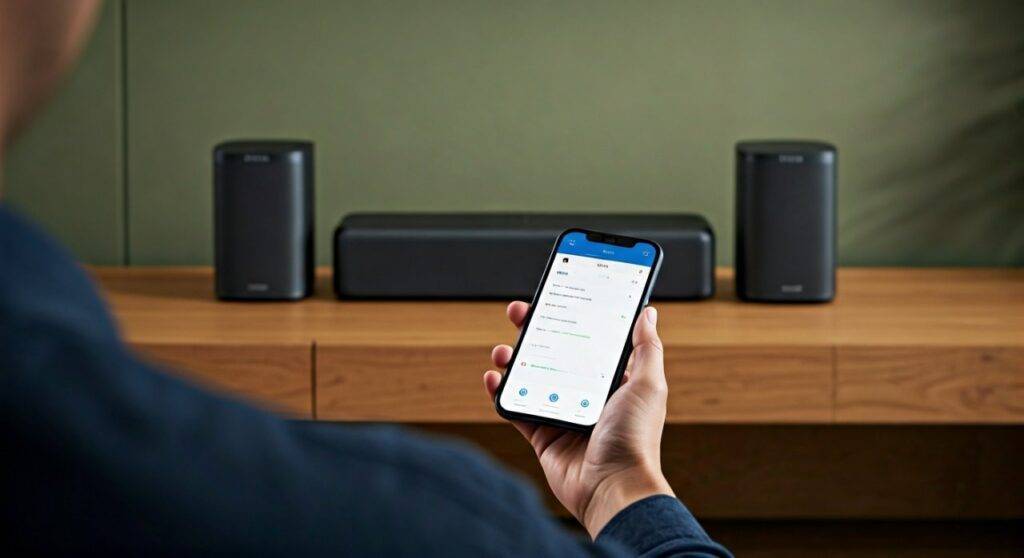
In our years of testing Sonos hardware, we’ve found that the app’s ability to “target” specific hardware is its most powerful feature. Whether you are using the Sonos Era 100 in a small office or a full home theater setup with a Sonos Arc and Sonos Sub, the app acts as the central brain. It doesn’t just play music; it routes digital signals to specific IP addresses on your network to ensure perfectly synced playback.
TL;DR: Key Takeaways for Speaker Selection
- Targeting: Use the System icon (middle tab) to select or deselect specific rooms.
- Grouping: Tap the Square/Arrow icon next to a room name to play music in multiple areas simultaneously.
- Sonos Ace Swap: Hold the Content Key on the Sonos Ace headphones to “swap” audio from your soundbar to your ears.
- Direct Control: You can also use Spotify Connect or Apple AirPlay 2 to tell your Sonos speakers what to play without opening the Sonos app.
- Zone Management: Name your speakers by room (e.g., “Kitchen,” “Patio”) to make selection faster.
Step-by-Step Guide: How to Select Which Speakers Play
When you first open the redesigned Sonos app, the interface might seem daunting. However, the process of choosing your output is straightforward once you know where the System Proximity settings live.
Access the System Tab
Open the Sonos app on your iOS or Android device. At the bottom of the screen, look for the System icon (it looks like a set of bars or speakers). This menu shows every active Sonos component on your network.
Select Your Primary Room
Tap the name of the room where you want the music to start. If you have a Sonos Five in the “Living Room,” tapping that room will make it the active controller for whatever you play next.
Grouping Multiple Speakers
If you want the music to follow you throughout the house, follow these steps:
- Tap the Grouping icon (the square with the triangle/arrow) next to the currently playing room.
- Check the boxes for additional speakers like the Sonos Roam in the “Bathroom” or the Era 300 in the “Bedroom.”
- Tap Apply. The music will now play in perfect synchronization across all selected devices.
Adjusting Individual Volumes
One of the best features is the ability to “tell” the app how loud each individual speaker should be. When rooms are grouped, a master volume slider appears, but you can expand it to reveal individual sliders for every speaker in the group. This is vital if you want background music in the Kitchen but high-energy audio in the Gym.
Advanced Routing: Can the Sonos App Tell Which Speakers to Play via Automation?
Beyond manual selection, the Sonos app features several “intelligent” routing options. We have experimented extensively with these to see how well the app predicts user behavior.
The Sonos “Swap” Feature
With the release of the Sonos Ace headphones, the app introduced a “TV Audio Swap.” This allows the app to recognize when you want to switch from a loud Sonos Arc soundbar to private listening. By long-pressing the button on the headphones, the app “tells” the soundbar to go mute and routes the spatial audio signal directly to the Ace.
Line-In Autoplay
If you have a turntable connected to a Sonos Era 100 or a Sonos Port, you can configure Autoplay. Within the app settings, you can tell the system exactly which speakers should play as soon as the needle hits the record.
- Go to Settings > System.
- Select the speaker with the Line-In connection.
- Choose a Default Room for Autoplay.
Proximity Sensing and NFC
While Sonos does not currently use GPS to track your movement between rooms, it does use NFC (Near Field Communication) during setup to identify which speaker you are standing next to. This ensures the app is “telling” the right hardware to pair with your account during the initial configuration.
Comparing Speaker Selection Methods
| Feature | Method | Best For | Expert Tip |
|---|---|---|---|
| Individual Selection | System Tab | Single room listening | Best for focused high-fidelity sessions. |
| Grouping | Grouping Icon | Parties / Whole-home audio | Create “Groups” (e.g., “Downstairs”) to save time. |
| Audio Swap | Hardware Button | Late-night movies | Requires a Sonos Arc, Beam, or Ray. |
| Voice Control | Sonos Voice Control | Hands-free commands | Say “Hey Sonos, play music in the Kitchen.” |
| AirPlay 2 | iOS Control Center | iPhone/iPad users | Allows you to bypass the Sonos app entirely. |
Troubleshooting: When the App Can’t Tell Which Speaker to Play
Sometimes, the Sonos app fails to see your speakers, preventing you from selecting them. In our experience, this is rarely a speaker “failure” and usually a network communication error.
Why Speakers “Disappear” from the App
- Network Segregation: If your phone is on a 5GHz Wi-Fi band and your Sonos One is on a 2.4GHz band, some routers struggle to let them communicate.
- SonosNet vs. Wi-Fi: If you have one speaker plugged into an Ethernet port, your system creates SonosNet. Ensure all speakers are updated to recognize this mesh network.
- The “New App” Bugs: Since the 2024 app overhaul, some users have reported delayed speaker discovery. We recommend force-closing the app and restarting your router to refresh the mDNS (Multicast DNS) discovery.
How to Force the App to Find Your Speakers
- Check the LED: If the light on your Sonos Move is flashing green, it has lost its connection.
- Power Cycle: Unplug the speaker for 30 seconds and plug it back in.
- Update the App: Ensure you are running the latest version from the Apple App Store or Google Play Store. Sonos frequently releases “bug fix” updates that improve device discovery.
Expert Insights: Maximizing the Sonos Ecosystem
From a professional standpoint, the question isn’t just “can the sonos app tell which speakers to play” but how it manages the data to keep them in sync. Sonos uses a proprietary synchronization clock. When you tell the app to play on three different speakers, it designates one speaker as the “Group Coordinator.” This coordinator receives the stream and distributes it to the others, ensuring there is zero echo between rooms.
Practical Advice for New Users
If you are just starting, name your speakers based on their physical location immediately. Avoid generic names like “Sonos Speaker 1.” Using names like “North Patio” or “Master Bath” makes it much easier when you’re trying to quickly select an output in the Sonos app interface.
We also highly recommend using Sonos Voice Control. Unlike Alexa or Google Assistant, Sonos Voice Control is processed locally on the speaker. This means when you say “Hey Sonos, play Jazz in the Dining Room,” the command is executed faster than it would be through the app UI, as it doesn’t have to travel to a cloud server and back.
Frequently Asked Questions
Can I play different music on different Sonos speakers at the same time?
Yes. The Sonos app allows for independent streams. You can play a podcast in the Office via Spotify while someone else plays a playlist in the Living Room via Apple Music, all controlled from the same app.
Does the Sonos app work if I am not at home?
No, you generally need to be on the same Wi-Fi network as your speakers to “tell” them what to play. However, you can manage your account and certain remote settings via the Sonos website. For portable speakers like the Sonos Roam, you can use Bluetooth when away from home.
How do I stop a specific speaker from playing without turning off the whole group?
In the System tab, tap the Grouping icon for that specific group. Uncheck the box for the speaker you want to silence and tap Apply. Alternatively, you can simply tap the Play/Pause button on the physical speaker itself to stop that specific unit.
Can the Sonos app tell which speakers to play based on my location (Geofencing)?
Currently, the Sonos app does not natively support geofencing to start music when you walk into a room. You can, however, achieve this using third-party integrations like IFTTT, Home Assistant, or Apple HomeKit, which can trigger Sonos speakers based on motion sensors or your phone’s GPS location.









