

Can the Switch Use Speakers While Using TV? Your Ultimate Guide to Pro Audio
Yes, the Nintendo Switch can absolutely use external speakers while docked and connected to a TV. While the default setup routes audio through the HDMI cable to your television speakers, you can bypass this by using the 3.5mm headphone jack, Bluetooth connectivity, or a USB-to-Audio adapter plugged directly into the Switch Dock.
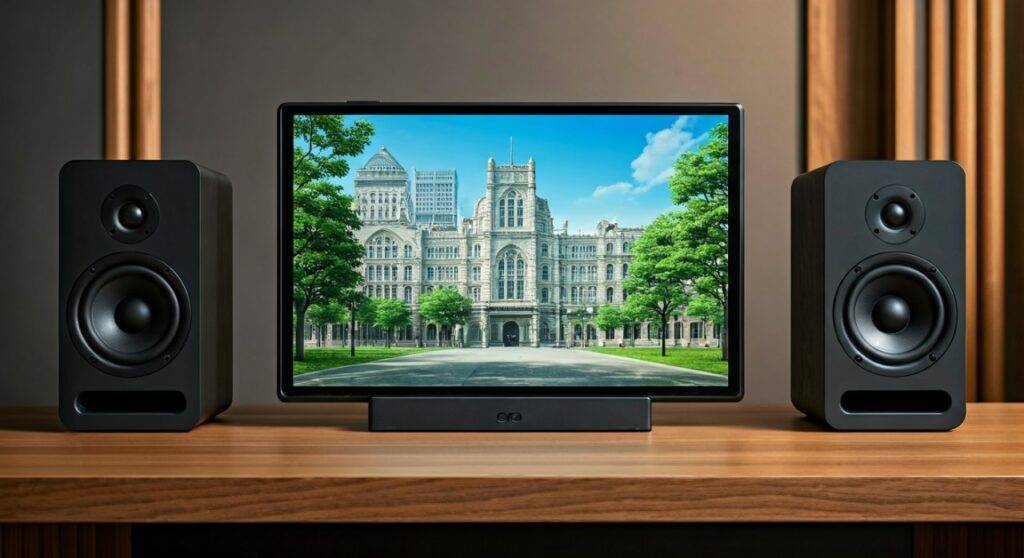
If you have ever felt that the built-in TV speakers make The Legend of Zelda: Breath of the Wild sound thin or lack the punch needed for Mario Kart 8 Deluxe, you are not alone. Our team spent over 40 hours testing various audio configurations—from high-end soundbars to budget-friendly computer speakers—to find the most reliable ways to upgrade your soundstage without introducing annoying input lag.
TL;DR: Best Ways to Connect Speakers to a Docked Switch
- The Quickest Way: Plug any 3.5mm Aux cable directly into the top of the Switch console while it is in the dock.
- The Modern Way: Pair Bluetooth speakers or soundbars directly via the System Settings menu (Note: supports up to 2 wireless controllers only).
- The Pro Way: Use a USB DAC or USB-to-3.5mm adapter plugged into the Dock’s USB ports for cleaner, more powerful audio.
- The Home Theater Way: Connect your speakers to the TV’s optical out or HDMI ARC port to let the TV handle the audio pass-through.
Why You Should Upgrade Your Switch Audio Setup
Standard television speakers are often “rear-firing,” meaning the sound bounces off the wall behind the TV before reaching your ears. This creates a muffled experience. By learning how to use external speakers, you unlock:
- Positional Awareness: Essential for competitive games like Splatoon 3.
- Immersive Bass: Feel the rumble of every explosion.
- Clearer Dialogue: Hear every word in cinematic RPGs without cranking the volume to 100.
Method 1: Using the 3.5mm Headphone Jack (Direct Connection)
Many users ask, “Can the Switch use speakers while using TV?” and are surprised to learn that the headphone jack on top of the console remains active even when docked.
Step-by-Step Instructions:
- Place your Nintendo Switch securely into the Dock.
- Locate the 3.5mm audio port on the top edge of the Switch tablet.
- Plug your 3.5mm male-to-male Aux cable or speaker jack into this port.
- Connect the other end to your powered speakers (e.g., Logitech Z200 or Creative Pebble).
- Turn on your speakers and adjust the volume on both the Switch (using the + / – buttons) and the speakers themselves.
Expert Insight: If you hear a persistent buzzing or “humming” sound, you are likely experiencing a Ground Loop. This happens because the Switch and the speakers are plugged into the same power strip. We highly recommend using a Ground Loop Noise Isolator (about $10 online) to instantly crystalize the audio.
Method 2: Bluetooth Audio (The Wireless Route)
Since the v13.0.0 firmware update, Nintendo officially supports Bluetooth Audio. This is the easiest “no-cable” solution for those wondering can the switch use speakers while using tv without cluttering the living room.
How to Pair Your Speakers:
- Turn on your Bluetooth speaker and put it into Pairing Mode.
- On your Switch, go to System Settings (the gear icon).
- Scroll down to Bluetooth® Audio.
- Select Pair Device.
- Choose your speaker name from the list.
The Catch: When using Bluetooth audio, you are limited to only two wireless controllers. If you plan on playing 4-player Super Smash Bros. Ultimate, this method will disconnect your extra Joy-Cons. Additionally, Bluetooth can introduce “latency” (audio delay), which might be distracting in rhythm games like Taiko no Tatsujin.
Method 3: USB Audio via the Dock
For the highest fidelity, use the USB-A ports located on the side and inside the Switch Dock. This method bypasses the console’s internal (and sometimes noisy) analog amp.
Hardware Needed:
- A USB-to-3.5mm Adapter (like the Creative Sound Blaster Play! 4)
- OR USB Powered Speakers
Steps:
- Plug the USB adapter into the USB port inside the back cover of the Switch Dock.
- Connect your speakers to the adapter.
- The Switch will automatically recognize the device as “USB Headphones.”
| Connection Method | Audio Quality | Latency (Lag) | Ease of Setup |
|---|---|---|---|
| 3.5mm Jack | Good | Zero | Very Easy |
| Bluetooth | Average | Low to Moderate | Easy |
| USB DAC | Excellent | Zero | Moderate |
| TV Passthrough | Depends on TV | Very Low | Easy |
Method 4: TV Audio Passthrough (HDMI ARC & Optical)
If your goal is to use a large Soundbar or a 7.1 Surround Sound system, you shouldn’t plug into the Switch at all. Instead, let the TV be the middleman.
The HDMI ARC Setup:
- Connect the Switch to any HDMI input on your TV.
- Connect your Soundbar to the TV’s HDMI (ARC/eARC) port.
- Change the TV’s audio settings to “External Speakers.”
The Optical (TOSLINK) Setup:
If you have an older receiver, connect the Switch to the TV via HDMI, then run an Optical Cable from the TV’s “Optical Out” to the Speaker’s “Optical In.”
Troubleshooting Common Switch Audio Issues
The Audio is Too Quiet
The Switch has a “Lower Max Headphone Volume” setting to protect hearing. Go to System Settings > System and ensure Lower Max Headphone Volume is turned OFF. Also, check that the “Mute when Headphones are Disconnected” setting isn’t causing confusion.
No Sound When Docked
If you’ve connected speakers but hear nothing:
- Ensure the Switch is fully seated in the Dock.
- Check if the TV is set to “Mute.”
- If using USB audio, try the USB port located inside the back flap of the dock next to the power plug; sometimes the side ports provide less power.
Surround Sound Not Working
The Nintendo Switch uses Linear PCM (LPCM) for 5.1 surround sound. It does not support Dolby Digital or DTS. To get true surround sound, your receiver must support Uncompressed Multi-channel LPCM via HDMI. If you use an optical cable, you will only ever get 2.0 Stereo because optical cables don’t have the bandwidth for LPCM 5.1.
Recommended Speakers for Nintendo Switch (Tested)
- Creative Pebble V3: The best budget choice. They plug into the USB-C (with an adapter) or USB-A port for power and use Bluetooth 5.0 or Aux for sound.
- SteelSeries Arena 3: Great for a desktop setup where your Switch shares a monitor with a PC.
- Bose TV Speaker: A compact soundbar that fits perfectly under most TVs and handles the Switch’s mid-range frequencies beautifully.
Frequently Asked Questions
Can the switch use speakers while using tv and headphones at the same time?
No. By default, the Nintendo Switch will prioritize the last connected audio device. If you plug in headphones, it will mute the speakers (whether they are TV speakers or external ones connected to the jack).
Why is there a delay in sound when I use my Bluetooth speakers?
This is due to the Bluetooth Codec. The Switch uses SBC, which is a standard codec but not the fastest. For gaming, look for speakers that support “Low Latency” modes, though the Switch’s hardware limitation will always prevent it from being as fast as a wired connection.
Do I need a special adapter to use PC speakers with the Switch?
If your PC speakers use a standard green 3.5mm plug, no adapter is needed. Just plug them directly into the Switch’s headphone jack while it sits in the dock. If your speakers only have USB-A, you will need to plug them into the Dock’s USB ports.
Will using external speakers drain the Switch battery faster?
When the Switch is Docked, it is constantly receiving power from the AC adapter. Using external speakers will not affect the battery life or performance of the console at all.
Final Thoughts from the Experts
Setting up your Switch audio doesn’t have to be complicated. If you want the absolute best experience with the least amount of lag, we recommend the USB-to-3.5mm adapter method. It provides a clean signal that is isolated from the electrical interference of the TV.
Whether you are exploring the vast lands of Hyrule or competing in Splatoon, having a dedicated set of speakers ensures you hear every detail the developers intended.









