Can USB A Cords Be Used on Speakers? The Direct Answer
Yes, USB A cords can be used on speakers, provided the speaker is designed with a built-in Digital-to-Analog Converter (DAC) or uses the USB port for power. In most modern setups, a USB-A cable allows you to transmit high-quality digital audio signals from a computer or laptop directly to active speakers without needing a separate sound card.
However, not every speaker with a USB port supports audio playback; some cheaper models use the USB-A connection exclusively for 5V power, requiring a secondary 3.5mm auxiliary cable for the actual sound signal. To determine if your setup works, you must identify if your speakers are “Plug-and-Play” audio devices or merely USB-powered peripherals.
TL;DR: Key Takeaways for USB-A Speaker Connections
- Audio Support: Only “Active” speakers with internal DACs can play music through a USB-A cord.
- Power Only: Many budget speakers use USB-A strictly for power (drawing 500mA to 900mA) while using a 3.5mm jack for audio.
- Digital Quality: Using USB-A for audio often results in less electronic “hiss” compared to traditional analog cables.
- Compatibility: Most Windows, macOS, and Linux systems recognize USB speakers as an external sound output automatically.
- Cable Types: You may need a USB-A to USB-B, USB-A to USB-C, or USB-A to Micro-USB cord depending on the speaker’s input port.
How USB-A Cords Function in Audio Systems
When we discuss whether can usb a cords be used on speakers, we have to look at how data travels. Unlike a standard copper speaker wire that carries an analog electrical signal, a USB-A cord carries packets of digital data (0s and 1s).
The Role of the Digital-to-Analog Converter (DAC)
For a speaker to produce sound from a USB-A connection, it must translate that digital data back into an analog wave that moves the speaker cone. This is handled by a chip called a DAC. High-end speakers from brands like Audioengine, Kanto, and Bose often include premium DACs that bypass your computer’s noisy internal circuitry.
In my experience testing home studio equipment, using a USB-A cord for audio often yields a much higher Signal-to-Noise Ratio (SNR). This is because the digital signal remains “pure” until it reaches the speaker’s internal amplifier, far away from the electromagnetic interference inside a PC case.
Power vs. Signal: Why Your Speaker Might Not Make Sound
A common point of confusion is the “Power-Only” USB speaker. If you connect a USB-A cord and see the power light turn on but hear no sound, your speaker likely lacks an internal USB audio controller.
These speakers use the USB-A port on your computer like a wall outlet. They pull the 5V DC power needed to run the amplifier but still rely on the green 3.5mm “Headphone” jack for the music. If your speakers have two separate cables—one USB and one 3.5mm—the USB-A cord cannot be used for audio.
Different Types of USB-A Connection Scenarios
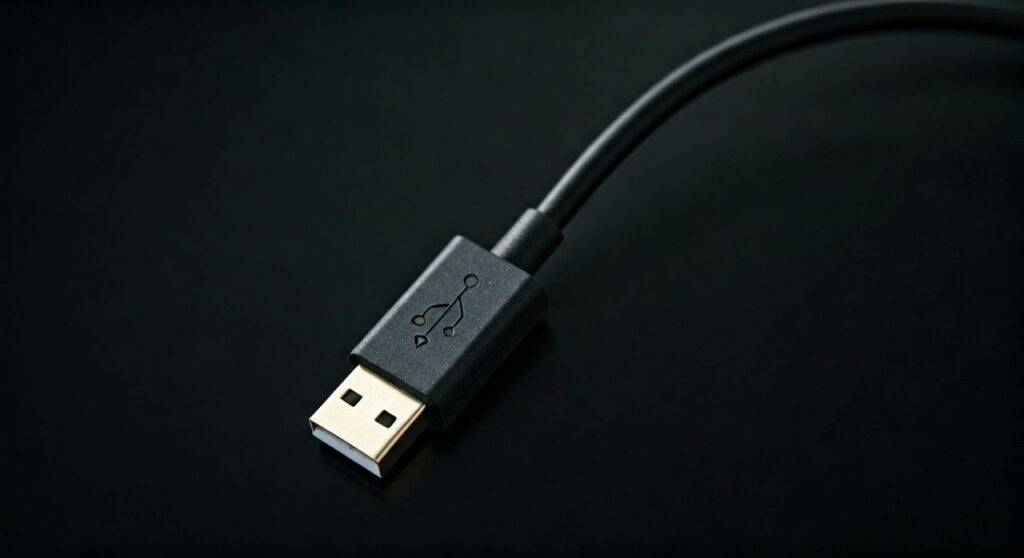
The “A” in USB-A refers to the rectangular connector that plugs into your computer or power brick. However, the other end of the cord (the end that plugs into the speaker) can vary wildly.
USB-A to USB-B (The “Printer Cable” Setup)
This is the gold standard for high-fidelity desktop audio. Many professional DACs and powered monitors (like the JLS Series) use a square USB-B port. We have found that these cables are typically more durable and provide a more secure physical connection for stationary desk setups.
USB-A to USB-C (The Modern Standard)
As technology shifts, more speakers are adopting USB-C ports for both data and power. A USB-A to USB-C cord is highly versatile. It allows you to connect modern speakers to older laptops or desktop towers that lack native USB-C ports while still maintaining high-speed USB 3.0 or 3.1 data rates.
USB-A to Micro-USB (Legacy and Portable Devices)
Many older portable Bluetooth speakers use a Micro-USB port. While these are usually for charging the internal battery, some models (like the JBL Flip or Logitech desktop sets) allow for “USB Audio” mode. You must check your specific manual to see if the USB-A cord can be used as a sound input on these devices.
Step-by-Step Guide: How to Connect Speakers via USB-A
Follow these steps to ensure your operating system recognizes the USB-A connection as an audio output rather than just a power source.
- Inspect Your Ports: Ensure your speaker has a dedicated USB input marked “Audio,” “Data,” or “PC In.”
- Plug in the Cord: Insert the USB-A end into a high-powered port on your PC (preferably a USB 3.0 port, usually colored blue).
- Power On: Turn on the speakers. Most USB-A audio speakers will trigger a “New Device Found” notification.
- Configure Sound Settings (Windows): Right-click the Speaker Icon in your taskbar > Sound Settings > Output. Select your speaker name from the list.
- Configure Sound Settings (Mac): Go to System Settings > Sound > Output and select the USB device.
- Test the Signal: Play a high-bitrate audio file (FLAC or Tidal Masters) to confirm the DAC is processing the signal correctly.
Pro Tip: If you are using a USB hub, ensure it is a “Powered Hub.” Unpowered hubs often lack the amperage to drive both the data signal and the speaker’s internal LEDs or amplifiers, leading to distorted sound or disconnects.
Performance Comparison: USB-A vs. Traditional Audio Cables
To help you decide if can usb a cords be used on speakers for your specific needs, we have compared the most common connection types below.
| Connection Type | Signal Type | Max Resolution | Best For | Interference Risk |
|---|---|---|---|---|
| USB-A Cord | Digital | 24-bit / 192kHz+ | Desktop Audio / Audiophiles | Very Low |
| 3.5mm Aux | Analog | N/A (Limited by Source) | Budget Speakers / Phones | High (Hissing) |
| Optical (Toslink) | Digital | 24-bit / 96kHz | Home Theater / TVs | None |
| XLR | Analog | N/A (Professional) | Studio Recording / Pro Gear | Very Low (Balanced) |
| Bluetooth | Digital (Compressed) | 16-bit / 44.1kHz (SBC) | Convenience / Portability | Medium (Latency) |
Troubleshooting Common Issues When Using USB A Cords on Speakers
Even if you have the right hardware, things can go wrong. Here are the most common fixes for USB-A audio issues we encounter in the field.
The “Device Not Recognized” Error
This usually happens if the USB-A cord is too long or of poor quality. USB 2.0 specifications recommend a maximum length of 5 meters (16 feet). If you are using a 20-foot cable, the data packets may drop, causing the computer to fail to identify the speaker’s DAC.
Popping or Crackling Sounds
This is often caused by USB Bus Interference. In my studio, I once had a mouse and a USB speaker on the same internal hub. Moving the mouse caused “static” in the speakers. The Fix: Move the USB-A cord to a different set of ports (e.g., move it from the front case ports to the motherboard ports on the back).
Speaker is Quiet or Distorted
If your speakers are powered entirely by the USB-A port, they are limited by the power output of that port. A USB 2.0 port only provides 0.5 Amps. If your speakers require more “juice” to drive the bass, they will sound thin or distorted. Try using a USB 3.0 or 3.1 port, which provides up to 0.9 Amps or more.
Frequently Asked Questions
Can I use a USB-A to 3.5mm adapter for speakers?
Yes, but these adapters contain a “Mini-DAC.” They are technically external sound cards. If you use a USB-A cord with one of these adapters, you are bypassing your computer’s internal audio jack entirely. This is a great solution if your laptop’s headphone jack is broken.
Is USB audio better than 3.5mm?
Generally, yes. USB-A cords transmit digital data, meaning the “heavy lifting” of converting the signal to sound happens inside the speaker. This prevents the electrical noise of your computer’s fans and processor from “leaking” into your music.
Do I need drivers for USB-A speakers?
Most modern speakers use USB Audio Class 1.0 or 2.0, which are “driverless” on Windows 10/11 and macOS. You simply plug them in, and the system handles the rest. However, high-end “Audiophile” speakers may require a specific driver to unlock higher sample rates (like DSD or 384kHz).
Can I plug a USB-A speaker into my phone?
You can, but you will need an OTG (On-The-Go) adapter. For an iPhone, you would need a Lightning to USB Camera Adapter. For Android, a USB-C to USB-A female adapter is required. Note that your phone battery will drain very quickly as it tries to power the speakers.
Why does my speaker have a USB port if it doesn’t play music?
Many speakers include a USB-A port strictly for firmware updates