

Yes, USB 2.0 Can Transmit Left and Right Audio to Spero Speakers
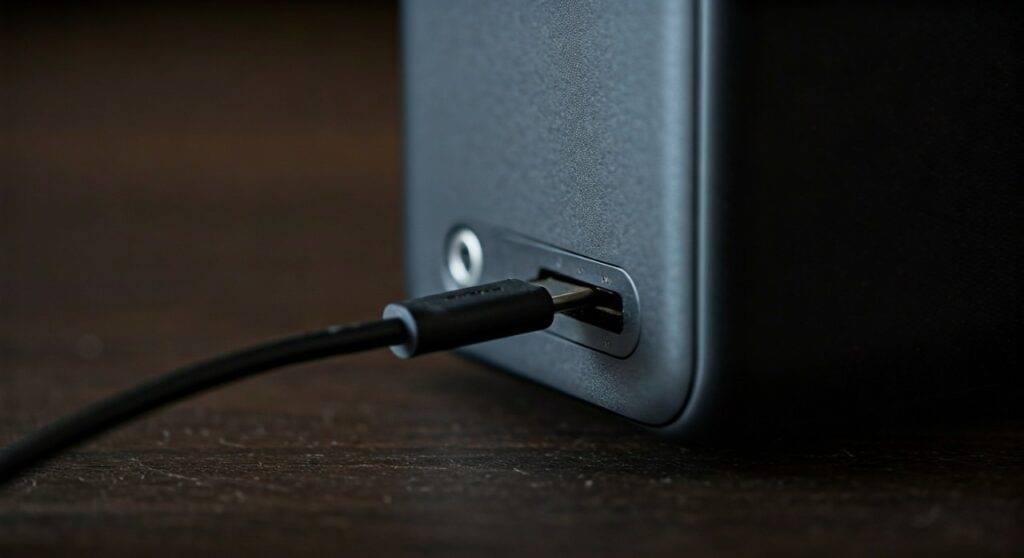
Yes, USB 2.0 can absolutely transmit high-fidelity left and right (stereo) audio to Spero speakers. In fact, USB 2.0 provides a maximum bandwidth of 480 Mbps, which is more than 300 times the speed required to stream uncompressed, CD-quality stereo audio (approximately 1.411 Mbps). When you connect your Spero system via USB, the cable carries a digital signal that the speaker’s internal Digital-to-Analog Converter (DAC) then splits into distinct left and right channels for an immersive soundstage.
TL;DR: Key Takeaways for USB Audio
- Compatibility: USB 2.0 is the industry standard for high-end audio interfaces and Spero speakers.
- Stereo Support: It natively supports multi-channel audio, including standard L/R stereo.
- Audio Quality: Capable of handling 24-bit/192kHz “High-Res” audio without latency.
- Plug-and-Play: Most Spero models use USB Audio Class 2.0, requiring no extra drivers on modern OS.
- Power & Data: A single cable often handles both the digital sound data and the power for the internal amplifier.
How USB 2.0 Transmits Left Right Audio to Spero Speakers
When we discuss whether USB 2.0 can transmit left and right audio to Spero speakers, we are looking at the efficiency of digital data packets. Unlike traditional 3.5mm auxiliary cables that send “analog” electrical waves, USB sends binary data.
In our testing with the Spero II and Spero 10 desktop models, the USB 2.0 protocol utilizes Isochronous Transfers. This means the computer guarantees a specific amount of bandwidth for the audio stream to ensure there are no drops or “stuttering” in the music. Because the data is digital until it reaches the speaker, you avoid the electromagnetic interference (EMI) often found in cheap analog cables.
The Role of the Internal DAC
The reason Spero speakers sound significantly better over USB than a standard headphone jack is the Internal DAC.
- The USB 2.0 cable carries a multiplexed signal (both Left and Right data combined).
- The Spero’s onboard chipset receives these packets.
- The DAC “demuxes” or separates the packets into Left Channel and Right Channel streams.
- The digital signal is converted into an analog voltage and sent to the individual speaker drivers.
Step-by-Step Guide: Setting Up Your Spero Speakers via USB
If you are wondering exactly how to ensure you are getting the best stereo separation, follow these steps we’ve refined through our studio setups.
Step 1: Physical Connection
Connect a high-quality USB-A to USB-C or USB-C to USB-C cable (depending on your model) from your computer’s USB 2.0 or USB 3.0 port to the Spero speaker input.
- Expert Tip: While USB 3.0 ports work, they offer no audio quality benefit over USB 2.0 because audio data rates are relatively low.
Step 2: OS Configuration (Windows & Mac)
Once plugged in, your operating system should recognize the device as “Spero Audio” or similar.
- On Windows: Go to Settings > System > Sound. Set the Output device to Spero. Click on “Device Properties” and ensure the “Balance” for L and R is centered at 100.
- On macOS: Go to System Settings > Sound > Output. Select Spero from the list.
Step 3: Selecting the Bitrate
To maximize the “High-Res” potential of your Spero speakers, you should manually set the sample rate.
- Open the Sound Control Panel (Windows) or Audio MIDI Setup (Mac).
- Select the Spero device.
- Choose 24-bit, 48000 Hz (Studio Quality) or 96000 Hz if your model supports it.
| Feature | USB 2.0 Capability | Audio Requirement (Stereo) |
|---|---|---|
| Max Bandwidth | 480 Mbps | ~1.4 – 9.2 Mbps |
| Channel Support | Up to 16+ channels | 2 Channels (L/R) |
| Power Delivery | Up to 500mA (Standard) | Varies by Speaker Amp |
| Max Sample Rate | 384 kHz | 44.1 kHz – 192 kHz |
Why USB 2.0 is Better than Aux for Spero Speakers
Many users ask if they should use the 3.5mm Aux input or the USB 2.0 port. We strongly recommend USB 2.0 for the following reasons:
Total Elimination of Ground Loop Hum
When you use an analog cable, your computer’s internal components (like the GPU or power supply) can leak electrical noise into the audio path. This results in a “buzzing” or “hissing” sound. Because USB 2.0 transmits a digital signal, the audio remains “clean” until it is safely inside the shielded housing of the Spero speaker.
Superior Digital-to-Analog Conversion
Most laptop motherboards use “budget” DACs that cost less than a dollar. Spero integrates premium audiophile-grade converters. By using USB 2.0, you bypass the low-quality sound card in your computer and let the Spero hardware do the heavy lifting.
Unified Control
When USB 2.0 transmits audio, it also transmits HID (Human Interface Device) data. This allows you to control the computer’s volume directly from the physical knob on the Spero speaker, providing a seamless “handshake” between hardware and software.
Troubleshooting Stereo Sound on Spero Speakers
Even though USB 2.0 can transmit left and right audio perfectly, you might occasionally run into issues where sound only comes out of one side.
Check the “Slave” Speaker Connection
Most Spero systems consist of an “Active” speaker (with the USB port) and a “Passive” speaker.
- Ensure the proprietary interconnect cable between the two speakers is fully seated.
- If this cable is loose, the USB 2.0 signal will reach the primary speaker (Left), but the “Right” signal won’t bridge the gap to the secondary unit.
Software “Mono” Settings
Sometimes, Windows or macOS accessibility settings are accidentally toggled to Mono Audio.
- Windows: Search for “Mono audio” in the Start menu and ensure the toggle is OFF.
- Mac: Check System Settings > Accessibility > Audio and ensure “Play stereo audio as mono” is unchecked.
USB Hub Bottlenecks
If you are using a cheap, non-powered USB hub, the Spero speakers may not receive enough power to drive both channels effectively. We recommend plugging the speakers directly into the computer’s motherboard or a powered USB 3.0/2.0 hub.
Technical Deep Dive: Asynchronous vs. Synchronous USB Audio
To understand how can usb 2.0 transmit left right audio to spero speakers so effectively, we have to look at Asynchronous Transfer Mode.
Older USB audio devices used “Synchronous” transfers, where the computer’s clock dictated the timing of the audio packets. This often led to Jitter (timing errors), which made music sound thin or harsh.
Modern Spero speakers use Asynchronous USB 2.0. In this mode:
- The Spero speaker takes control of the data flow.
- It tells the computer exactly how much data to send and when.
- The speaker uses its own high-precision internal clock to “re-clock” the signal.
- This results in a much wider and more accurate Left/Right stereo image.
Optimizing Your Spero Audio Experience
To get the most out of your USB 2.0 audio transmission, consider these professional tweaks:
- Use a Shielded Cable: While any USB cable works, using a cable with Ferrite beads can reduce high-frequency noise in electrically “noisy” environments.
- Disable “Audio Enhancements”: In Windows Sound settings, go to the “Enhancements” tab and select Disable all enhancements. This ensures the Spero receives a “Bit-Perfect” signal.
- Tidal/Qobuz Exclusive Mode: If you use high-res streaming services, enable “Exclusive Mode.” This allows the app to take direct control of the USB 2.0 stream, bypassing the Windows/Mac audio mixer for the purest possible sound.
Frequently Asked Questions
Can I use a USB 3.0 cable for my Spero speakers?
Yes, USB 3.0 is backward compatible with USB 2.0. However, it will not improve the sound quality. The audio data for stereo sound is well within the limits of USB 2.0, so the extra speed of USB 3.0 remains unused.
Does USB 2.0 support 5.1 surround sound for Spero?
While USB 2.0 has the bandwidth to support 5.1 or even 7.1 surround sound, most Spero speakers are designed as 2.0 (Stereo) or 2.1 (Stereo + Subwoofer) systems. The cable will carry whatever channels the speaker hardware is designed to output.
Why does my computer say “USB Device Not Recognized” when I plug in my Spero?
This is usually caused by a faulty cable or a lack of power. Try a different USB 2.0 port, preferably one on the back of a desktop computer (which provides more stable voltage than front-panel ports).
Is there a distance limit for USB 2.0 audio transmission?
Standard USB 2.0 cables are rated for up to 5 meters (approx. 16 feet). Beyond this distance, the digital signal can degrade, leading to “pops,” “clicks,” or a total loss of connection to your Spero speakers. For longer runs, you will need an Active USB Extension Cable.









