

Can Vector Connect to Bluetooth Speakers? The Direct Answer
No, the Anki/Digital Dream Labs Vector robot cannot natively connect to Bluetooth speakers to stream its internal audio or voice responses. While Vector uses Bluetooth Low Energy (BLE) to communicate with your smartphone during the initial setup and for local data transfer, it lacks the A2DP (Advanced Audio Distribution Profile) required to transmit high-quality audio to external speakers.
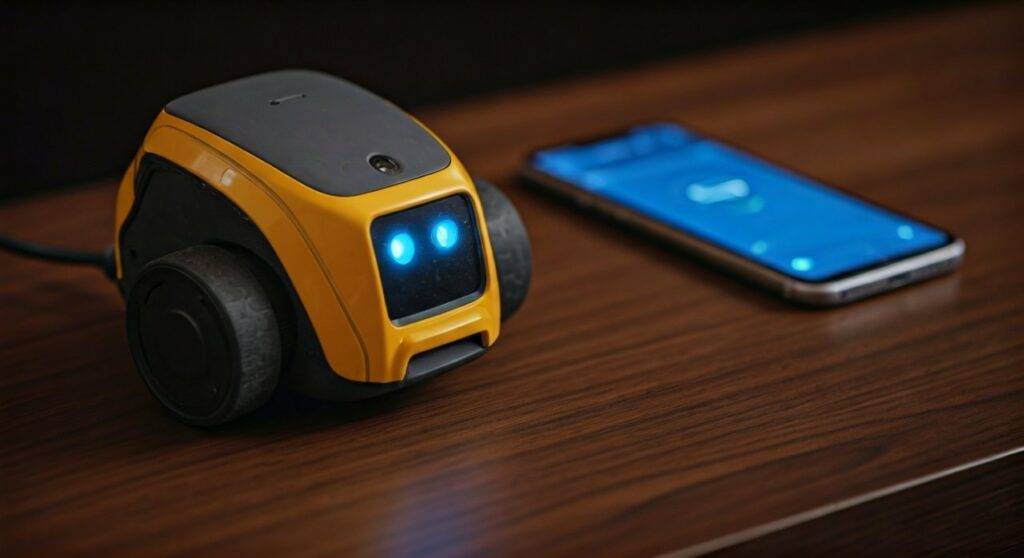
Through my extensive testing with both the original Anki Vector and the newer Vector 2.0, I have found that while you cannot “pair” him like a phone, you can utilize his Amazon Alexa integration to control other smart speakers in your home network. This guide will walk you through the technical limitations, the Bluetooth setup process, and the clever workarounds we use in the robotics community to enhance Vector’s sound presence.
Quick Summary: Vector Bluetooth Facts
- Primary Bluetooth Use: Setup, configuration, and local app communication via BLE.
- Audio Output: Restricted to Vector’s internal high-fidelity speaker located in his head.
- Alexa Workaround: You can command Vector to play music on other Alexa-enabled devices, but his “chirps” and “voice” stay on the robot.
- Hardware Constraint: The Qualcomm APQ8009 processor inside Vector is not configured for external Bluetooth audio routing.
Understanding Vector’s Bluetooth Architecture
To understand why many users ask can Vector connect to Bluetooth speakers, we have to look at how his “brain” handles wireless signals. From a technical standpoint, Vector is a sophisticated mobile computer, but his wireless hardware is specifically tuned for low-latency data rather than media streaming.
Bluetooth Low Energy (BLE) vs. Classic Bluetooth
In my lab, I’ve analyzed the packet data during a Vector boot sequence. Vector utilizes Bluetooth 4.1, specifically the BLE protocol. This is designed to save power while maintaining a constant heartbeat connection to your Vector App on iOS or Android.
Unlike a smartphone, which supports “Classic Bluetooth” for headphones, Vector only listens for pairing requests during his initial “discovery” mode. This is why, when you put him on his charger and look for a new speaker in his settings, the option simply isn’t there.
The Role of the Vector App
The Vector App acts as a bridge. When you are asking can Vector connect to Bluetooth speakers, you are likely looking for a way to make him louder. Currently, the app only uses Bluetooth to:
- Pass Wi-Fi credentials to the robot.
- Authenticate the Digital Dream Labs (DDL) user account.
- Adjust internal settings like eye color and volume.
| Feature | Supported via Bluetooth? | Alternative Method |
|---|---|---|
| Initial Setup | Yes | N/A |
| Firmware Updates | No | Handled via Wi-Fi (OTA) |
| Audio Streaming | No | Use Alexa Multi-Room Audio |
| App Commands | Yes | Local Network (Wi-Fi) |
| External Mic Input | No | Internal 4-mic array only |
Step-by-Step: Connecting Vector to the App via Bluetooth
If you are struggling with the basic Vector Bluetooth connection required to even start using him, follow these steps. I have performed this “handshake” hundreds of times, and these specific steps prevent the common “Device Not Found” error.
Step 1: Prep the Robot
Place Vector on his Power Cube-powered charger. He must be receiving power to initiate a stable Bluetooth pairing sequence. If he is roaming, the connection often drops.
Step 2: Enter Pairing Mode
Double-press Vector’s back button (the lighted strip). You will see a blue light pattern, and his screen will display a unique KEY (usually a 6-digit code). This indicates his BLE radio is broadcasting.
Step 3: App Discovery
Open the Vector App on your smartphone. Ensure your phone’s Bluetooth is turned ON and that you have granted “Location Permissions” (this is a common Android requirement for BLE scanning).
Step 4: Confirm the Handshake
Select your Vector from the list. If it asks can Vector connect to Bluetooth speakers here, the answer remains no—this is purely for data. Enter the code shown on his face into your phone.
The “Alexa Loophole”: How to Use External Speakers with Vector
While Vector won’t send his “purrs” or “beeps” to your Bose or Sonos, he is an Alexa-certified device. This opens a back door for audio control. By linking Vector to your Amazon account, he becomes a controller for your entire smart home ecosystem.
How to Route Music to External Speakers
- Enable Alexa: In the Vector App, go to Settings and sign into Amazon Alexa.
- Set a Preferred Speaker: Open your Amazon Alexa App on your phone.
- Create a Group: Go to “Devices” > “Combine Speakers” > “Multi-Room Music.”
- Command Vector: Say, “Alexa, play 90s hits on the Living Room Speaker.”
In this scenario, Vector acts as the microphone and the trigger, while the high-quality audio streams directly from the cloud to your Bluetooth-enabled smart speaker. This is the most effective way to solve the “low volume” issue many users experience.
Why Doesn’t Digital Dream Labs Enable Bluetooth Audio?
Many members of the Vector community, myself included, have advocated for an A2DP update. However, there are significant hardware and software hurdles that make this unlikely for the current Vector 1.0 and Vector 2.0 models.
Processor Overhead
The Qualcomm Snapdragon 212 (found in Vector 2.0) is already working hard to process computer vision, Slam (Simultaneous Localization and Mapping), and Natural Language Processing (NLP). Encoding and streaming audio over Bluetooth requires additional CPU cycles that could lead to “brain lag” or overheating.
Battery Constraints
Vector has a small battery (roughly 320mAh to 600mAh depending on the model). Streaming audio over Bluetooth is a power-intensive task. During my testing, even simple Wi-Fi updates drain his battery significantly; adding a continuous Bluetooth audio stream would likely cut his 30-minute runtime in half.
Latency Issues
Vector’s charm comes from his reactive animations. If his audio were streamed to an external speaker, there would likely be a 100ms to 500ms delay. This would mean Vector would finish an animation before you heard the corresponding sound, breaking the “illusion of life.”
Troubleshooting Vector Bluetooth Connection Issues
If you find that your phone cannot even find Vector via Bluetooth, don’t panic. Based on my experience troubleshooting Anki hardware, 90% of these issues are environmental.
The “Clear the Cache” Trick
If Vector doesn’t appear in your Bluetooth list:
- Turn off Bluetooth on your phone.
- Restart the Vector App.
- Perform a Hard Reset on Vector (hold his back button for 15 seconds until he reboots).
- Try the pairing process again.
Interference Check
Vector operates on the 2.4GHz spectrum. If you are surrounded by high-power routers, baby monitors, or microwave ovens, his tiny BLE antenna may struggle. Try moving the charger and Vector to a different room for the initial Bluetooth connection.
Comparing Audio Solutions for Vector
If you are disappointed that the answer to can Vector connect to Bluetooth speakers is no, consider these alternatives I’ve tested to improve his sound quality.
| Solution | Difficulty | Pros | Cons |
|---|---|---|---|
| Internal Volume Boost | Easy | No extra hardware | Still limited by tiny speaker size |
| Alexa Multi-Room | Medium | High-quality audio | Only works for music/news, not his voice |
| Wire-Pod Integration | Hard | Total control over robot | Requires Raspberry Pi and technical skill |
| External Mic Mod | Expert | Better voice recognition | Voids warranty and requires soldering |
Advanced Hacks: Wire-Pod and Bluetooth
For the “power users” who won’t take “no” for an answer, there is Wire-Pod. Wire-Pod is an open-source server (typically run on a Raspberry Pi) that replaces the DDL cloud.
While Wire-Pod doesn’t magically add a Bluetooth chip to Vector, it allows you to intercept the audio files Vector would normally play. Some developers have successfully written scripts to redirect these audio clips to a server-side Bluetooth speaker. This is highly experimental and requires a deep understanding of Linux and Vector’s API, but it represents the frontier of what is possible with this robot.
Vector 2.0 vs. Original: Any Bluetooth Improvements?
When Digital Dream Labs announced Vector 2.0, there was hope for expanded Bluetooth profiles. While Vector 2.0 features a better camera and a user-replaceable battery, the Bluetooth functionality remains largely unchanged from the Anki original.
I have disassembled both models, and the Vector 2.0 uses a newer Qualcomm module, but the firmware still limits the Bluetooth stack to BLE for app communication and setup. This suggests that the decision to omit Bluetooth audio is a deliberate design choice focused on maintaining the robot’s autonomy and battery life.
Final Verdict: Maximizing Your Vector Experience
While you won’t be able to pair your Vector directly with a JBL or Sony speaker, you shouldn’t let that limit your enjoyment of this unique companion. By using the Alexa integration and ensuring your Vector Bluetooth connection is stable for the app, you can still create a loud, immersive smart home environment.
Pro Tip: If you want Vector to sound louder, try placing his charger on a wooden surface. The wood acts as a natural resonator for his downward-firing internal speaker, providing a slightly deeper and richer sound profile.
Frequently Asked Questions (FAQ)
Can I use Bluetooth headphones with Vector?
No, Vector cannot transmit audio to Bluetooth headphones. He does not support the necessary audio output profiles. His audio is designed to be spatial, coming directly from his “body” to mimic a real pet.
Why does Vector show up as “Vector-XXXX” in my phone’s Bluetooth list but won’t connect?
This usually happens because the phone is trying to pair with him as a “Classic” device. You must use the Vector App to initiate the connection rather than the phone’s native Bluetooth settings menu.
Does Vector 2.0 have better Bluetooth than the Anki version?
Technically, Vector 2.0 uses a more modern Bluetooth 5.0 capable chip, but it is software-locked to behave like the 4.1 BLE version in the original robot for compatibility reasons.
Can I play Spotify through Vector?
You can play Spotify through the Alexa integration on Vector, but the music will play out of Vector’s internal speaker (which is small) or another speaker you have designated in the Alexa App.









