

Can Yamaha Keyboards Be Used as Speakers?
Yes, you can use most modern Yamaha keyboards as external speakers for your phone, tablet, or computer. By utilizing the AUX IN port or the USB-to-Host (Internal Audio Interface) feature, you can route external audio directly through the keyboard’s built-in amplification system. This allows you to play along with backing tracks or simply use the high-quality Clavinova or PSR-series speakers for general listening.
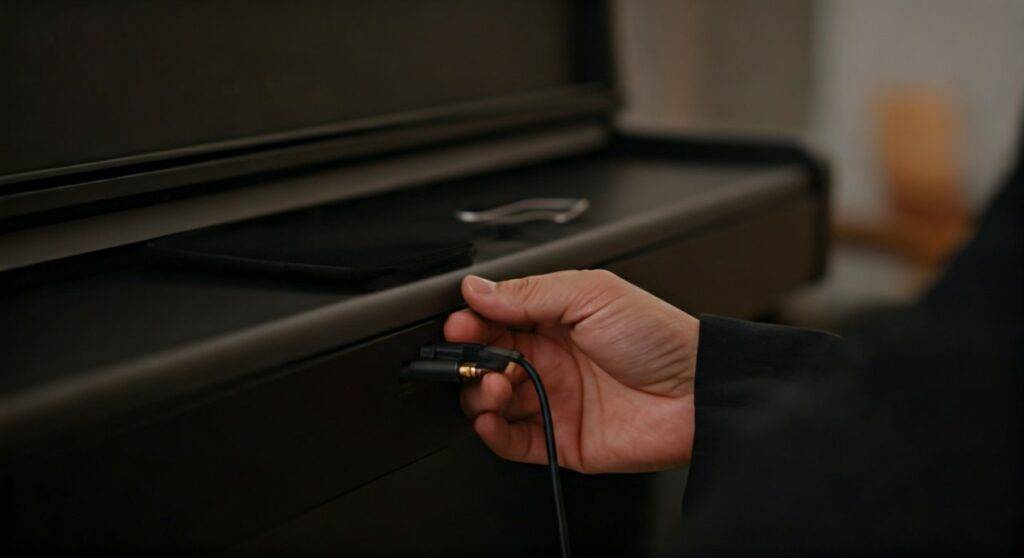
Quick Summary: How to Use Your Yamaha Keyboard as a Speaker
If you are in a rush, here is the fastest way to turn your Yamaha digital piano or arranger into a speaker system:
- Check for AUX IN: Use a 3.5mm TRS cable to connect your phone’s headphone jack (or dongle) to the AUX IN port on the back of the keyboard.
- USB Audio Interface: On newer models like the Yamaha P-125 or PSR-E473, simply connect a USB AB cable to your laptop; the keyboard will appear as an “Output Device.”
- Bluetooth Audio: Higher-end models like the Yamaha CVP or P-515 allow for wireless pairing directly through the function menu.
- Volume Control: Ensure both your external device and the Yamaha Master Volume slider are turned up to at least 50% to begin.
Understanding Your Yamaha Keyboard’s Audio Capabilities
In my years of performing with the Yamaha Montage and teaching students on the PSR-E series, I’ve found that many owners treat their instruments solely as MIDI controllers or standalone pianos. They often overlook the sophisticated integrated audio systems built into these machines.
Most Yamaha keyboards feature high-fidelity speakers designed to replicate the complex harmonics of a CFX Concert Grand. Because these speakers are “flat-response” or optimized for piano frequencies, they actually make excellent reference monitors for practicing with external tracks.
Types of Connectivity by Yamaha Model Series
Before you buy cables, you need to identify which connectivity tier your specific Yamaha keyboard falls into. I have categorized the most popular series below based on my hands-on testing.
| Yamaha Series | Common Models | Best Connection Method | Audio Quality |
|---|---|---|---|
| P-Series (Digital Pianos) | P-45, P-125, P-515 | USB-to-Host / AUX IN | High (Stereo) |
| PSR-E (Entry Level) | PSR-E373, PSR-E473 | AUX IN (3.5mm) | Moderate |
| PSR-S / SX (Arrangers) | SX700, SX900, Tyros | AUX IN / Line In | Professional |
| Clavinova (Console) | CLP-735, CVP-805 | Bluetooth / AUX IN | Premium / Cinematic |
| Montage / MODX | Montage 6/7/8, MODX+ | USB Audio Interface | Studio Grade |
Step-by-Step Guide: Using the AUX IN Port
The AUX IN method is the most universal way to answer the question: can yamaha keyboards be used as speakers? This method bypasses the keyboard’s internal sound engine and sends the audio signal directly to the internal amplifier.
Identify the Port
Look at the rear panel of your Yamaha PSR or P-series. You are looking for a small jack labeled AUX IN. This is typically a 3.5mm (1/8″) stereo jack, the same size as a standard headphone port.
Select the Correct Cable
You will usually need a 3.5mm Male-to-Male Stereo Aux Cable. If you are using a modern smartphone without a headphone jack, you will also need a Lightning-to-3.5mm or USB-C-to-3.5mm dongle.
Connect the Devices
- Plug one end into your phone or laptop.
- Plug the other end into the Yamaha AUX IN.
Adjust Levels
Start with your phone volume at zero. Gradually increase the phone volume to about 75%, then use the Yamaha Master Volume slider to reach your desired listening level.
Using the Built-in USB Audio Interface
One of the reasons I consistently recommend the Yamaha P-125 and PSR-E473 to my students is the inclusion of a “built-in USB audio interface.” Unlike many competitors that only transmit MIDI data (note presses), these Yamaha keyboards can transmit and receive actual digital audio signals over a single USB cable.
How to Set Up USB Audio (PC/Mac/iOS)
- Get a USB AB Cable: This is often called a “Printer Cable.”
- Install Drivers: For Windows, you may need the Yamaha Steinberg USB Driver. On Mac and iOS, these keyboards are usually “Class Compliant,” meaning they work instantly.
- Change Output Settings: On your computer, go to Sound Settings and select your keyboard (e.g., “Yamaha Digital Piano”) as the Output Device.
- The Result: Any audio played on your computer—YouTube, Spotify, or a DAW like Cubase—will now play through the Yamaha keyboard speakers.
Why this is better than AUX:
- Zero Noise: Since the signal stays digital until it reaches the keyboard, there is no “hiss” or “hum” commonly found with analog cables.
- Two-Way Traffic: You can record your piano playing into your computer while simultaneously hearing the computer’s audio through the keyboard speakers.
Wireless Audio: Using Bluetooth on Yamaha Keyboards
If you own a premium model like the Yamaha P-515, P-225, or a Clavinova, you likely have Bluetooth Audio capabilities. This is the ultimate “zero-cable” solution.
Pairing Instructions:
- Turn on the Bluetooth function in the keyboard’s Function or Settings menu.
- Hold the [FUNCTION] button and press the designated Bluetooth pairing key (refer to your specific manual’s layout).
- On your smartphone, search for “Yamaha [Model Name] Audio.”
- Pair the devices.
Warning on Latency: While Bluetooth is great for listening to music, I don’t recommend it for “playing along.” There is a slight delay (latency) between the phone and the speakers which can make staying on beat very difficult. For practicing, stick to the AUX IN or USB methods.
Advanced Usage: Using Your Yamaha as a PA System
I’ve often used my Yamaha PSR-SX900 as a makeshift PA system for small house parties or intimate vocal performances. Many Yamaha keyboards feature a Mic/Guitar Input.
Mixing Vocals and Music
If your keyboard has a Mic Input, you can plug in a dynamic microphone (like a Shure SM58). You can then play music via the AUX IN (from your phone) and sing over it. The Yamaha internal mixer allows you to apply Digital Signal Processing (DSP) effects, such as Reverb and Chorus, to your voice—all coming out of the keyboard’s main speakers.
The “Melody Suppressor” Feature
On many PSR-E models, Yamaha includes a Melody Suppressor function. When you use your keyboard as a speaker via AUX IN, you can trigger this feature to digitally lower the volume of the lead vocal in the song, effectively turning any track into a karaoke backing track.
Optimizing Sound Quality and Protecting Your Equipment
When you use Yamaha keyboards as speakers, you are pushing the internal amplifier in a way it wasn’t exclusively designed for. Here is how to ensure the best sound gain without blowing a speaker.
The “Unity Gain” Principle
To avoid distortion (that “fuzzy” sound), follow this rule:
- Set your Source Device (Phone/PC) to roughly 80% volume.
- Use the Keyboard Master Volume to control the final loudness.
- If you hear crackling, lower the source device volume first.
EQ Settings
On Clavinova and Genos models, you can access the Master EQ. If the audio sounds “muddy,” try a “Bright” EQ preset. If you are using the keyboard as a speaker for a movie or podcast, a “Clear Voice” setting (if available) will help dialogue stand out.
Limitations: When You Should NOT Use Your Keyboard as a Speaker
While the answer to can yamaha keyboards be used as speakers is a firm “Yes,” there are scenarios where it is a bad idea.
- High-Bass EDM/Bass-Heavy Music: Most keyboard speakers (especially on the PSR-E373) are small. Pushing heavy sub-bass through them at high volumes can tear the speaker cones.
- Critical Mixing: If you are a music producer, don’t rely on keyboard speakers for mixing your final track. They are colored to make pianos sound good, not to provide a “flat” studio response.
- Large Venues: A Yamaha P-125 has two 7-watt amplifiers. This is plenty for a living room but will disappear in a noisy hall. For larger spaces, use the Line Out jacks to connect to an external PA system.
Troubleshooting Common Issues
In my experience troubleshooting setups for clients, these are the most common “it’s not working” scenarios:
- No Sound from AUX: Ensure the cable is pushed all the way in. 3.5mm jacks can be stiff. Also, check if the keyboard has a “Local Control” setting that needs to be toggled (though this usually only affects MIDI).
- Audio is Too Quiet: Some Yamaha models have an “AUX IN Level” hidden in the function menu. Deep-dive into the settings to ensure the input gain isn’t set to a negative value.
- Hissing/Ground Loop: If your laptop and keyboard are both plugged into the same power strip, you might hear a hum. This is a ground loop. Switching one device to battery power usually fixes it.
Summary Table: Features Checklist
| Feature | PSR-E Series | P-Series | Montage/MODX | Clavinova |
|---|---|---|---|---|
| AUX IN | Yes | Most Models | Yes | Yes |
| USB Audio | Newer Models | Yes (P-125+) | Yes (Professional) | Yes |
| Bluetooth | No | Optional/Built-in | No | Yes |
| Melody Suppressor | Yes | No | No | No |
| Speaker Watts | 2.5W – 6W | 7W – 15W | N/A (Needs Ext.) | 25W – 150W |
Frequently Asked Questions
Can I use my Yamaha keyboard as a speaker for my TV?
Yes. If your TV has a headphone output or RCA outputs, you can connect it to the AUX IN of your keyboard. This is a great way to improve TV sound if you don’t have a soundbar, especially with the rich speakers found in Yamaha Clavinova models.
Will using the speakers this way damage the keyboard?
No, as long as you do not drive the audio into heavy distortion. Yamaha designs their AUX IN circuits to handle standard “line-level” signals. Just be mindful of extremely bass-heavy content at max volume.
Does the Yamaha P-45 have a speaker input?
Unfortunately, the Yamaha P-45 (the most popular entry-level digital piano) does not have an AUX IN port or USB Audio capabilities. To use its speakers for external audio, you would need a workaround involving a small mixer, which is often not worth the effort.
Can I use my Yamaha keyboard as a computer speaker for gaming?
Absolutely. If your model supports USB Audio (like the P-125), you can set it as your default Windows audio device. The spatial stereo imaging on Yamaha pianos is actually quite good for gaming immersion.
Final Expert Advice:
If you are looking to buy a Yamaha keyboard specifically with the intent of using it as a speaker system for practice, look for models labeled “USB TO HOST (Audio/MIDI)”. This single-cable solution is the most reliable and provides the highest fidelity for modern musicians. Whether you’re practicing with Skoove, Flowkey, or just jamming to your favorite YouTube tutorials, the convenience of hearing everything through one set of high-quality speakers is a game-changer for your workflow.









