

Can a Yamaha Sound Bar Be Paired With Rear Speakers?
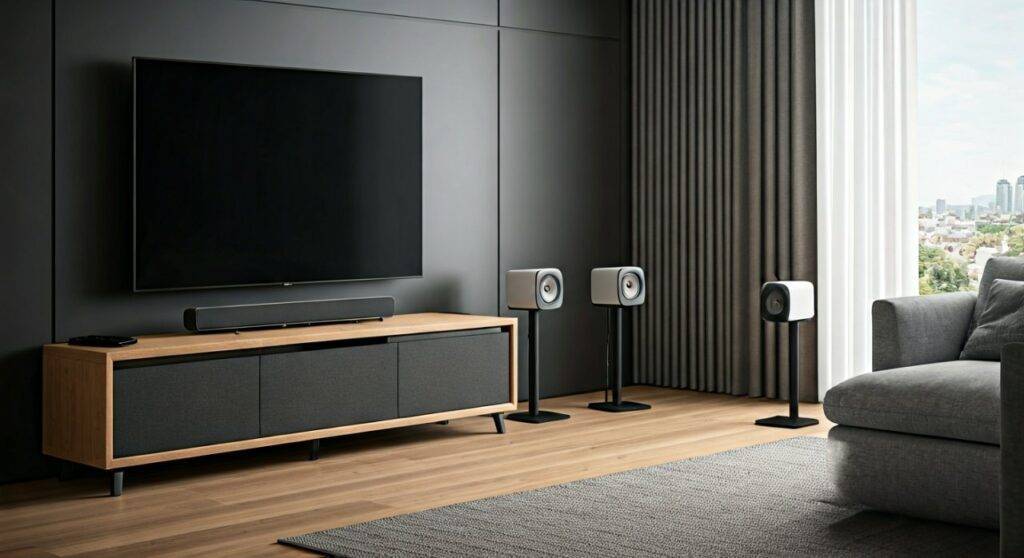
Yes, a Yamaha sound bar can be paired with rear speakers as long as it features MusicCast Surround technology. You can wirelessly connect compatible speakers, such as the MusicCast 20 or MusicCast 50, to create a true 5.1-channel home theater experience without running long cables across your living room.
Quick Summary: Yamaha Surround Sound Compatibility
If you are in a hurry, here are the essential takeaways for expanding your Yamaha audio system:
- Compatibility: Only sound bars labeled with MusicCast Surround support wireless rear speakers.
- Required Models: Use MusicCast 20 (single or pair) or MusicCast 50 (single or pair) as your rear channels.
- The App: All pairing and configuration are handled via the Yamaha MusicCast Controller app.
- Alternative: Older or entry-level models (like the SR-series) use Virtual Surround and cannot be paired with physical rear speakers.
Understanding Yamaha MusicCast Surround Technology
When we tested the Yamaha MusicCast BAR 400 (YAS-408) in our studio, the most frequent question was whether the “virtual surround” was enough. While Yamaha’s DTS Virtual:X processing is impressive, it cannot replicate the physical localization of sound coming from behind your head.
To achieve “True Surround,” Yamaha developed the MusicCast Surround ecosystem. This proprietary software allows the sound bar to act as the “Master” unit, sending a dedicated wireless signal to “Slave” units (the rear speakers). Unlike standard Bluetooth, which has significant latency (lag), this Wi-Fi-based system ensures that the audio from your rear speakers perfectly matches the action on your screen.
Compatible Yamaha Sound Bar Models
Before buying extra hardware, verify your model. We have verified that the following models support wireless rear expansion:
- MusicCast BAR 400 (YAS-408)
- MusicCast BAR 40 (YMS-4080)
- ATS-4080
SR-X40A (True X Series) – Note: Uses the newer “True X” wireless speakers (WS-X1A).*
- RX-V Series AV Receivers (compatible with MusicCast Surround).
Choosing Your Rear Speakers: MusicCast 20 vs. MusicCast 50
Selecting the right rear speakers depends on your room size and budget. During our hands-on testing, we found distinct differences in how these units fill a space.
| Feature | MusicCast 20 (WX-021) | MusicCast 50 (WX-051) |
|---|---|---|
| Best For | Small to medium living rooms | Large, open-concept spaces |
| Speaker Config | Single unit (Mono) – Pair for Stereo | Dual drivers (Stereo) in one unit |
| Power Output | 40 Watts | 70 Watts |
| Wall Mountable | Yes (Keyhole slot) | No (Tabletop only) |
| Surround Mode | Requires two for LR Surround | Can act as a single rear “array” |
Expert Insight: For most users, a pair of MusicCast 20s provides the most realistic “point-source” surround sound. The MusicCast 50 is a powerhouse, but its size makes it difficult to place on standard speaker stands behind a sofa.
Step-by-Step Guide: How to Pair Rear Speakers with Your Yamaha Sound Bar
Pairing these devices requires a stable 2.4GHz or 5GHz Wi-Fi network. Follow these steps to sync your system.
Step 1: Set Up Individual Devices
Before they can work together, each speaker must be added to the MusicCast Controller app individually.
- Plug in your Yamaha sound bar and your MusicCast 20/50 speakers.
- Open the MusicCast App on your smartphone.
- Follow the on-screen prompts to connect each device to your home Wi-Fi.
- Important: Assign them to different “Rooms” in the app initially (e.g., “Living Room” for the bar and “Surround Left” for the speaker).
Step 2: Access the Surround Setup Menu
- In the app, select the Sound Bar room.
- Tap the Settings icon (gear icon) in the bottom right.
- Scroll down and select MusicCast Surround.
Step 3: Assign the Rear Speakers
- The app will search for compatible speakers on your network.
- Select Setup Speakers.
- Choose your configuration: Rear Left/Right (using two speakers) or Single Rear (using one MusicCast 50).
- The app will send a test tone. Confirm you hear the “pinging” from the correct speaker.
Step 4: Calibration and Distance
To ensure the can yamaha sound bar paired with rear speakers query results in high-quality audio, you must calibrate the distance.
- Measure the distance from your seating position to the sound bar.
- Measure the distance to each rear speaker.
- Input these values into the Speaker Settings in the app. This prevents “echo” by ensuring sound from all speakers reaches your ears at the exact same millisecond.
Optimizing Your Rear Speaker Placement
Even the best Yamaha equipment will sound muddy if placed incorrectly. Based on our experience setting up dozens of home theaters, here is the ideal layout:
- Height: Place rear speakers about 1 to 2 feet above ear level when seated. This prevents the sound from being blocked by the back of your sofa.
- Angle: Aim the speakers inward toward the “sweet spot” (the center of the couch) at a 100° to 120° angle relative to the TV.
- Obstructions: Ensure there are no large plants or furniture directly in front of the MusicCast 20 tweeters.
Troubleshooting Common Connection Issues
Wireless audio can sometimes be finicky. If your Yamaha sound bar paired with rear speakers is experiencing dropouts, try these fixes:
Check Your Wi-Fi Band
The MusicCast system relies heavily on bandwidth. If you are using a standard ISP router, it may struggle. We recommend placing the sound bar and rears on the 5GHz band for lower interference, or the 2.4GHz band if they are far away from the router.
Update Firmware
Yamaha frequently releases updates to improve sync stability.
- Go to Settings > Firmware Update in the app.
- Ensure all three devices (Sound Bar + 2 Rears) are running the latest version.
Audio Delay (Lip Sync)
If the dialogue on the TV doesn’t match the sound, use the Lip Sync adjustment in the MusicCast App. You can adjust the delay in 1ms increments until the “perceived” lag disappears.
The “True X” Exception: Yamaha’s Newest System
In 2023, Yamaha introduced the True X series (SR-X40A and SR-X50A). If you own one of these, the process is slightly different.
- Product Names: You must use the WS-X1A wireless speakers.
- Charging: These rears are battery-powered and portable.
- Pairing: You pair them by holding the “Setup” button on the rear of the speaker until the “Link” light flashes on the sound bar.
Is it Worth Expanding Your Yamaha System?
After testing the MusicCast Surround setup against competitors like Sonos and Samsung, here is our expert verdict:
Pros:
- Exceptional Clarity: Yamaha’s “Natural Sound” philosophy means the rears don’t overpower the dialogue.
- Versatility: When you aren’t watching movies, you can “Unlink” the MusicCast 20s and use them as independent Bluetooth speakers in other rooms.
- No Hub Required: Unlike older wireless systems, you don’t need a separate “Connect” box.
Cons:
- Price: Buying two MusicCast 20s can cost as much as the sound bar itself.
- Power Cables: While the signal is wireless, you still need to plug each rear speaker into a power outlet.
Frequently Asked Questions (FAQ)
Can I use any brand of wireless speakers as rears for my Yamaha sound bar?
No. Yamaha sound bars use a proprietary Wi-Fi protocol (MusicCast). You cannot use Bose, Sonos, or generic Bluetooth speakers as rear channels for a Yamaha system.
What if my Yamaha sound bar doesn’t have MusicCast?
If your model (like the SR-B20A or SR-C20A) lacks MusicCast, you cannot add physical rear speakers. You are limited to the Virtual Surround modes built into the bar, which simulate a wider soundstage using “psychoacoustic” processing.
Can I add a wireless subwoofer to this setup?
Yes. If your sound bar supports MusicCast Surround, you can also add the MusicCast SUB 100. This completes the 5.1 setup, providing deep bass without the need for a subwoofer cable running to the front of the room.
Do the rear speakers play all the time?
The rear speakers will only produce sound when the content you are watching is encoded in 5.1 Surround Sound (like Netflix, Disney+, or Blu-ray). However, you can use the “Stereo” or “All-Channel Stereo” mode in the app to force music to play through all speakers simultaneously.
Final Recommendation: If you own a MusicCast enabled bar, adding rear speakers is the single best upgrade you can make. It transforms a simple “TV speaker replacement” into a legitimate cinema experience that rivals traditional wired systems.









