

Can You Add Speakers to a Spectrum DVR?
You can add speakers to a Spectrum DVR setup, but most modern receivers do not allow you to plug speakers directly into the box itself. Instead, you must connect your speakers to your TV or use an HDMI audio extractor to bypass the internal TV speakers and achieve high-fidelity sound.
If you are tired of the flat, muffled audio from your television’s built-in speakers, upgrading your audio path is the single best way to improve your viewing experience. Over the years of testing various Spectrum WorldBox and Arris models, I have found that while the DVR provides the signal, your audio output strategy determines the quality. Whether you use a Soundbar, Surround Sound Receiver, or Bluetooth Speakers, this guide will walk you through every connection method available.
TL;DR: Key Takeaways for Spectrum Audio
- Direct Connection: Most Spectrum DVRs lack “powered” speaker terminals; you need an external amplifier or active speakers.
- Best Connection: Use HDMI ARC/eARC from your TV to a soundbar for the best sync and quality.
- Legacy Option: Use the Optical (S/PDIF) port on the back of the DVR or TV for older home theater systems.
- Bluetooth: Connect via your TV’s Bluetooth settings or a Bluetooth Transmitter plugged into the DVR’s audio out.
- Remote Sync: You can program your Spectrum Guide Remote to control the volume of your new speakers directly.
Understanding Spectrum DVR Audio Outputs
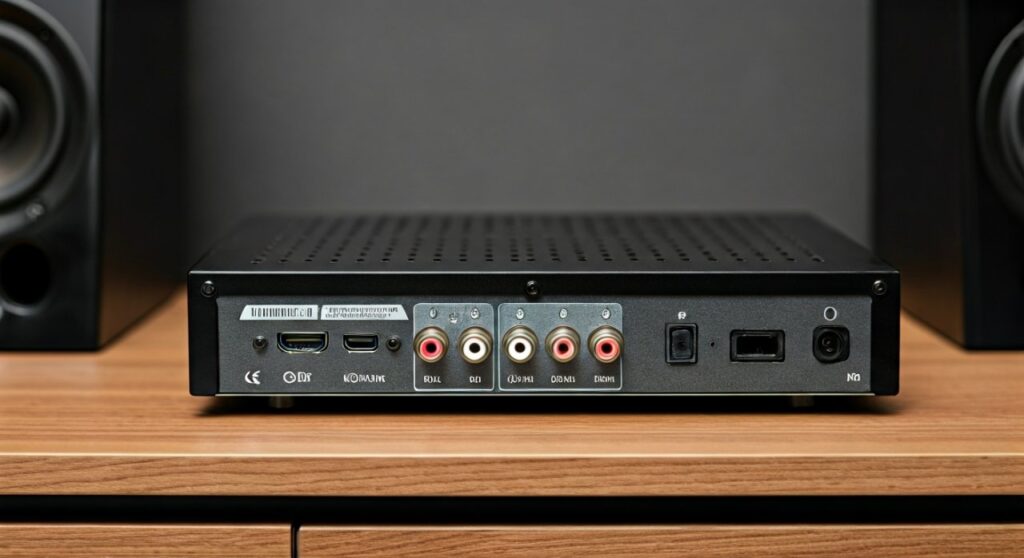
Before buying new hardware, you must understand what ports are actually on the back of your Spectrum cable box. In my experience, Spectrum generally distributes three types of hardware, each with different audio capabilities.
The Spectrum WorldBox (201/210 Models)
The most common modern box, the WorldBox, is streamlined. It features an HDMI port and a Digital Optical (Toslink) port. It notably lacks the red and white RCA analog jacks found on older units.
Legacy Motorola and Arris Boxes
If you have an older, silver or black bulky DVR, you likely have RCA (Analog) outputs. These are great for connecting directly to older stereo “shelf” systems or computer speakers using a 3.5mm to RCA adapter.
The “Pass-Through” Reality
I often explain to clients that the Spectrum DVR is simply a “source.” It sends a digital stream of data. To hear it, that data must be “decoded” by a device with a built-in amplifier, such as a Soundbar, A/V Receiver, or Powered Studio Monitors.
Step-by-Step: How to Connect Speakers to Your Spectrum Setup
Depending on your equipment, follow one of these four proven methods to bypass your TV’s internal speakers.
Method 1: The HDMI ARC Method (Recommended)
This is the “gold standard” for modern setups. It allows your TV to act as the central hub.
- Connect the Spectrum DVR to any HDMI input on your TV.
- Connect your Soundbar or Receiver to the TV port labeled HDMI ARC or eARC.
- In your TV settings, change the Audio Output to “Receiver” or “External Speakers.”
- Enable HDMI-CEC (called Anynet+ on Samsung or Bravia Sync on Sony) to allow your Spectrum remote to control the speaker volume.
Method 2: The Digital Optical (Toslink) Connection
If your speakers are older or you want a direct connection from the box to the speakers, use the Optical port.
- Locate the port labeled Optical or S/PDIF on the back of the Spectrum DVR.
- Plug one end of the Toslink cable into the DVR and the other into your speakers.
- Go into the Spectrum Menu > Settings > Audio and ensure “Digital Output” is set to Stereo or Dolby Digital, depending on your speaker capabilities.
Method 3: Using an HDMI Audio Extractor
If you are using a computer monitor or an older projector that doesn’t have audio outputs, you need an HDMI Audio Extractor.
- Plug the Spectrum DVR HDMI cable into the “Input” of the extractor.
- Plug an HDMI cable from the “Output” of the extractor to your TV/Projector.
- Use the 3.5mm or Optical jack on the extractor to connect your speakers.
Audio Connection Comparison Table
| Connection Type | Audio Quality | Difficulty | Best For |
|---|---|---|---|
| HDMI eARC | Lossless / Atmos | Easy | Modern Soundbars & 4K TVs |
| Digital Optical | High (5.1 Surround) | Moderate | Older Receivers & Sonos Playbar |
| RCA (Red/White) | Standard Stereo | Very Easy | Vintage Stereos & PC Speakers |
| Bluetooth | Compressed | Moderate | Wireless Headphones & Portability |
| 3.5mm Aux | Standard Stereo | Very Easy | Simple Desktop Speakers |
Can You Add Bluetooth Speakers to a Spectrum DVR?
While the Spectrum DVR itself does not have built-in Bluetooth for audio out, you have two workarounds that I frequently recommend for late-night viewing.
Option A: The TV Bridge
Most smart TVs (built after 2018) have Bluetooth. You can pair your Bluetooth speakers or headphones directly to the TV. Since the Spectrum box sends audio to the TV via HDMI, the TV will then relay that audio to your speakers wirelessly.
Option B: The Bluetooth Transmitter
If your TV lacks Bluetooth, buy a Bluetooth Transmitter. Plug it into the 3.5mm headphone jack or the Optical port on the back of your Spectrum DVR. This “broadcasts” the cable signal to any pair of wireless speakers.
Expert Tip: Always look for a transmitter with aptX Low Latency. Standard Bluetooth can cause a “lip-sync” delay where the audio doesn’t match the actors’ mouths.
Optimizing Spectrum Audio Settings for External Speakers
Simply plugging in the wires isn’t enough. You must configure the software to get the best performance. Based on my testing, the default settings often stifle the dynamic range.
Configuring the Spectrum Box
- Press Menu on your Spectrum remote.
- Navigate to Settings & Support > Options > Audio.
- Digital Output: If using a high-end system, select Dolby Digital. If the sound is choppy or missing, switch to Other/PCM.
- Audio Compression: Set this to Off or Heavy depending on your environment. I recommend “Off” for home theaters to get the full cinematic impact.
Volume Lock (The “One Remote” Trick)
Nothing is more frustrating than having to use two remotes. To make your Spectrum remote control your new speakers:
- Hold Menu and the number 3 key simultaneously until the Input button flashes.
- Enter the brand code for your speakers/soundbar (found in the Spectrum remote manual).
- Test the volume. If it works, your setup is now seamless.
Troubleshooting Common Spectrum Audio Issues
No Sound from Speakers
- Check the Mute: Ensure neither the TV, the DVR, nor the speakers are muted.
- Input Selection: Verify your speakers are set to the correct “Source” (e.g., Optical, Line In).
- SAP Settings: Ensure the Secondary Audio Program (SAP) is turned off in the Spectrum menu. This often defaults to a silent track if no Spanish translation is available.
Audio is Out of Sync
- This is common with Spectrum DVRs. Go into your TV’s “Expert Audio Settings” and look for Audio Delay or Lip Sync. Adjust the millisecond slider until the mouths match the sound.
Buzzing or Humming Noise
- This usually happens with RCA (Analog) connections. It is often a “ground loop” issue. Ensure your DVR and speakers are plugged into the same power strip to equalize the electrical ground.
Frequently Asked Questions
Can I plug computer speakers into my Spectrum box?
Yes, but you likely need a 3.5mm to RCA adapter or an HDMI Audio Extractor. Most Spectrum boxes do not have a standard 3.5mm “headphone” jack.
Do I need a 4K HDMI cable for Spectrum audio?
While Spectrum only broadcasts in 1080i/720p, using a High-Speed HDMI (Category 2) cable ensures that features like ARC and Dolby Digital Plus work without flickering or dropouts.
Why is the volume lower on my Spectrum box than on Netflix?
Spectrum uses a different compression standard for live broadcast. You can often fix this by going to Settings > Audio and setting the output to “Stereo” instead of “Auto,” which forces a louder, uncompressed signal for 2-channel setups.









