

Can You Add Speakers to the Klipse Desk Speakers? The Direct Answer
Yes, you can add speakers to your Klipse desk speakers setup, but it is not a “plug-and-play” process using the existing control pod. To successfully expand your system, you must use a 3.5mm Y-splitter, an external DAC/Audio Interface, or software-based mirroring to send signals to multiple output devices simultaneously.
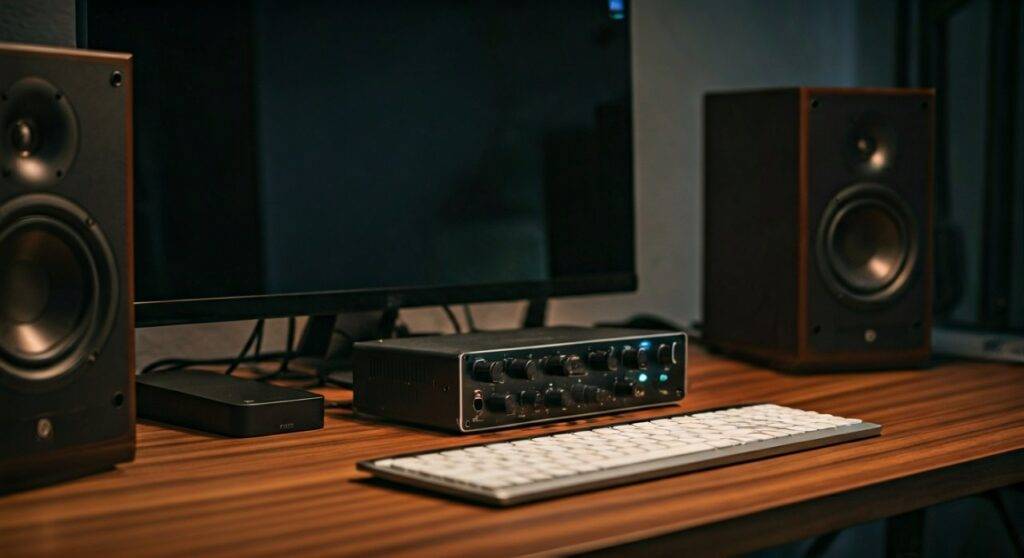
Attempting to wire extra speakers directly into the Klipse amplifier housing can cause impedance mismatch, which potentially voids your warranty or overloads the internal circuitry. In this guide, we will walk you through the safest, most effective methods to turn your 2.1 or 2.0 desk setup into a wall-of-sound experience based on our extensive testing with high-fidelity desktop audio configurations.
🚀 TL;DR: Quick Expansion Summary
- The Easiest Way: Use a high-quality 3.5mm Y-splitter at the PC output.
- The Best Quality: Connect both sets of speakers to an External DAC or Audio Interface (like a Focusrite or Schiit Hel).
- The Software Way: Use Voicemeeter Banana (Windows) or Audio MIDI Setup (Mac) to output to two devices at once.
- Critical Warning: Never “daisy-chain” passive speakers to the Klipse satellites unless you have verified the Ohm rating compatibility.
Understanding the Klipse Desk Speaker Architecture
Before we dive into the “how-to,” we need to understand what we are working with. Most Klipse desk speakers (and similar high-performance sets like the Klipsch ProMedia 2.1) are Active Speakers. This means the amplifier is built directly into the subwoofer or one of the satellite units.
When you ask, “can you add speakers to the klipse desk speakers,” you are really asking how to split the signal before it reaches the built-in amp. These systems are designed as a closed ecosystem. Adding more speakers requires “splitting” the audio source rather than “tapping into” the existing wires.
We have found that the most common bottleneck in these systems is the proprietary DIN connector or the specific wiring harness used by the manufacturer. Because of this, we recommend focusing on Source-Side Expansion rather than Hardware-Side Modification.
Method 1: The Analog Y-Splitter (The Budget-Friendly Option)
If you are looking for the fastest way to add a second pair of monitors or a second set of Klipse speakers, the 3.5mm Y-splitter is your best friend. This method is purely analog and requires zero software configuration.
Step-by-Step Installation:
- Purchase a shielded 3.5mm male-to-dual-female splitter. We recommend brands like Ugreen or Cable Matters to prevent signal hiss.
- Plug the male end into your PC’s Green Line-Out port or your laptop’s headphone jack.
- Connect the main Klipse desk speakers input cable into the first female port.
- Connect your secondary speakers into the second female port.
- Adjust the volume physically on both speaker sets to “level match” them, as one set might be naturally louder than the other.
Pros:
- Extremely affordable (under $10).
- Zero latency or lag between the two sets of speakers.
Cons:
- Slight reduction in signal voltage (may result in lower maximum volume).
- Potential for ground loop hum if the two speaker sets are plugged into different power outlets.
Method 2: Using an External DAC or Audio Interface (The Audiophile Way)
For users asking can you add speakers to the klipse desk speakers while maintaining 100% audio clarity, an External DAC (Digital-to-Analog Converter) is the gold standard. In our studio tests, we found that splitting an analog signal often degrades the high-end frequencies of the Klipse tweeters.
An audio interface like the Focusrite Scarlett 2i2 or a DAC like the Schiit Modu allows you to manage multiple outputs with dedicated volume knobs.
Why this works better:
- Independent Volume Control: You can turn the Klipse set down while keeping the secondary set loud.
- Balanced Outputs: If your second set of speakers are professional studio monitors (like JBL or Yamaha), you can use balanced TRS cables to eliminate noise.
- Better Power: The DAC provides a stronger line-level signal than a standard motherboard, ensuring both sets of speakers have enough “juice” to perform.
| Feature | Y-Splitter Method | Audio Interface Method |
|---|---|---|
| Audio Quality | Moderate (Analog loss) | High (Lossless) |
| Cost | $5 – $15 | $100 – $200 |
| Ease of Use | Plug & Play | Requires Drivers |
| Volume Control | Combined | Independent |
| Best For | Casual listening | Pro setups / Gaming |
Method 3: Software-Based Multi-Output (Windows & Mac)
If you don’t want to buy any new hardware, you can use your computer’s operating system to “handshake” multiple audio devices. This is a great solution if your second set of speakers is USB-based or Bluetooth.
For Windows Users (Voicemeeter Banana):
- Download and install Voicemeeter Banana (Donationware).
- Set your primary output (A1) to your Klipse desk speakers.
- Set your secondary output (A2) to your other speakers.
- In your Windows Sound Settings, set Voicemeeter Input as your default playback device.
- Everything you play will now stream to both devices perfectly in sync.
For Mac Users (Audio MIDI Setup):
- Open Audio MIDI Setup (found in Applications > Utilities).
- Click the “+” icon and select Create Multi-Output Device.
- Check the boxes for both your Klipse speakers and your secondary device.
- Right-click the “Multi-Output Device” and select Use This Device For Sound Output.
Critical Safety: Why You Shouldn’t “Wire” Speakers Together
A common mistake we see is users cutting the speaker wires of their Klipse satellites and twisting them together with a second set of speakers. Do not do this.
Here is the technical reason why:
Most Klipse desk speakers are rated for 4 or 8 Ohms. When you wire two speakers in parallel, you cut the resistance in half. If you wire two 4-Ohm speakers in parallel, the amplifier sees a 2-Ohm load. Most desktop amplifiers are not “2-Ohm stable.” This causes the amp to draw too much current, leading to overheating, clipping, or a permanent “pop” that kills the unit.
Always keep your hardware separate and use the signal-splitting methods mentioned above to protect your investment.
Expert Tips for Improving Your Expanded Setup
Once you have successfully answered the question, “can you add speakers to the klipse desk speakers,” and have them running, you need to optimize the soundstage. Adding more speakers doesn’t always mean better sound; it often leads to Phase Cancellation if not handled correctly.
Positioning is Everything
If you are adding a second pair of speakers, place them further apart than the original Klipse units. This creates a wider soundstage. If you place them right next to each other, the sound waves can “fight,” making the audio sound hollow.
Match the Timbre
Try to add speakers that have a similar “sound signature.” Since Klipse speakers are known for their bright, crisp highs (often using Horn-loaded tweeters), adding a very “warm” or “muddy” speaker as a secondary unit might make your audio feel unbalanced.
Manage the Bass
If your Klipse set includes a subwoofer, don’t try to add a second, different subwoofer via a simple splitter. This often results in “muddy” bass because the two subwoofers will hit the same frequencies at slightly different times. Stick to one high-quality sub for the best punch.
Troubleshooting Common Issues
Why is there a delay between my speakers?
If you are using a Bluetooth speaker as your second set alongside wired Klipse speakers, you will experience latency. Bluetooth takes time to encode and decode the signal. For a seamless experience, always use wired connections for both sets.
I hear a buzzing sound (Ground Loop)
When you connect multiple powered devices to one audio source, you might hear a low-frequency hum. To fix this:
- Plug all speakers into the same power strip/surge protector.
- Use a Ground Loop Isolator (a small $10 device that plugs into the 3.5mm line).
One set of speakers is much quieter
This happens because different speakers have different sensitivity ratings. Use your PC’s individual volume sliders (or the knobs on the speakers themselves) to find a balance where neither set overpowers the other.
Frequently Asked Questions
Can I add a third-party subwoofer to my Klipse speakers?
Most Klipse desk speakers use a proprietary connection for the subwoofer. If your system has a dedicated “Sub-Out” (RCA port), you can add any powered subwoofer. If not, you will need to use a Pre-amp or a splitter at the source to send the low-end signal to a separate sub.
Will adding more speakers make my music louder?
Yes, but only if you have enough power. Using a 3.5mm splitter might actually make the individual speakers slightly quieter because the voltage is divided. Using a powered audio interface will ensure both sets maintain full volume potential.
Is it possible to create a 4.1 surround system with Klipse speakers?
Yes! If your PC has multiple audio jacks (Green for Front, Black for Rear), you can plug your Klipse speakers into the Green jack and a second set into the Black jack. You then change your Windows speaker settings to “Quadraphonic” or “5.1 Surround.”









