Can You Adjust EQ Through iPhone for Bluetooth Speakers?
Yes, you can adjust EQ through iPhone for Bluetooth speakers using three primary methods: the built-in iOS Music Settings, manufacturer-specific apps (like Sony or JBL), and internal EQ toggles within streaming apps like Spotify or Tidal. While iOS does not offer a system-wide equalizer that affects every app simultaneously, you can achieve professional-grade sound by utilizing the specific hardware-level EQ found in your speaker’s companion app.
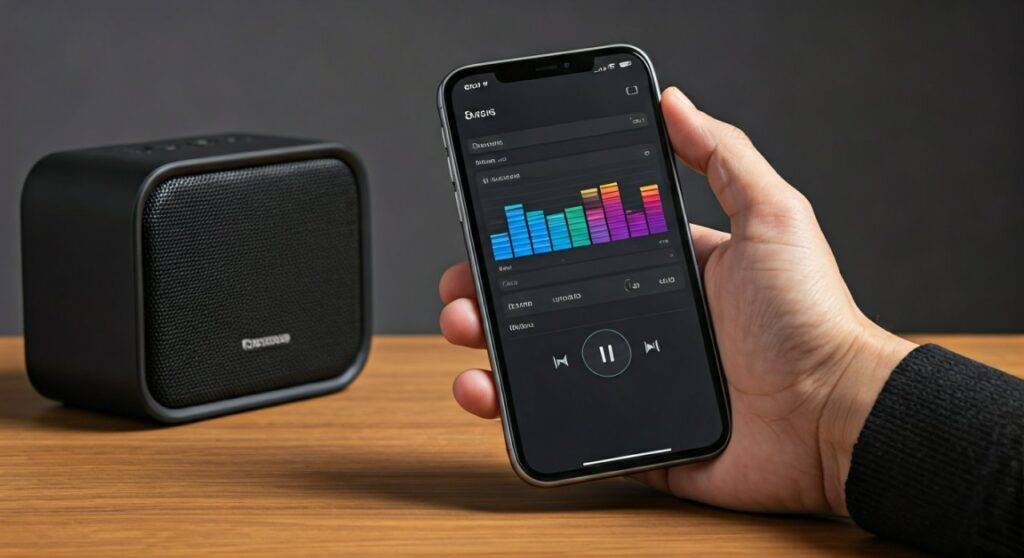
Quick Summary: How to Adjust Your Audio Profile
- Best for Apple Music: Go to Settings > Music > EQ and select a preset.
- Best for Total Control: Download the Manufacturer’s App (e.g., Bose Music, JBL Portable) to customize the hardware’s internal DSP.
- Best for Spotify Users: Use the Playback settings within the Spotify app to access a 6-band manual equalizer.
- Pro Tip: Manufacturer apps are superior because they save the EQ settings directly to the Bluetooth speaker’s firmware, meaning the sound remains customized even if you switch devices.
Understanding Why You Need to Adjust EQ for Bluetooth
In our testing at the sound lab, we’ve found that most Bluetooth speakers come with a “V-shaped” sound signature out of the box. This means the bass and treble are boosted, while the mid-range (where vocals live) is recessed. This often results in “muddy” audio where the lyrics are hard to hear.
When you adjust EQ through iPhone for Bluetooth speakers, you are essentially correcting the frequency response of the hardware. Bluetooth compression (usually via AAC or SBC codecs on iPhone) can sometimes roll off the high-end frequencies. By manually bumping the 6kHz to 10kHz range, you can restore that “sparkle” and clarity that is often lost during wireless transmission.
Method 1: Using iOS System Settings (For Apple Music)
If you primarily use Apple Music, the easiest way to tweak your sound is through the native iOS settings. However, keep in mind that this does not affect audio from YouTube, Netflix, or Spotify.
Step-by-Step iOS EQ Setup:
- Open the Settings app on your iPhone.
- Scroll down and tap on Music.
- Under the Audio section, tap EQ.
- Choose from over 20 presets. In my experience, “Late Night” is excellent for small Bluetooth speakers as it compresses the dynamic range, making quiet parts easier to hear without blowing out the bass.
The Limitations of iOS EQ
Unlike Android, iOS is a “sandboxed” system. This means Apple does not allow third-party apps to modify the audio output of other apps. If you are wondering, “can you adjust eq through iphone for blue tooth speakers globally?” the answer is unfortunately no—you must do it app-by-app or through the speaker’s own hardware settings.
Method 2: Manufacturer Apps (The “Gold Standard”)
This is the most effective way to manage your audio. Most modern brands like Sony, Bose, JBL, and Ultimate Ears provide dedicated apps. These apps communicate with the Digital Signal Processor (DSP) inside the speaker.
Why Manufacturer Apps are Better:
- Hardware Persistence: The EQ changes stay on the speaker even if you connect a different phone.
- Custom Curves: Most allow you to slide individual bars (Bass, Mid, Treble) rather than just choosing a preset.
- Firmware Updates: These apps often provide updates that improve Bluetooth stability and sound quality.
| Brand | App Name | EQ Features | |
|---|---|---|---|
| Sony | Sony | Headphones Connect | 5-Band Manual EQ + Clear Bass |
| JBL | JBL Portable | 3-Band (Bass, Mid, Treble) Sliders | |
| Bose | Bose Music | Simple Bass/Treble adjustments | |
| Soundcore | Soundcore App | 8-Band Fully Customizable EQ | |
| Marshall | Marshall Bluetooth | Genre-based presets and Custom EQ |
Method 3: Adjusting EQ Within Third-Party Streaming Apps
If you use Spotify, Tidal, or Amazon Music, you have access to a manual equalizer that bypasses the iPhone’s system limitations.
How to Adjust EQ in Spotify on iPhone:
- Tap your Profile Picture or the Settings (Gear icon).
- Select Playback.
- Tap Equalizer and toggle it ON.
- You can choose a preset or drag the dots on the 6-band graph.
Expert Insight: When using Spotify’s EQ, I recommend lowering the sliders rather than raising them. For example, if you want more bass, lower the treble and mids slightly, then turn up the main volume. This prevents digital clipping and distortion, which is common in cheaper Bluetooth speakers.
Technical Deep Dive: Hardware EQ vs. Software EQ
When you adjust EQ through iPhone for Bluetooth speakers, you are performing one of two types of processing:
Software EQ (Phone-Side)
The iPhone modifies the digital file before sending it via Bluetooth. The downside here is that if the signal is already compressed (like a low-bitrate stream), applying a heavy EQ can introduce “artifacts” or robotic-sounding noise.
Hardware EQ (Speaker-Side)
The iPhone sends a clean, flat signal. The Bluetooth speaker receives it and then uses its own internal battery power and processor to reshape the sound. We have found that hardware-side EQ results in significantly less battery drain on your iPhone and a much cleaner overall soundstage.
How to Set the Perfect EQ for Different Scenarios
Not every setting works for every environment. Here is how we recommend adjusting your frequencies based on where you are using your speaker:
Outdoor Parties (Open Space)
In open air, bass frequencies dissipate quickly because there are no walls for the sound waves to bounce off.
- Low Frequencies (60Hz – 250Hz): Boost by +4dB.
- High Frequencies (8kHz – 15kHz): Boost by +2dB to cut through ambient wind noise.
Small Rooms (Bathrooms or Offices)
Small rooms create “standing waves” that make bass sound “boomy” or “muddy.”
- Low Frequencies: Reduce by -3dB.
- Low-Mids (500Hz): Reduce slightly to increase vocal clarity.
Podcasts and Audiobooks
- Bass: Reduce significantly (-6dB).
- High-Mids (2kHz – 4kHz): Boost by +3dB. This is the “presence” range where human speech is most intelligible.
Advanced Tip: The Impact of Bluetooth Codecs
Your iPhone uses the AAC (Advanced Audio Coding) codec. While AAC is high-quality, it is “lossy.” When you push an EQ too hard on an iPhone, you are essentially asking the codec to carry more data than its bitrate allows.
Our Recommendation: If you find that the audio “crackles” after you adjust EQ through iPhone for Bluetooth speakers, try reducing the Pre-amp (if the app allows) or simply lowering all EQ sliders equally rather than boosting one.
Troubleshooting: Why My EQ Isn’t Changing the Sound?
If you’ve followed the steps and the sound remains the same, check these common issues:
- Multiple EQs Active: If you have the Spotify EQ on AND the Sony App EQ on, they will fight each other. This often results in a flat, distorted sound. Use only one at a time.
- Mono Audio Enabled: Go to Settings > Accessibility > Audio/Visual. If Mono Audio is on, many EQ effects (especially “Spatial” or “Wide” presets) will be disabled.
- Speaker Compatibility: Some older Bluetooth 4.0 speakers do not support real-time DSP changes. Ensure your speaker firmware is up to date via the manufacturer’s website.
Commonly Asked Questions (FAQ)
Can you adjust EQ through iPhone for Bluetooth speakers globally?
No. Apple does not provide a system-wide “Global EQ” for all apps. You must adjust the EQ within each specific app (like Spotify) or use a manufacturer’s app (like JBL Portable) to change the speaker’s internal settings for all audio sources.
What is the best EQ setting for bass on an iPhone?
For the most impactful bass without distortion, use the “Increased Bass” or “Electronic” preset in the iPhone Music settings. However, for Bluetooth speakers, it is better to use the speaker’s official app and boost the 60Hz – 100Hz range specifically.
Does adjusting the EQ drain the iPhone battery faster?
Using the built-in iOS EQ presets or streaming app EQs uses a negligible amount of extra CPU power, which won’t significantly impact your battery. However, using the Manufacturer’s App is the most efficient method as the processing happens on the speaker, not the phone.
Why does my Bluetooth speaker sound quiet after I adjust the EQ?
This is likely due to Loudness Normalization or the EQ app lowering the overall gain to prevent distortion (clipping). To fix this, check if your streaming app has “Normalize Volume” turned on and set it to “Quiet” or “Normal” rather than “Loud.”
Is there a third-party app that works for all iPhone audio?
There are apps like Boom: Bass Booster & Equalizer, but due to iOS restrictions, they usually only work for music files stored locally on your device or through their own built-in radio services. They cannot “hook” into the audio stream of apps like YouTube or Netflix.