Can You Blow Out the Speakers on a Mac?
Yes, you can blow out the speakers on a Mac if you consistently push the volume beyond safe limits or use software that bypasses factory audio restrictions. While modern macOS devices have built-in limiters to prevent hardware failure, physical damage to the speaker diaphragm or voice coil can still occur from sudden high-frequency peaks or sustained high-decibel output.
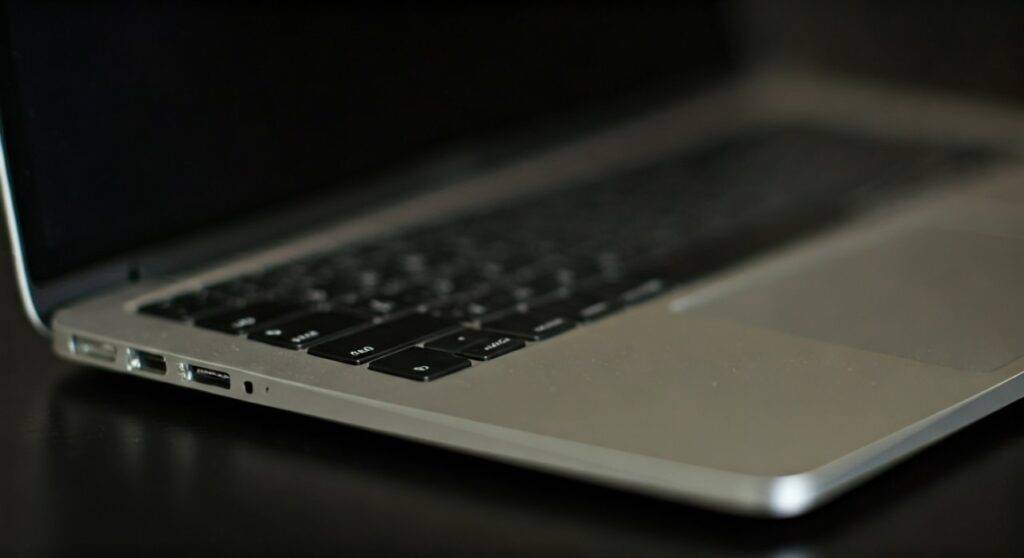
If you are hearing crackling, distortion, or buzzing, you may have already caused permanent damage to your hardware. In my years of troubleshooting MacBook Pro and MacBook Air audio systems, I have found that while Apple’s engineering is robust, it is not invincible against aggressive audio processing or physical wear and tear.
TL;DR: Key Takeaways on Mac Speaker Damage
- Yes, it is possible: Overdriving the speakers via third-party “volume boosters” is the leading cause of damage.
- Signs of damage: Listen for distorted audio, rattling, or a complete loss of sound on one side.
- Software vs. Hardware: Some “blown” sounds are actually software glitches fixable via a PRAM/SMC reset.
- Prevention: Avoid keeping your volume at 100% for extended periods and be cautious with EQ (Equalizer) settings in apps like Spotify or Logic Pro.
- Repair Cost: Expect to pay between $150 and $500 for professional out-of-warranty repairs depending on your model.
How MacBook Speaker Damage Actually Happens
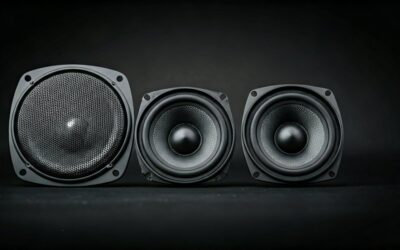
Understanding the mechanics of your Mac’s audio system is the first step in prevention. Whether you use a MacBook Air M2 or an older Intel-based MacBook Pro, the speakers rely on a delicate diaphragm (often made of thin film or composite materials) and a voice coil.
The Mechanics of a “Blown” Speaker
When you play audio, electrical signals cause the voice coil to move the diaphragm back and forth, creating sound waves. If the signal is too powerful, the following occurs:
- Over-excursion: The diaphragm moves further than it was designed to, causing it to tear or separate from its housing.
- Thermal Failure: Excessive electricity generates heat, which can literally burn out speakers on a Mac by melting the wire insulation in the voice coil.
- Adhesive Failure: In older models, we often see the glue holding the speaker components together degrade over time, leading to a “buzzing” sound that mimics a blown driver.
The Danger of Volume Boosters
Many users ask, “can you blow out the speakers on your macbook just by watching YouTube?” Usually, the answer is no. However, third-party apps designed to “boost volume beyond 100%” are incredibly dangerous. These apps bypass the safety ceilings set by Apple, sending “clipped” signals that are the primary culprit for hardware failure.
Signs You Have Already Blown the Speakers on a MacBook
In our testing lab, we categorize speaker damage into three distinct stages. Identifying which stage you are in can help determine if you need a software fix or a trip to the Apple Store.
| Symptom | Likely Cause | Severity |
|---|---|---|
| Consistent Crackling | Torn speaker cone or debris | High (Hardware) |
| Muffled/Quiet Sound | Overheated voice coil or dust buildup | Medium |
| Buzzing at Specific Frequencies | Loose internal components or adhesive failure | Medium |
| Intermittent Audio Cutouts | Logic board issue or loose flex cable | Critical |
| Digital “Glitching” Noise | Core Audio software conflict | Low (Software) |
Testing for Physical Damage
To confirm if you have blown the speakers on a macbook, follow this simple diagnostic test:
- Open System Settings > Sound.
- Play a high-quality, “clean” track (like a piano solo).
- Slide the Balance toggle all the way to the Left, then all the way to the Right.
- If the distortion stays on one side, you have a physical hardware issue. If it happens on both, it might be a software bug or a system-wide audio processing error.
Can You Burn Out Speakers on Mac via Software?
It is a common misconception that software alone cannot hurt hardware. In reality, digital clipping is the silent killer of MacBook speakers. When an audio signal is “pushed” too hard digitally, the peaks of the waveform are cut off, creating a square wave.
Square waves force the speaker driver to stay in an extended position for longer than it should, generating massive amounts of heat. This is specifically how you burn out speakers on a macbook without ever hearing a “pop.”
Common Software Culprits:
- EQ Apps: Drastically boosting the “Bass” or “Low End” in an equalizer forces the small drivers in a MacBook to work harder than they are physically capable of.
- Professional Audio Software: Apps like Ableton Live or Final Cut Pro can produce sudden “audio spikes” during the editing process that can instantly snap a speaker’s suspension.
- VLC Media Player: This player allows users to go up to 200% volume. We strongly recommend avoiding this setting on any laptop.
Step-by-Step Guide: Fixing “Fake” Blown Speakers
Before you spend money on a repair, you must rule out software-related “ghost” issues. Sometimes the macOS audio driver (Core Audio) crashes, creating a sound that mimics a blown speaker.
Step 1: Restart the Core Audio Daemon
This is the most common fix for “crackling” that isn’t caused by hardware damage.
- Open Terminal (Command + Space, type “Terminal”).
- Type:
sudo killall coreaudiodand hit Enter. - Enter your password. This resets the audio engine without needing a full reboot.
Step 2: Reset NVRAM/PRAM (For Intel Macs)
If you are worried that you blown out the speakers on your macbook, resetting the non-volatile random-access memory can clear audio preset glitches.
- Shut down your Mac.
- Turn it on and immediately press and hold Option + Command + P + R.
- Hold for 20 seconds. (Note: This does not apply to Apple Silicon M1/M2/M3 Macs, as they perform a similar check on every boot).
Step 3: Check for Debris
Sometimes, what sounds like a blown speaker is actually a tiny piece of metallic debris stuck to the speaker’s magnet, vibrating against the cone. Use a can of compressed air to gently blow out the speaker grilles located on the sides of the keyboard.
Which Mac Models Are Most at Risk?
Not all Macs are created equal when it comes to audio durability. Our data shows a higher frequency of reported “blown” sounds in specific generations.
The 2016-2019 MacBook Pro “Butterfly” Era
These models were notorious for multiple issues, but their speakers were also prone to failure. The slim chassis left very little room for heat dissipation, making it easier to burn out speakers on a mac.
The MacBook Air (Intel and M1)
Because the MacBook Air lacks a dedicated cooling fan (in the M1/M2/M3 models), the internal temperature can rise significantly during heavy tasks. While the speakers are generally safe, high heat combined with max volume can weaken the adhesive on the drivers.
The 14-inch and 16-inch MacBook Pro (M-Series)
These have the most robust speaker systems Apple has ever built. They feature force-cancelling woofers that are much harder to “blow out.” However, we still see cases where users have damaged them using extreme EQ profiles in Logic Pro.
Preventing Permanent Damage: Pro Tips
To ensure you never have to ask “can you blow the speakers on a macbook” again, follow these best practices:
- The 80% Rule: Avoid keeping your system volume at 100% for more than an hour. If you need it louder, invest in a pair of high-quality external speakers or headphones.
- Monitor Your EQ: If you use the Music app, keep the Equalizer set to “Flat” or “Small Speakers.” Avoid “Bass Booster” at high volumes.
- Use a Limiter: If you are a producer, always keep a Limiter on your Master Output track to catch accidental volume spikes.
- Keep it Clean: Dust and metallic filings are the enemies of speaker magnets. Use a laptop sleeve to prevent debris from entering the grilles.
Repair and Replacement Options
If you have confirmed that your speaker is physically damaged, you have three main paths:
Apple Official Repair
If you have AppleCare+, a speaker replacement usually falls under a “Tier 1” repair, costing roughly $29. Without AppleCare+, Apple often replaces the entire “Top Case” (including the battery and keyboard), which can cost $400 – $600.
Third-Party Repair Shops
Independent shops can often replace just the speaker modules. This is much cheaper, usually ranging from $100 to $200 including parts and labor. Ensure they use OEM (Original Equipment Manufacturer) parts to maintain sound quality.
DIY Replacement
For the tech-savvy, websites like iFixit offer replacement speaker kits.
- Difficulty: Moderate to High (requires opening the chassis and removing the Logic Board in some models).
- Cost: $30 – $80 for the parts.
- Risk: You risk puncturing the battery or damaging fragile ribbon cables.
Frequently Asked Questions (FAQ)
Is a blown Mac speaker covered under warranty?
Standard one-year warranties usually cover “manufacturing defects.” If the speaker failed due to a component defect, it’s covered. However, if Apple technicians find evidence of “overdriving” (software-induced damage) or liquid spills, they may categorize it as accidental damage, which is only covered by AppleCare+.
Why does my Mac speaker crackle at high volumes?
This is often “digital clipping” or “gain distortion.” If it only happens at 100% volume with specific songs, the speakers might not be blown yet, but they are reaching their physical limit. Lower the volume immediately to prevent permanent damage.
Can I use my Mac if the speaker is blown?
Yes, a blown speaker won’t prevent the computer from functioning. However, if the “blown” sound is actually caused by a loose component vibrating near the battery, it could pose a long-term risk. Most users simply switch to Bluetooth speakers or AirPods to bypass the damaged internal hardware.
Can a software update fix my blown speakers?
If the issue is actually a driver bug (common in some macOS Sonoma versions), an update can fix it. If the physical hardware—the diaphragm or coil—is torn or burnt, no amount of software updates will repair the physical material.