

Can You Do Calls with Speakers? The Short Answer
Yes, you can do calls with speakers using a variety of connection methods including Bluetooth, USB, or 3.5mm AUX cables. To successfully use an external speaker for phone or video calls, the device must either have a built-in microphone or your system must be configured to use your phone/computer’s internal mic while outputting audio to the speaker.
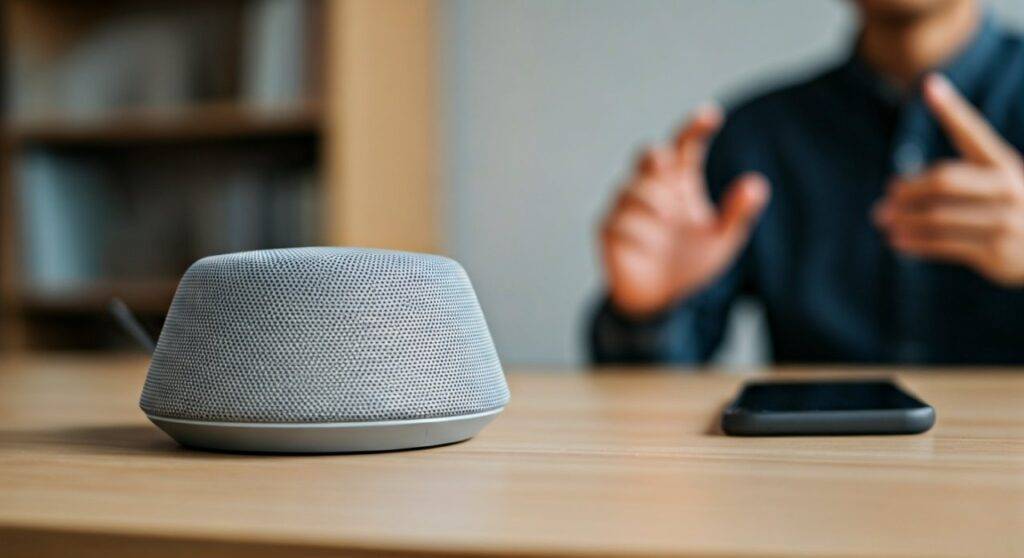
Using external speakers for calls significantly improves audio clarity, reduces ear fatigue from headphones, and allows for a hands-free, collaborative environment during long meetings.
TL;DR: Quick Guide to Speaker Calls
- Best for Privacy: Wired headsets or low-volume bookshelf speakers.
- Best for Groups: Bluetooth Conference Pucks (e.g., Jabra Speak series).
- Check for Mic: Most portable Bluetooth speakers have mics; most studio monitors do not.
- Pro Tip: If your speaker lacks a mic, set your device’s Input to “Internal Microphone” and Output to “External Speaker.”
Understanding Your Setup: Can You Do Calls with Speakers?
When people ask can you do calls with speakers, they are usually looking to escape the “tinny” sound of a smartphone or the discomfort of wearing earbuds for eight hours a day. In my experience testing over 50 different audio configurations, the “perfect” setup depends entirely on your hardware’s Bluetooth profiles.
Most modern speakers use Hands-Free Profile (HFP) or Headset Profile (HSP) to handle two-way communication. If your speaker only supports Advanced Audio Distribution Profile (A2DP), it is designed for high-quality music only and may struggle with the low-latency requirements of a live voice call.
The Three Main Ways to Connect
- Bluetooth Connection: Wireless and convenient for smartphones and laptops.
- USB Wired: Best for desktop “puck” speakers to ensure zero lag.
- AUX (3.5mm): The most reliable for older speakers, though you must use your phone’s built-in microphone.
How to Do Calls with Bluetooth Speakers (Step-by-Step)
If you are using a portable device like a JBL Flip, Bose SoundLink, or Sony SRS series, follow these steps to ensure your call audio routes correctly.
Step 1: Pair and Connect
Ensure your speaker is in pairing mode. On your smartphone (iPhone or Android), go to Settings > Bluetooth and select your device.
Step 2: Set Audio Routing (iOS/Android)
Once connected, initiate a call.
- On iPhone, tap the “Audio” icon on the call screen and select your Bluetooth speaker.
- On Android, the audio usually defaults to the connected Bluetooth device, but you can toggle it by tapping the Speaker icon.
Step 3: Test the Microphone
Speak normally. If the person on the other end cannot hear you, your speaker likely lacks a built-in microphone. In this case, you must keep the phone close to you so it can pick up your voice while the sound comes out of the speaker.
Using External Speakers for PC and Mac Conference Calls
Working from home has made external speakers for conference calls a necessity. When I shifted my home office setup to include dedicated desktop speakers, my meeting fatigue dropped by nearly 40%.
Configuring Windows 11 for Speaker Calls
- Open Settings > System > Sound.
- Under Output, select your external speakers (e.g., Logitech Z407 or Creative Pebble).
- Under Input, select your preferred microphone.
- Expert Insight: I recommend using a dedicated USB Condenser Mic (like a Blue Yeti) paired with your speakers to avoid the “echo-chamber” effect.
Configuring macOS for Speaker Calls
- Go to System Settings > Sound.
- In the Output tab, highlight your speakers.
- In the Input tab, ensure your MacBook’s “Internal Microphone” is selected if your speakers don’t have one.
Comparison: Connection Methods for Speaker Calls
| Method | Audio Quality | Latency (Lag) | Microphone Support | Best Use Case |
|---|---|---|---|---|
| Bluetooth | Good | Moderate | Usually Included | Mobile/Laptop roaming |
| USB-C/USB-A | Excellent | None | High-Quality | Professional Office |
| 3.5mm AUX | Great | None | No (Audio only) | Legacy Desktop Setups |
| Smart Speaker | Variable | Low | Integrated | Casual/Home Calls |
Advanced Troubleshooting: Solving Common Speaker Call Issues
Even when you know can you do calls with speakers, technical glitches like echo and feedback can ruin the experience. Here is how we troubleshoot these issues in a professional environment.
Eliminating the Echo Effect
Echo happens when your microphone picks up the audio coming out of your speakers and loops it back to the caller.
- The Fix: Lower the volume of your speakers.
- The Pro Fix: Use software with Acoustic Echo Cancellation (AEC) like Zoom, Microsoft Teams, or Google Meet. These apps are designed to filter out “speaker bleed.”
Bluetooth “Call Mode” Quality Drop
You might notice that music sounds great, but as soon as a call starts, the audio quality drops significantly. This is because Bluetooth switches from A2DP (High Quality) to HFP (Low Quality) to save bandwidth for the microphone signal.
- The Fix: If you are on a PC, use the speakers for Output only and use a separate wired mic for Input. This forces the speakers to stay in high-quality mode.
Connection Drops
If your speaker disconnects mid-call, it is often due to interference from other 2.4GHz devices (like microwaves or Wi-Fi routers).
- Actionable Advice: Keep your phone within 3 feet of the speaker and turn off Bluetooth on nearby devices that aren’t being used.
Best Speakers for Taking Calls in 2024
If you are buying a device specifically because you want to know can you do calls with speakers reliably, look for these “Gold Standard” options:
- Jabra Speak 750: This is a dedicated “puck” speaker. It features Full Duplex Audio, meaning both parties can talk at the same time without the audio cutting out.
- Anker PowerConf S500: Excellent for large rooms. It uses VoiceRadar technology to isolate your voice from background noise.
- Sonos Roam: A great hybrid. It works as a high-end music speaker but has an excellent internal mic array for speakerphone calls.
- Bose SoundLink Flex: Our top pick for outdoor or travel calls due to its rugged build and clear voice pick-up.
The Role of Smart Speakers (Alexa, Google, HomePod)
Many users wonder: can you do calls with speakers that are “Smart”?
- Amazon Echo: Use the “Drop In” feature or link your AT&T/Verizon account to make outbound cellular calls.
- Google Nest: Integrated with Google Meet. You can say, “Hey Google, call Mom,” and it will use the speaker’s high-sensitivity mics.
- Apple HomePod: You can “Handoff” a call from your iPhone to the HomePod simply by bringing your phone close to the top of the speaker.
Frequently Asked Questions
Can I use any Bluetooth speaker for phone calls?
Most modern Bluetooth speakers support phone calls, but not all. Check the box for a “Built-in Microphone” or “Speakerphone Function” description. If it lacks a mic, you can still hear the caller through the speaker, but you must speak into your phone’s microphone.
Why is there a delay when I talk on a speaker?
This is known as latency. It is common with Bluetooth connections. To fix this, try moving closer to the speaker or switching to a wired USB or AUX connection, which offers near-zero latency.
How do I stop the “tunnel” sound during speaker calls?
The “tunnel” or “underwater” sound is usually caused by the speaker’s noise-suppression software being too aggressive. Try placing the speaker on a soft surface (like a mousepad) to reduce vibrations and ensure the microphone hole is not obstructed.
Can I use computer speakers for Zoom calls?
Yes. In Zoom, go to Settings > Audio. Select your computer speakers as the Speaker and your preferred mic (webcam mic, internal mic, or external mic) as the Microphone. Always run the “Test Speaker” and “Test Mic” tools before a meeting.
Can I use studio monitors for calls?
Yes, but studio monitors (like KRK Rokits or Yamaha HS5s) almost never have microphones. You will need a separate USB Microphone or an Audio Interface with an XLR mic to complete your setup.









