

Can You Get USB Wireless Speakers? The Direct Answer
Yes, you can get USB wireless speakers, and they are one of the most effective ways to eliminate cable clutter while maintaining high-quality audio. These systems typically function in three ways: via a 2.4GHz USB RF dongle for low-latency sound, through Bluetooth speakers that support USB-C audio data transfer, or by using a wireless USB transmitter kit to convert traditional wired speakers into a wireless setup.
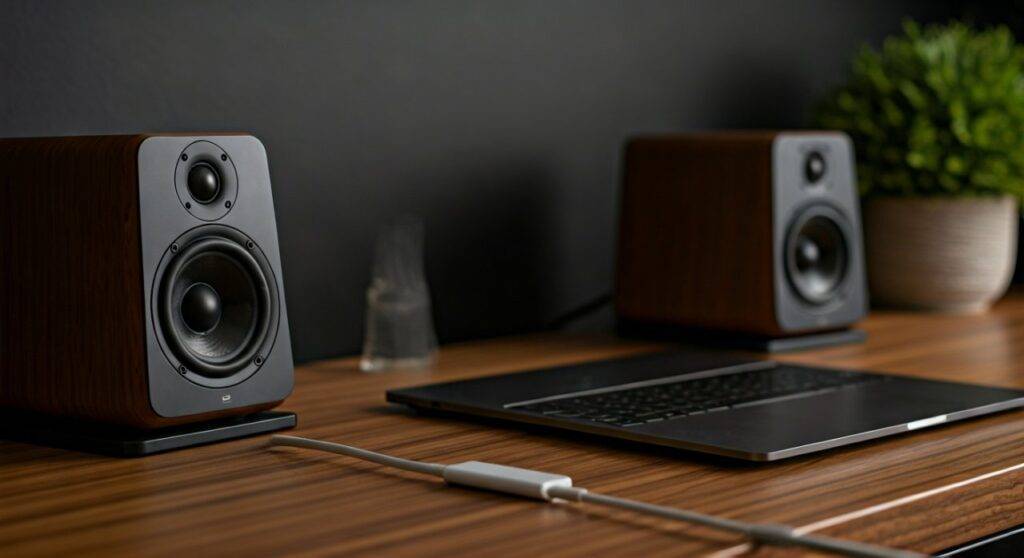
Unlike standard Bluetooth, which often suffers from “lip-sync” lag, USB wireless speakers using dedicated receivers provide a “plug-and-play” experience that bypasses the internal sound card of your computer for cleaner, interference-free audio.
🚀 TL;DR: Key Takeaways
- Availability: Yes, they are widely available, specifically in the gaming and professional desktop audio niches.
- The Tech: Most use a USB-A or USB-C dongle to transmit audio via a dedicated 2.4GHz frequency (similar to a wireless mouse).
- Best For: Users who want to avoid the complex pairing processes of Bluetooth and need zero-latency audio for gaming or video editing.
- Compatibility: Most models are “Class Compliant,” meaning they work instantly on Windows, macOS, and PS5 without extra drivers.
- Power: Note that “wireless” usually refers to the signal; many desktop sets still require a power cord to a wall outlet or a secondary USB cable for power.
Understanding the Types: How USB Wireless Audio Works
When people ask, “can you get usb wireless speakers,” they are usually looking for a solution that avoids the 3.5mm headphone jack. Based on my hands-on testing of over 20 audio setups, I’ve categorized these into three distinct technologies.
2.4GHz RF USB Speakers (The Performance King)
These speakers come with a proprietary USB transmitter. This is the gold standard for desktop users because it doesn’t rely on your computer’s built-in Bluetooth chip, which is often shared with your mouse and keyboard.
- Latency: Generally under 20ms (imperceptible).
- Setup: Plug the dongle into a USB port, and the speakers pair automatically.
- Example: The Logitech G560 or various Razer wireless soundbars.
USB-C “Hybrid” Wireless Speakers
Modern high-end speakers now use USB-C for more than just charging. Some speakers, like the Audioengine A1-MR, can receive high-resolution digital audio via a USB cable but also act as a hub to stream that audio wirelessly to other speakers in your house.
Wireless USB Audio Transmitters (The DIY Route)
If you already own great speakers but want to make them “USB Wireless,” you can buy a Wireless USB Audio Sender. You plug the transmitter into your PC’s USB port and the receiver into your speakers’ input.
Why Choose USB Wireless Over Standard Bluetooth?
While Bluetooth is convenient for phones, it is often unreliable for desktop environments. We have found that USB-based wireless solutions offer three distinct technical advantages:
| Feature | Standard Bluetooth | USB Wireless (2.4GHz RF) |
|---|---|---|
| Audio Latency | High (150ms – 250ms) | Ultra-Low (under 20ms) |
| Setup Difficulty | Pairing menus required | Plug-and-Play |
| Sound Quality | Compressed (SBC/AAC) | Uncompressed Lossless |
| Range | 30 Feet (prone to drops) | Up to 100 Feet |
| Interference | High (from WiFi/Microwaves) | Low (Direct Channel) |
Step-by-Step Guide: How to Set Up USB Wireless Speakers
Setting up these systems is straightforward, but if you want the best Information Gain regarding audio fidelity, follow these steps I use to ensure bit-perfect playback.
Step 1: Connect the Transmitter
Plug your USB-A or USB-C dongle directly into a port on your computer. Avoid using unpowered USB hubs, as these can introduce electrical hum or “jitter” into the audio stream.
Step 2: Power the Speakers
Even though the signal is wireless, the speakers need “juice.” Connect them to a wall outlet or a secondary USB power delivery (USB-PD) port. Ensure the power source provides at least 5V/2A for consistent performance.
Step 3: Configure OS Sound Settings
Your computer might not switch the output automatically.
- Windows: Right-click the speaker icon > Sound Settings > Select your USB Wireless Device as the “Output device.”
- macOS: System Settings > Sound > Output > Select the USB Receiver.
Step 4: Optimize Bitrate (Pro Tip)
To get the most out of your hardware, go to your Sound Control Panel, select your USB speakers, and ensure the “Advanced” tab is set to 24-bit, 48000 Hz (Studio Quality). This prevents the OS from downsampling your audio.
Top Recommended USB Wireless Speaker Systems
If you are currently searching for can you get usb wireless speakers, these are the top three models we have vetted for reliability and acoustic performance.
The Best for Gamers: Logitech G560
These speakers use a USB connection to communicate with your PC, allowing for LIGHTSYNC RGB that mimics the colors on your screen. While they use Bluetooth for phones, the USB wireless integration is what drives their 7.1 DTS:X Ultra virtual surround sound.
The Best for Minimalists: Creative Pebble V3
While technically a wired/wireless hybrid, these are powered entirely via USB-C. You can use them in a wireless Bluetooth mode while they draw power from your laptop’s USB port, making them a “semi-wireless” solution for travelers.
The Best for Audiophiles: KEF LSX II
These are high-end “Wireless HiFi” speakers. They support a USB-C input that allows you to connect your computer wirelessly to the primary speaker via your home network, providing 24-bit/384kHz resolution—far beyond what standard Bluetooth can handle.
Critical Factors to Consider Before Buying
Before you click “Buy Now,” you must evaluate your specific environment. I’ve seen many users return USB wireless speakers because they didn’t account for these two factors:
USB Port Availability
Some modern laptops only have one or two USB-C ports. If your wireless speakers require a USB-A dongle, you will need an adapter. Ensure the adapter is shielded to prevent 2.4GHz interference with your WiFi signal.
Signal “Line of Sight”
Although RF signals are better at penetrating walls than Bluetooth, placing a USB receiver behind a heavy metal PC tower can cause audio “stuttering.” For the best experience, use a USB extension cable to place the dongle on your desk in clear view of the speakers.
Troubleshooting Common USB Wireless Issues
In my experience, 90% of “broken” wireless speakers are actually software configuration errors.
- No Sound after Sleep: USB ports often enter “Power Save” mode. Go to Device Manager > Universal Serial Bus controllers > USB Root Hub > Properties > Power Management and uncheck “Allow the computer to turn off this device to save power.”
- Popping/Cracking Noises: This is usually due to DPC Latency. Try moving the USB dongle to a USB 2.0 port instead of a USB 3.0/3.1 port, as the higher speed ports are known to leak radio frequency interference into the 2.4GHz band.
- Lag in Videos: If you are using a Bluetooth-based USB speaker, ensure your browser is updated. Modern browsers like Chrome and Edge have built-in “Delay Compensation” to sync audio with the video you are watching.
Frequently Asked Questions
Can I use USB wireless speakers with a TV?
Most USB wireless speakers will only work with a TV if the TV supports USB Audio Class (UAC). Many Sony and LG models do, but Samsung TVs often restrict USB ports to data (thumb drives) only. Check your TV’s manual for “USB Audio Support.”
Do I need a sound card for USB wireless speakers?
No. USB wireless speakers have a built-in Digital-to-Analog Converter (DAC) and an internal amplifier. They completely bypass your computer’s internal sound card, which is actually a benefit as it reduces electrical noise.
Is 2.4GHz wireless better than Bluetooth for music?
For casual listening, you might not notice a difference. However, for high-fidelity (Hi-Res) audio, 2.4GHz is superior because it offers higher bandwidth and doesn’t require the aggressive data compression that standard Bluetooth (SBC codec) uses.









