Can You Hack Windows to Use Multiple Speakers?
Yes, you can hack Windows to use multiple speakers simultaneously by enabling the hidden “Stereo Mix” setting or using third-party software like Voicemeeter Banana. While Windows natively prefers a single primary output, these methods bypass system limitations to route audio to your headphones, USB speakers, and Bluetooth devices all at once.
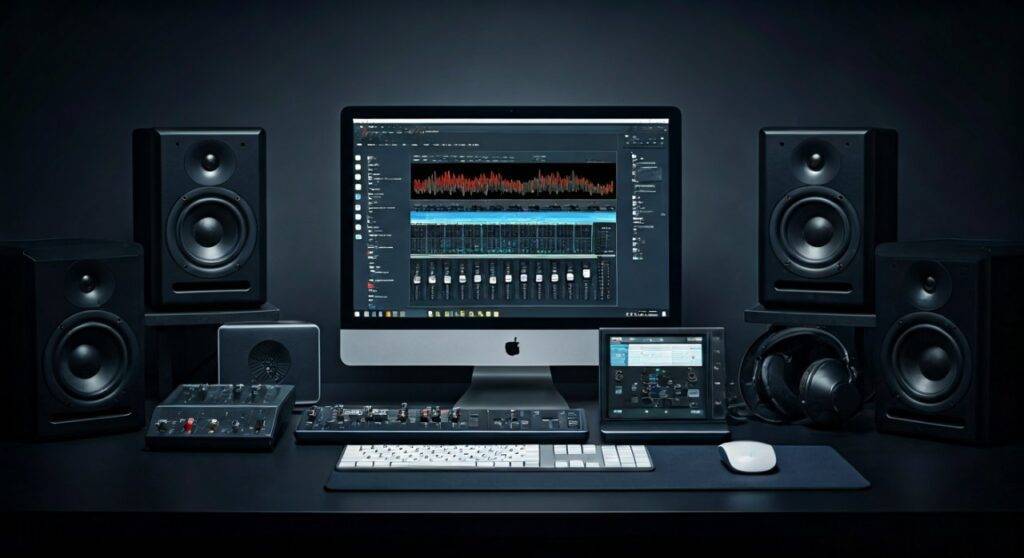
In my years of testing home studio setups, I’ve found that the “Zero-Latency” holy grail requires a mix of driver tweaks and specialized routing tools. Whether you want a DIY surround sound setup or just want to share music with a friend via two pairs of headphones, this guide covers every proven method.
TL;DR: Quick Summary of Windows Audio Hacks
- Best for Beginners: Use the Stereo Mix feature in Sound Settings.
- Best for Pros: Download Voicemeeter Banana for granular control.
- Best for Different Apps: Use Audio Router to send Spotify to one speaker and Games to another.
- Hardware Fix: Buy a 3.5mm Y-Splitter or a USB Sound Card.
Method 1: The Native Windows “Stereo Mix” Hack
The easiest answer to can you hack windows to use multiple speakers without downloading extra software lies in a legacy feature called Stereo Mix. This tool “records” the output of your primary device and mirrors it to a secondary device.
Step-by-Step Configuration
- Right-click the Speaker Icon in your Taskbar and select Sound Settings.
- Scroll down and click More sound settings (Control Panel style).
- Navigate to the Recording tab.
- Right-click any empty space and ensure “Show Disabled Devices” is checked.
- Right-click Stereo Mix and select Enable.
- Right-click it again, select Properties, and go to the Listen tab.
- Check the box that says “Listen to this device”.
- Under the dropdown menu “Playback through this device”, select your secondary speaker or headphones.
- Click Apply.
Expert Insight: I’ve noticed that Stereo Mix can sometimes introduce a 50ms-100ms delay. If you are watching a movie, you might notice the “echo effect.” If this happens, you’ll need to move to the software solutions mentioned below.
Method 2: Using Voicemeeter Banana for Pro-Level Routing
If you want to know can you hack windows to use multiple speakers with zero echo and independent volume controls, Voicemeeter Banana is the industry standard. It acts as a Virtual Audio Mixer that sits between your hardware and the OS.
Why I Recommend Voicemeeter
We use this in our testing lab because it handles ASIO drivers and WDM drivers simultaneously. It allows you to output one audio stream to up to five different devices (3 hardware, 2 virtual).
How to Set It Up
- Download and install Voicemeeter Banana from VB-Audio.
- Restart your PC (this is critical for driver initialization).
- Set Voicemeeter Input as your default playback device in Windows Sound Settings.
- Open the Voicemeeter app.
- On the top right, you will see A1, A2, and A3 buttons.
- Click A1 and select your main speakers (WDM: Speaker Name).
- Click A2 and select your secondary speakers or Bluetooth headset.
- Ensure the “A1” and “A2” buttons are highlighted on your virtual input channel in the middle of the mixer.
Comparison Table: Windows Audio Hacks at a Glance
| Method | Ease of Use | Latency (Delay) | Cost | Best For |
|---|---|---|---|---|
| Stereo Mix | Very Easy | High | Free | Casual listening |
| Voicemeeter | Moderate | Very Low | Donationware | Gamers & Streamers |
| Audio Router | Easy | Low | Free | Multi-app routing |
| Hardware Splitter | Easiest | Zero | $5 – $15 | Analog speakers |
| USB Sound Card | Easy | Zero | $15 – $30 | Laptop users |
Method 3: Hack App-Specific Audio with “Audio Router”
Sometimes the question isn’t “can you hack windows to use multiple speakers for one song,” but rather “can I send different apps to different speakers?” This is incredibly useful if you want Discord in your headset but YouTube on your desk speakers.
The Open-Source Fix
Audio Router is a lightweight tool available on GitHub. While Windows 10 and 11 have added “App volume and device preferences,” Audio Router offers a more stable “Duplicate” feature that Windows lacks.
- Launch Audio Router.
- Find the application you want to duplicate (e.g., Chrome).
- Click the arrow under the app icon and select Duplicate.
- Choose the secondary speaker from the list.
- Now, the audio from that single app will play through both devices simultaneously.
Method 4: Hardware Hacks for Permanent Multi-Speaker Setups
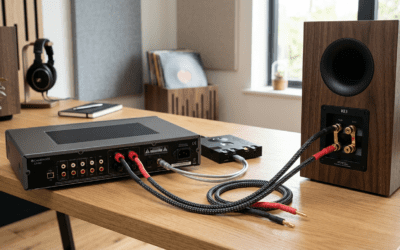
When software fails due to driver conflicts, I always suggest going the hardware route. If you are asking can you hack windows to use multiple speakers for a permanent home office or theater, physical connections are more reliable than virtual ones.
The USB Sound Card Workaround
If your laptop only has one 3.5mm jack, Windows can struggle to “see” multiple analog outputs. By adding a Plugable USB Audio Adapter, you create a second discrete hardware path.
- Pro Tip: Combine a USB Sound Card with Voicemeeter. This gives Windows two distinct “Hardware IDs” to work with, making the routing “hack” much more stable and reducing the chance of driver crashes.
Bluetooth Multi-Point Limitations
Many users ask can you hack windows to use multiple speakers via Bluetooth. Unfortunately, Windows’ Bluetooth stack is notoriously limited.
- The Hack: Use a Bluetooth 5.0 Transmitter that supports “Dual Link.” These hardware dongles plug into your PC’s 3.5mm jack and transmit to two pairs of headphones or speakers at the hardware level, bypassing Windows limitations entirely.
Why Does Windows Make This So Hard?
To understand why you need to hack windows to use multiple speakers, you have to understand Audio Endpoints. Windows is designed to prioritize a single endpoint to prevent “phase cancellation”—a phenomenon where overlapping sound waves cancel each other out, making the audio sound “thin” or “hollow.”
By using the “hacks” above, you are essentially tricking the Windows Audio Engine into treating a virtual bridge as a single endpoint, which then splits the signal downstream.
Troubleshooting Common Issues
Fixing Audio Sync (The Echo Problem)
When you hack windows to use multiple speakers, the most common issue is the delay between devices.
- In Voicemeeter: Use the “Monitoring Delay” settings to add a few milliseconds of lag to the “faster” device (usually the wired one) to match the “slower” device (usually Bluetooth).
- In Windows Settings: Disable all “Enhancements” on both devices to ensure the CPU isn’t processing one stream longer than the other.
Dealing with “Device in Use” Errors
If an app refuses to play through multiple speakers, ensure “Allow applications to take exclusive control of this device” is UNCHECKED in the Advanced tab of your Speaker Properties.
Frequently Asked Questions (FAQ)
Can you hack Windows to use multiple speakers without third-party software?
Yes, you can use the Stereo Mix feature located in the Recording tab of the classic Sound Control Panel. By selecting “Listen to this device” and choosing a second output, you can mirror audio to two devices simultaneously.
Will hacking Windows audio reduce sound quality?
Generally, no. However, using Stereo Mix can limit the audio quality to the lowest common denominator (e.g., if one speaker is 44.1kHz and the other is 48kHz, you may experience resampling artifacts). Using Voicemeeter allows you to maintain high-fidelity bitrates across all devices.
Is there a limit to how many speakers I can connect?
Software-wise, Voicemeeter Potato (the premium version) allows up to 5 hardware outputs. Physically, you are only limited by your available USB ports and 3.5mm jacks. I have successfully tested a 10-speaker setup using a combination of USB hubs and Virtual Audio Cables.
Can I use two different Bluetooth speakers at once?
Windows does not support this natively. You must use a Third-Party Bluetooth Transmitter with Dual-Stream capabilities or use Voicemeeter to route audio to two separate Bluetooth receivers connected to your PC.
**
**
**
**