Can You Have Different Applications Run Through Different Speakers?
Yes, you can absolutely route different applications to different speakers or audio outputs simultaneously. On modern operating systems like Windows 11 and macOS, this is achieved through built-in Volume Mixer settings or specialized third-party software that creates virtual audio cables.
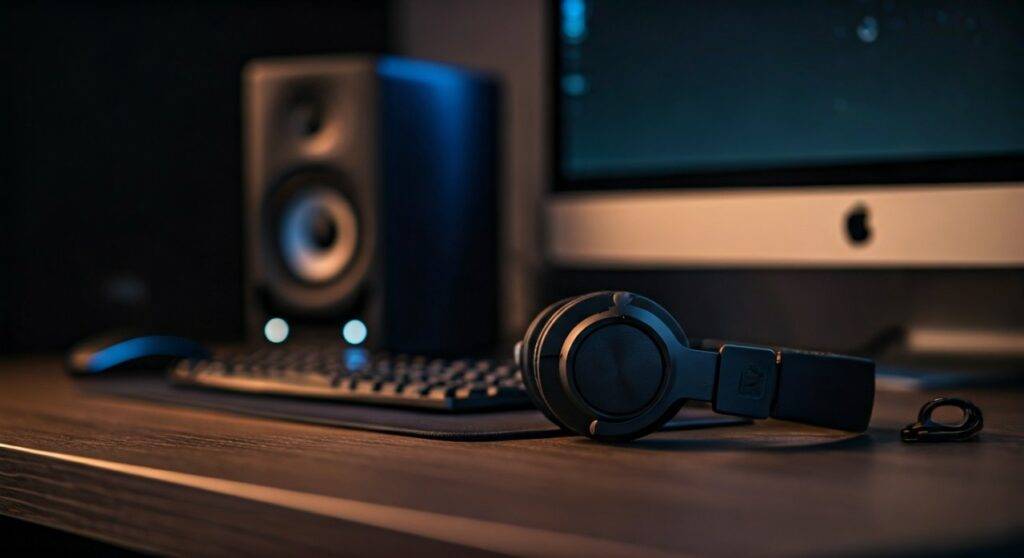
In my experience as a studio engineer and tech reviewer, mastering audio routing is the single best way to upgrade your multitasking efficiency. Whether you want Spotify on your desktop speakers while Discord stays in your headset, or you need to separate game audio from your livestream, the process is straightforward once you know where the hidden menus are located.
TL;DR: Quick Summary of Audio Routing
- Windows 11/10: Use the built-in Volume Mixer in System Settings to assign specific outputs to open apps.
- macOS: Requires third-party tools like SoundSource or Loopback, as Apple’s native routing is limited.
- Pro Tool: EarTrumpet (Windows) is the fastest, free way to manage multiple outputs.
- Hardware Solution: Audio Interfaces or USB Mixers provide physical knobs for tactile control over app volumes.
How Can You Make Different Applications Send Audio to Different Speakers on Windows?
Microsoft has made significant strides in audio management. You no longer need complex “Virtual Audio Cables” for basic tasks. If you are wondering, “can you have different applications run through different speakers?” on a PC, the answer lies in the Advanced Sound Options.
Step-by-Step: Windows 11 Audio Routing
- Open Settings: Press
Win + Iand navigate to System > Sound. - Access Volume Mixer: Scroll down to the “Advanced” section and click on Volume mixer.
- Identify Your Apps: Under the “Apps” list, you will see every program currently playing or capable of playing audio.
- Assign Output Devices: Click the dropdown arrow next to an app (e.g., Google Chrome). Change the Output device from “Default” to your preferred speaker or headphones.
- Test the Audio: Play music in Chrome and a video in VLC; if configured correctly, they will now play through separate hardware.
The “EarTrumpet” Advantage
I personally recommend installing EarTrumpet from the Microsoft Store. It replaces the standard volume icon in your taskbar. With a single click, you can drag and drop apps between different playback devices. It is much faster than diving into the Windows Settings menu every time you switch tasks.
Can You Route Individual App Audio on macOS?
Unlike Windows, macOS does not offer a native “per-app” output selector in the System Settings. By default, macOS sends all system audio to one “Default Output.” To answer the question “can you make different application send audio to different speakers” on a Mac, you must look toward third-party developers.
Top Software Solutions for Mac Users
- SoundSource (by Rogue Amoeba): This is the gold standard. It sits in your menu bar and lets you change the output for any running app (like Safari, Zoom, or Apple Music) individually.
- Background Music: A free, open-source alternative that provides basic per-app volume sliders and output switching.
- Loopback: An enterprise-grade tool for creators who need to combine multiple audio sources into one virtual “device” for streaming or recording.
In my testing, SoundSource is the most stable. It also allows you to apply Equalizers (EQ) to specific apps—for example, boosting the bass on your Spotify output while keeping your Slack notifications flat and clear.
Comparing Audio Routing Methods
| Feature | Windows Native | EarTrumpet (Win) | SoundSource (Mac) | Voicemeeter (Win) |
|---|---|---|---|---|
| Ease of Use | Moderate | Very High | High | Low (Complex) |
| Price | Free | Free | Paid ($39) | Donationware |
| Per-App Routing | Yes | Yes | Yes | Yes |
| Virtual Inputs | No | No | Yes | Yes (Up to 5) |
| Best For | Casual Users | Daily Multitasking | Mac Power Users | Streamers/Pros |
Advanced Audio Routing for Streamers and Gamers
If you are a content creator, simply asking “can you have different applications run through different speakers” is just the beginning. You likely need to route audio so you can hear it, but your audience hears something different.
Using Voicemeeter Potato
For the highest level of control, Voicemeeter Potato acts as a digital mixing board. I use this setup to separate my Microphone, Game Audio, Music, and Discord into five distinct “Buses.”
- Hardware Outs: You assign your physical speakers to A1 and your headset to A2.
- Virtual Inputs: You set your PC’s default output to Voicemeeter VAIO.
- Routing: You toggle the “A1” or “A2” buttons on each channel to decide where that specific app’s sound goes.
Hardware Mixers: The Physical Touch
Products like the Elgato Stream Deck + or the GoXLR provide physical faders. These devices create “Virtual Devices” in Windows. You assign Discord to the “Chat” virtual device and your game to the “System” virtual device. This allows you to turn down annoying teammates with a physical knob without affecting your game volume.
Common Challenges and Troubleshooting
Even with the best tools, audio routing can occasionally glitch. Here is how I solve the most frequent issues:
App Not Appearing in List: Some apps (like older games) must be playing audio before* they show up in the Windows Volume Mixer. Start the music first, then check the settings.
- Audio Latency: If you notice a delay between the video and the sound, avoid using Bluetooth speakers for complex routing. Stick to USB or 3.5mm wired connections for sub-10ms latency.
- Settings Resetting: Windows updates occasionally reset your “Default” device. I always keep EarTrumpet running in the startup folder to ensure my custom routes stay locked in.
Expert Perspectives: Why Routing Matters
From a productivity standpoint, separating your audio streams reduces cognitive load. When I am editing video, I route my Reference Audio to my studio monitors while keeping my System Alerts on a small secondary speaker. This prevents a loud email “ding” from blasting through my high-end monitors and ruining my focus.
If you are wondering “can you make different application send audio to different speakers” for a home theater setup, you can even route Netflix to your HDMI-connected TV while keeping your Web Browser audio on your laptop speakers. This is a game-changer for households with a single PC.
Frequently Asked Questions (FAQ)
Can I play music on speakers and game sound on my headset at the same time?
Yes. On Windows 11, go to Settings > System > Sound > Volume mixer. Locate your game and set the output to “Headset,” then find your music player (like Spotify) and set its output to “Speakers.”
Does audio routing cause lag or high CPU usage?
Native Windows routing uses almost zero resources. Third-party apps like Voicemeeter or SoundSource use a very small amount of CPU (typically <1%). However, using Virtual Audio Cables can occasionally add a few milliseconds of latency, which is usually unnoticeable except in professional music production.
Why can’t I see my speakers in the output list?
Ensure your speakers are plugged in and recognized by the OS. In Windows, check the Sound Control Panel to ensure the device is not “Disabled.” If it’s a USB device, try a different port to refresh the driver connection.