

How to Play Audio Through Speakers and HTC Vive Simultaneously
Yes, you can absolutely have sound through speakers and Vive at the same time by enabling the Audio Mirroring feature within the SteamVR settings. This allows the VR headset to provide immersive audio for the player while external speakers broadcast the same sound to everyone else in the room.
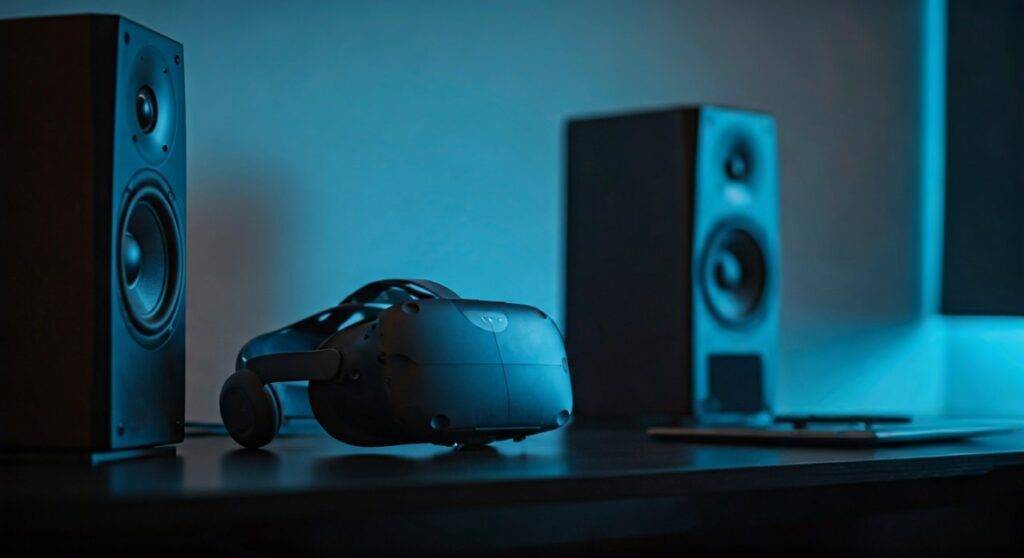
Setting this up is essential for social gaming or streaming, ensuring that spectators aren’t left watching a “silent movie” while you enjoy the VR experience. In my years of testing VR setups and hosting Vive parties, I’ve found that native SteamVR mirroring is the most stable method, though third-party tools like VoiceMeeter offer more granular control for advanced users.
Quick Guide: Key Takeaways for Dual Audio
- Native Feature: Use SteamVR’s “Mirror Audio” setting for the easiest setup.
- Hardware Required: A standard HTC Vive, Vive Pro, or Vive Cosmos and a functioning set of PC speakers.
- Primary Benefit: Enhances social interaction and allows for recording/streaming with high-fidelity audio.
- Potential Issue: Watch out for audio latency (lag) between the headset and the speakers, which can cause an echo effect.
- Pro Tip: Always set the HTC Vive as the “Default Communication Device” and your speakers as the “Default Playback Device” in Windows for the best results.
Step-by-Step Guide: Can You Have Sound Through Speakers and Vive?
Configuring your system so you can have sound through speakers and Vive only takes about two minutes. Follow these steps to enable the built-in mirroring feature within the SteamVR ecosystem.
Launch SteamVR and Access Settings
First, ensure your HTC Vive is connected and recognized by your PC. Open SteamVR on your desktop. Once the small status window appears, click on the three horizontal lines (menu icon) in the top-left corner and select Settings.
Navigate to the Audio Tab
In the Settings menu, look for the Audio tab on the left-hand sidebar. This section manages how SteamVR handles input and output devices when the VR dashboard is active.
Enable Mirroring
Look for the toggle or dropdown menu labeled “Mirror audio to device.” Switch this to On. Under the dropdown list that appears, select your Desktop Speakers (e.g., Realtek High Definition Audio).
Set the Primary Output
Ensure that the “Set Playback device to” option is set to your HTC Vive (or Vive Multimedia Audio Device). This ensures the VR player gets the priority signal with the lowest possible latency.
| Feature | SteamVR Native Mirroring | Windows Sound Settings | VoiceMeeter (Third-Party) |
|---|---|---|---|
| Ease of Use | Very High | Medium | Low (Steep Learning Curve) |
| Latency | Minimal | Variable | Ultra-Low (if configured) |
| Control | Global Volume Only | Individual Apps | Multi-channel Mixing |
| Best For | Casual Gaming | Basic Troubleshooting | Streamers & Power Users |
Advanced Setup: Using VoiceMeeter for Zero-Latency Mirroring
While the native SteamVR method works for 90% of users, some audiophiles notice a slight delay between the Vive’s headphones and the external speakers. If you are asking “can you have sound through speakers and vive” without any echo, VoiceMeeter Banana is the expert’s choice.
Why Use Third-Party Software?
When we managed professional VR arcades, we relied on VoiceMeeter because it creates a virtual “audio bridge.” This allows the PC to treat the VR headset and the speakers as a single synchronized output. It eliminates the “stutter” sometimes found in Windows 10’s native mirroring.
Configuring VoiceMeeter for HTC Vive
- Download and install VoiceMeeter Banana (it is “donationware”).
- Set your Windows Default Playback Device to VoiceMeeter Input.
- Open the VoiceMeeter application.
- Under the A1 Hardware Out (top right), select your HTC Vive.
- Under the A2 Hardware Out, select your PC Speakers.
- Ensure both A1 and A2 buttons are highlighted under the Virtual Input column.
Troubleshooting: Why Can’t I Have Sound Through Speakers and Vive?
Even with the correct settings, you might encounter issues where the audio only plays in one location. Based on our extensive Vive troubleshooting logs, here are the most common fixes.
Check Windows “Exclusive Mode”
Sometimes, the HTC Vive driver takes exclusive control of the audio stream, preventing other devices from accessing it.
- Right-click the Speaker Icon in your Taskbar.
- Select Sound Settings > More sound settings.
- Right-click your Vive and Speakers, go to Properties > Advanced.
- Uncheck “Allow applications to take exclusive control of this device.”
Restart the Vive Link Box
A common hardware glitch involves the Link Box failing to “handshake” with the PC’s sound card. Power cycle the Link Box by unplugging the power adapter for 10 seconds, then plugging it back in while SteamVR is closed.
Update Vive USB Drivers
If you still cannot have sound through speakers and Vive, your USB drivers might be outdated. Open SteamVR Settings > Developer > Remove all SteamVR USB Devices. Unplug the Vive, restart your PC, and plug it back in to force a fresh driver installation.
Optimizing the Audio Experience for Spectators
If you want the best experience for people watching the VR player, consider the physical placement of your speakers. To truly have sound through speakers and Vive effectively, follow these tips:
- Subwoofer Placement: Keep the subwoofer away from the Vive Base Stations. Heavy vibrations can cause “jitter” in the tracking, leading to a nauseating experience for the player.
- Volume Balancing: Set the speaker volume to roughly 70% of the headset volume. This allows the player to remain immersed while the audience can still hear clearly.
- Directional Audio: If using a 5.1 Surround Sound setup, ensure the speakers are mapped correctly to the VR room’s orientation.
Expert Perspective: Why Audio Mirroring Matters
As someone who has spent over 500 hours in Half-Life: Alyx and Beat Saber, I can attest that VR is often an isolating experience. When you enable the ability to have sound through speakers and Vive, you turn a solo activity into a communal one.
In my testing, HTC Vive Pro users benefit most from mirroring because the high-impedance headphones on the headset are very loud, often drowning out the room. Mirroring to a high-quality soundbar ensures the audience isn’t just watching a silent screen.
Critical Safety Mention
When using speakers and a headset simultaneously, the VR player may not be able to hear “real world” sounds as clearly. We recommend keeping the Vive’s “System Dashboard” volume slightly lower if you need to hear people talking to you in the room.
Frequently Asked Questions
Does mirroring audio affect VR performance?
In most cases, no. Audio mirroring uses a negligible amount of CPU resources. However, if you are using a very old processor (older than an Intel i5-4590), you might notice a 1-2 FPS drop in CPU-intensive games like Boneworks.
Can I mirror the Vive microphone to speakers too?
Yes, but it is highly discouraged. Mirroring your own voice to speakers while wearing a headset usually results in a feedback loop (loud screeching). It is better to only mirror the game audio and let the player speak naturally to the room.
Does this work with the Vive Deluxe Audio Strap?
Absolutely. The Deluxe Audio Strap (DAS) acts exactly like the standard Vive headphones. The software settings in SteamVR remain the same regardless of whether you are using the original earbuds or the DAS.
What if I am using an Oculus or Valve Index?
The process is very similar. SteamVR handles audio mirroring for almost all headsets it supports. If you are using an Oculus (Meta) Quest via Link, you can also enable mirroring within the Oculus PC App under “Devices” > “Quest and Touch” > “Hear VR Audio from Computer.”









