

Can You Hear Axe FX 3 Through Computer Speakers?
Yes, you can absolutely hear the Axe-FX III through computer speakers by using it as a high-performance USB audio interface or by routing its outputs through an existing soundcard. The most direct method involves connecting the Axe-FX III to your computer via USB and selecting it as your primary Playback Device in your system settings.
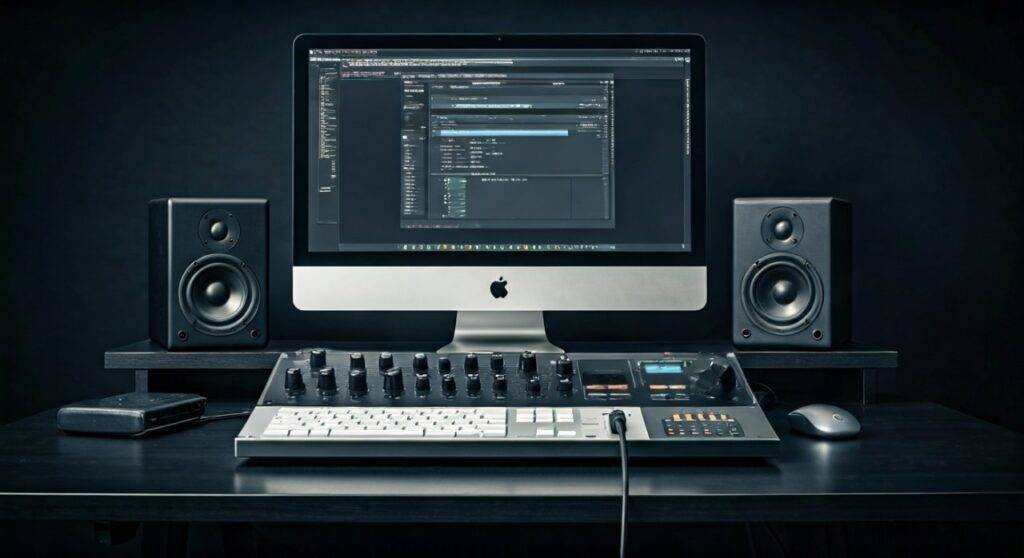
Connecting a professional-grade processor like the Fractal Audio Axe-FX III to consumer or prosumer computer speakers can be confusing for many guitarists. Whether you are using $20 desktop speakers or $2,000 studio monitors, the setup requires specific routing to ensure you aren’t just seeing lights flicker on the front panel while hearing silence from your desk. Over the years of testing Fractal Audio gear in various studio environments, we have found that the “right” way depends entirely on your current hardware chain.
Quick Summary: How to Get Sound to Your Speakers
| Method | Connection Type | Best For | Complexity |
|---|---|---|---|
| USB Direct | USB 2.0 Cable | Most users / Home recording | Low |
| External Interface | XLR or TRS Cables | Users with existing pro-audio setups | Medium |
| Direct to Speakers | 1/4″ to 3.5mm Adapter | Simple playback without a PC | Low |
| SPDIF / Digital | Coaxial Digital Cable | Lossless signal / Advanced users | High |
Key Takeaways for Immediate Success
- Axe-FX III is an Interface: It functions as a 24-bit/48kHz USB audio interface with 8-in/8-out capability.
- Driver Requirement: Windows users must download the official Fractal Audio USB Drivers to enable low-latency playback.
- Sample Rate Match: Ensure your computer’s sound settings are locked to 48kHz to avoid “crackling” or “aliasing” noise.
- Speaker Connection: Your speakers must be plugged into the Axe-FX III Outputs (not the computer’s green jack) if using the USB method.
Method 1: Using the Axe-FX III as Your Primary Audio Interface
The most common way to hear Axe-FX 3 through computer speakers is to treat the unit as your computer’s sound card. This is the “Gold Standard” for tone because it involves the fewest digital-to-analog conversions.
Step 1: Physical USB Connection
Connect a high-quality USB 2.0 Type-A to Type-B cable from the back of the Axe-FX III to an available port on your computer. We recommend avoiding USB hubs, as they can introduce latency or “jitter” into your audio stream.
Step 2: Install the Fractal Audio Drivers
If you are on macOS, the Axe-FX III is “Class Compliant,” meaning it works out of the box. However, for Windows users, you must visit the Fractal Audio Systems support page and download the latest ASIO drivers.
Expert Tip: Without the ASIO driver, Windows will use the generic MME driver, which results in a noticeable delay (latency) between the moment you pick a string and the moment you hear the sound.
Step 3: Configure System Sound Settings
- Open your Sound Control Panel (Windows) or System Settings > Sound (Mac).
- Set the Output Device to “Axe-FX III”.
- Go to the Advanced Properties and ensure the format is set to 2-channel, 24-bit, 48000 Hz (Studio Quality). The Axe-FX III operates exclusively at 48kHz; mismatching this will cause significant audio artifacts.
Step 4: Connecting the Speakers
When the Axe-FX III is your interface, your computer speakers must be connected to the Axe-FX III’s Output 1.
- If your speakers have XLR or 1/4″ TRS inputs, use those.
- If you are using standard computer speakers with a 3.5mm jack, you will need a Dual 1/4″ Mono to 3.5mm Stereo Female adapter.
Method 2: Routing Through an External Audio Interface
Many users already own an interface like a Focusrite Scarlett, Universal Audio Apollo, or PreSonus AudioBox. If you want to keep your speakers plugged into that device, follow these steps.
Hardware Connection (Analog)
Run two XLR cables (or 1/4″ shielded cables) from Output 1 L/R on the back of the Axe-FX III into the Inputs of your external interface.
Software Monitoring
To hear the guitar through your computer speakers in this setup:
- Open your interface’s control software (e.g., Focusrite Control or UA Console).
- Enable Direct Monitoring on the inputs where the Axe-FX is connected.
- Ensure your interface is the selected Playback Device in your OS settings.
Why choose this method? It allows you to leave your speakers permanently connected to your interface while using the Axe-FX III simply as a sound source. However, you are subject to the “color” of your interface’s preamps.
Method 3: Using SPDIF for Lossless Digital Audio
If you are wondering, “can you hear axe fx 3 through computer speakers” with the absolute highest fidelity, SPDIF is the answer. This keeps the signal digital from the Fractal unit to your interface, bypassing unnecessary conversion stages.
- Connect a 75-ohm Coaxial Digital Cable from the SPDIF Out of the Axe-FX to the SPDIF In of your interface.
- In your interface’s settings, set the Clock Source to SPDIF (External).
- Set the sample rate to 48kHz.
This method is highly recommended for pro-level home studios where re-amping and signal purity are priorities.
Troubleshooting: Why You Can’t Hear Anything
Even with the cables plugged in, you might encounter silence. Based on our experience troubleshooting hundreds of Fractal Audio rigs, here are the most common culprits:
The Output 1 Knob is Down
It sounds simple, but the Axe-FX III has physical volume knobs on the front panel. Ensure Output 1 is turned up. Unlike some digital gear, this physical pot controls the analog output level sent to your speakers.
USB Input Levels in “I/O” Menu
Navigate to the Setup > I/O > USB menu on the Axe-FX III. Check the USB Output 1/2 Record Level. If this is set to negative infinity, your computer won’t receive the signal via USB.
“Input 1” Gain Stages
Ensure your guitar is actually hitting the grid. Look at the front panel LEDs. If the Input 1 LEDs aren’t lighting up when you play, your signal isn’t reaching the processor. Check your cables and the Input 1 gain setting in the I/O menu.
Windows “Privacy” Settings
In modern Windows updates, there is a “Microphone Privacy” setting. If this is disabled, Windows may block ASIO devices from sending audio data to the system, effectively muting your Axe-FX III.
Expert Insights: Optimizing Your Speaker Setup
To get the most out of your Axe-FX III, the type of computer speakers you use matters significantly.
- Studio Monitors vs. Multimedia Speakers: Standard computer speakers (like Logitech or Creative) often have a “V-shaped” EQ curve that boosts bass and treble. This can make your Axe-FX presets sound muddy or harsh. We recommend Linear Response studio monitors (e.g., Yamaha HS5 or Kali Audio LP-6) for an accurate representation of the Fractal modeling.
- The “Hiss” Factor: If you hear a “hiss” or “hum” (ground loop) when connecting to your computer, try using balanced XLR cables instead of unbalanced 1/4″ cables.
- The Cab Sim Rule: Since you are playing through full-range speakers (computer speakers), always ensure your Cabinet Block is enabled in your Axe-Edit signal chain. Playing an amp model into computer speakers without a cab sim will sound like a “buzzing bee.”
Frequently Asked Questions
Can I hear my computer audio and my guitar at the same time?
Yes. When the Axe-FX III is set as your default USB Audio Interface, it mixes the guitar signal (processed internally) with the audio coming from your computer (YouTube, Spotify, DAW) and sends them both to your speakers.
Do I need a DAW to hear my Axe-FX 3?
No. You do not need a Digital Audio Workstation (like Logic, Reaper, or Ableton) to hear your guitar. As long as the unit is powered on and connected to your speakers, you will hear your signal. A DAW is only necessary for recording.
Can I use Bluetooth speakers with the Axe-FX 3?
We strongly advise against this. Bluetooth introduces significant latency (often over 100ms), making it impossible to play guitar in real-time. If you must use a Bluetooth speaker, look for an “Aux In” jack to create a wired connection.
Why is the sound crackling when I watch YouTube?
This usually indicates a Sample Rate Mismatch. The Axe-FX III is fixed at 48kHz. If your Windows sound settings are set to 44.1kHz, you will hear “pops” or “crackles.” Change your system settings to 48kHz to resolve this immediately.









