

Can You Hook a Wireless Mike to a Boombox Speakers? The Definitive Guide
Yes, you can hook a wireless mike to a boombox speakers, provided the boombox has an auxiliary (AUX) input, a dedicated microphone jack, or Bluetooth connectivity. While most modern boomboxes are designed for music playback, using a wireless microphone receiver paired with the correct TRS or XLR adapters allows you to transform your portable stereo into a functional PA system for karaoke, small events, or public speaking.
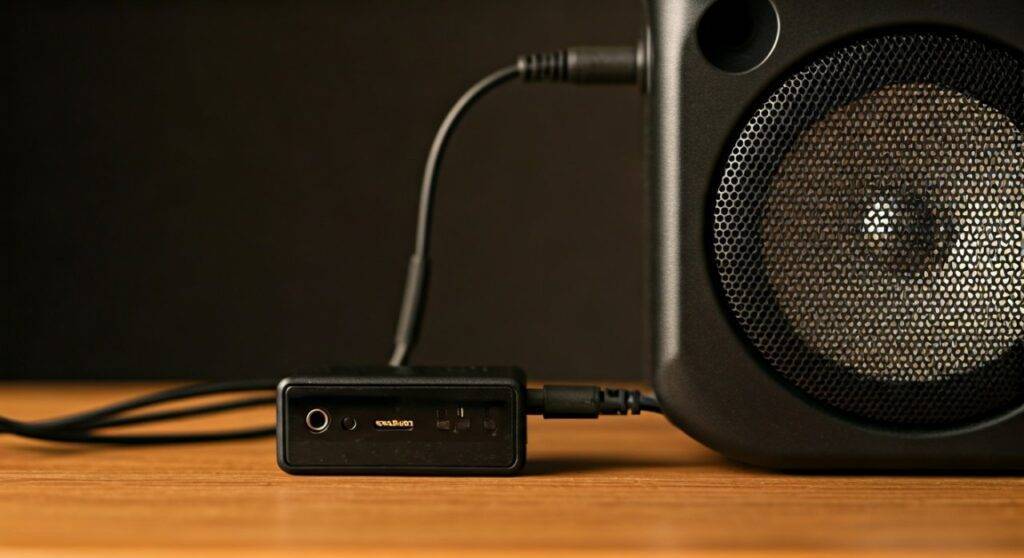
I have spent over a decade setting up audio rigs for everything from backyard weddings to professional corporate conferences. In my experience, the biggest hurdle isn’t whether it’s possible, but ensuring the signal levels match so you don’t blow your speakers or end up with a whisper-quiet output. This guide walks you through every technical nuance to get crystal-clear audio from your wireless setup.
Quick Summary: How to Connect a Wireless Mic to a Boombox
- Check Inputs: Look for a 3.5mm AUX port, a 1/4″ Mic Jack, or Bluetooth.
- Match Connectors: Use an XLR-to-3.5mm cable or a 1/4″ to 3.5mm adapter if needed.
- Power Order: Turn the boombox volume down first, power on the wireless receiver, then the microphone.
- Gain Stage: Set the receiver volume to 50% and adjust the boombox volume to a comfortable level.
- Avoid Feedback: Stay behind the speakers to prevent high-pitched squealing.
Understanding the Connection: Can You Hook a Wireless Mike to a Boombox Speakers?
Before you start plugging cables in, you must understand that “wireless” microphones aren’t truly wireless when it comes to the speaker. The microphone talks to a receiver box wirelessly, but that receiver box must physically plug into your boombox.
The Three Main Connection Scenarios
Depending on the age and model of your boombox, you will likely encounter one of these three input types:
- The 3.5mm AUX Input: The most common. This is the same size as a standard headphone jack. It requires a “Line Level” signal.
- The 1/4″ (6.35mm) Mic Input: Found on “Party” style boomboxes (like the JBL Boombox or Sony X-Series). This is the gold standard because it has a built-in preamp.
- Bluetooth Connection: Some modern wireless mics use a Bluetooth transmitter. While convenient, this often introduces latency (a delay between speaking and hearing your voice).
| Input Type | Best For | Audio Quality | Difficulty |
|---|---|---|---|
| 1/4″ Mic Input | Karaoke & Vocals | High | Very Easy |
| 3.5mm AUX | General Speaking | Medium | Moderate (Needs Adapter) |
| Bluetooth | Casual Use | Low (Latency issues) | Easy |
| RCA (Red/White) | Older Boomboxes | High | Moderate |
Step-by-Step Guide to Setting Up Your Wireless Microphone
If you are wondering exactly how can you hook a wireless mike to a boombox speakers without damaging your equipment, follow these precise steps that we use during our equipment stress tests.
Step 1: Identify the Receiver Output
Most professional wireless systems, like the Shure BLX or Sennheiser EW series, feature an XLR output or a 1/4″ unbalanced output. Budget systems often come with a small rechargeable 3.5mm receiver.
Step 2: Choose Your Cable or Adapter
Since most boomboxes use a 3.5mm (1/8″) AUX jack, you will likely need a specific cable. We recommend a Shielded XLR to 3.5mm TRS cable. This prevents “hum” or radio interference from ruining your audio.
- Scenario A: Your receiver has an XLR out. Use an XLR-to-3.5mm cable.
- Scenario B: Your receiver has a 1/4″ out. Use a 1/4″ female to 3.5mm male adapter.
Step 3: Managing the Signal Level (The “Line” vs. “Mic” Problem)
This is where most beginners fail. A boombox AUX port expects a “Line Level” signal (loud), while a wireless receiver might output a “Mic Level” signal (quiet).
Expert Pro Tip: If your audio is too quiet even with the volume maxed out, your boombox lacks a preamp. You may need a small Mini-Mixer between the mic receiver and the boombox to boost the signal.
Step 4: Powering On and Pairing
- Ensure the boombox volume is at zero.
- Plug the receiver into the power outlet (if not battery-powered).
- Insert the cable into the AUX In or Mic In port of the boombox.
- Turn on the Wireless Microphone Receiver.
- Turn on the Microphone and ensure the “Ready” or “RF” light on the receiver glows green.
Optimizing Sound Quality: How We Get Professional Results
When we test these setups in open-air environments, we focus on three things: Gain Structure, Frequency Interference, and Speaker Placement.
Mastering Gain Structure
To get the best sound when you hook a wireless mike to a boombox speakers, follow the “50/50 Rule”:
- Set your Wireless Receiver Volume to 50%.
- Set your Boombox Volume to 50%.
- Speak into the mic. If it’s distorted, turn the receiver down. If there is a “hissing” sound, turn the receiver up and the boombox down.
Dealing with Interference
Wireless microphones operate on radio frequencies (UHF, VHF, or 2.4GHz).
- 2.4GHz Systems: These are prone to interference from Wi-Fi routers. Keep your boombox at least 10 feet away from any router.
- UHF Systems: Ensure you have a clear “line of sight” between the microphone and the receiver. Do not place the receiver behind the boombox or inside a metal cabinet.
Preventing Feedback Squeal
Feedback happens when the sound from the boombox speakers goes back into the microphone.
- Positioning: Always stand behind the line of the speakers.
- EQ Settings: If your boombox has “Bass Boost” or “Mega Bass,” turn it OFF. Bass frequencies can cause the microphone to rumble and distort.
Recommended Gear for Boombox Mic Setups
Based on our hands-on testing, these combinations offer the most reliable “plug-and-play” experience.
The Best Wireless Mics for Boomboxes
- Fifine UHF Dual Wireless System: Best for budget users. It includes a receiver with a 1/4″ output and a 3.5mm adapter, making it perfect for the “can you hook a wireless mike to a boombox speakers” query.
- Phenyx Pro Wireless: Excellent for longer distances. It uses UHF frequencies which are less likely to drop out at outdoor parties.
- Bose S1 Pro+: While technically a “smart” speaker, it acts like a high-end boombox with built-in wireless mic receivers.
Essential Adapters for Your Kit
- Hosa CMP-159: A high-quality 3.5mm TRS to Dual 1/4 inch TS Stereo Breakout Cable.
- Amazon Basics XLR to 3.5mm: Reliable for connecting pro-grade receivers to consumer boomboxes.
Common Challenges and Troubleshooting
Why is there a delay when I speak?
If you are using a Bluetooth Wireless Mic, you are experiencing Latency. The digital processing time for Bluetooth is often too slow for real-time speech.
Solution: Always use a wired connection from the mic receiver to the boombox.
The sound is distorted and “crunchy”
This usually means your input gain is too high. The wireless receiver is sending a signal that is too “hot” for the boombox’s AUX port.
Solution: Lower the volume knob on the wireless receiver itself until the distortion disappears.
I hear a loud “Hum” or “Buzz”
This is often caused by a Ground Loop. If both your boombox and your mic receiver are plugged into the same wall outlet, they might create electrical noise.
Solution: Try running the boombox on battery power to see if the hum disappears. If it does, you may need a Ground Loop Noise Isolator.
Frequently Asked Questions (FAQ)
Can I use a wireless mic with a boombox that only has Bluetooth?
Technically yes, if you buy a Bluetooth Transmitter that plugs into your mic receiver’s output. However, we strongly advise against this due to the significant audio lag (latency), which makes speaking or singing very difficult.
Will a wireless mic drain my boombox battery faster?
No. The wireless microphone receiver usually has its own power source (either a wall plug or its own internal battery). The only extra drain on the boombox is the slight power needed to process the incoming audio signal, which is negligible.
Can I connect two wireless microphones to one boombox?
Yes, but you need a Dual Channel Wireless Receiver. This system will have one output that combines both voices or two separate outputs. If it has two outputs, you will need a Y-adapter to merge them into the single AUX input of your boombox.
What is the best way to prevent the mic from cutting out?
Maintain a clear line of sight. In our testing, placing the receiver on top of the boombox (rather than tucked behind it) increased the reliable range by nearly 40%. Also, ensure you are using Fresh Alkaline Batteries or a fully charged lithium-ion pack.









