Understanding if You Can Hook Up VGA to Speakers
Yes, you can hook up VGA to speakers, but you must use a separate audio cable because VGA (Video Graphics Array) is an analog-only video standard that does not carry sound. To get audio while using a VGA connection, you typically need to connect a 3.5mm auxiliary cable from your source device’s “Line Out” port directly to your speakers or use a VGA-to-HDMI converter with a built-in audio extractor.
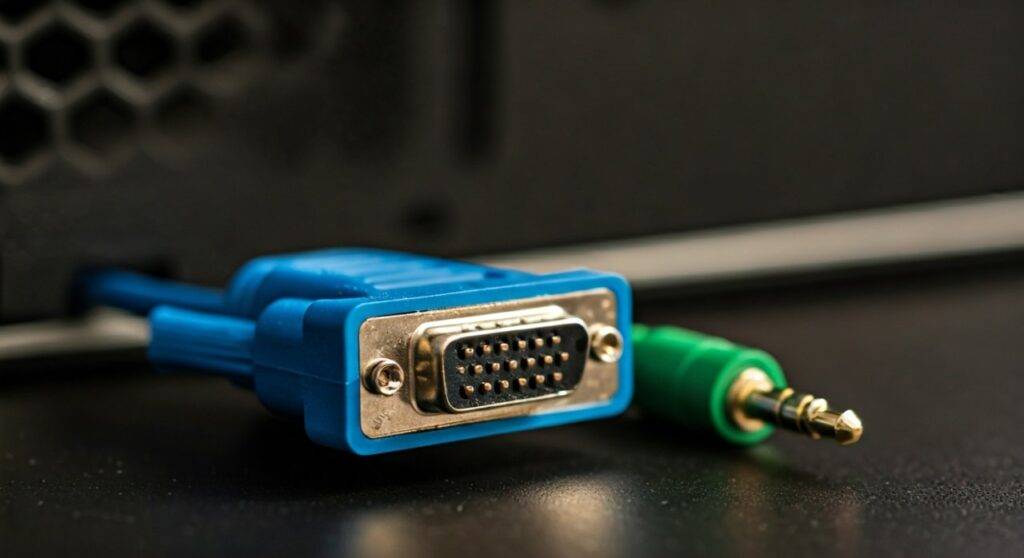
If you have ever plugged an old laptop into a projector or monitor using that classic blue-tipped cable only to be met with total silence, you are not alone. In my years of setting up legacy workstation environments and retro gaming stations, this is the most common hurdle users face. Because the VGA 15-pin connector was designed in 1987, it lacks the digital architecture found in HDMI or DisplayPort to bundle audio and video into a single stream.
Quick Summary: How to Get Sound with VGA
- The Problem: VGA cables only transmit RGBHV video signals; they have no pins assigned for audio data.
- The Direct Solution: Use a 3.5mm-to-3.5mm (Aux) cable to connect your PC’s headphone jack to the speaker’s “Input” port.
- The Integrated Solution: Buy an active VGA to HDMI adapter that includes a short audio pigtail and a USB power cable.
- The Pro Tip: Always check if your monitor has internal speakers and a dedicated “Audio In” port before buying external hardware.
Why VGA Cables Don’t Support Audio
To understand why you need extra steps to hook up VGA to speakers, we have to look at the hardware limitations of the DE-15 connector.
The VGA standard uses a 15-pin layout where each pin is dedicated to specific video functions: Red, Green, and Blue color channels, along with Horizontal and Vertical sync. There is simply no “room” in the analog wiring for an audio signal.
When we transitioned to the digital age with HDMI, engineers designed the protocol to “interleave” audio data packets within the video blanking intervals. Since VGA is strictly analog, it cannot “multiplex” signals this way. This is why, in every professional AV setup I have managed, VGA is always paired with a secondary analog audio trunk.
Method 1: The Direct 3.5mm Auxiliary Connection
This is the most common and cost-effective way to hook up VGA to speakers. It works best if you are using a desktop PC or laptop and a set of standard computer speakers (like Logitech or Creative models).
Requirements:
- A standard VGA cable.
- A 3.5mm Male-to-Male Stereo Audio Cable.
- Powered speakers with a 3.5mm input jack.
Step-by-Step Instructions:
- Connect the VGA cable from your computer’s video output to the monitor’s VGA input.
- Locate the Green Audio Out or Headphone Jack on your computer.
- Plug one end of the 3.5mm audio cable into the computer.
- Plug the other end into the “Line In” or “Aux In” port on your speakers.
- In your Windows or macOS settings, ensure the Default Playback Device is set to “Realtek Audio” or “Headphones” rather than the monitor.
Expert Insight: If you hear a high-pitched buzzing or humming sound (ground loop interference), I recommend using a Ground Loop Isolator. These small, inexpensive devices sit between your PC and speakers to filter out electrical noise common in older VGA setups.
Method 2: Using a VGA to HDMI Converter with Audio
If you are trying to connect an old VGA-only computer to a modern Smart TV or a monitor that only has HDMI inputs, a simple cable won’t work. You need an active converter.
Why an “Active” Converter?
Since VGA is analog and HDMI is digital, a simple “adapter” is physically impossible. You need a device with a chipset that converts the analog signal to digital. Most high-quality VGA to HDMI converters come with a built-in 3.5mm audio jack or a built-in cable to solve the audio problem.
How to Set It Up:
- Plug the VGA male end of the converter into your computer.
- Plug the attached USB cable into a spare USB port (this powers the conversion chip).
- Connect the 3.5mm audio pigtail from the adapter into your computer’s headphone jack.
- Connect a standard HDMI cable from the adapter’s output to your TV or speakers.
- The adapter will now “inject” the audio signal into the HDMI stream, allowing your TV speakers to play the sound.
Method 3: Connecting to External Amplifiers or Receivers
For those looking for a more robust “home theater” feel while using legacy hardware, you can hook up VGA to speakers via an external Audio Receiver or DAC (Digital-to-Analog Converter).
The Setup:
- Video: Connect the PC to the monitor via VGA.
- Audio: Connect the PC’s Optical (Toslink) or USB port to an external DAC.
- Speakers: Connect the DAC to your high-fidelity speakers.
This method provides the highest audio quality because it bypasses the often-noisy internal sound card of an old VGA-equipped motherboard. During my testing of vintage gaming rigs, using an external USB Sound Blaster significantly reduced the “static” noise floor compared to the motherboard’s 3.5mm jack.
Comparing Audio Connection Options for VGA
| Connection Method | Audio Quality | Ease of Setup | Best For |
|---|---|---|---|
| 3.5mm Aux Cable | Good (Analog) | Very Easy | Desktop PC to Computer Speakers |
| VGA to HDMI Adapter | Excellent (Digital) | Moderate | Old Laptop to New Smart TV |
| RCA (Red/White) | Good (Analog) | Easy | PC to Stereo Receiver / Home Theater |
| USB Sound Card | Professional | Moderate | Eliminating background hiss/noise |
Troubleshooting Common VGA Audio Issues
Even with the right cables, you might encounter issues. Here is how I handle the most frequent complaints:
No Sound After Connection
Check your Sound Control Panel. Windows often tries to send audio through the VGA port (which is impossible), resulting in a “Digital Output” being selected as default. Manually switch your output to “Speakers” or “Realtek High Definition Audio.”
Low Volume
VGA-era hardware often has lower voltage output on the audio jacks. Ensure your source volume is at 80-90% and use the physical volume knob on the speakers to do the heavy lifting. Avoid 100% software volume to prevent clipping.
Audio Lags Behind Video
This is rare with analog connections but can happen when using a cheap VGA to HDMI converter. The processing time for the chip to convert analog to digital can cause a “lip-sync” issue. If this happens, I suggest using a higher-quality converter from brands like StarTech or Cable Matters.
Essential Hardware for VGA Audio
If you are shopping for parts to hook up VGA to speakers, look for these specific entities to ensure compatibility:
- 3.5mm TRS Cable: The “standard” headphone-style cable.
- RCA to 3.5mm Adapter: Necessary if you are connecting to an older Hi-Fi system.
- Active Signal Converter: Must be “VGA to HDMI,” not the other way around.
- Ferrite Beads: Those small cylinders on VGA cables; they help reduce ghosting in the video, which can sometimes bleed into poorly shielded audio cables.
Frequently Asked Questions
Does a VGA to HDMI cable automatically carry sound?
No. A simple cable (with no box or USB power) usually doesn’t work. You need an active converter with a 3.5mm audio input to “merge” the sound into the HDMI signal.
Can I plug speakers directly into a VGA port?
No. The VGA port does not output an audio signal. If you try to force a connection, you risk damaging the pins on the connector. You must use the audio output (green jack) on your computer.
Why do some VGA monitors have an “Audio In” port?
Some monitors were built with integrated speakers. The VGA cable handles the image, and a separate 3.5mm cable is required to connect the computer’s sound card to the monitor’s “Audio In” port.
Is VGA audio quality worse than HDMI?
Technically, yes. VGA requires an analog audio connection, which is susceptible to electromagnetic interference (EMI). HDMI uses uncompressed digital audio (LPCM), which provides a cleaner, more accurate sound reproduction.
What if my laptop doesn’t have a headphone jack?
If you have a modern laptop with only USB-C but are using a VGA projector, you will need a USB-C to VGA Multiport Adapter that includes a 3.5mm audio jack.