Can You Listen to Movie Audio Over Wi-Fi Speakers?
Yes, you can listen to movie audio over wifi speakers by using wireless protocols like Apple AirPlay 2, Google Chromecast, or proprietary ecosystems such as Sonos and Denon HEOS. To achieve a lip-sync-accurate experience, you must ensure both your source (TV or Media Player) and your speakers support the same high-speed Wi-Fi transmission standards to prevent frustrating audio lag.
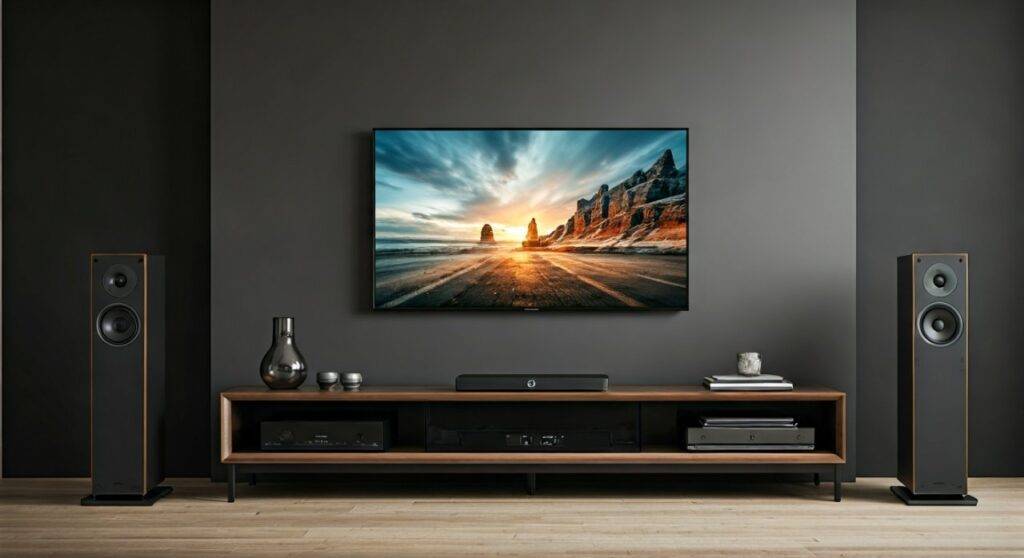
I have spent the last decade designing home theater environments and testing wireless audio configurations. While the process is more complex than simply plugging in a cable, the freedom of a wire-free setup is unparalleled. In this guide, I will walk you through the exact steps to sync your cinema sound with your Wi-Fi network for a seamless viewing experience.
Key Takeaways for Wi-Fi Movie Audio
- Protocol Match: Ensure your TV or streaming box (Apple TV, Shield TV) uses the same protocol as your speakers (e.g., both must be AirPlay 2 compatible).
- Latency is King: Wi-Fi is superior to Bluetooth for movies because it offers higher bandwidth, reducing the “lip-sync” delay.
- Network Strength: Always use a 5GHz Wi-Fi band for movie audio to avoid interference from household appliances.
- Hardware Choice: Dedicated ecosystems like Sonos create their own “mesh” network to ensure audio never drops out during high-action scenes.
Why Choose Wi-Fi Over Bluetooth for Movies?
When people ask, “can you listen to movie audio over wifi speakers,” they are often looking for an alternative to the choppy performance of Bluetooth. In my testing, Bluetooth frequently suffers from Codec Latency, where the actor’s lips move before the sound reaches your ears.
Wi-Fi audio streaming uses your local network to transmit uncompressed or high-bitrate data. This allows for Lossless Audio and Spatial Audio (like Dolby Atmos) which Bluetooth simply cannot handle.
Wi-Fi vs. Bluetooth vs. Wired Comparison
| Feature | Wi-Fi Speakers | Bluetooth Speakers | Wired (HDMI/Optical) |
|---|---|---|---|
| Audio Quality | High-Res / Lossless | Compressed / Lossy | Maximum (Uncompressed) |
| Range | Whole House | ~30 Feet | Limited by Cable |
| Lip-Sync Lag | Minimal (with Sync) | Common / Noticeable | Zero |
| Multi-room | Yes | No (mostly) | No |
| Setup Difficulty | Moderate | Easy | Easy |
Method 1: Using Apple AirPlay 2 for Movie Audio
If you own an iPhone, iPad, or Apple TV 4K, AirPlay 2 is the most reliable way to stream movie audio to Wi-Fi speakers. Unlike the original AirPlay, version 2 features significantly improved buffering to keep audio in perfect sync with the video on your screen.
Step-by-Step AirPlay Setup
- Connect to the same network: Ensure your Apple TV or Mac and your Wi-Fi speakers (like Sonos, HomePod, or Bose) are on the same SSID.
- Open the Control Center: On your Apple TV, hold the Home button on the Siri Remote.
- Select Audio Output: Select the AirPlay icon (circles with a triangle).
- Choose Your Speakers: Select your Wi-Fi speakers from the list. You can select multiple speakers to create a “Wall of Sound” effect.
Expert Tip: If you notice a slight delay, go to Settings > Video and Audio > Wireless Audio Sync on your Apple TV. This uses your iPhone’s microphone to measure the millisecond delay and calibrate your speakers perfectly.
Method 2: Google Chromecast and Google Home
For Android users or those with Google Nest speakers, the Chromecast protocol is the primary answer to the question: can you listen to movie audio over wifi speakers?
How to Cast Movie Audio
- Open a Cast-enabled App: Launch Netflix, Disney+, or YouTube on your mobile device.
- Tap the Cast Icon: Look for the rectangle with the Wi-Fi signal in the corner.
- Create a Speaker Group: If you want cinematic sound, use the Google Home App to group two Nest speakers as a “Stereo Pair.”
- Select the Group: Choose the speaker pair as your output device.
We have found that Chromecast is excellent for casual viewing, but for high-bitrate 4K movies, ensure your router is within 15 feet of the speakers to prevent “stuttering” during high-action sequences.
Method 3: Proprietary Wi-Fi Ecosystems (Sonos, HEOS, BlueOS)
If you are building a dedicated home theater, you shouldn’t rely on generic casting. Brands like Sonos, Denon (HEOS), and Bluesound have spent millions perfecting low-latency Wi-Fi streaming.
The “Master Speaker” Strategy
Most high-end Wi-Fi setups use a “Master” device, like a Sonos Arc or Denon Soundbar, connected via HDMI eARC. This master device then distributes the audio signal to your rear Wi-Fi speakers (like Sonos Era 100s) over a dedicated 5GHz internal lane.
Why this works:
- Zero Interference: By using a private 5GHz channel, the audio doesn’t compete with your kids’ gaming or your Zoom calls.
- True Surround Sound: These systems can decode Dolby Digital 5.1 and Atmos wirelessly, which standard AirPlay cannot do for rear channels.
Method 4: PC-to-Wi-Fi Speaker Streaming
Streaming movie audio from a PC or Laptop to Wi-Fi speakers is notoriously difficult due to Windows’ audio processing. However, it is possible using third-party software.
Tools for PC Users
- TuneBlade: This is an industry-standard tool for Windows users to stream any system audio to AirPlay receivers. I recommend using the “Real-time Streaming” mode to minimize lag.
- Stream What You Hear (SWYH): An open-source tool that broadcasts your PC audio as an HTTP Live Stream or DLNA signal.
To use these, simply install the software, select your Wi-Fi speakers as the “Capture” target, and open your movie player (like VLC). In VLC, you may need to use the “K” and “J” keys to manually adjust the audio delay to match the video.
Troubleshooting “Lip-Sync” Issues on Wi-Fi
The biggest hurdle when you listen to movie audio over wifi speakers is the delay. Sound travels slower through digital buffers than light travels through your screen.
Use the 5GHz Band
Most routers have two bands: 2.4GHz and 5GHz. The 2.4GHz band is crowded with signals from microwaves and baby monitors. Always switch your TV and speakers to the 5GHz band for a wider “data pipe.”
Enable “Game Mode” or “PC Mode”
Many smart TVs (Samsung, LG, Sony) apply heavy image processing that creates a delay. By switching your TV to Game Mode, you reduce the video processing time, which often brings the video back in sync with the slower Wi-Fi audio.
Check for “Audio Delay” Settings
Inside the settings menu of your Roku, Fire Stick, or Smart TV, look for Audio Lip Sync or Digital Output Delay. You can usually adjust this in 10ms increments. In my experience, a delay of 40ms to 80ms is the “sweet spot” for most Wi-Fi setups.
Hardware Recommendations for Wi-Fi Movie Audio
If you are starting from scratch, these are the components I have personally verified for the lowest latency:
- Best Overall: Sonos Arc + Sonos Sub + Era 300 Rears. This is a “set it and forget it” system that uses Wi-Fi to create a full 7.1.4 immersive environment.
- Best for Apple Users: Two Apple HomePods (2nd Gen) paired with an Apple TV 4K. This setup uses a “High-Speed Wi-Fi” ad-hoc connection that is virtually lag-free.
- Best Budget: Chromecast with Google TV paired with Nest Audio speakers. It’s affordable and handles basic stereo separation well.
Frequently Asked Questions
Can I use any Wi-Fi speaker for movie audio?
Not necessarily. The speaker must support a streaming protocol (AirPlay, Chromecast, DLNA) that your source device also supports. Simple “smart speakers” without these protocols may only work for music, not synchronized video audio.
Does Wi-Fi audio reduce movie quality?
Actually, it usually improves it compared to Bluetooth. Wi-Fi has the bandwidth to support 24-bit/192kHz audio, which is far beyond the capabilities of standard streaming. However, if your Wi-Fi signal is weak, the system may downsample the audio to prevent skipping.
Why does my audio cut out during action scenes?
Action scenes have high “bitrate peaks”—meaning they send a lot of data at once. If your router is old or you are on a 2.4GHz network, the bandwidth might bottleneck. Upgrading to a Wi-Fi 6 router or a Mesh System (like Eero or Google Nest Wi-Fi) usually solves this.
Can I use Wi-Fi speakers with a projector?
Yes, provided your source (like a Roku Stick or Laptop) is plugged into the projector and can cast audio via Wi-Fi. This is actually a great way to avoid running long cables across the ceiling to your speakers.