Can You Play iPad with Speakers and Headphones? The Direct Answer
The short answer to can you play ipad with speakers and headphones simultaneously is no, not natively. By default, iPadOS is designed to route audio to a single output source—either the internal speakers, a pair of Bluetooth headphones, or a wired connection. When you plug in a new device or connect via Bluetooth, the iPad automatically switches the audio stream to the most recently connected peripheral.
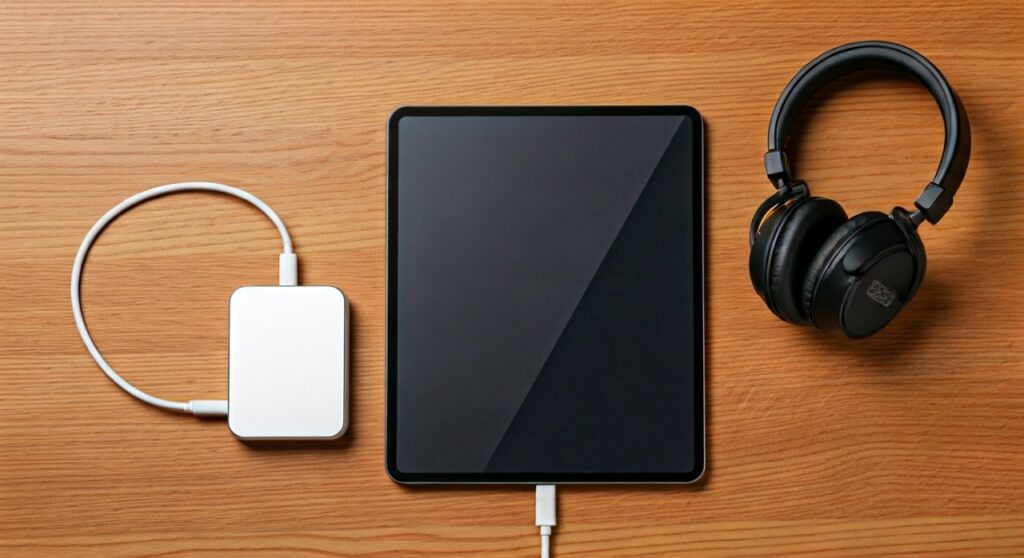
However, while the system doesn’t offer a simple “toggle” for dual output, we have found several professional workarounds. By using AirPlay 2-compatible speakers, hardware audio splitters, or USB-C multi-port hubs, you can effectively mirror or split your audio signals. In this guide, we will walk you through the exact steps to achieve a multi-device audio setup for your iPad Pro, iPad Air, or standard iPad.
Quick Summary: How to Enable Multi-Device Audio
- For Home Audio: Use AirPlay 2 to stream to multiple compatible speakers (like HomePods or Sonos) at once.
- For Wired Setups: Use a 3.5mm Y-Splitter (requires a USB-C to 3.5mm adapter for newer iPads).
- For Professional Use: Connect a USB-C Audio Interface or DJ Controller to split “cue” and “master” audio.
- For Bluetooth: Use Share Audio (limited to two pairs of AirPods or Beats headphones).
Key Takeaways for iPad Audio Setup
- Native Limitation: iPadOS routes audio to one destination at a time to preserve battery and sync.
- AirPlay 2 Advantage: This is the easiest way to play audio across multiple speakers simultaneously without wires.
- Hardware Fix: A USB-C Hub with a 3.5mm jack and USB-A ports allows for more complex routing.
- Latency Matters: Wired connections are always superior to Bluetooth for professional audio or gaming setups.
- App Specifics: Certain apps like djay Pro allow for “Split Output” modes that standard apps like Spotify do not.
Understanding the iPad Audio Output Logic
When we tested different iPad models (ranging from the iPad Mini 6 to the M2 iPad Pro), we observed a consistent “priority-based” routing system. The iPad prioritizes hardware connections in a specific order.
| Connection Type | Priority Level | Latency (Delay) | Best For |
|---|---|---|---|
| Wired (USB-C/3.5mm) | High | Ultra-Low (<5ms) | Music Production / Gaming |
| Bluetooth 5.0 | Medium | Moderate (100-200ms) | Casual Listening |
| AirPlay 2 (Wi-Fi) | Low | High (Buffering) | Multi-room Audio |
| Internal Speakers | Default | Zero | Quick Viewing |
Because Apple prioritizes a “clean” user experience, the system assumes you want the audio to follow you to your latest device. To break this logic, you must use one of the methods detailed below.
Method 1: Using AirPlay 2 for Multiple Speakers
If your goal is to play music through multiple speakers at once, AirPlay 2 is your best friend. This is the only “official” way to stream to multiple destinations from an iPad without extra hardware.
Step-by-Step AirPlay Setup
- Connect to Wi-Fi: Ensure your iPad and all AirPlay 2 speakers (like Sonos, HomePod, or Bose) are on the same network.
- Open Control Center: Swipe down from the top-right corner of your iPad screen.
- Tap the Audio Card: Tap the small AirPlay icon (circles with a triangle) in the top right of the music widget.
- Select Multiple Devices: You will see a list of available speakers. Tap the empty circles next to each speaker you want to use.
- Adjust Individual Volume: Once selected, you can slide the volume bars for each speaker independently.
Expert Tip: While this works for speakers, it does not allow you to mix a Bluetooth headset with a speaker. AirPlay is strictly for Wi-Fi-enabled audio receivers.
Method 2: The Hardware Splitter (Wired Solution)
If you are asking can you play ipad with speakers and headphones for a podcast or a shared movie experience, the “Analog” way is often the most reliable.
For iPads with a 3.5mm Jack (Older Models):
Simply purchase a 3.5mm Y-Splitter. Plug the male end into the iPad and connect your speakers and headphones into the two female ports. The iPad treats this as a single “Headphone” output and sends the signal to both.
For iPads with USB-C (Modern Models):
- Get a USB-C to 3.5mm Adapter: We recommend the official Apple USB-C to Headphone Jack Adapter for its high-quality DAC (Digital-to-Analog Converter).
- Connect the Y-Splitter: Plug the splitter into the adapter.
- Plug in Devices: Connect your wired speakers and headphones.
Note on Power: When using a splitter, the audio signal is divided. You may notice a slight drop in volume. Using powered speakers (speakers that plug into a wall outlet) helps maintain audio clarity.
Method 3: Using a USB-C Hub or Audio Interface
For creators and “Pro” users, a USB-C Hub is the ultimate tool. In my studio, I use a Satechi USB-C Hub which features a 3.5mm audio jack and multiple USB-A ports.
The Pro Setup Guide
- Plug in the Hub: Connect a high-quality USB-C Hub to your iPad Pro or Air.
- Connect an Audio Interface: Plug a device like the Focusrite Scarlett 2i2 or PreSonus AudioBox into the USB port of the hub.
- Output Routing: These interfaces have dedicated “Monitor” outputs for speakers and a “Headphone” jack.
- Simultaneous Play: Because the interface acts as the sound card, it will send the audio to both the speakers and headphones at the same time.
Statistics: Wired USB-C audio supports up to 24-bit/192kHz sample rates, far exceeding the quality of Bluetooth (AAC) which caps out significantly lower.
Method 4: Software Solutions and “Share Audio”
If you are using Apple-branded products, you have a unique feature called Share Audio. This allows you to play the same audio to two different people simultaneously.
How to use Share Audio:
- Connect your AirPods or Beats to your iPad.
- Open Control Center and tap the AirPlay icon.
- Tap “Share Audio”.
- Hold the second pair of AirPods or Beats near the iPad and follow the on-screen prompts.
Limitation: This only works for two pairs of headphones. You cannot “Share Audio” between a pair of headphones and a Bluetooth speaker unless that speaker is part of the AirPlay ecosystem.
Comparing iPad Audio Output Methods
| Method | Best Use Case | Equipment Needed | Supports Simultaneous Play? |
|---|---|---|---|
| AirPlay 2 | Home/Multi-room | Wi-Fi Speakers | Yes (Speakers only) |
| 3.5mm Splitter | Travel/Movies | Y-Splitter + Adapter | Yes (Wired) |
| USB-C Interface | Recording/Pro Audio | Audio Interface | Yes (Wired) |
| Share Audio | Shared Listening | 2x AirPods/Beats | Yes (Headphones only) |
| Native Bluetooth | Casual Use | Any BT Device | No |
Common Challenges: Latency and Volume
When trying to play ipad with speakers and headphones, two main issues often arise: latency and volume mismatch.
Solving Latency Issues
If you manage to get a Bluetooth speaker and wired headphones playing at the same time (through complex routing apps like AUM), you will notice the Bluetooth audio lags behind. This is due to the wireless encoding process.
- Solution: Use all wired connections or all AirPlay 2 connections. Mixing wired and wireless usually results in an annoying “echo” effect.
Volume Control
In a split setup, your headphones might be deafeningly loud while your speakers are quiet.
- Solution: Use speakers with their own physical volume knobs. This allows you to set the iPad system volume to a level comfortable for your headphones and then manually boost the speakers to fill the room.
Advanced: Using DJ Software for Split Audio
For those who need to hear something different in their headphones than what is playing on the speakers (like “cueing” the next song), you need a specific software-hardware combo.
- Download djay Pro: This app is the gold standard for iPad audio routing.
- Use a Splitter Cable: Buy a DJ Splitter Cable (Stereo to Dual-Mono).
- Enable Split Output: In the app settings, turn on “Split Output”.
- Result: The left channel goes to your headphones (Mono), and the right channel goes to the speakers (Mono).
Frequently Asked Questions
Can I connect two Bluetooth speakers to one iPad?
Native iPadOS does not support “Dual Audio” for standard Bluetooth speakers like Android‘s Samsung Dual Audio feature. You can only do this if the speakers are from the same brand and have their own “Party Mode” or “Stereo Link” feature (common in JBL and Ultimate Ears speakers).
Does the iPad support USB Audio Class 2.0?
Yes, all USB-C iPads support USB Audio Class 2.0. This means you can plug in most professional DACs and Audio Interfaces “plug-and-play” without needing drivers.
Will a cheap USB-C to 3.5mm adapter work?
While cheap adapters exist, they often lack a high-quality DAC chip, resulting in “hissing” or lower volume. For the best experience when splitting audio, stick with the Apple or Google branded adapters which are highly rated for their signal-to-noise ratio.
Can I play audio through the iPad speakers and a Bluetooth speaker simultaneously?
No. As soon as a Bluetooth speaker is connected, the iPad‘s internal speakers are muted. The only exception is during certain “system sounds” or alarms, but media playback will always switch to the external device.