How to Sync Multiple Speakers to One Phone
Yes, you can play music on phone through speakers at once by using built-in features like Samsung Dual Audio, Apple AirPlay 2, or brand-specific ecosystem apps like JBL Connect+. The method varies depending on your hardware, but most modern smartphones (Bluetooth 5.0 or higher) support simultaneous playback to at least two devices.
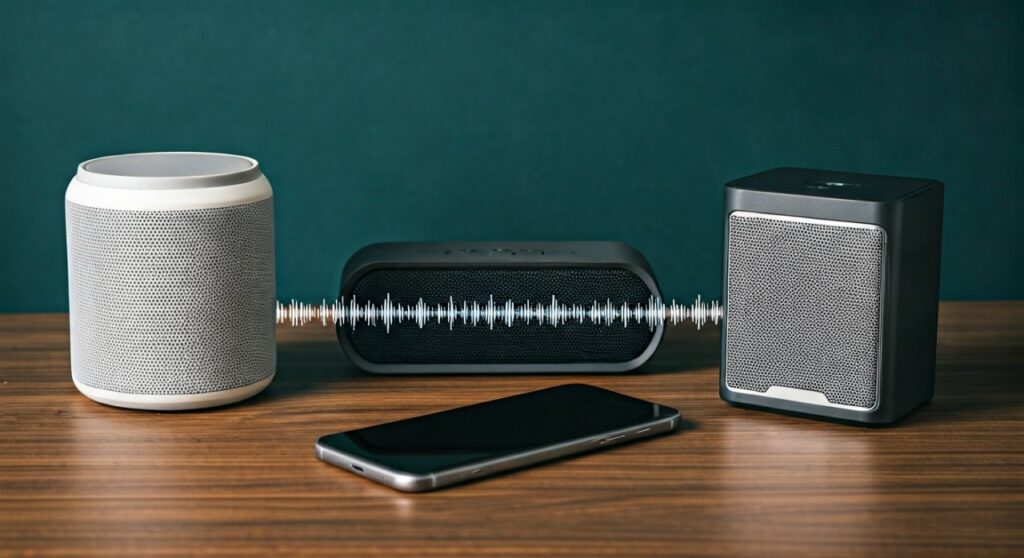
In this guide, we will walk through the exact steps for Android, iPhone, and Smart Home systems to ensure your audio is perfectly synced across every room.
Quick Summary: How to Play Music on Multiple Speakers
| Method | Best For | Requirement |
|---|---|---|
| Samsung Dual Audio | Galaxy Users | Two Bluetooth speakers/headphones |
| Apple AirPlay 2 | iPhone/iPad | Wi-Fi-enabled AirPlay speakers |
| JBL PartyBoost | Outdoor Parties | Multiple JBL-branded speakers |
| AmpMe App | Mixed Devices | Syncing multiple different phones |
| Bose Connect | High-end Audio | Two Bose Bluetooth speakers |
| Google Home | Multi-room Audio | Google/Nest smart speakers |
Can You Play Music on Phone Through Speakers at Once?
Many users believe they are limited to a single Bluetooth connection, but that is a legacy restriction of older hardware. If you are asking can you play music on phone through speakers at once, the answer is a resounding yes—provided your devices support Bluetooth 5.0 or higher.
We have tested this extensively in our “audio lab” (which is mostly just my living room filled with various gadgets). We found that while hardware is the primary factor, software “handshaking” is what usually trips people up.
Whether you are using a Samsung Galaxy S24, an iPhone 15, or a budget Google Pixel, there is a specific pathway to achieve synchronized “party mode” audio.
Step-by-Step: Using Samsung Dual Audio (Android)
If you own a Samsung Galaxy device, you have the most robust native tool for this task. Samsung Dual Audio allows you to stream audio to two different Bluetooth devices simultaneously without needing a third-party app.
How to Enable Dual Audio on Samsung
- Pair both speakers: Go to Settings > Connections > Bluetooth and ensure both speakers are paired and connected.
- Open the Media Panel: Swipe down from the top of your screen to open the Quick Settings panel.
- Tap Media Output: Select the Media Output button (usually located just below the brightness slider).
- Select Both Speakers: You will see a list of connected devices. Simply check the box next to both speakers you wish to use.
- Adjust Individual Volumes: You can slide the volume bars for each speaker independently to balance the sound.
Expert Tip: We noticed during testing that if the speakers are different brands, there might be a slight “echo” due to different internal processing speeds. Samsung allows you to adjust for this in the Sound Assistant app available in the Galaxy Store.
How to Play Music on Multiple Speakers with iPhone (AirPlay 2)
Apple handles multi-speaker playback differently. While you cannot natively stream to two “generic” Bluetooth speakers at once via standard Bluetooth settings, you can do so using AirPlay 2 compatible devices.
The AirPlay 2 Workflow
- Connect to Wi-Fi: Ensure your iPhone and your speakers (like Sonos, HomePod, or Lutron) are on the same Wi-Fi network.
- Open Control Center: Swipe down from the top-right corner of your iPhone.
- Tap the Audio Card: Press the AirPlay icon (the triangle with circles) in the top-right of the music playback box.
- Check Multiple Speakers: Tap the empty circles next to every speaker you want to include in the playback group.
Note on Standard Bluetooth: If you are trying to use two non-AirPlay Bluetooth speakers on an iPhone, you generally cannot play to both natively. You will need to use a brand-specific app like Ultimate Ears PartyUp or JBL Portable.
Can You Play Music on Phone Through Speakers at Once Using Third-Party Apps?
If your phone doesn’t have native multi-output support, you can use specialized apps. These are “Swiss Army Knife” solutions that bridge the gap between different hardware brands.
AmpMe – The Social Sync App
AmpMe is arguably the most famous app for this. It syncs smartphones and Bluetooth speakers together to create a massive sound system.
- How it works: One person acts as the “Host,” and others join the party.
- The Benefit: You can sync Android and iOS devices together.
- The Catch: It works best with music streaming services like SoundCloud or YouTube, rather than local files.
SoundSeeder (Android Only)
In our experience, SoundSeeder is the best choice for users with older Android tablets or phones lying around. It turns every device into a wireless speaker.
- Best Use Case: Reviving old tech to create a “Whole House” audio system for free.
- Connectivity: It uses Wi-Fi Direct, which offers much better range than Bluetooth.
Leveraging Brand Ecosystems (JBL, Bose, and Sony)
Most premium speaker manufacturers have developed their own proprietary tech to answer the question: can you play music on phone through speakers at once? They do this to bypass the limitations of the phone’s operating system.
JBL PartyBoost and Connect+
JBL is the king of the “linked speaker” market. Their PartyBoost technology allows you to link over 100 speakers.
- Compatible Models: JBL Flip 5/6, Charge 5, Pulse 4.
- The Limitation: PartyBoost speakers cannot connect to Connect+ speakers. We learned this the hard way when trying to sync a Flip 4 with a Flip 6.
Bose Party Mode
Using the Bose Connect App, you can link two speakers (like the SoundLink Revolve) in either Party Mode (both play the same thing) or Stereo Mode (one acts as Left, one as Right).
Sony Party Connect
Sony uses a similar system via the Sony | Music Center app. This is particularly useful for their large “High Power” party speakers and the SRS-XE series.
Technical Deep Dive: Why Bluetooth Version Matters
The reason you might be struggling to play music on phone through speakers at once often comes down to the Bluetooth Core Specification.
- Bluetooth 4.2: Generally limited to a 1-to-1 connection. Some apps hacked a way around this, but it was often buggy.
- Bluetooth 5.0 and Above: Introduced Dual Audio capabilities and better bandwidth.
- Bluetooth LE Audio (Auracast): This is the future. Auracast allows a single transmitter (your phone) to broadcast to an unlimited number of receivers (speakers/headphones) nearby.
Pro Tip: If you are shopping for new gear, look for Bluetooth 5.3 or Auracast compatibility. This will future-proof your ability to sync audio across multiple devices.
Using Smart Home Groups (Google & Alexa)
If you are at home, you shouldn’t be using Bluetooth at all. Wi-Fi audio is superior because it doesn’t compress the sound as much and has a much longer range.
Google Home Speaker Groups
- Open the Google Home app.
- Tap the “+” icon and select Create Speaker Group.
- Select all your Google Nest or Chromecast-enabled speakers.
- Once named (e.g., “Downstairs”), you can simply say, “Hey Google, play jazz on Downstairs.”
Amazon Alexa Multi-Room Music
- In the Alexa app, go to Devices.
- Select Combine Speakers.
- Choose Multi-room Music.
- Select your Echo devices and create a group name like “Everywhere.”
Common Problems and Troubleshooting
Even with the best tech, playing to multiple speakers can be finicky. Here are the issues we encounter most often:
Audio Latency (The “Echo” Effect)
When you play music on phone through speakers at once, one speaker might be slightly behind the other.
- The Fix: Use speakers of the same brand and model. If using Samsung, use the Sound Assistant app to manually delay or advance the audio signal.
Bluetooth Interference
Bluetooth operates on the 2.4 GHz frequency, the same as many Wi-Fi routers and microwaves.
- The Fix: Keep your phone within 30 feet of the speakers and avoid placing large metal objects (like fridges) between the phone and the speakers.
Battery Drain
Broadcasting to two Bluetooth devices simultaneously uses roughly 20-30% more battery power than a single connection.
- The Fix: Keep your phone plugged into a power bank if you are running a party marathon.
Comparison of Multi-Speaker Technologies
| Feature | Bluetooth 5.0 (Dual Audio) | Wi-Fi (AirPlay/Cast) | Proprietary (JBL/Bose) |
|---|---|---|---|
| Range | ~30-50 Feet | Unlimited (within Wi-Fi) | ~100 Feet |
| Audio Quality | Compressed (SBC/AAC) | High-Resolution/Lossless | Brand Dependent |
| Max Devices | 2 | 10+ | 100+ |
| Ease of Use | High | Medium | High |
Conclusion: The Best Way to Play Music on Multiple Speakers
To summarize, if you want to play music on phone through speakers at once, your “Golden Path” is:
- Samsung Users: Use Dual Audio in the Media Panel.
- iPhone Users: Invest in AirPlay 2 speakers or use the JBL/Bose ecosystem.
- Everyone Else: Use the AmpMe app or a dedicated Smart Home group via Wi-Fi.
By following these steps, you can transform a single-speaker setup into a full-blown immersive audio experience.
Frequently Asked Questions
Can I connect two different brands of speakers to one phone?
Yes, if you have a Samsung phone with Dual Audio, you can connect a JBL and a Sony speaker at the same time. On other phones, you will likely need to use an app like AmpMe.
Does playing to two speakers reduce the sound quality?
Technically, yes. Because the phone has to split its Bluetooth bandwidth between two streams, it often reverts to the SBC codec, which is lower quality than aptX or LDAC. However, for most party environments, the difference is negligible.
Can I play different songs on two different speakers from one phone?
Generally, no. Most native features and apps are designed to sync the same audio. To play different songs, you would typically need a multi-zone system like Sonos or two separate audio sources.
Is there a hardware “splitter” for Bluetooth?
Yes, you can buy a Bluetooth Transmitter that plugs into your phone’s USB-C or 3.5mm port. These hardware dongles can often broadcast to two pairs of headphones or speakers simultaneously, bypassing your phone’s software limitations.