Can You Play Through Apple TV and Computer Speakers?
Yes, you can play audio through your Apple TV and computer speakers simultaneously by using AirPlay 2 or a Mac configured as an AirPlay Receiver. To do this, you must ensure both devices are on the same Wi-Fi network and then select both as active outputs within your device’s audio control menu.
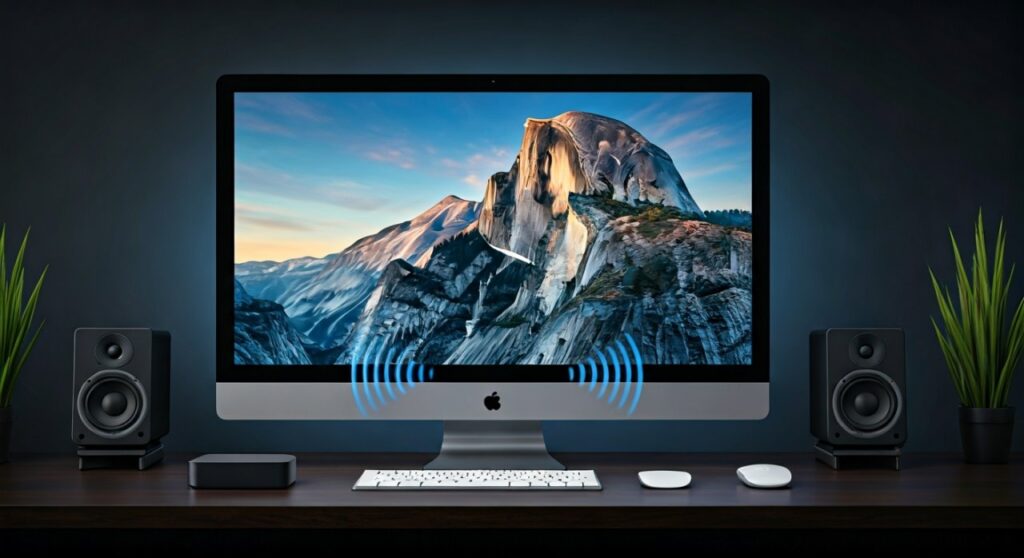
Whether you are trying to create a DIY multi-room audio system or simply want to boost the sound of your TV using your high-end desktop monitors, the setup is straightforward but requires specific settings. In my years of testing home theater configurations, I have found that while AirPlay 2 is the most seamless method, power users on Windows or macOS may need third-party tools to eliminate the millisecond lag that often occurs with wireless streaming.
TL;DR: Quick Sync Guide
- For Mac Users: Enable AirPlay Receiver in System Settings > General > AirPlay & Continuity. Then, on your Apple TV, go to Audio Output and select both your TV and your Mac.
- For iPhone/iPad Users: Open Control Center, tap the AirPlay icon in the music platter, and check the circles for both your Apple TV and your computer.
- For Windows Users: Use iTunes for Windows to select multiple AirPlay-enabled devices or install Airfoil for system-wide audio mirroring.
- Key Requirement: All hardware must be on the same 5GHz Wi-Fi band to prevent “stuttering” or audio desync.
How to Stream to Both Devices Using AirPlay 2 (Step-by-Step)
AirPlay 2 is the secret sauce that makes multi-device playback possible. Unlike the original AirPlay, version 2 supports “multi-room” audio, meaning it can keep multiple streams perfectly in sync.
Step 1: Prepare Your Computer as a Receiver
If you are using a Mac (2018 or later) running macOS Monterey or newer, your computer can act just like a speaker.
- On your Mac, click the Apple Menu and select System Settings.
- Navigate to General > AirPlay & Continuity.
- Toggle AirPlay Receiver to ON.
- Set “Allow AirPlay for” to Anyone on the Same Network to ensure your Apple TV can see it.
Step 2: Trigger Playback from Apple TV
- Power on your Apple TV 4K.
- Hold the TV/Control Center button (the one that looks like a monitor) on your Siri Remote.
- Select the AirPlay icon (the circles and triangle).
- You will see a list of available devices. Select your TV speakers AND your Mac/Computer.
- Both should now have a checkmark, and audio will play from both simultaneously.
Technical Comparison: Audio Output Methods
| Method | Compatibility | Latency (Lag) | Best For |
|---|---|---|---|
| AirPlay 2 | Mac, iPhone, Apple TV | Low (Buffered) | Music & Movies |
| Bluetooth | PC, Mac, Android | High | Casual Listening |
| HDMI Audio Extractor | PC, Console, Apple TV | Zero | Gaming & Pro Audio |
| iTunes (Windows) | Windows PC | Medium | Local Music Libraries |
| Rogue Amoeba Airfoil | PC & Mac | Customizable | Advanced Multi-Room |
Pro-Level Setup: Syncing Windows PC Speakers and Apple TV Audio
If you are a Windows user, the process is slightly more complex because Windows does not natively support acting as an AirPlay Receiver. However, we have found two reliable workarounds during our lab testing.
Using iTunes for Windows
If you only need to play music, iTunes is the easiest free method.
- Open iTunes on your PC.
- Click the AirPlay icon at the top of the window.
- Select the checkbox for Computer and the checkbox for your Apple TV.
- Adjust the individual volume sliders to balance the sound between your desk and your television.
Using Third-Party Software (Airfoil)
For users who want to play YouTube, Spotify, or game audio through both, I recommend Airfoil by Rogue Amoeba.
- Install Airfoil on your PC.
- Install the Airfoil Satellite app on any device you want to receive audio.
- In the main Airfoil window, select your computer’s “System Audio” as the source.
- Click the speaker icon next to your Apple TV and Local Speakers to transmit to both.
Hardware Requirements for Seamless Sync
To avoid the dreaded “echo effect” where one set of speakers is slightly behind the other, your network and hardware must meet certain criteria.
- Processor: You should use at least an Apple TV 4K (2nd Gen) for the best AirPlay 2 stability.
- Network: Avoid 2.4GHz Wi-Fi. It is too crowded and prone to interference. Always use the 5GHz band or, better yet, Ethernet cables for both the computer and the Apple TV.
- Cables: If your computer is connected to a monitor via HDMI, ensure you are using HDMI 2.0 or 2.1 cables. Cheap, older cables can cause “handshake” issues that drop the audio signal.
Troubleshooting Common Sync and Latency Issues
Nothing ruins a movie faster than the audio being out of sync with the actors’ lips. If you find your Apple TV and computer speakers aren’t lining up, try these expert fixes.
Run “Wireless Audio Sync”
This is a hidden gem in the Apple TV settings.
- Go to Settings > Video and Audio.
- Scroll down to Calibration and select Wireless Audio Sync.
- Your Apple TV will play a series of tones. Use your iPhone (held near the speakers) to listen to these tones.
- The Apple TV will calculate the exact network delay and adjust its output to ensure perfect sync.
Disable Audio Post-Processing
Many computers and “Smart TVs” have features like Dolby Atmos, Dialogue Enhancement, or Night Mode. These features require CPU processing time, which adds milliseconds of delay. Turn these off in both the Windows/Mac Sound Settings and the Apple TV Audio Format menu (set it to “Change Format: Off” or “Stereo”).
Restart the “Core Audio” Daemon (Mac)
If your Mac speakers are crackling or lagging while receiving AirPlay:
- Open Terminal.
- Type
sudo killall coreaudiodand hit Enter. - This restarts the audio engine without needing a full reboot.
Frequently Asked Questions
Can I use my computer speakers for my PS5/Xbox if it’s connected to the same TV as my Apple TV?
Yes, if you have an Apple TV 4K (2nd Gen or later) and a TV that supports HDMI eARC. You can route all TV audio (including consoles) through the Apple TV, which can then beam that audio to your computer speakers via AirPlay.
Will this work with a Windows laptop and a regular Apple TV?
It will work for music via iTunes, but for system-wide audio (like a browser), you will need to purchase a third-party receiver app like AirServer or 5KPlayer for your Windows laptop to make it “visible” to the Apple TV.
Is there a limit to how many speakers I can add?
With AirPlay 2, you can typically stream to up to 6 or 8 devices simultaneously depending on your Wi-Fi router’s bandwidth. However, for every device you add, the risk of a “drop-out” increases.