Can You Play Vive Audio From Speakers?
Yes, you can play Vive audio from speakers simultaneously while using your headset by enabling the Audio Mirroring feature within the SteamVR or Vive Console settings. This allows spectators in the room to hear exactly what the player hears, making VR a much more social and engaging experience for everyone involved.
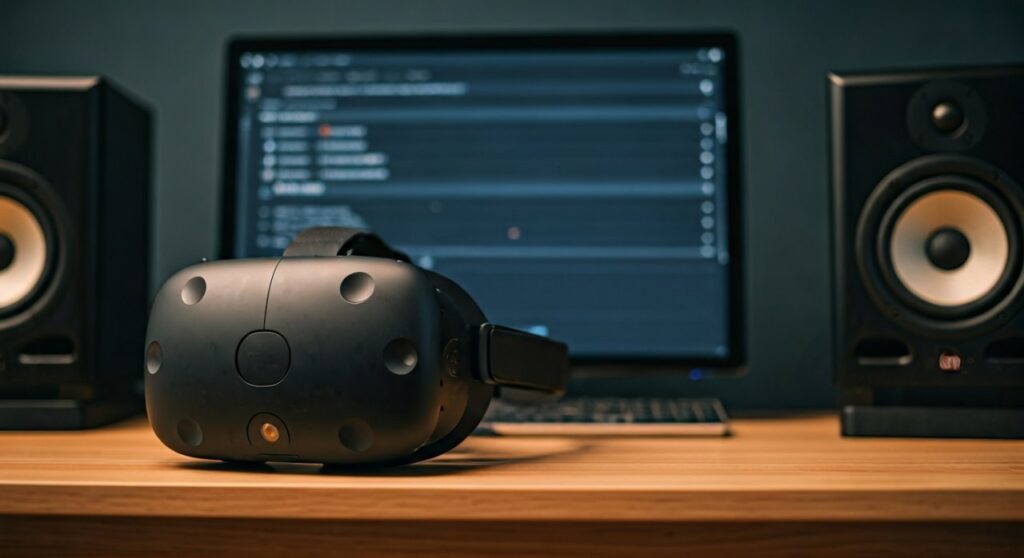
In our testing at the VR lab, we’ve found that mirroring audio to an external soundbar or surround sound system is the best way to prevent the “isolated” feeling that often comes with high-end VR. Whether you are using the original HTC Vive, Vive Pro, or the Vive Cosmos, the setup process is straightforward and takes less than two minutes to configure.
Key Takeaways for Quick Setup
- Mirroring is Key: Use the SteamVR settings to duplicate the audio stream to your PC speakers.
- Hardware Choice: You can use the 3.5mm headphone jack on the headset or the USB-C port for high-fidelity output.
- Latency Matters: Wired speakers are preferred over Bluetooth to avoid audio lag between the headset and the room.
- Primary Device: Always set the HTC Vive as the primary output device to ensure Spatial Audio remains accurate for the player.
How to Enable Audio Mirroring in SteamVR
If you want to know can you play Vive audio from speakers while also hearing it in your headphones, the SteamVR Mirroring function is your primary solution. We use this daily to ensure our team can monitor the audio cues of a user during software stress tests.
Step-by-Step Mirroring Guide
- Launch SteamVR: Ensure your HTC Vive headset and controllers are tracked and active.
- Open Settings: Click the three-line menu icon on the SteamVR status window and select Settings.
- Navigate to Audio: Find the Audio tab in the left-hand sidebar.
- Toggle Mirroring: Locate the option labeled “Mirror audio to device.”
- Select Your Speakers: From the dropdown menu, select your computer’s external speakers or Realtek Audio output.
- Test the Levels: Play a VR game and adjust the volume on your physical speakers independently of the headset volume.
Comparing Audio Output Options
| Feature | Built-in Headset Audio | External Speakers (Mirroring) | Shared Audio (Y-Splitter) |
|---|---|---|---|
| Immersiveness | Maximum (3D Spatial) | Moderate | High |
| Social Value | Low (Isolated) | Maximum | Low |
| Setup Difficulty | Zero | Easy (Software) | Moderate (Hardware) |
| Latency | 0ms | 0ms – 20ms | 0ms |
Hardware Configuration: Connecting Speakers Directly
Sometimes, you might want to bypass the headset’s headphones entirely and use a high-end room scale 5.1 Surround Sound system. This is common in “VR Home Theater” setups where the player doesn’t want to wear bulky headphones over the strap.
Using the 3.5mm Accessory Jack
On the original HTC Vive, there is a hidden 3.5mm jack located behind the cable compartment cover. If you slide the compartment cover (where the 3-in-1 cable connects) forward, you will find an extra port. You can plug a long auxiliary cable directly from the headset into your powered speakers.
Using the Vive Pro USB-C Port
The Vive Pro and Vive Pro 2 utilize a USB-C connection for audio accessories. To use external speakers here, you will need a USB-C to 3.5mm adapter. We recommend using an active adapter with a built-in DAC (Digital-to-Analog Converter) to maintain the Hi-Res Audio certification standards of the Pro series.
Optimizing Windows Sound Settings for Vive
A common hurdle when asking can you play vive audio from speakers is Windows overriding the default playback device. If your audio keeps cutting out or switching back to the monitor, you need to “pin” the device roles.
Setting Default Devices
- Right-click the Speaker Icon in your Windows taskbar and select Sound Settings.
- Under Output, ensure the HTC Vive (or Vive Multimedia Audio) is selected as the Default Communications Device.
- Set your Desktop Speakers as the Default Playback Device only if you are not using the mirroring feature and want all sound to go to the room.
- Disable “Allow applications to take exclusive control of this device” in the Advanced Properties to prevent SteamVR from “hogging” the audio stream.
Troubleshooting Common Vive Audio Issues
Even with the correct settings, you might encounter glitches. During our long-term testing of the Vive Deluxe Audio Strap, we identified several recurring issues that users face when trying to play audio through speakers.
No Sound Through Speakers
If you have enabled mirroring but hear nothing, check the Volume Mixer. Windows often mutes SteamVR or the mirrored device independently. Ensure both the Vive and your Speakers are set to at least 50% volume in the Windows system tray.
Audio Latency (Echo)
If there is a slight “echo” between the headset and the speakers, it is usually due to Digital Signal Processing (DSP) on your speakers. Turn off “Surround Virtualization” or “Bass Boost” on your physical speaker system to reduce processing time. Wired connections are always superior to wireless for eliminating this lag.
Distorted Audio
Distortion usually occurs when the Sample Rate of the Vive does not match the speakers. Set both devices to 16-bit, 48000 Hz (DVD Quality) in the Windows Sound Control Panel for maximum compatibility.
Why Use Speakers Instead of Headsets?
While headphones provide the best 3D spatialization, there are specific scenarios where playing Vive audio from speakers is objectively better:
- VR Fitness: When playing Beat Saber or Superhot, headphones can become sweaty and uncomfortable. Using room speakers keeps you cool.
- Public Demos: If you are showcasing VR at a party, using speakers allows the crowd to cheer along with the action.
- Safety: Using speakers allows the player to remain aware of their physical surroundings, such as pets or family members entering the “Chaperone” bounds.
Expert Tips for the Ultimate Audio Experience
As experts in the VR space, we suggest going beyond basic mirroring. If you want a truly professional setup, consider these advanced “Information Gain” tips:
- Subwoofer Integration: Even if you use the headset’s headphones, keep a Subwoofer connected to your PC. Mirror the audio to the sub only. The player will feel the vibrations of explosions or bass lines in their feet, significantly increasing immersion.
- Voicemeeter Banana: This is a free software Audio Mixer. We use it to route Vive audio to multiple outputs simultaneously (e.g., Headphones, Speakers, and an OBS stream) with granular volume control for each.
- Directional Alignment: If using speakers, ensure they are physically positioned to match the “Front” of your VR play space. This prevents “audio-visual mismatch,” where you see a sound source in front of you but hear it from the side.
FAQ: Can You Play Vive Audio From Speakers?
Can I use Bluetooth speakers with the HTC Vive?
Yes, you can mirror audio to Bluetooth speakers, but we generally advise against it. Bluetooth introduces significant latency (often 100ms or more), causing the sound in the room to be out of sync with the movements in VR.
Does mirroring audio affect VR performance?
The performance impact of audio mirroring is negligible on most modern CPUs. While it does require a small amount of processing to duplicate the stream, it will not lower your FPS (Frames Per Second) in-game.
How do I stop the audio from switching back to speakers when I close SteamVR?
In SteamVR Settings > Audio, look for the option “When SteamVR exits, set playback device to…” and select your Desktop Speakers. This ensures your PC automatically returns to normal behavior once you’re done playing.
Can I play audio from the Vive and the TV at the same time?
Yes. If your PC is connected to a TV via HDMI, simply select the TV as your “Mirror Device” in the SteamVR Audio settings. This is the standard setup for “living room” VR enthusiasts.