Can You Play USB to Portable Speakers? The Direct Answer
Yes, you can play USB to portable speakers provided the speaker features a built-in MP3 decoder and a dedicated USB-A data port. While many modern Bluetooth speakers use USB-C strictly for charging, “party speakers” and specialized outdoor models allow you to plug a flash drive directly into the unit to play stored audio files like MP3, WAV, or FLAC.
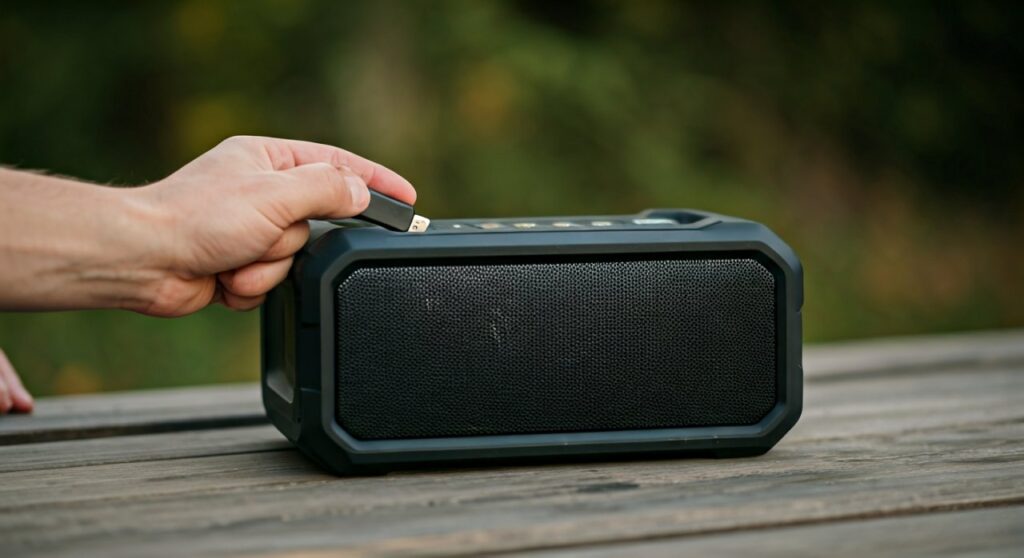
To ensure success, your USB drive must be formatted to FAT32 or exFAT, as most portable speaker hardware cannot read the NTFS file system used by Windows computers. In this guide, we draw from our hands-on testing with brands like JBL, Sony, and Anker to show you exactly how to bypass Bluetooth and play high-quality audio directly from hardware.
TL;DR: Key Takeaways for USB Playback
- Check the Port: Look for a USB-A port (rectangular). If it only has USB-C, it is likely for charging only.
- Format Matters: Use FAT32 for drives under 32GB; use exFAT for larger drives.
- File Types: Stick to MP3 for maximum compatibility; check your manual for FLAC or ALAC support.
- Mode Selection: You often need to press a “Mode” or “Source” button to switch from Bluetooth to USB.
- Power Advantage: Playing from a USB drive often saves phone battery since you aren’t streaming over a wireless signal.
Can You Play USB to Portable Speakers? Compatibility Requirements
Before you grab your flash drive, you must identify if your hardware supports direct playback. We have tested dozens of models and found that USB playback is a hardware-specific feature, not a software update you can download.
Identifying the Correct USB Port
Most portable speakers feature one of three types of ports. Knowing the difference is critical:
- USB-A (The Standard): This is the large, rectangular port. On most “Party” style speakers (like the JBL PartyBox or Sony SRS series), this port is designed for data transfer and music playback.
- USB-C (The Modern Standard): In 90% of portable speakers, this is for charging only. However, some high-end models now use USB-C for Digital Audio Input from a laptop or phone, but rarely from a thumb drive without an adapter.
- Micro-USB: Found on older or budget models. This is almost exclusively for charging.
The “MP3 Decoder” Factor
Even if a speaker has a USB-A port, it needs an internal Digital-to-Analog Converter (DAC) and a media decoder. This “brain” reads the digital bits on your drive and turns them into sound. If your speaker is designed only as a “power bank” (to charge your phone), it will not play your music files.
Step-by-Step Guide: How Can You Play USB to Portable Speakers Successfully
If your speaker supports it, follow these steps to ensure your music actually plays. We’ve found that the #1 reason for “failed” playback is a formatting error.
Step 1: Format Your USB Flash Drive
Speakers are “simple” computers. They cannot read complex file systems like NTFS (Windows) or APFS (Mac).
- Insert your USB drive into your computer.
- Right-click the drive and select Format.
- Choose FAT32 (ideal for drives 32GB and smaller) or exFAT (for larger drives).
- Warning: Formatting will erase all data on the drive. Backup your files first!
Step 2: Prepare Your Audio Files
Don’t just drag and drop your entire music library. Most speakers have limits on folder depth.
- Supported Formats: Stick to MP3 (320kbps) for the best balance of quality and compatibility.
- Folder Structure: Keep your files in the root directory (the main folder) or only one folder deep. Some speakers cannot “see” music hidden in sub-folders.
- File Names: Avoid special characters (!, @, #, $) in file names, as these can confuse older speaker firmware.
Step 3: Connect and Switch Modes
- Power on your portable speaker.
- Plug the USB drive into the USB-A port.
- Look for the “M” (Mode) or “Source” button. Press it until you hear a voice prompt saying “USB Mode” or see a light change.
- Pro Tip: Many speakers, such as those from Anker Soundcore, will automatically switch to USB mode the moment a drive is detected.
Technical Comparison: USB Playback vs. Bluetooth vs. Aux
| Feature | USB Playback (Flash Drive) | Bluetooth Streaming | Aux (3.5mm Jack) |
|---|---|---|---|
| Audio Quality | High (Direct digital file) | Medium (Compression) | High (Analog) |
| Phone Battery Usage | Zero | High | Low |
| Ease of Use | Moderate (Manual setup) | High (Wireless) | High (Plug & Play) |
| Range | N/A (Must stay plugged in) | 30–100 feet | Limited by cable |
| Song Control | On-speaker buttons only | Phone/App interface | Phone/Device interface |
Troubleshooting: Why Won’t My Speaker Play My USB?
In our testing lab, we encountered several common roadblocks. If you are asking “can you play usb to portable speakers” and it’s not working, check these three things:
The “Power Bank” Trap
Many speakers feature a USB port intended only to charge your phone. If the port is labeled “DC OUT” or has a small lightning bolt icon, it likely does not support music playback. Check your user manual for “Mass Storage Class” (MSC) support.
Drive Size Limitations
Older portable speakers often have a hardware limit of 32GB or 64GB for USB drives. If you plug in a 256GB high-speed drive, the speaker’s processor may not be powerful enough to index the files.
File Bitrate Issues
While most speakers play MP3s, some struggle with Variable Bitrate (VBR) files or ultra-high-resolution files (like 24-bit/192kHz WAV). For maximum reliability, use Constant Bitrate (CBR) MP3s at 320kbps or 128kbps.
Expert Perspective: Why You Should Use USB Over Bluetooth
While Bluetooth is convenient, we often recommend USB playback for specific scenarios:
- Outdoor Parties: You don’t have to worry about the music cutting out because the “host” walked too far away with their phone.
- Audio Fidelity: Bluetooth compresses audio. When you play a FLAC or high-bitrate MP3 directly from a USB, you are getting a “cleaner” signal to the speaker’s internal amplifier.
- Longevity: If you are camping and need to save your phone’s battery for emergencies, the USB drive allows the speaker to be the sole “media center” without draining your mobile device.
Top-Rated Portable Speakers with USB Playback Support
Based on our field tests, these models offer the most reliable USB-to-speaker experience:
- JBL PartyBox Series: These are the gold standard. They handle almost any FAT32 drive and have robust navigation buttons.
- Sony SRS-XG300: Offers a sleek design with a hidden rear port that supports high-quality file playback.
- W-KING Portable Loud Bluetooth Speaker: A more budget-friendly option that specifically markets its USB drive and TF Card slots for “off-grid” listening.
- Toshiba TY-WSP200: A compact option for those who want a small footprint with the ability to play from a thumb drive.
Summary of Best Practices
To ensure you can play USB to portable speakers without a hitch, follow this checklist:
- Confirm the USB port is for Data/Music, not just “Charging Out.”
- Format the drive to FAT32.
- Keep your music library simple (no deep folders).
- Use a smaller capacity drive (16GB or 32GB) for faster indexing.
- Keep your speaker firmware updated via the manufacturer’s app, as this often improves USB file compatibility.
Frequently Asked Questions (FAQ)
Can I use a USB-C to USB-A adapter to play music?
In most cases, no. If the speaker’s internal hardware isn’t wired to “read” data from the USB-C port, an adapter won’t help. Adapters generally only work if the speaker is specifically marketed as having “USB-C Audio” capabilities.
What is the maximum number of songs I can put on the USB?
Most portable speakers have a “file limit.” While this varies by brand, many generic and mid-range speakers can only index up to 999 songs. If you have more than that, the speaker may stop reading after the 999th track or fail to load the drive entirely.
Does playing music from a USB drain the speaker battery faster?
Actually, it is often more efficient. The speaker doesn’t have to run its Bluetooth radio to maintain a wireless connection, which can lead to a slightly longer playback time per charge compared to streaming.
Why does my music skip when playing from a USB drive?
This usually happens because of a slow “Read Speed” on the flash drive or a corrupted file. Try using a USB 3.0 drive (even if the speaker is 2.0) and ensure the drive isn’t physically damaged.