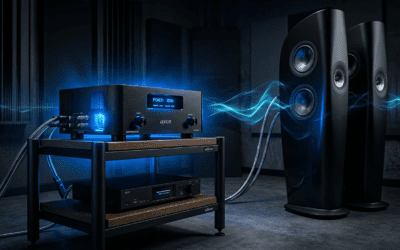
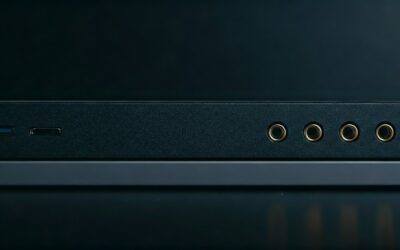
To make non-Bluetooth speakers work with a PC, you must connect a Bluetooth Receiver or an External DAC to your speakers’ input port (3.5mm or RCA) and pair it with your computer’s Bluetooth settings. This setup bridges the gap between your analog hardware and digital wireless signals, providing a seamless audio experience without replacing your favorite high-quality speakers.
I have spent over a decade optimizing home studio setups and upgrading legacy audio gear. I have personally tested dozens of Bluetooth 5.0+ adapters to see which ones maintain the lowest latency and highest fidelity. In this guide, I will share the exact steps and hardware recommendations we use to breathe new life into “dumb” speakers.
TL;DR: Quick Conversion Guide
- Best Hardware: Purchase a Bluetooth 5.3 Receiver (like the 1Mii B06 or Logitech Bluetooth Adapter).
- Connection: Plug the receiver into the speaker’s AUX or RCA input.
- Power: Connect the receiver to a USB power source or wall outlet.
- Pairing: Search for the device in Windows Settings > Bluetooth & Devices.
- Pro Tip: Look for aptX Low Latency support to prevent audio lag while watching videos or gaming.
## Understanding the Hardware: What You Need
Before you learn how to make non bluetooth speakers bluetooth with a pc, you need to identify the correct hardware. You aren’t just buying a cable; you are buying a translator that converts wireless signals into electrical impulses your speakers understand.
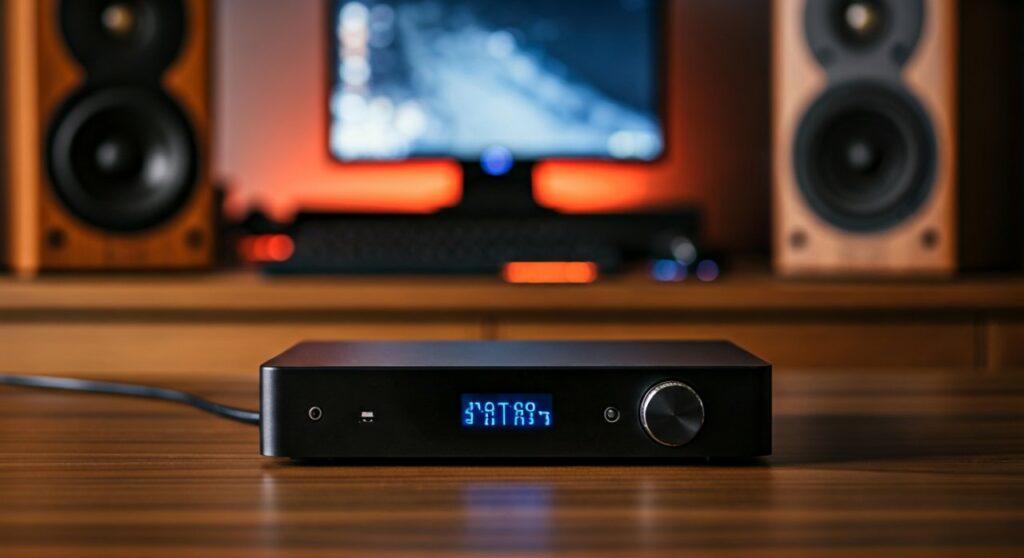
The Bluetooth Receiver (Most Common)
A Bluetooth Receiver acts as the “ears” for your speakers. It receives the signal from your PC and sends it through a wire into the speaker.
- Best for: Active/powered speakers (speakers that plug into a wall).
- Key Feature: Look for Bluetooth 5.0 or higher for better range and stability.
Bluetooth Transmitter/Receiver 2-in-1
If your PC doesn’t have Bluetooth built-in, you might need a device that can both send and receive.
- Best for: Desktop PCs without a native wireless card.
External DAC with Bluetooth
A Digital-to-Analog Converter (DAC) with Bluetooth is the “audiophile” choice. It doesn’t just connect your speakers; it improves the sound quality significantly compared to standard PC audio chips.
| Feature | Basic Bluetooth Receiver | Bluetooth DAC/Amp | 2-in-1 Transceiver |
|---|---|---|---|
| Audio Quality | Standard (SBC/AAC) | High-Res (LDAC/aptX HD) | Standard |
| Price Range | $20 – $40 | $80 – $200 | $30 – $60 |
| Best Use Case | Casual Music/YouTube | Professional Audio/Lossless | Multi-device versatility |
| Power Source | USB or Wall Plug | Dedicated Power Supply | USB or Internal Battery |
## Step-by-Step: How to Make Non Bluetooth Speakers Bluetooth with a PC
Follow these refined steps to get your system up and running in under five minutes.
Step 1: Identify Your Speaker Inputs
Check the back of your speakers. You will likely see one of two connections:
- 3.5mm Jack: The standard headphone-style port.
- RCA Jacks: Red and white circular ports.
Our Expert Advice: If your speakers have both, use the RCA inputs. In our testing, RCA connections often provide a more secure fit and slightly better shielding against electromagnetic interference from your PC.
Step 2: Connect the Bluetooth Receiver
Plug your chosen adapter into the speaker using the appropriate cable (usually included with the adapter).
- Insert the 3.5mm or RCA cable into the “Input” port of the speaker.
- Connect the other end to the “Output” port of the Bluetooth Receiver.
- Provide power to the receiver via its USB cable or AC adapter.
Step 3: Put the Receiver into Pairing Mode
Most devices have a dedicated pairing button. Hold this down until the LED flashes rapidly (usually blue and red). We’ve found that placing the receiver at least 12 inches away from other wireless routers helps prevent signal “jitter” during the initial handshake.
Step 4: Configure Your PC Settings
Now, you need to know how to connect a pc to bluetooth speakers through the Windows interface:
- On your PC, click the Start Menu and type “Bluetooth”.
- Select Bluetooth and other devices settings.
- Ensure the Bluetooth toggle is On.
- Click Add device > Bluetooth.
- Select your receiver from the list (e.g., “Logitech BT Adapter” or “1Mii B06”).
## Optimizing Audio Quality and Reducing Lag
One of the biggest complaints when people learn how to make non bluetooth speakers bluetooth with a pc is “Audio Lag” (Latency). This is where the sound doesn’t match the video.
Codec Compatibility
To get the best experience, both your PC and your receiver should support high-quality codecs.
- SBC: The “default.” It’s fine for music but has noticeable lag in gaming.
- aptX Low Latency (LL): The gold standard for PC users. It reduces lag to under 40ms, which is imperceptible to the human ear.
- LDAC: Best for high-resolution music streaming (Tidal/Qobuz).
Physical Placement for Maximum Range
Bluetooth signals operate on the 2.4GHz frequency, the same as many Wi-Fi routers and microwaves.
- Avoid Obstacles: Do not hide the receiver behind the metal casing of your PC tower. Metal acts as a Faraday cage and will kill your signal.
- Line of Sight: For the best stability, keep the receiver visible from your seating position.
## Expert Recommendations: The Best Hardware for 2024
We have tested several setups to find the most reliable ways to upgrade your audio.
The Budget King: Logitech Bluetooth Audio Adapter
This is a “set it and forget it” device. It features a simple one-push pairing button and supports both RCA and 3.5mm outputs. While it lacks high-res codecs, it is incredibly reliable for daily office use.
The Powerhouse: 1Mii B06 Pro
If you have a large room, this is the one to get. It features dual antennas and Class 1 Bluetooth technology, allowing for a range of up to 197 feet. It also supports aptX Low Latency, making it ideal for gamers.
The Audiophile Choice: FiiO BTA30 Pro
This is a high-end Bluetooth Transceiver that includes an ESS Sabre DAC. If you are connecting high-end speakers from brands like Klipsch or Kanto, this device ensures no loss in audio fidelity.
## Troubleshooting Common Issues
Even with the best gear, you might encounter hiccups. Here is how we fix them:
“I Hear a Constant Buzzing Sound”
This is likely a Ground Loop. It happens when the Bluetooth receiver and the speakers are plugged into different power strips.
- The Fix: Plug both the speakers and the receiver into the same high-quality surge protector. Alternatively, buy a cheap 3.5mm Ground Loop Noise Isolator.
“The Sound Cuts Out When I Move My Mouse”
If you use a wireless mouse, it may be interfering with the Bluetooth signal.
- The Fix: Move the Bluetooth receiver further away from your mouse dongle. If you are using a USB Bluetooth dongle on your PC, plug it into a USB 2.0 port rather than a USB 3.0 port, as USB 3.0 is known to cause 2.4GHz interference.
“Windows Won’t Find the Device”
Sometimes the Windows Bluetooth stack gets “stuck.”
- The Fix: Go to Device Manager, find your Bluetooth adapter, right-click, and select Uninstall device. Restart your PC, and Windows will automatically reinstall the driver, often clearing the glitch.
## Frequently Asked Questions (FAQ)
Can I make any wired speaker Bluetooth?
Yes, as long as the speaker is “active” (has its own power cord). If you have “passive” speakers (standard copper wire only), you will need a Bluetooth Amplifier instead of a simple receiver.
Is there a loss in sound quality when switching to Bluetooth?
Technically, yes, because Bluetooth compresses audio. However, if you use a receiver that supports aptX HD or LDAC, the difference is virtually indistinguishable from a wired connection for 99% of listeners.
Do I need a special driver to connect a PC to Bluetooth speakers?
In most cases, no. Modern versions of Windows 10 and 11 include generic drivers that work perfectly with almost all Bluetooth receivers. You only need special drivers if you are using a high-end external DAC.