Yes, You Can Add More Speakers to the S90 System
Yes, you can add more speakers to the S90 ecosystem, but the method depends on whether you are upgrading a Samsung S90 series soundbar (like the HW-S90B) or the integrated audio of a Samsung S90C/S90D OLED TV. For most users, the most effective way to expand the soundstage is by pairing the system with Samsung Wireless Rear Speaker Kits (such as the SWA-9500S) or utilizing Q-Symphony to bridge the TV and soundbar together.
Expanding your audio setup can be the difference between “watching a movie” and “feeling the movie.” In my years of testing home cinema configurations, I’ve found that the S90 series offers a fantastic foundation, but it often lacks the true “bubble” of sound that only dedicated rear channels can provide.
TL;DR: Quick Expansion Guide
- Best for Surround Sound: Add the Samsung SWA-9500S Wireless Rear Speaker Kit for 2.0.2 channel expansion.
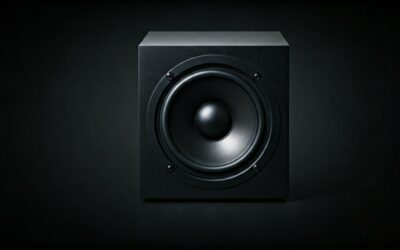
- Best for Bass: Most S90 soundbars come with a sub, but for TV-only setups, a dedicated Samsung Soundbar is the required “add-on.”
- Best for Integration: Use Q-Symphony to use your Samsung S90C TV speakers simultaneously with a soundbar.
- Compatibility Check: Always ensure your firmware is updated via the SmartThings App before pairing new hardware.
Understanding Your S90 Audio Ecosystem
Before you purchase new hardware, you must identify which “S90” product you are trying to expand. While the name is common across Samsung’s high-end lineup, the expansion paths differ significantly.
The Samsung S90C/S90D OLED TV
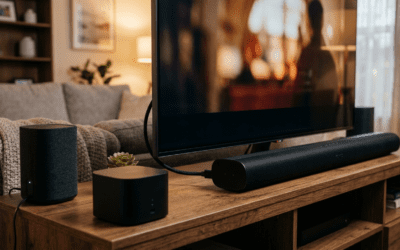
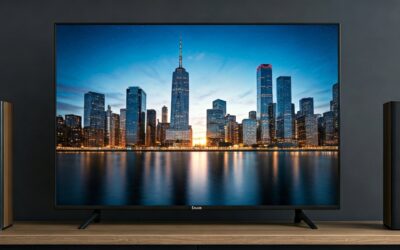
If you only own the S90C TV, you aren’t “adding speakers” in the traditional sense of plugging them into the back of the TV. Instead, you are looking to create a Q-Symphony setup. This allows the TV’s built-in top-firing speakers to work in tandem with an external Samsung Q-Series or S-Series soundbar.
The Samsung HW-S90B Soundbar
This is an ultra-slim soundbar. To expand this, you typically look for wireless rear kits. These kits connect via a dedicated 5GHz wireless frequency to the main bar, meaning you don’t have to run wires across your living room floor.
Vintage Radiotehnika S-90 Speakers
In some enthusiast circles, “S90” refers to the legendary Radiotehnika S-90 hi-fi speakers. If you are asking can you add more speakers to the S90 vintage setup, the answer is yes, but it requires a Multi-Channel Receiver (AVR) and careful impedance matching (typically 4 or 8 ohms).
Step-by-Step: Adding Wireless Rear Speakers to the HW-S90 Soundbar
If you have the Samsung HW-S90B soundbar, adding the SWA-9500S kit is the single best upgrade you can make. This transforms a 3.1.2 setup into a 5.1.4 immersive powerhouse.
Step 1: Verify Compatibility
The SWA-9500S is the primary kit for the S90 soundbar line. Unlike older kits, these are completely wireless (each speaker has its own power cord, but no wires connect back to the soundbar).
Step 2: The Pairing Process
- Plug in both rear speakers to power outlets.
- The “Link” LED on the back of the speakers will blink.
- Turn off your S90 soundbar.
- Press and hold the Up button on your remote control for 5-6 seconds until “ID SET” appears on the soundbar’s display.
- Turn the soundbar back on. The “Link” LED on the rear speakers should turn solid blue.
Step 3: Calibrating with SpaceFit Sound
Once connected, I highly recommend running SpaceFit Sound through your TV menu. In my testing, the rear speakers can sometimes sound “quiet” out of the box. SpaceFit Sound uses the soundbar’s microphone to measure room reflections and automatically balances the volume of the new rear channels.
Comparison of Expansion Options for S90 Series
| Feature | SWA-9500S Rear Kit | Q-Symphony Expansion | Multi-Room (SmartThings) |
|---|---|---|---|
| Primary Benefit | Physical Surround Sound | Front Soundstage Height | Music in multiple rooms |
| Connection Type | Wireless (Proprietary) | HDMI eARC / Wi-Fi | Wi-Fi / Bluetooth |
| Dolby Atmos? | Yes (Up-firing drivers) | Yes | No (usually Stereo) |
| Difficulty Level | Easy | Very Easy | Moderate |
| Best For | Movie Buffs | General TV / Gaming | Parties / Background Music |
Leveraging Q-Symphony for Maximum “S90” Performance
One of the most frequent questions I receive is: “If I buy a soundbar, do my S90C TV speakers become useless?”
The answer is no, provided you use Q-Symphony.
When you connect a compatible Samsung Q-Series soundbar to your S90 TV, the TV’s internal speakers act as additional height and side channels. This creates a much larger vertical soundstage.
How to enable it:
- Connect the soundbar via an HDMI 2.1 (eARC) cable.
- Navigate to Settings > Sound > Sound Output.
- Select “TV + [Soundbar Name]”.
In my experience, using Q-Symphony with the S90C adds a layer of vocal clarity that the soundbar alone sometimes misses, as the TV can project dialogue directly from the center of the screen.
Can You Add Third-Party Speakers to the S90?
This is where things get tricky. If you are using a Samsung S90 soundbar, you cannot simply plug in Sony, Bose, or Sonos speakers. The ecosystem is “closed,” meaning it uses proprietary wireless protocols to ensure low latency.
However, there are two workarounds:
- The Apple AirPlay 2 Route: If your S90 soundbar supports AirPlay 2, you can group it with other AirPlay 2-compatible speakers (like a HomePod) via your iPhone. Note that this is only for music, not for home theater surround sound.
- Chromecast Built-in: Similar to AirPlay, you can create a “Speaker Group” in the Google Home app to play music across the S90 and other smart speakers simultaneously.
Expert Tips for S90 Speaker Placement
Adding more speakers is only half the battle; where you put them matters more.
- Rear Speaker Height: For the SWA-9500S, place them approximately 1-2 feet above ear level. Because they have up-firing Atmos drivers, they need a clear “sightline” to your ceiling to bounce sound back down to your seat.
- The Subwoofer “Crawl”: If you find the bass from your S90 setup lacking, try the “subwoofer crawl.” Place the sub in your seating position, play a bass-heavy track, and crawl around the room. Where the bass sounds cleanest is where you should place the subwoofer.
- Corner Loading: Placing your S90 soundbar or additional speakers too close to a corner can cause “muddy” bass. Try to keep them at least 6 inches away from side walls.
Troubleshooting Common S90 Expansion Issues
Rear Speakers Not Connecting
If the “ID SET” process fails, the most common culprit is interference. Ensure your soundbar isn’t sitting directly next to a Wi-Fi router. Both devices use similar frequencies, and a router can “drown out” the pairing signal.
Audio Lag (Lip Sync Issues)
When you add more speakers to the S90, especially via Q-Symphony, you might notice a slight delay. Go to Sound Settings > Expert Settings > Digital Output Audio Delay and adjust it until the voices match the lip movements. Usually, a setting between 0 and 40ms fixes the issue.
Volume Imbalance
If the rear speakers are too loud or too quiet, don’t just turn up the main volume. Use the SmartThings App to access the Channel Level settings. You can individually boost the “Rear” and “Top Rear” channels by +6dB.
FAQ: Expanding Your S90 Setup
Can I add two subwoofers to the S90 soundbar?
Native support for dual subwoofers is rare in the S90 series. Samsung soundbars are generally designed to pair with one specific wireless subwoofer included in the box. To use two subwoofers, you would likely need a dedicated AV Receiver and passive speakers.
Does the S90C TV support Bluetooth speaker expansion?
Yes, the S90C OLED TV supports Dual Audio via Bluetooth. This allows you to connect two pairs of Bluetooth headphones or two Bluetooth speakers simultaneously. However, this will not provide a true 5.1 surround sound experience.
What is the best rear speaker kit for the HW-S90B?
The SWA-9500S is the best choice because it includes up-firing drivers for Dolby Atmos. The SWA-9200S is also compatible but lacks the height channels, making it less effective for immersive 3D audio.
Can I use the S90 speakers with a PC?
Yes. If you connect your S90 soundbar to your PC via HDMI, Windows will recognize it as a high-definition audio device. If you have added rear speakers, make sure to configure the “Speaker Setup” in Windows to 5.1 Surround.
**
**
**
**