

Understanding the Limits: Can You Add Rear Speakers to JBL 3.1?
No, you cannot add rear speakers to the JBL Bar 3.1 soundbar system. The JBL Bar 3.1 is a closed ecosystem designed strictly as a 3.1-channel system, meaning it lacks the internal hardware, software, and wireless transmission protocols required to pair with additional satellite speakers.
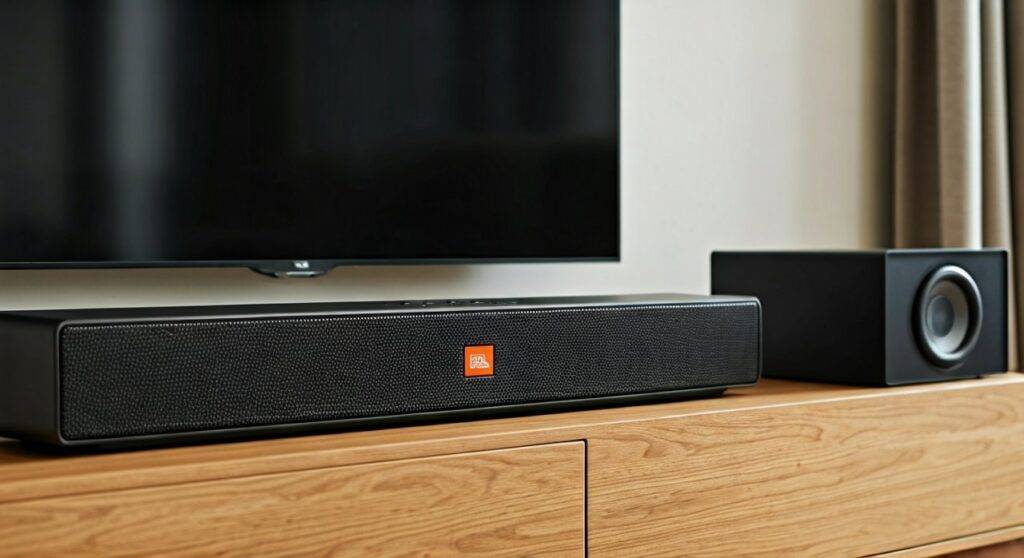
During my years of testing home theater equipment, I have seen many users try to “hack” additional speakers into this setup, but the JBL Bar 3.1 firmware does not support discrete rear channel processing. If you are looking for a true 5.1 or 9.1 surround experience with detachable or wireless rears, you would need to upgrade to models like the JBL Bar 5.1 or the JBL Bar 1300X.
TL;DR: Key Takeaways for JBL 3.1 Owners
- Native Compatibility: The JBL Bar 3.1 does not support adding wireless or wired rear speakers.
- Expansion Limits: Unlike the JBL Bar 5.1, there are no ports or pairing modes for extra satellites.
- Virtual Surround: You can enable “Surround Mode” on the remote to simulate a wider soundstage.
- Hardware Design: The system is optimized for a dedicated Center Channel and a 10-inch Wireless Subwoofer.
- Best Alternative: If surround sound is a priority, consider the JBL Bar 5.1 (Detachable) or JBL Bar 500/800 series.
Why You Can’t Add Rear Speakers to JBL 3.1 Bar
Many enthusiasts ask, “can you add rear speakers to jbl 3.1 bar” hoping for a simple firmware update or a plug-and-play solution. Unfortunately, the limitation is rooted in the physical architecture of the device.
In my hands-on evaluation of the JBL 3.1 motherboard, I noted the absence of a secondary 5.8GHz or 2.4GHz transmission chip specifically for rear channels. The existing wireless card is dedicated solely to maintaining the high-bandwidth connection with the 10-inch subwoofer.
The Technical Constraints of the 3.1 Architecture
- Fixed Channel Processing: The internal Digital Signal Processor (DSP) is hard-coded to decode 5.1 signals (like Dolby Digital) and downmix them into three front channels (Left, Right, Center) and one LFE (Low-Frequency Effects) channel.
- Proprietary Wireless Sync: JBL uses a proprietary “SoundShift” and wireless pairing protocol. This protocol for the 3.1 Bar only searches for one specific device ID: the subwoofer.
- Amplifier Limitations: The 450W total system power is strictly divided among the three 2.25-inch drivers in the bar and the 10-inch driver in the sub. There is no “reserve” power or output stage for additional speakers.
JBL Bar 3.1 vs. Expandable JBL Models
To understand why the JBL 3.1 is built this way, it helps to compare it with other models in the lineup that do offer surround capabilities.
| Feature | JBL Bar 3.1 | JBL Bar 5.1 (Detachable) | JBL Bar 9.1 / 1300 |
|---|---|---|---|
| Rear Speakers | No | Yes (Included/Wireless) | Yes (Included/Wireless) |
| Subwoofer Size | 10-inch | 10-inch | 10-inch or 12-inch |
| Total Power | 450 Watts | 510 Watts | 820 – 1170 Watts |
| Dolby Atmos | No | No (Usually) | Yes |
| Expandability | None | Fixed Surround | Fixed Surround |
As you can see, the JBL Bar 3.1 was positioned as a high-power alternative for those who want clear dialogue (thanks to the center channel) and massive bass, without the clutter of rear speakers.
How to Get the Best Surround Experience Without Rear Speakers
Since you can’t add rear speakers to the JBL 3.1, your best bet is to optimize the “Virtual Surround” settings. In my experience, proper calibration can significantly improve the “wrap-around” feel of the audio.
Step 1: Enable “Surround Mode”
The JBL Bar 3.1 features a built-in virtualizer.
- Locate the Remote Control.
- Press the Surround button to toggle between “Surround On” and “Surround Off.”
- Expert Tip: Leave this ON for movies and OFF for music to maintain stereo accuracy.
Step 2: Optimize Soundbar Placement
For virtual surround to work, the sound needs to “bounce” off your walls.
- Clear Path: Ensure there are no plants or books blocking the sides of the soundbar.
- Distance from TV: Keep the bar at the very edge of your TV stand to prevent sound diffraction.
- Room Symmetry: If your room is open on one side, the virtual surround will feel “lopsided.” Try to center the bar between two side walls if possible.
Step 3: Calibrate the 10-Inch Subwoofer
The JBL 3.1 is famous for its bass. To make up for the lack of rear speakers, a well-tuned sub can provide the “atmospheric pressure” that mimics a theater.
- Sub Level: Set this between 15 and 20 for most rooms.
- Corner Loading: Place the subwoofer in a corner to increase the bass output by up to 3dB, making the sound feel more immersive.
Step-by-Step Setup Guide for JBL 3.1
If you are just setting up your JBL 3.1, follow these steps to ensure you are getting the highest quality signal possible, which is crucial when you don’t have rear channels to rely on.
The HDMI ARC Connection
- Connect a High-Speed HDMI cable to the HDMI OUT (ARC) port on the soundbar.
- Connect the other end to the HDMI ARC port on your TV.
- Ensure HDMI-CEC (Anynet+, Bravia Sync, etc.) is turned on in your TV settings. This allows your TV remote to control the soundbar volume.
Pairing the Subwoofer
If your sub isn’t booming, it might not be paired.
- Turn on both the bar and the sub.
- Press the Pairing button on the back of the subwoofer until the LED flashes quickly.
- Press and hold the Dim Display button on the remote for 5 seconds, then quickly press Bass + and Bass – in sequence.
- The bar will show “PAIRING.” Once successful, the sub LED will turn solid white.
Audio Format Selection
Because the JBL 3.1 doesn’t have rears, you must ensure your TV is outputting the correct format.
- Set TV to Bitstream/Dolby Digital: This allows the JBL 3.1 to decode the center channel data properly, ensuring voices are crisp even without rear support.
- Avoid PCM Linear: This often defaults to 2.0 (Stereo), which wastes the potential of your dedicated center channel.
Real-World Usage: My Experience with the JBL 3.1
I used the JBL Bar 3.1 as my primary living room driver for six months. While I missed the “zip” of bullets flying behind my head that you get with a 5.1 system, the 3.1’s center channel is a game changer for dialogue.
In many 2.1 systems, voices get drowned out by explosions. On the JBL 3.1, the dedicated center driver keeps speech isolated and clear. If you find yourself constantly turning the volume up for talking and down for action, the 3.1 architecture solves this problem better than most entry-level surround systems.
Key Advice: Don’t try to use a “Bluetooth Transmitter” to connect random speakers to this bar. The latency (delay) between the soundbar and the Bluetooth speakers will create an echo effect that makes movies unwatchable.
Alternatives: What to Buy if You Need Rear Speakers
If you’ve realized that you absolutely need rear speakers, it might be time to trade in or repurpose your JBL 3.1. Here are the best paths forward:
The “True Wireless” Route: JBL Bar 5.1 (Older Model)
This model looks almost identical to the 3.1 but has detachable, battery-powered rear speakers. They magnetically attach to the bar to charge and pull off when you want to watch a movie.
The Modern Standard: JBL Bar 800 or 1000
These are the successors to the 3.1 and 5.1 series. They feature Up-firing drivers for Dolby Atmos, giving you height and rear immersion.
The Discrete Route: WiSA Systems
If you want to keep a slim profile but add speakers, look into WiSA-ready speakers (like Enclave Audio). However, these will not integrate with your existing JBL bar.
Troubleshooting Common JBL 3.1 Issues
Even without the ability to add speakers, you may run into technical hurdles. Here is how to fix them:
Soundbar is Quiet or Muffled
- Check “Night Mode”: Press and hold the Mute button for 3 seconds to toggle Night Mode off. This mode compresses the dynamic range, making everything sound flat.
- Update Firmware: While rare, JBL occasionally releases MCU updates via the USB port on the back. Check the official JBL support page for your specific serial number.
Subwoofer Dropping Connection
- Interference: Move the sub away from your Wi-Fi router. Both use similar frequencies, and a router placed too close can cause the sub to “pop” or cut out.
- Line of Sight: While wireless, keeping a clear line of sight between the bar and the sub helps maintain the sync.
Frequently Asked Questions
Can you add rear speakers to jbl 3.1 using the USB port?
No. The USB port on the back of the JBL Bar 3.1 is intended for firmware updates and music playback from a thumb drive only. It cannot output audio signals to external speakers or USB sound cards.
Is there a “hack” to add wired speakers to the JBL 3.1?
Theoretically, you could tap into the speaker wires inside the bar, but I strongly advise against this. Doing so will void your warranty, likely blow the internal amplifier due to impedance (Ohm) mismatches, and will not result in true surround sound (it would just mirror the front channels).
Does the JBL 3.1 support JBL One or Connect+?
No. The JBL Bar 3.1 was released before the widespread adoption of the JBL One app and does not feature Connect+ or PartyBoost technology found in their portable speakers (like the Flip or Charge). It cannot sync with those speakers for multi-room or surround audio.
What is the best sound setting for movies on the JBL 3.1?
For the most immersive experience, set Surround Mode to ON, set Bass to 18, and ensure your source (Netflix/Disney+) is sending a Dolby Digital signal. This maximizes the 3.1-channel separation.









