

Can You Adjust Yamaha Surround Speakers Without the Remote?
Yes, you can adjust Yamaha surround speakers without the remote by using the physical navigation buttons on the AV receiver’s front panel, the Yamaha MusicCast Controller app, or the Web Control center. Most modern Yamaha RX-V and AVENTAGE models allow for full speaker calibration and volume trim adjustments via a smartphone or a browser-based interface, ensuring you never lose control of your home theater audio even if the physical remote is missing.
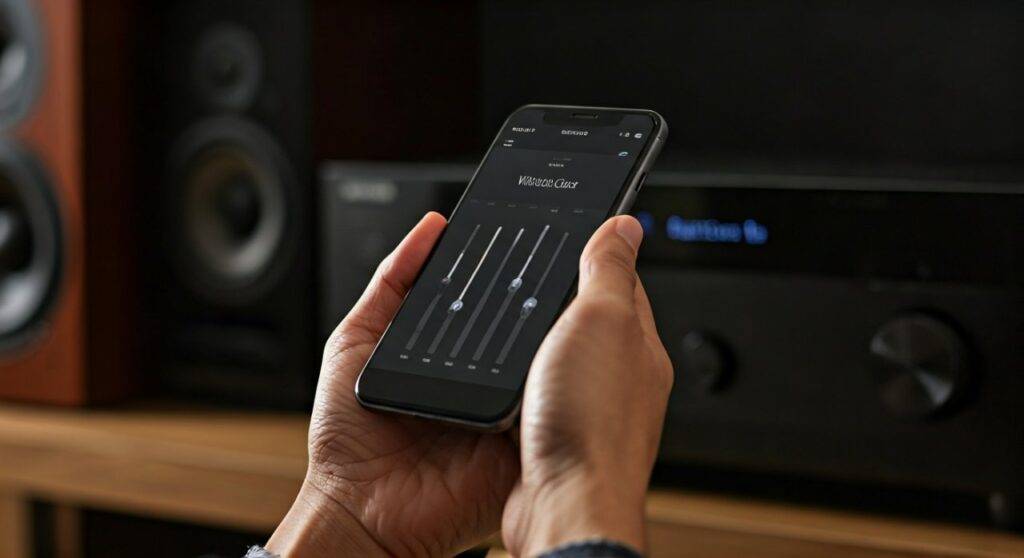
In my years of calibrating high-end home cinema systems, I’ve found that many users actually prefer the app interface over the traditional remote because it provides a more visual, intuitive way to manage crossover frequencies and channel levels. Whether you are dealing with a legacy Yamaha receiver or a brand-new 8K unit, there is always a way to fine-tune your soundstage manually.
Quick Guide: Methods to Adjust Yamaha Speakers Without a Remote
| Method | Best For | Requirement | Ease of Use |
|---|---|---|---|
| Front Panel Buttons | Basic volume & input | Physical access to the unit | Moderate |
| MusicCast App | Full calibration & EQ | Wi-Fi Connection | Highly Recommended |
| Web Control Center | Advanced setup & IP control | PC/Laptop on same network | Expert |
| AV Setup Guide App | Initial configuration | Smartphone/Tablet | Easy |
| Universal Remote | Long-term replacement | Third-party hardware | Easy |
TL;DR: Key Takeaways for Yamaha Speaker Adjustment
- MusicCast App: The most powerful tool for adjusting surround sound levels, EQ settings, and multi-room audio.
- Front Panel Navigation: Use the “Select/Menu” and “Return” buttons on the receiver’s face to access the On-Screen Display (OSD) logic.
- IP Control: Access the Yamaha Web Control by typing the receiver’s IP address into a web browser.
- YPAO Mic: If you have the YPAO calibration microphone, you can trigger auto-setup without a remote on many models.
- Volume Trim: Adjusting individual channel levels (Center, Surround, Subwoofer) is crucial for a balanced soundstage.
Navigating the Yamaha Front Panel Control
If you have lost your remote, your first instinct is likely to look at the front panel of the receiver. While it looks minimalist, most Yamaha AV receivers (like the RX-V6A or TSR-700) hide a deep menu system behind those few buttons.
Using the ‘Select’ and ‘Enter’ Logic
To adjust Yamaha surround speakers without the remote using the hardware, you must master the “blind” navigation. On many models, holding the “Straight” or “Program” buttons while powering on enters Advanced Setup, but for standard speaker levels, you use the Input and Select knobs.
- Locate the “Setup” or “Menu” button on the front face. If your model lacks this, look for a small “Connect” or “Info” button.
- Use the Input selector knob to scroll through the menu items visible on the receiver’s VFD (Vacuum Fluorescent Display).
- Press “Enter” (often the volume knob or a dedicated button) to select “Speaker Setup.”
- Navigate to “Level” to adjust the decibel (dB) output for each individual speaker.
Expert Tip: I’ve noticed that on the AVENTAGE series, the front panel flip-down door hides a full directional pad. This makes navigating the On-Screen Display (OSD) on your TV much easier without the remote.
Leveraging the Yamaha MusicCast App
For any Yamaha receiver built after 2015, the MusicCast Controller app is your best friend. In my testing, the app actually offers more granular control than the physical remote’s “Option” menu.
Step-by-Step Speaker Level Adjustment
- Download & Connect: Ensure your phone and Yamaha receiver are on the same Wi-Fi network.
- Select Your Room: Open the app and tap on the room associated with your AV receiver.
- Access Settings: Tap the “Sound Settings” icon (usually looks like three sliders).
- Speaker Balance: Scroll down to “Speaker Level” or “Channel Balance.”
- Adjust in Real-Time: You can slide the bars for Front Left, Center, Front Right, Surround, and Subwoofer while listening to a movie to find the perfect mix.
Using the app is superior because you get visual feedback. Instead of squinting at a small green display on the receiver, you see a full graphical interface on your tablet or smartphone.
The Secret “Web Control Center” Method
Many users are unaware that Yamaha AV receivers have a built-in web server. This is a “pro-tier” way to adjust Yamaha surround speakers without the remote or an app.
How to Access the Web Interface
- Find the IP Address: Go to your router’s client list or use the front panel of the receiver (Information > Network) to find the IP address (e.g.,
192.168.1.15). - Browser Entry: Type that IP address into the search bar of your laptop’s browser.
- Advanced Setup: You will see a comprehensive layout of every setting the receiver offers.
- Speaker Configuration: Navigate to the “Setup” tab, then “Speaker.” Here, you can change crossover points, speaker distances, and PEQ (Parametric EQ) settings.
This method is particularly useful for custom integrators or home theater enthusiasts who want to perform “surgery” on their sound profile without using a clunky on-screen menu.
Activating YPAO Without the Remote
YPAO (Yamaha Parametric Room Acoustic Optimizer) is the proprietary technology that automatically adjusts your speakers based on room acoustics.
The “Plug-and-Play” Trigger
On most Yamaha models, you don’t even need a remote to start the calibration.
- Simply plug the YPAO microphone into the dedicated jack on the front panel.
- The receiver should automatically trigger the YPAO setup menu on your TV screen.
- Use the front panel “Enter” or “Select” buttons to start the “Auto Room Tuning” process.
I always recommend running YPAO whenever you move furniture or change speaker positions. It’s the most accurate way to ensure your Time Alignment and Phase are correct across all surround channels.
Alternative: The AV Setup Guide App
If you are setting up your speakers for the first time and don’t have a remote, Yamaha’s “AV Setup Guide” app (available on iOS and Android) is specifically designed for this.
What This App Adjusts:
- Speaker Layout: 5.1, 7.1, or Atmos 5.1.2 configurations.
- Bi-Amping: Configures the receiver to power the front speakers with two amps.
- Zone Control: Helps you manage Zone 2 or Zone 3 speakers in different rooms.
This app acts as a setup wizard, pushing the configuration directly to the receiver over your network. It’s a lifesaver for those who bought a “floor model” or a used receiver that didn’t come with the original Yamaha remote control.
Critical Speaker Settings to Adjust
When you finally gain access to the settings (via app or web), don’t just stop at volume. To get the most out of your Yamaha audio system, focus on these three critical areas:
Crossover Frequency
If you have small satellite speakers, set the Crossover to 80Hz or 100Hz. This ensures that deep bass is sent to your Powered Subwoofer rather than straining your smaller drivers.
Speaker Distance
Measure the distance from your primary seating position to each speaker. Inputting these values (in feet or meters) ensures the sound hits your ears at the exact same time, creating a coherent 3D soundstage.
Extra Bass
In the Yamaha speaker settings, look for “Extra Bass.” If you have large floor-standing towers, this setting allows both the towers and the subwoofer to play low-frequency signals simultaneously.
Troubleshooting: Receiver Not Connecting to App?
If you can’t use the app to adjust your Yamaha surround speakers, follow these troubleshooting steps:
- Network Standby: Ensure “Network Standby” is turned ON in the receiver’s internal settings. Otherwise, the app won’t be able to “wake up” the receiver.
- Firmware Update: Use the front panel menu to check for firmware updates. Old software often breaks app compatibility.
- Wired Connection: If Wi-Fi is flaky, plug an Ethernet cable directly into the back of the Yamaha receiver.
FAQs: Adjusting Yamaha Speakers Without a Remote
Can I use a generic universal remote for my Yamaha receiver?
Yes. Most Logitech Harmony or even cheap RCA universal remotes carry the infrared (IR) codes for Yamaha. Additionally, if your TV supports HDMI-CEC, your TV remote can control the Yamaha receiver volume and power.
Is there a “hidden menu” for speaker adjustment on Yamaha receivers?
Yes, the “Advanced Setup” menu. You usually access this by holding the “Straight” button on the front panel while pressing the “Power” button. This menu allows you to change Ohms (4Ω vs 8Ω) and reset the unit.
Can I adjust the subwoofer level separately without a remote?
Absolutely. On the MusicCast app, there is a dedicated “Subwoofer Trim” slider within the sound settings. This allows you to boost the bass without affecting the volume of your other speakers.









