Understanding the Arturia KeyLab 49 Audio Architecture
No, there are no speakers on the Arturia KeyLab 49. As a professional MIDI controller, it is designed to send data to your computer or external hardware rather than generating sound on its own.
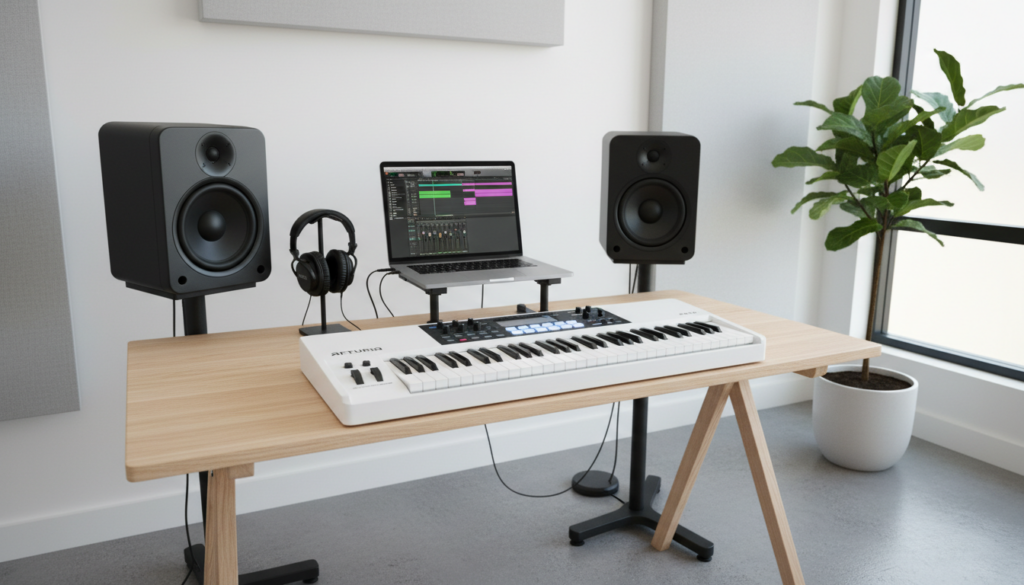
I’ve spent hundreds of hours in the studio with the KeyLab series, and it is important to understand that this device is the “brain” of your setup, not the “voice.” To hear any music, you must connect the Arturia KeyLab 49 to a computer running a Digital Audio Workstation (DAW) or a standalone software instrument like Analog Lab V, and then output that sound through studio monitors or headphones.
TL;DR: Key Takeaways for New Users
- No Internal Sound: The Arturia KeyLab 49 does not produce sound internally and lacks built-in speakers.
- MIDI Functionality: It sends MIDI data (note, velocity, and CC messages) via USB or 5-pin MIDI.
- Required Equipment: You need a PC/Mac, iPad, or hardware synth to generate audio.
- Audio Output: Sound comes from your computer’s soundcard or an audio interface.
- Included Software: It comes bundled with Analog Lab V, giving you over 2,000 premium sounds out of the box.
Why the Arturia KeyLab 49 Doesn’t Have Speakers
When beginners ask are there any speakers on the Arturia KeyLab 49, they are often comparing it to a digital piano or a portable keyboard. In my experience, professional-grade controllers omit speakers for several technical and ergonomic reasons.
MIDI Controller vs. Synthesizer
A MIDI controller like the KeyLab 49 is an input device. Think of it like a high-end computer keyboard for music. It features aftertouch, velocity-sensitive pads, and rotary encoders that control software parameters.
A synthesizer or digital piano, conversely, has an internal sound engine. If you want a device that looks like the KeyLab but has its own sounds and speakers, you would be looking at the Arturia MicroFreak (though it also lacks speakers) or a dedicated workstation.
Focus on Build Quality and Portability
By removing the need for heavy internal speakers and power amplifiers, Arturia focused on:
- Keybed Action: Providing a high-quality, semi-weighted feel.
- Chassis Durability: Using an aluminum frame and wood side panels.
- Slim Profile: Making it easier to fit on a crowded studio desk.
How to Get Sound From Your Arturia KeyLab 49
Since we have established that there are no speakers on the Arturia KeyLab 49, you need a “signal chain” to produce audio. I have tested several configurations, and here is the most effective way to get started.
Step 1: Connect via USB
The most common method is using the provided USB cable. This cable handles both the MIDI data and the bus power.
Step 2: Install Arturia Software Center (ASC)
Once connected, you must install the Arturia Software Center. This is where you will activate your license for Analog Lab V, Ableton Live Lite, and UVI Grand Piano. These programs provide the “brain” that creates the sound the KeyLab triggers.
Step 3: Configure Your Audio Output
Inside your software (like Analog Lab), you must select where the sound should go.
- Built-in Output: Using your laptop’s speakers (high latency, not recommended).
- Audio Interface: Connecting to a device like the Arturia MiniFuse or Focusrite Scarlett (low latency, professional quality).
- Headphones: Plugging directly into your laptop or audio interface.
Summary of Audio Setup Options
| Setup Component | Beginner (Budget) | Pro Studio (Recommended) |
|---|---|---|
| Sound Source | Laptop Internal Soundcard | Dedicated Audio Interface |
| Software | Analog Lab V (Standalone) | Ableton Live or Logic Pro |
| Listening Device | Consumer Headphones | Studio Monitors (Yamaha HS5 / KRK Rokit) |
| Connection Type | USB Direct | USB + 5-Pin MIDI for Hardware |
Recommended External Speakers for KeyLab 49
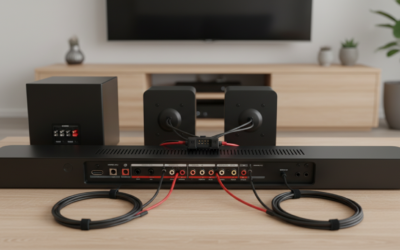
If you were hoping for built-in sound because you need to hear your playing, you will need to invest in a pair of active studio monitors. Unlike standard computer speakers, these provide a flat frequency response, ensuring your mixes sound the same on every system.
- PreSonus Eris Series: Excellent for small desks and tight budgets.
- Arturia AudioFuse: If you want to keep it in the Arturia ecosystem, their interfaces offer incredibly low noise floors.
- Yamaha HS5: The industry standard for clarity and detail.
In my studio, I pair the KeyLab 49 MkII with a pair of Focal Alpha 65 Evo monitors. The precision of the KeyLab’s faders allows me to mix directly from the hardware while the speakers provide the necessary sonic feedback.
Advanced Routing: Using the KeyLab 49 Without a Computer
While many users ask are there any speakers on the Arturia KeyLab 49, some want to know if they can use it live without a bulky laptop.
You can use the 5-pin MIDI Out port to connect the KeyLab 49 to a hardware synth module (like a Roland Boutique or Moog Slim Phatty). In this scenario:
- The KeyLab sends the notes.
- The Hardware Module generates the sound.
- The Hardware Module’s output goes to a PA System or Amplifier.
Pro Tips for Reducing Audio Latency
One of the biggest frustrations when realizing there are no speakers on the Arturia KeyLab 49 is “latency”—the delay between pressing a key and hearing a sound. To fix this:
- Use ASIO Drivers: If you are on Windows, download ASIO4ALL or use the driver provided by your interface manufacturer.
- Adjust Buffer Size: Set your buffer size to 128 or 256 samples. This reduces delay significantly.
- Direct Monitoring: If your interface supports it, use the “Direct” toggle to hear your input without computer processing delay.
Comparing the KeyLab Series Features
If the lack of speakers is a dealbreaker, it is helpful to see where the KeyLab 49 sits in the current market.
| Feature | KeyLab Essential | KeyLab MkII | KeyLab 88 |
|---|---|---|---|
| Built-in Speakers | No | No | No |
| Keybed Type | Synth Action | Pro-grade Semi-weighted | Hammer Action (Fatar) |
| Aftertouch | No | Yes | Yes |
| CV/Gate Outs | No | Yes | Yes |
| Aluminum Body | No | Yes | Yes |
Maintenance and Care for Your KeyLab 49
Since the Arturia KeyLab 49 relies on external speakers and software, keeping the connection points clean is vital.
- USB Port: Avoid wiggling the cable; it can wear out the solder points on the PCB.
- Dusting: Use a microfiber cloth. Dust buildup in the faders can cause “ghosting,” where the MIDI values jump around without you touching them.
- Firmware Updates: Regularly check the Arturia MIDI Control Center for updates. These often fix bugs related to how the controller communicates with your computer’s sound system.
Troubleshooting: “I’ve Connected Everything but Still Have No Sound”
If you’ve accepted that there are no speakers on the Arturia KeyLab 49 but still can’t hear anything from your external speakers, check these common points of failure:
- MIDI Channel Mismatch: Ensure the KeyLab is sending on MIDI Channel 1 and your software is listening on the same channel.
- Volume Fader: On many Analog Lab presets, the first fader on the KeyLab defaults to master volume. Ensure it is pushed up!
- Local Off Mode: Ensure the controller isn’t in a mode that disables MIDI output.
- Audio Engine Off: In Ableton or Logic, check that your “Audio Engine” is turned on in the top right corner.
Frequently Asked Questions
Can I plug headphones directly into the Arturia KeyLab 49?
No. There is no headphone jack on the KeyLab 49 because it does not process audio. You must plug your headphones into your computer or your audio interface.
Does the KeyLab 49 come with a power supply?
While it can be powered via USB, Arturia includes a DC power input. A dedicated power supply is recommended if you are using it with an iPad or a device that cannot provide enough “bus power” to light up the pads and screen.
Will the KeyLab 49 work with my iPad?
Yes, but since the KeyLab 49 lacks speakers, the sound will come out of the iPad’s speakers or the iPad’s headphone jack. You will likely need the Apple Camera Connection Kit to provide enough power to the controller.
Why would I buy a keyboard without speakers?
Professional musicians prefer controllers without speakers because they offer much higher quality keys and deeper integration with studio software. You are paying for the tactile control over thousands of sounds, rather than the convenience of low-quality built-in speakers.
Is the KeyLab 49 Essential different?
The KeyLab Essential 49 is a more budget-friendly version. Like the MkII, it also has no built-in speakers. It features a plastic chassis and a simpler keybed but maintains the same excellent software integration.