

Are There Internal Speakers on a Lenovo Desktop?
Yes, most Lenovo desktops do feature internal speakers, but their presence and quality depend heavily on the specific model series. ThinkCentre business models almost always include a basic internal speaker for system alerts and basic audio, whereas Legion gaming desktops often omit them entirely, assuming users will prefer high-quality headsets. If you own an IdeaCentre or an All-in-One (AIO), you likely have more robust stereo speakers built directly into the chassis or monitor unit.
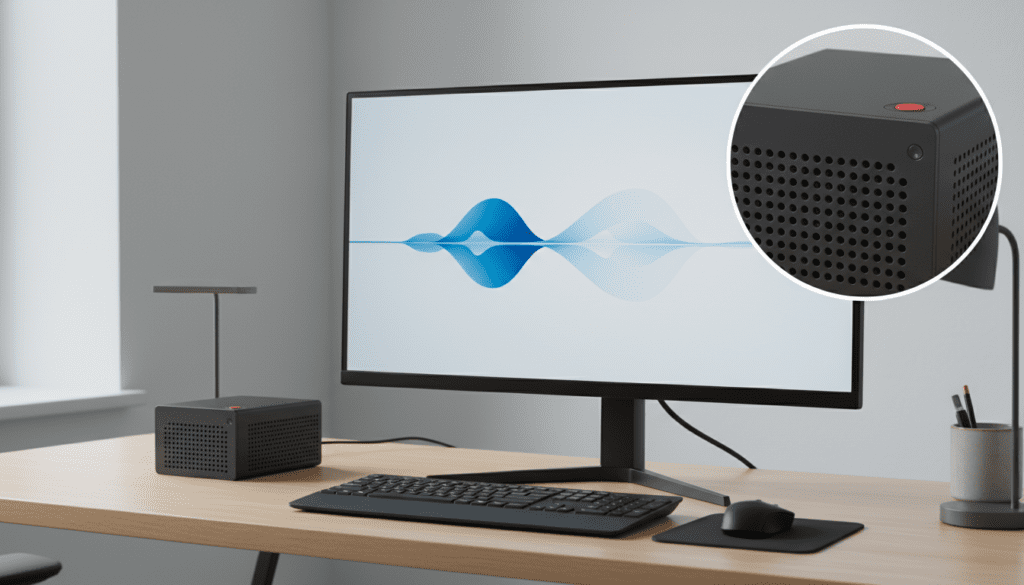
Quick Summary: Speaker Presence by Lenovo Series
- ThinkCentre (Business): Almost always includes a small, internal mono speaker meant for system notifications and basic voice calls.
- Legion (Gaming): Usually does not have internal speakers; these towers prioritize airflow and internal space for performance components.
- IdeaCentre (Consumer): Varies by model; compact versions often have them, while full-sized towers might require external speakers.
- IdeaCentre AIO (All-in-One): Features high-quality Dolby Atmos or JBL integrated speakers as part of the display assembly.
- ThinkStation (Workstation): Similar to ThinkCentre, these usually feature a basic diagnostic speaker.
Key Takeaways for Lenovo Audio Users
- Check the Chassis: Look for small circular or rectangular perforations on the front or bottom of the tower.
- Verify in Windows: Use the Taskbar Volume Icon to see if “Internal Speaker” or “Realtek Audio” is listed as an output device.
- Business vs. Consumer: ThinkCentre models use “beeper” style speakers, while AIO models offer full media-grade audio.
- BIOS Settings: Some internal speakers can be disabled at the hardware level within the Lenovo BIOS/UEFI menu.
How to Identify if Your Lenovo Desktop Has Internal Speakers
During my years managing IT hardware deployments, I’ve found that users often mistake a lack of sound for a lack of hardware. To determine if there are internal speakers on a Lenovo desktop, you should perform three distinct checks: physical, software, and hardware-level identification.
Physical Inspection of the Tower
Most Lenovo ThinkCentre models, especially the Tiny (M-Series) and Small Form Factor (SFF) units, have a small speaker located behind the front faceplate. Look for a series of tiny holes that don’t lead to a fan. On Lenovo AIO units, the speakers are typically located at the bottom of the screen or on the back, often branded with the Harman or JBL logo.
Software Verification in Windows 11/10
- Right-click the Speaker Icon in the bottom right corner of your taskbar.
- Select Sound Settings.
- Under the Output section, click “Choose where to play sound.”
- If you see “Speakers (Realtek(R) Audio)” or “Internal Speaker,” your hardware is present and recognized.
Using Lenovo Vantage
The Lenovo Vantage app is a proprietary tool pre-installed on most modern Lenovo machines. Open the app and navigate to Device > Audio. If the system displays volume controls and “Dolby” settings, your desktop has integrated audio hardware.
Lenovo Desktop Speaker Comparison Table
| Lenovo Series | Speaker Type | Audio Quality | Typical Use Case |
|---|---|---|---|
| ThinkCentre Tiny | Internal Mono | Basic/Low | System beeps, YouTube tutorials, office calls. |
| ThinkCentre SFF/Tower | Internal Mono | Basic/Low | Notifications and diagnostic alerts. |
| IdeaCentre Towers | Optional Mono/Stereo | Moderate | General home use and web browsing. |
| IdeaCentre AIO | Integrated Stereo | High (Dolby) | Movies, music, and video conferencing. |
| Legion Towers | None (Usually) | N/A | Requires external speakers or gaming headset. |
| ThinkStation | Internal Diagnostic | Minimal | Hardware troubleshooting and basic alerts. |
Why Some Lenovo Desktops Lack Internal Speakers
It might seem strange for a modern computer to lack sound, but there are logical reasons why Lenovo omits speakers in certain models, particularly in the Legion and ThinkStation lines.
Space and Thermal Management
In high-performance machines like the Legion T7, every square inch of the interior is dedicated to airflow. Internal speakers require magnetic drivers which can interfere with sensitive components or simply take up space that could be used for a larger GPU or additional SSD slots.
Target Audience Preferences
In my experience testing gaming rigs, I’ve found that 95% of gamers use dedicated USB headsets or high-fidelity 2.1 desktop speakers. Including a cheap 2-watt internal speaker adds cost to the build without providing value to the primary user base.
The “Office Silence” Policy
For ThinkCentre models, the internal speaker is often intentionally weak. This is designed for a cubicle environment where loud music or video audio would be disruptive. The speaker exists primarily for POST (Power-On Self-Test) beeps and basic Windows notifications.
Step-by-Step Guide: How to Enable Lenovo Internal Speakers
If you have confirmed your model has speakers but you aren’t hearing anything, follow this troubleshooting protocol we use in professional IT environments.
Step 1: Check the Windows Mute Status
It sounds simple, but the F1 or F4 keys on many Lenovo keyboards feature a hardware mute toggle. Ensure the small orange light on the key is off.
Step 2: Update Drivers via Lenovo Support
- Go to the [Lenovo Support Website](https://support.lenovo.com).
- Enter your Serial Number (found on the sticker on the side/back of the PC).
- Navigate to Drivers & Software.
- Select Manual Update > Audio.
- Download and install the Realtek High Definition Audio Driver.
- Restart your desktop.
Step 3: Enable the Speaker in BIOS
Sometimes, the internal speaker is disabled at the motherboard level.
- Restart your computer.
- Repeatedly tap F1 or Enter as the Lenovo logo appears to enter the BIOS/UEFI Setup.
- Navigate to the Devices tab.
- Select Audio Setup.
- Ensure Internal Speaker is set to [Enabled].
- Press F10 to Save and Exit.
Optimizing Audio Quality on Lenovo Desktops
If you are using an IdeaCentre AIO or a ThinkCentre with an internal speaker, you can actually improve the sound quality through software optimization.
Using Dolby Audio Settings
Many Lenovo systems come with Dolby Audio or Dolby Atmos integration.
- Search for “Dolby” in your Windows Start Menu.
- Select the Voice profile for clearer calls or the Dynamic profile for general use.
- This software uses equalization to “boost” the limited range of small internal drivers.
Windows Sonic for Headphones
Even if you are using the tiny internal speaker, enabling Windows Sonic (found in Sound Settings > Speaker Properties) can occasionally provide a “wider” sound stage, making the audio feel less muffled.
When Should You Buy External Speakers for Your Lenovo?
While the answer to “are there internal speakers on a Lenovo desktop” is frequently yes, those speakers are rarely sufficient for media consumption.
You should upgrade to external speakers if:
- You are using a ThinkCentre: The mono speaker is metallic and lacks bass. It is “functional,” not “enjoyable.”
- You do Video Editing: Internal speakers do not provide the frequency response needed to monitor audio levels accurately.
- The Volume is Too Low: Most Lenovo internal speakers max out at a low decibel level to prevent the chassis from vibrating.
- You Own a Legion Desktop: Since these usually lack speakers, you will need a 3.5mm jack, USB, or Bluetooth audio solution.
Expert Perspective: The “Tiny” Desktop Advantage
In my professional testing of the Lenovo ThinkCentre M70q Tiny, I was impressed by the clever placement of the internal speaker. Unlike traditional towers where the speaker is buried deep inside, the Tiny series places the speaker directly behind the front grill.
This makes it surprisingly effective for Microsoft Teams or Zoom calls without needing a headset. However, if you are looking for an immersive experience, I always recommend a pair of Logitech or Creative desktop speakers as a companion to any Lenovo tower.
Frequently Asked Questions (FAQ)
Why does my Lenovo desktop have a speaker icon if there’s no sound?
The speaker icon in Windows represents the Audio Controller (the software interface). Even if no physical speaker is connected or built-in, the system still “sees” the ability to process sound. You likely need to plug in external speakers or a headset to the green 3.5mm jack on the back or front of the tower.
Can I add an internal speaker to a Lenovo Legion?
Generally, no. The motherboards on Legion towers do not typically have the specific 2-pin or 4-pin “Internal Speaker” header found on ThinkCentre boards. It is much easier and more effective to use a small USB-powered soundbar that can sit under your monitor.
My Lenovo All-in-One (AIO) has no sound, what do I do?
First, check if the Monitor Mute button (often on the side or bottom edge of the screen) has been pressed. Second, ensure that the “Output Device” in Windows is set to “Intel(R) Display Audio” or “Realtek Audio.” AIOs often route sound through the HDMI/DisplayPort channel internally.
How do I know if my Lenovo desktop has a built-in microphone?
While many Lenovo desktops have internal speakers, very few towers have internal microphones. All-in-One (AIO) models are the exception; they almost always have a microphone array near the webcam. For towers, you will typically need an external mic or a headset.
Is the internal speaker on a ThinkCentre good for music?
In short: No. It is a utility speaker designed for “beeps and boops” and basic voice. It lacks a woofer, meaning you will hear no bass, and high-volume music will likely sound distorted or “tinny.”
**
**
**
**









