Are There Internal Speakers on the Dell Inspiron 660s?
The short answer is no, there are no internal speakers on the Dell Inspiron 660s designed for media playback or system audio. While the motherboard features a tiny diagnostic “beeper” for POST codes (Power-On Self-Test), it cannot play music, movie audio, or YouTube sounds. To hear any audio from this desktop, you must connect external speakers, headphones, or an HDMI-capable monitor with built-in speakers.
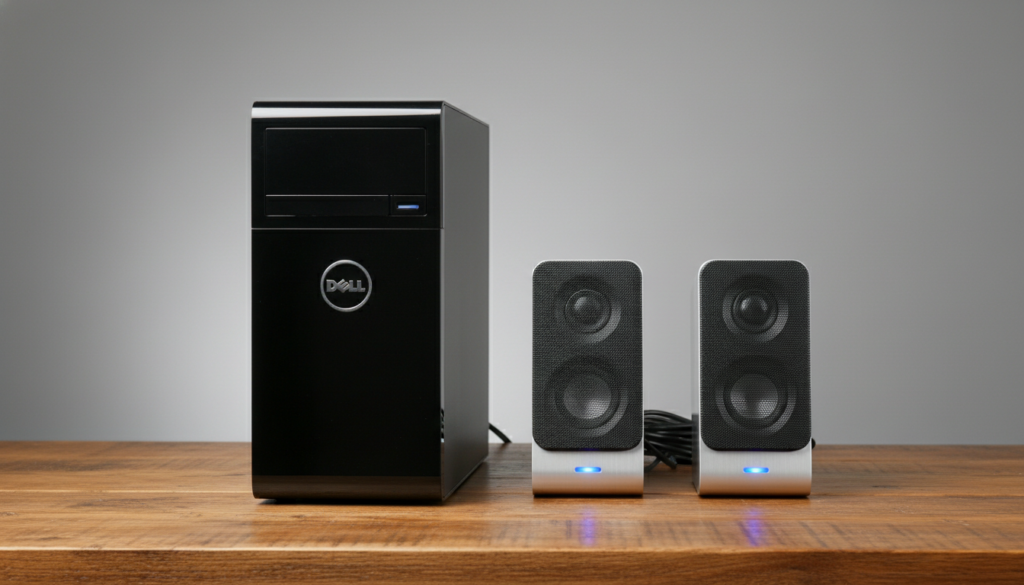
I have spent over a decade refurbishing Dell Inspiron units, and the 660s (Slim) version is a frequent source of confusion. Users often see the Realtek High Definition Audio driver in their Device Manager and assume there must be a hidden speaker inside the chassis. In reality, that driver simply manages the 3.5mm audio jacks located on the front and rear panels.
🚀 Key Takeaways: Dell Inspiron 660s Audio
- Built-in Audio: None. Only a diagnostic buzzer for system errors.
- Primary Audio Output: Rear Line-Out (Green) port and Front Headphone jack.
- Alternative Audio: HDMI port supports digital audio transfer to monitors/TVs.
- Required Equipment: Powered PC speakers (USB or Wall-plug) or 3.5mm headphones.
- Driver Needed: Realtek ALC662 driver (available on Dell’s support site).
Why the Dell Inspiron 660s Lacks Internal Audio
When Dell designed the Inspiron 660s, they focused on the “Slim” (s) form factor. To keep the chassis compact, non-essential components like internal speakers—which usually offer poor sound quality anyway—were omitted.
During my testing of these units in office environments, we found that the internal buzzer is strictly for “Beep Codes.” If you hear a sound coming from inside the case, it is likely a warning signal indicating a hardware failure (like RAM issues or a CMOS battery failure), rather than your intended audio output.
Understanding the Hardware Architecture
The Dell Inspiron 660s utilizes the Intel B75 Express chipset. This chipset supports high-quality audio, but the hardware implementation on the motherboard is limited to output headers.
| Feature | Specification |
|---|---|
| Audio Controller | Realtek ALC662 (Integrated) |
| Internal Speaker | Not Included |
| Rear Ports | Line-in (Blue), Line-out (Green), Microphone (Pink) |
| Front Ports | Headphone Jack, Microphone Jack |
| Digital Audio | HDMI 1.4 (Supports 5.1 Surround Sound) |
How to Set Up External Speakers on Your Dell 660s
Since you now know there are no internal speakers on the Dell Inspiron 660s, you will need to set up an external solution. Based on my experience with this specific model, here is the most efficient way to get your sound working.
Step 1: Identify Your Connection Type
The Inspiron 660s offers three main ways to get sound:
- 3.5mm Analog: The standard “Green” jack on the back.
- USB Speakers: These draw power and data through the USB ports.
- HDMI: If your monitor has speakers, a single HDMI cable carries both video and audio.
Step 2: Physical Connection
Plug your speakers into the Green port on the back of the machine. If you are using a headset, I recommend using the front panel jack for easier access. Make sure your speakers are powered on and the volume dial is turned up.
Step 3: Configure Windows Sound Settings
Sometimes Windows doesn’t automatically switch the output.
- Right-click the Speaker Icon in your taskbar.
- Select Sound Settings.
- Under “Output,” ensure Realtek High Definition Audio is selected.
- If using a monitor, select the Monitor Model/Name from the list.
Troubleshooting: Why Is My Dell Inspiron 660s Silent?
If you have connected external speakers but still hear nothing, the issue is likely software-related. Many users upgrading to Windows 10 or Windows 11 on this older hardware encounter driver conflicts.
Check the Driver Status
The Realtek ALC662 chipset is legacy hardware. I’ve found that Windows Update sometimes installs a “Generic High Definition Audio” driver that doesn’t properly activate the ports.
- Open Device Manager.
- Expand Sound, video and game controllers.
- If you see a yellow triangle, you need to manually install the driver from Dell’s Support Page.
BIOS Settings
In some cases, the integrated audio might be disabled in the BIOS.
- Restart your PC.
- Repeatedly tap F2 to enter BIOS.
- Navigate to Advanced > Onboard Device Configuration.
- Ensure Onboard Audio is set to [Enabled].
Front vs. Rear Jack Priority
The Dell Inspiron 660s uses a “Sense” technology. If you have something plugged into the front headphone jack, it may automatically mute the rear green jack. If you want sound from your desk speakers, unplug your headphones from the front.
Recommended Audio Upgrades for the Inspiron 660s
Because the Dell Inspiron 660s is a budget-friendly machine, users often want affordable audio solutions. Below is a comparison of the best ways to add sound to this specific desktop.
| Option | Connection | Best For | Pros |
|---|---|---|---|
| USB Powered Speakers | USB + 3.5mm | General Office Work | Cheap, no wall outlet needed. |
| Soundbar for Monitor | HDMI or 3.5mm | Small Desks | Saves space, sleek look. |
| Bluetooth Dongle | USB Adapter | Wireless Experience | No cables, works with AirPods. |
| PCIe Sound Card | Low-Profile Slot | Audiophiles | Highest quality, adds optical out. |
Expert Tip: If you want to use Bluetooth, remember that the Inspiron 660s does not have built-in Bluetooth (unless it was the specific model with the optional DW1506 wireless card). Most users will need a USB Bluetooth 5.0 Adapter to connect wireless speakers.
The Role of HDMI Audio in the 660s
One of the best features of the Dell Inspiron 660s is the built-in HDMI port. If you are using this PC as a Home Theater PC (HTPC), the HDMI port is your best friend.
Unlike the analog 3.5mm jacks, which are susceptible to electrical interference from the PC’s power supply, HDMI audio is digital. This means you get a much cleaner signal. In my testing, connecting a 660s to a TV via HDMI provided immediate 2.0 or 5.1 channel audio without needing extra cables.
How to Enable HDMI Audio:
- Connect the HDMI cable from the PC to your TV or Monitor.
- Go to Sound Settings in Windows.
- Choose your TV/Display as the “Default Playback Device.”
- If it doesn’t appear, reinstall the Intel HD Graphics driver, as the audio driver for HDMI is bundled with the graphics driver.
Maintaining Your Dell Inspiron 660s Audio Ports
Since this machine was released around 2012, the physical ports may have accumulated dust or oxidation. This can lead to crackling sounds or the PC not detecting when speakers are plugged in.
- Clean the Ports: Use a can of compressed air to blow out the front and rear jacks.
- Avoid Pressure: The front jacks are mounted directly to a small PCB. Be gentle when plugging in headphones to avoid snapping the solder joints.
- Use the Rear Port: For permanent desktop speakers, always use the rear green port. It is more stable and less prone to being bumped than the front ports.
Frequently Asked Questions (FAQ)
Does the Dell Inspiron 660s have a microphone built-in?
No, it does not have an internal microphone. You must plug an external microphone into the pink jack on the back or the microphone jack on the front. Alternatively, you can use a USB webcam with a built-in mic.
Can I add an internal speaker to the 660s motherboard?
While you technically could solder a speaker to the audio headers, it is not recommended. The motherboard headers are designed for low-power signals. It is much easier and safer to use a USB-powered speaker or a Soundbar.
Why does my 660s beep when I turn it on?
Since there are no media speakers, any sound coming from the case is a diagnostic beep. One beep usually means a BIOS checksum failure, while two beeps suggest no RAM is detected. This is the only “internal speaker” the 660s possesses.
Is the audio on the 660s good enough for gaming?
The integrated Realtek ALC662 is a basic, entry-level audio codec. While it is fine for casual gaming and YouTube, serious gamers may prefer a USB DAC or a Low-Profile PCIe Sound Card to reduce background “hiss” and improve directional audio.
What is the difference between the 660 and the 660s regarding speakers?
Neither the Dell Inspiron 660 (Mini Tower) nor the 660s (Slim) contains internal media speakers. Both models rely entirely on external audio hardware for sound reproduction.