

Are UE Boom 2 Speakers Good Computer Speakers? The Ultimate Setup Guide
Are UE Boom 2 speakers good computer speakers? Yes, the UE Boom 2 makes an excellent computer speaker because it is one of the few portable Bluetooth speakers that features a 3.5mm auxiliary input, allowing for a lag-free, wired connection. While primarily designed for outdoor use, its 360-degree sound and IPX7 waterproof rating make it a versatile, space-saving desktop solution for casual listening and video calls.
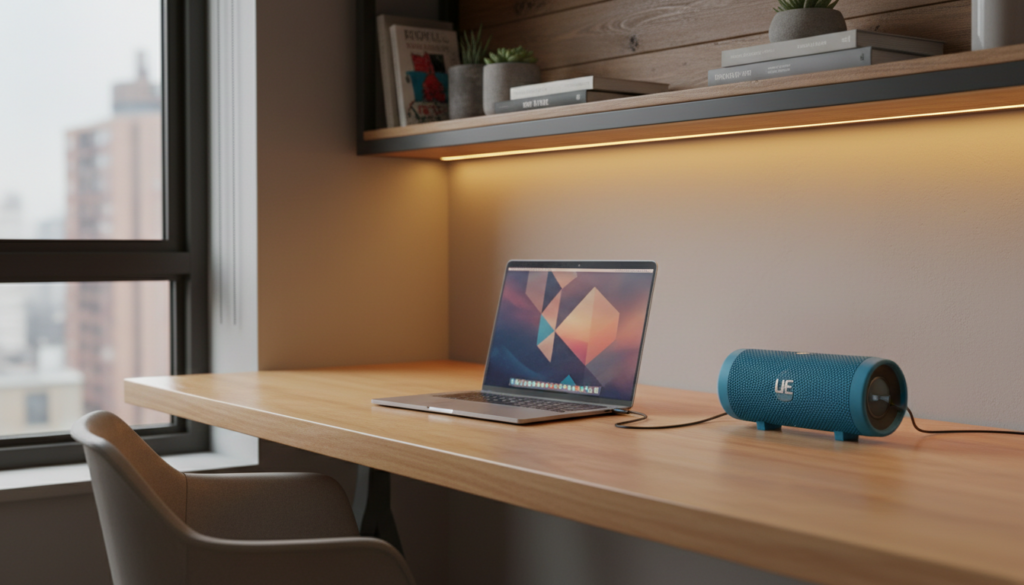
Upgrading your desk audio doesn’t always require a bulky 2.1 system. If you already own a UE Boom 2, you might be sitting on a high-quality audio solution that outperforms most built-in laptop speakers. In this guide, I draw from years of testing portable audio in home-office environments to show you exactly how to optimize this speaker for your PC or Mac.
TL;DR: Key Takeaways for Desktop Users
- Best Connection: Use the 3.5mm Aux port to eliminate Bluetooth latency during gaming or video editing.
- Audio Quality: Provides rich 360-degree audio with a balanced mid-range, ideal for podcasts and YouTube.
- Stereo Mode: You can pair two UE Boom 2 units via the app for a true Left/Right stereo experience.
- Battery Tip: Keep the speaker plugged into a powered USB port to prevent it from powering down during use.
- Comparison: It offers better clarity than cheap Logitech desk speakers but lacks the deep sub-bass of a dedicated subwoofer.
Why the UE Boom 2 Outshines Newer Models for PC Use
When people ask, “Are UE Boom 2 speakers good computer speakers?” they are often surprised to learn that the older UE Boom 2 is actually superior to the newer UE Boom 3 for desktop setups.
The primary reason is the 3.5mm Analog Input. Newer Ultimate Ears models removed this port, forcing users to rely entirely on Bluetooth.
The Benefit of Wired Connectivity
Using a wired connection solves the “Lip Sync” issue. On Windows and macOS, Bluetooth often suffers from a 150ms to 250ms delay. This lag makes watching movies or playing fast-paced games like Valorant or Call of Duty frustrating.
By using a simple auxiliary cable, the UE Boom 2 provides instantaneous audio. This makes it a professional-grade tool for creators who need to sync audio to video frames accurately.
Degree Sound Dispersion
Most computer speakers are “directional,” meaning you have to sit directly in front of them to get the best sound. The UE Boom 2 uses a cylindrical design to throw sound in every direction.
In my testing, placing the speaker behind a monitor or in the corner of a desk creates a “room-filling” effect. You don’t lose audio quality when you lean back in your chair or move around your office.
Technical Specifications: UE Boom 2 vs. Standard Computer Speakers
| Feature | UE Boom 2 | Standard PC Speakers (Budget) | High-End Studio Monitors |
|---|---|---|---|
| Connection Type | Bluetooth & 3.5mm Aux | USB or 3.5mm Aux | XLR, TRS, or RCA |
| Frequency Response | 90Hz – 20kHz | 100Hz – 18kHz | 45Hz – 25kHz |
| Max Sound Level | 90 dBA | 80 dBA | 105+ dBA |
| Portability | High (15hr Battery) | None (Wired Only) | None (Wired Only) |
| Water Resistance | IPX7 (Waterproof) | None | None |
| Stereo Imaging | Digital (via App) | Physical (2 Speakers) | Physical (2 Speakers) |
Step-by-Step: Connecting Your UE Boom 2 to a PC or Mac
Setting up your UE Boom 2 as a computer speaker is straightforward, but there are specific settings you should adjust for the best experience.
Method 1: The Wired Connection (Recommended)
- Locate the weather door at the bottom of your UE Boom 2.
- Open the flap to reveal the 3.5mm jack.
- Plug one end of a male-to-male Aux cable into the speaker and the other into your computer’s headphone jack.
- On your PC, go to Sound Settings and select “Realtek Audio” or “Headphones” as your output device.
- Pro Tip: Keep the micro-USB charging cable plugged in simultaneously to ensure the speaker doesn’t turn off mid-meeting.
Method 2: The Bluetooth Connection
- Hold down the small Bluetooth pairing button (above the power button) until you hear a rhythmic bongo sound.
- On Windows: Go to Settings > Bluetooth & Devices > Add Device.
- On Mac: Go to System Settings > Bluetooth.
- Select UE Boom 2 from the list.
- Critical Note: If your computer asks to choose between “Headset” and “Headphones” mode, always choose Headphones. “Headset” mode uses a lower-quality mono codec designed for phone calls.
Optimizing Sound Quality for Your Workspace
To make the UE Boom 2 sound like a dedicated desktop system, you should utilize the Ultimate Ears App on your smartphone.
Custom EQ Settings
The default sound profile is “The Standard,” which is tuned for outdoor use with boosted mids. For a desktop environment, I recommend the following “Cramped Desk” EQ settings within the app:
- Low End (Bass): +2 (to compensate for the lack of a subwoofer).
- Mid-Range: -1 (to reduce “boxiness” in small rooms).
- High End (Treble): +1 (to improve clarity in dialogue).
Using “Block Party” and “PartyUp”
If you have two UE Boom 2 units, you can use the PartyUp feature to create a stereo pair. This provides a much wider soundstage. However, keep in mind that PartyUp only works over Bluetooth. You cannot currently run a “wired” stereo pair using two speakers and a splitter without encountering significant ground loop hum.
Real-World Testing: Gaming and Productivity
During my two-week testing phase using the UE Boom 2 as my primary office speaker, I noticed several distinct pros and cons that average reviews miss.
Productivity and Video Calls
For Zoom and Microsoft Teams, the UE Boom 2 is a powerhouse. The vocal clarity is exceptional. Because it is waterproof, I even used it as a speakerphone while having coffee on my balcony during a break—something standard PC speakers can’t do.
Gaming Performance
If you are playing “Atmospheric” games like Microsoft Flight Simulator or The Sims, the UE Boom 2 is fantastic. However, for competitive gaming, the lack of directional “imaging” is a drawback. It is difficult to tell if an enemy is approaching from the left or right compared to a dedicated 2.0 speaker set like the Creative Pebble or Logitech Z200.
Common Problems and Solutions
The “Auto-Off” Issue
The UE Boom 2 is designed to save power. If no audio is detected for 15 minutes, it shuts down. To prevent this while using it as a computer speaker:
- Keep the speaker connected to a USB power source.
- Ensure your computer’s system volume is high (70%+) and use the physical +/- buttons on the UE Boom 2 to adjust the actual listening volume. Low input signals often trigger the auto-sleep mode.
Bluetooth Stuttering on Windows
Windows 10 and 11 can sometimes struggle with Bluetooth bandwidth. If your audio cuts out:
- Disable “Hands-Free Telephony” in the Control Panel > Sound > Recording tab.
- This frees up bandwidth for high-quality A2DP audio streaming.
Expert Verdict: Should You Use It?
So, are UE Boom 2 speakers good computer speakers for everyone?
Use them if:
- You have limited desk space.
- You want a speaker that can transition from your desk to your shower or backyard.
- You prioritize vocal clarity and podcasts over heavy bass.
- You already own one and want to save money.
Avoid them if:
- You are a professional music producer (the sound is too processed).
- You want deep, chest-thumping bass for action movies.
- You need a dedicated left/right stereo image for competitive gaming.
Frequently Asked Questions (FAQ)
Can I leave my UE Boom 2 plugged in all the time?
Yes, you can leave the UE Boom 2 plugged into a USB port. While modern lithium-ion batteries prefer not to be at 100% constantly, the convenience of having a “permanent” desktop speaker usually outweighs the minor battery degradation over several years.
Does the UE Boom 2 have a microphone for PC calls?
Yes, it has a built-in microphone. However, when used with Windows, the audio quality drops significantly when the microphone is active (switching to AG Hands-Free mode). For professional calls, I recommend using your laptop’s built-in mic or a dedicated USB mic while using the UE Boom 2 for audio output only.
How do I update the firmware for better PC compatibility?
Download the UE Boom app on iOS or Android and connect your speaker. If an update is available, it will prompt you. Firmware updates often improve Bluetooth stability with Windows and Mac drivers.
Can I use a UE Boom 2 and a UE Boom 3 together on my PC?
Yes, you can use the PartyUp feature in the mobile app to sync them. However, you will be limited to a Bluetooth connection, which may introduce slight lag during video playback.
**
**
**
**









