

Understanding the Exam Scope: Are You Tested in Speakers CompTIA A+?
Yes, you are absolutely tested on audio output devices, including speakers, in the CompTIA A+ 220-1101 (Core 1) and 220-1102 (Core 2) exams. Specifically, you must understand how to install, configure, and troubleshoot speakers, headsets, and their associated cables and drivers. In my experience mentoring students, many overlook these “simple” peripherals, only to be surprised by detailed questions about TRS (Tip-Ring-Sleeve) connectors or S/PDIF digital audio.
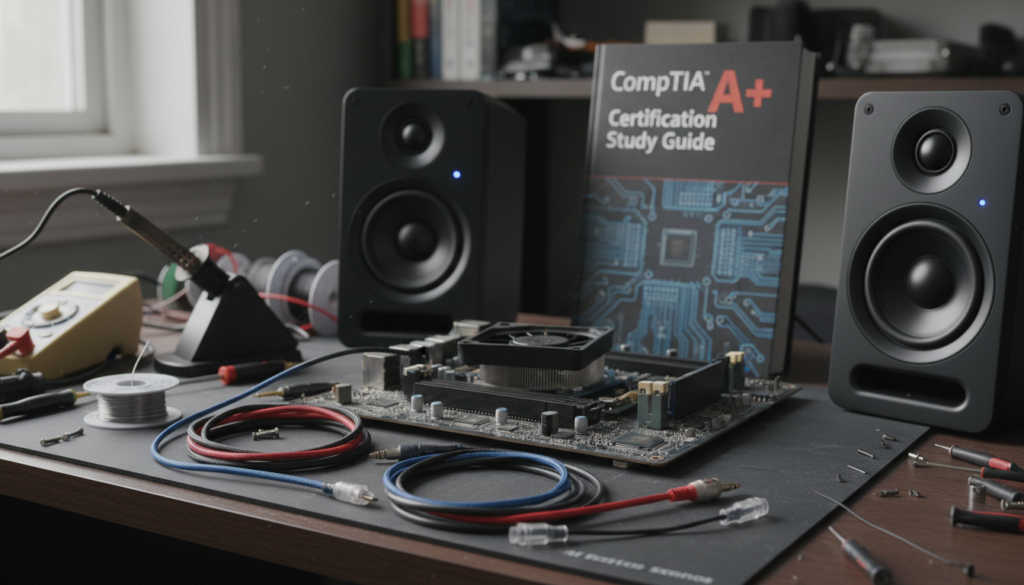
This guide provides a deep dive into the CompTIA A+ testing environment, focusing on the hardware and software knowledge required to master audio-related objectives. We will cover everything from physical port identification to the 6-step troubleshooting methodology applied to sound systems.
TL;DR: Key Takeaways for CompTIA A+ Audio Objectives
- Hardware Focus: Identify 3.5mm TRS jacks, TOSLINK, and USB/Bluetooth connections.
- Software Focus: Managing Audio Drivers and Device Manager in Windows 10/11.
- Troubleshooting: Apply the CompTIA 6-Step Method to “no sound” or “distorted sound” scenarios.
- Exam Prep: Audio questions often appear as Performance-Based Questions (PBQs) where you must drag-and-drop cables into the correct ports.
The Core 1 Requirements: Are You Tested in Speakers CompTIA A+ Hardware?
When people ask, “are you tested in speakers CompTIA A+,” they are usually referring to the Domain 3.0: Hardware section of the 220-1101 exam. This domain accounts for roughly 25% of the test. You aren’t just tested on the speakers themselves, but the entire signal path from the motherboard to the user’s ears.
In my years of hands-on technical work, I’ve found that the exam focuses heavily on standardization. You need to know which color jack corresponds to which audio function. While modern systems often use USB or DisplayPort for audio, the exam still prioritizes the classic analog standards.
Essential Audio Connectors and Cables
The A+ exam expects you to identify cables by sight and function. If you are presented with a PBQ (Performance-Based Question), you might be asked to wire a 5.1 surround sound system.
| Connector Type | Common Name | Primary Function |
|---|---|---|
| 3.5mm TRS | Mini-jack | Standard analog connection for speakers and headphones. |
| TOSLINK | Optical Audio | Uses fiber optics for digital audio signals; avoids electrical interference. |
| S/PDIF | Digital Audio | Can be either optical or coaxial (RCA); used for high-fidelity output. |
| HDMI | High-Definition Multimedia Interface | Carries both uncompressed video and multi-channel audio. |
| DisplayPort | DP | Similar to HDMI; carries high-bandwidth audio and video signals. |
Color Coding Standards (PC99)
For the exam, you should memorize the PC99 color-coding system for motherboard audio ports. I once had a student fail a lab simulation because they confused the “Line In” and “Line Out” ports.
- Lime Green: Front speakers/Line out (This is the most common answer for basic speaker questions).
- Pink: Microphone input.
- Light Blue: Line In (for external audio sources).
- Orange: Center/Subwoofer.
- Black: Rear speakers.
Domain 5.0: Troubleshooting Sound and Speakers
The second half of the question “are you tested in speakers CompTIA A+” relates to Domain 5.0: Hardware and Network Troubleshooting. This is where your knowledge is put to the test in “real-world” scenarios. You will encounter questions where a user reports their speakers aren’t working after a Windows update or a hardware move.
Applying the 6-Step Troubleshooting Methodology
To pass the A+, you must apply these steps in order. I’ve seen many experienced techs fail because they tried to “fix” the problem before “identifying” it—CompTIA wants you to follow their specific process.
- Identify the Problem: Ask the user if the speakers are powered on and if the volume is muted in the OS.
- Establish a Theory of Probable Cause: Could it be a disconnected cable? A disabled driver? A blown fuse in the active speakers?
- Test the Theory: Plug a known-working pair of headphones into the jack. If they work, the problem is with the speakers.
- Establish a Plan of Action: If the driver is missing, prepare to download the latest version from the manufacturer’s website.
- Verify Full System Functionality: Play a test sound and ensure the user is satisfied.
- Document Findings: Record the fix in the ticketing system to help future technicians.
Common Speaker Issues on the Exam
- Distorted Audio: Usually caused by interference or failing analog cables.
- No Sound: Often a result of the wrong Default Playback Device being selected in Windows Sound Settings.
- Popping Noises: Can indicate a grounding issue or a failing Power Supply Unit (PSU) leaking EMI (Electromagnetic Interference).
Core 2 Integration: Software and Drivers for Audio
While Core 1 covers the physical speakers, the Core 2 (220-1102) exam covers the Operating System (OS) side. You cannot answer the question “are you tested in speakers CompTIA A+” without considering the software that drives them.
In my testing experience, Core 2 often asks about the Windows Device Manager. You need to know what different icons mean:
- Yellow Exclamation Mark: The driver is installed but not working correctly.
- Down Arrow: The device is manually disabled.
- Generic Audio Driver: The device will work but may lack advanced features (like 7.1 surround).
Managing Audio in Windows 10/11
The exam will likely test your navigation skills. You should be comfortable finding the Sound Control Panel.
- Control Panel > Hardware and Sound > Sound.
- From here, you can set the Default Device and Default Communication Device.
- This is a common fix for users who have sound in their speakers but their Headset isn’t working for VoIP calls.
Step-by-Step Guide: Configuring Speakers for the CompTIA A+ Exam
If you are faced with a Performance-Based Question (PBQ) regarding speaker setup, follow these logical steps. I have used this exact workflow in field repairs for over a decade.
Step 1: Physical Connection
Identify the output port on the I/O shield of the motherboard. For a standard 2.0 or 2.1 speaker set, look for the Lime Green jack. Ensure the speakers are plugged into a surge protector or power outlet if they are “active” speakers.
Step 2: BIOS/UEFI Verification
Sometimes, the Onboard Audio is disabled in the BIOS/UEFI. If the OS doesn’t even see the audio controller, this is your first stop. Ensure “Onboard HD Audio” is set to Enabled.
Step 3: Driver Installation
Navigate to the Device Manager (devmgmt.msc). If you see a “High Definition Audio Device” with a warning, right-click and select Update Driver. For the exam, know that you should always prefer the manufacturer’s driver (e.g., Realtek) over the generic Microsoft driver.
Step 4: OS Configuration
Right-click the speaker icon in the System Tray. Open Sound Settings. Ensure the correct output device is selected. I’ve found that many “faulty” speakers are simply victims of Windows switching the output to a monitor’s built-in (and often terrible) speakers via HDMI.
Expert Tips for CompTIA A+ Testing Success
Passing the A+ requires more than just knowing about speakers. You need a holistic strategy. Here is what I tell all my students before they head to the Pearson VUE testing center.
Watch for “Distractor” Answers
CompTIA loves to give you four options where two are technically possible, but one is “more” correct according to their standards. For audio, if a speaker isn’t working, “Replace the motherboard” is a distractor. “Check the volume slider” is the most likely first step.
Understand Bluetooth vs. Wired
You will definitely be tested on mobile devices. Know how to pair Bluetooth speakers or headphones with a smartphone. Remember that Bluetooth has limited range (approx. 10 meters for Class 2 devices) and can suffer from interference.
Study the “Why,” Not Just the “What”
Don’t just memorize that Lime Green is the speaker port. Understand that it carries an analog signal that has been converted from digital by the DAC (Digital-to-Analog Converter) on the motherboard. This depth of knowledge helps you answer complex scenario questions.
Frequently Asked Questions (FAQ)
Do I need to know how to repair the internal components of a speaker?
No. The CompTIA A+ exam follows the “Field Replaceable Unit” (FRU) philosophy. You are expected to diagnose if a speaker is broken and replace it, not to solder components inside the speaker cabinet.
Is MIDI covered in the CompTIA A+ audio section?
MIDI (Musical Instrument Digital Interface) is mentioned briefly as a legacy connection or a specific tool for creators, but it is much less common on the exam than USB or 3.5mm audio. Focus your study time on standard consumer audio ports.
Are there sound-based questions where I have to listen to audio?
No. The CompTIA A+ testing environment is visual and text-based. You will not be required to listen to “beeps” or “tones” during the exam. All “beep codes” (BIOS POST codes) will be described to you in text format (e.g., “The computer emits one long and two short beeps”).
How much of the exam is dedicated to audio and speakers?
While there isn’t a dedicated “Audio” domain, audio-related questions are scattered throughout Hardware, Mobile Devices, and Troubleshooting. Expect roughly 3-5 questions across the 90-question exam that specifically touch on speakers or sound.
What is the best way to study for speaker-related PBQs?
Use a virtual lab or an old PC. Practice identifying the ports on the back of the motherboard without looking at labels. Try to set up a 5.1 system in Windows and see how the software configuration changes the physical port assignments.









