

Can a Desktop Run Sound Without Speakers? The Short Answer
Yes, a desktop computer can run sound without external speakers by utilizing alternative outputs like HDMI-equipped monitors, Bluetooth headphones, USB audio interfaces, or internal motherboard buzzers. While you won’t hear high-fidelity music without a dedicated device, your PC is fully capable of processing and routing audio signals through various hardware and software channels.
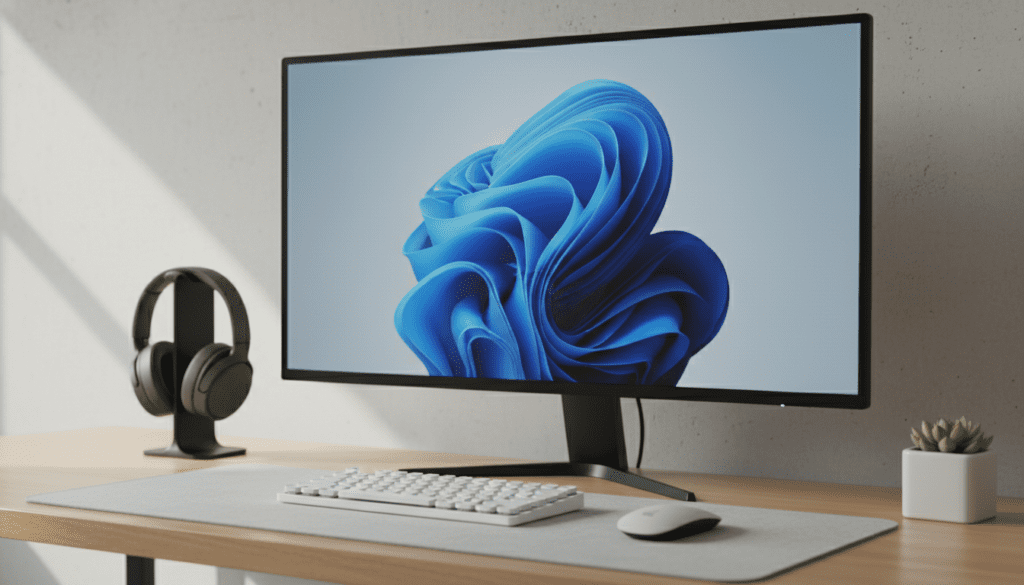
I have spent over a decade building custom PCs and troubleshooting audio configurations, and I can tell you that “no speakers” does not mean “no sound.” Whether you are trying to save desk space or your current speakers just died, there are at least five reliable ways to get audio from your tower right now.
🚀 Key Takeaways: Audio Without Speakers
- Monitor Audio: Most modern monitors connected via HDMI or DisplayPort have built-in speakers.
- Wireless Options: Bluetooth 5.0 and above allows for low-latency audio to buds or headphones.
- Network Streaming: You can use apps to stream your PC sound to your smartphone.
- Internal Hardware: Desktops have a motherboard speaker (beeper) for system errors, but not for media.
- USB Connectivity: USB headsets or DACs bypass the need for traditional 3.5mm speaker setups.
Hardware Requirements for Speakerless Audio
Before we dive into the “how-to” steps, it is essential to understand what hardware you actually have. Not every desktop is equipped the same way. In my experience, the biggest mistake users make is assuming their monitor doesn’t have speakers when it actually does—they just haven’t enabled the HDMI Audio Driver.
| Method | Connection Type | Audio Quality | Best For |
|---|---|---|---|
| Integrated Monitor Speakers | HDMI / DisplayPort | Low to Medium | General use, YouTube |
| Bluetooth Headsets | Wireless (2.4GHz) | High | Gaming, Music |
| USB Audio Interface | USB-A / USB-C | Professional Grade | Recording, Audiophiles |
| Smartphone Passthrough | Wi-Fi / App | Medium | Temporary Fix |
| Internal Motherboard Beeper | Physical Header | Logic Only | Troubleshooting BIOS |
How to Enable Sound via Your Monitor (HDMI/DisplayPort)
The most common way to run sound without speakers is through your monitor. If you are using an HDMI or DisplayPort cable, your video cable is already carrying an audio signal.
Step-by-Step Activation:
- Check Physical Specs: Look at the back or bottom of your monitor for small grilled openings. These are the speaker vents.
- Right-Click Sound Icon: In your Windows Taskbar, right-click the speaker icon and select “Sound Settings.”
- Choose Output Device: Look for your monitor’s model name (e.g., Dell U2415 or LG UltraGear).
- Set as Default: Click the device and select “Set as default.”
- Monitor Menu: Use the physical buttons on your monitor to ensure the volume is turned up in the On-Screen Display (OSD) menu.
Expert Insight: I’ve seen many users struggle with “no sound” because their monitor was muted via its physical buttons, even though Windows showed 100% volume. Always check the hardware buttons first!
Using Bluetooth for Wireless Desktop Audio
If your desktop has a Wi-Fi/Bluetooth card or a USB Bluetooth Dongle, you can bypass speakers entirely by using wireless earbuds or a portable speaker.
How to Pair Bluetooth Audio:
- Open Settings: Press Windows Key + I and go to Bluetooth & devices.
- Turn Bluetooth On: Ensure the toggle is set to “On.”
- Enter Pairing Mode: Put your headphones (like Apple AirPods or Sony WH-1000XM5) into pairing mode.
- Add Device: Click “Add device” -> “Bluetooth.”
- Select Device: Once your headphones appear, click them to connect.
Pro Tip: If you experience “audio lag” while gaming, ensure your Bluetooth adapter supports aptX Low Latency or LDAC codecs. Standard Bluetooth can have a delay of up to 200ms, which is noticeable in fast-paced shooters.
Turning Your Smartphone into a PC Speaker
This is a “hidden” trick I often recommend when a client’s speakers break unexpectedly. You can use your phone as a wireless speaker for your desktop using software like AudioRelay or SoundWire.
Implementation Steps:
- Install the Server: Download the AudioRelay server on your desktop.
- Install the App: Download the AudioRelay app on your Android or iOS device.
- Connect to Same Wi-Fi: Ensure both devices are on the same network.
- Sync: Open the app on your phone, find your PC’s name, and tap “Connect.”
- Result: Your desktop audio will now stream through your phone’s speakers or the headphones plugged into your phone.
Understanding the Internal Motherboard Speaker
When people ask “can a desktop run sound without speakers,” they are sometimes referring to the Internal Piezo Speaker. This is a tiny black cylinder plugged into the front panel header of the motherboard.
What it Can and Cannot Do:
- Can: Emit POST beeps (one beep for a successful boot, multiple beeps for hardware failure).
- Cannot: Play music, game sounds, or voice chat.
- Why it’s useful: It provides diagnostic codes that tell you if your RAM or GPU is failing before the screen even turns on.
If you don’t hear a beep when your computer starts, you might not have one installed. Most modern cases no longer include them, but you can buy a 10-pack of Motherboard Beeper Speakers for a few dollars.
Using a USB Audio Interface or DAC
For those who want high-quality sound without traditional “desktop speakers,” a DAC (Digital-to-Analog Converter) or USB Interface is the professional choice.
I personally use a Focusrite Scarlett 2i2 on my desk. While it can connect to speakers, its primary purpose for many is to provide a high-powered output for studio headphones.
Why Choose USB Audio?
- Zero Interference: Moving the audio processing outside the “noisy” electrical environment of the PC case reduces static.
- Power: It provides enough juice for “high-impedance” headphones that a standard green 3.5mm jack can’t drive.
- Control: You get a physical volume knob, which is much faster than using a mouse.
Troubleshooting: Why is My Speakerless Audio Not Working?
If you’ve connected a monitor or headphones and still hear nothing, check these common points of failure we see in the field:
- Disabled Drivers: Right-click the Start button and select Device Manager. Look under “Sound, video and game controllers.” If you see a yellow exclamation mark next to Realtek Audio or High Definition Audio, you need to update your drivers.
- Default Format Mismatch: Some monitors cannot handle high-bitrate audio. Go to Sound Settings > More sound settings > Properties > Advanced and drop the format to 16-bit, 44100 Hz (CD Quality).
- Bios Settings: Occasionally, the Onboard HD Audio is disabled in the BIOS/UEFI. Restart your PC, mash the Delete or F2 key, and ensure “Onboard Audio” is set to Enabled.
FAQ: Frequently Asked Questions about Desktop Sound
Does every desktop have a built-in speaker?
No. Unlike laptops, most desktop towers do not have a built-in speaker for media. They only have a small internal “beeper” for system errors. You must use a monitor, headphones, or external speakers to hear music or videos.
Can I use my TV as a speaker for my desktop?
Yes! If you connect your desktop to a TV via HDMI, the TV will act as your sound output. You just need to select the TV as your “Playback Device” in the Windows sound settings.
Why does my monitor have a headphone jack but no sound?
Some monitors do not have built-in speakers but act as a pass-through. They take the audio signal from the HDMI cable and send it to the 3.5mm jack on the back of the monitor. In this case, you must plug headphones into the monitor to hear anything.
Can I use a USB cable to get sound to my monitor?
Generally, no. USB-A ports on monitors usually act as a hub for keyboards and mice. However, if your monitor and desktop both support USB-C (DisplayPort Alt Mode), you can carry video, audio, and data over a single USB-C cable.
Can I hear sound through the motherboard’s green port without speakers?
Not directly. The green 3.5mm line-out port sends an unamplified signal. You must plug in something that can translate that signal into air vibrations, such as headphones or powered speakers.









