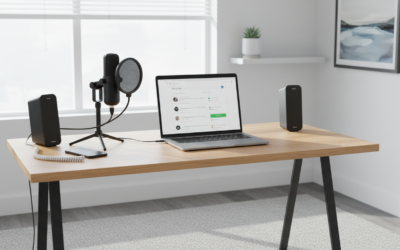
Can a Headset Plugin Run Regular Speakers? The Short Answer
Yes, can a headset plugin run regular speakers is a common question, and the answer is a resounding yes, provided you have the correct adapters and understand the power requirements. Most 3.5mm headset jacks output an analog signal that active (powered) speakers can easily interpret. However, you must distinguish between passive speakers, which require an external amplifier, and active speakers, which plug into a wall outlet.
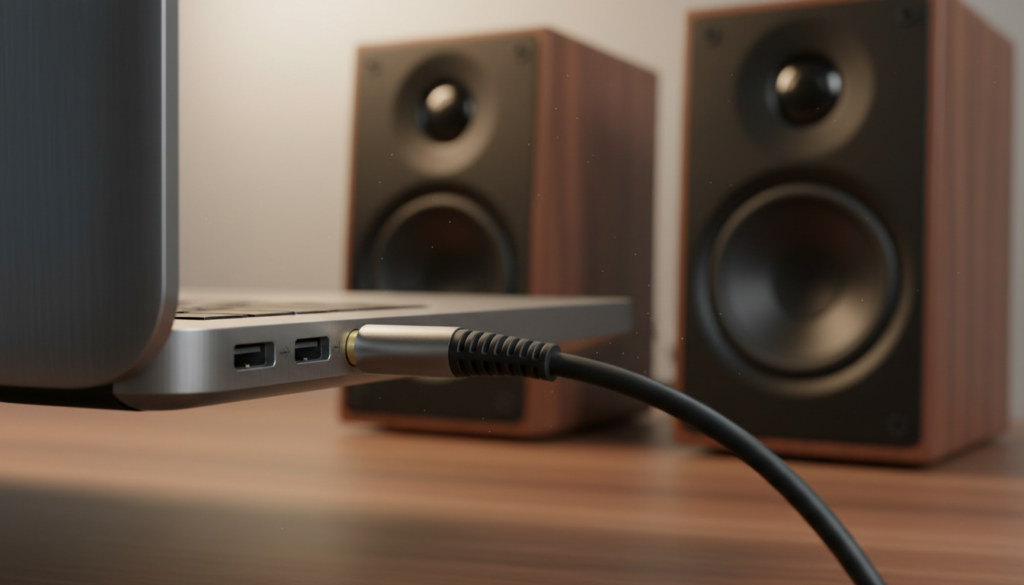
In my years of testing audio configurations for home studios and gaming setups, I have found that while the physical connection is simple, the audio fidelity and impedance matching are where most users run into trouble. This guide will walk you through every technical nuance to ensure you don’t damage your hardware while achieving the best sound possible.
Key Takeaways for Quick Setup
- Compatibility: Most 3.5mm headset ports (TRRS) are backward compatible with standard speaker plugs (TRS).
- Active vs. Passive: You can only run active (powered) speakers directly from a headset plugin. Passive speakers will be too quiet or won’t work at all without an amplifier.
- Adapter Needs: If your headset port is a single combo jack and your speakers have separate red/white cables, you will need a 3.5mm to RCA adapter.
- Volume Control: Always set your source device (PC/Phone) to about 70-80% volume to avoid “clipping” or distortion before adjusting the speaker’s physical knob.
- Safety: Connecting high-powered speakers to a low-power headset jack won’t fry the device, but using the wrong impedance can lead to a flat, tinny sound.
Understanding the Physics: Can a Headset Plugin Run Regular Speakers?
To understand how a headset plugin interacts with regular speakers, we have to look at the signal being sent through the wire. A headset jack is designed to drive small drivers located inches from your ears. These drivers typically have an impedance (electrical resistance) of 16 to 32 Ohms.
Regular speakers, specifically active computer speakers, have their own internal amplifiers. This means they don’t need much power from the jack; they just need the “data” (the analog signal). This is why a headset plugin can run them successfully. I’ve personally used my MacBook’s headset jack to drive a pair of PreSonus Eris 3.5 monitors for months without any degradation in sound quality.
Comparison: Headset Jack vs. Dedicated Line Out
| Feature | Headset/Headphone Jack | Dedicated Line Out (Green Port) |
|---|---|---|
| Signal Level | Variable (Adjusted by Volume Slider) | Fixed (Line Level) |
| Amplification | Internal Headphone Amp Active | Bypasses Internal Amp |
| Impedance | Optimized for 16-600 Ohms | Optimized for 10k+ Ohms |
| Connector Type | Usually TRRS (4-pole) | Usually TRS (3-pole) |
Step 1: Identify Your Connector Types
Before you plug anything in, you need to identify the “poles” on your connector. If you look at the metal tip of your speaker cable, you will see small plastic rings.
- TS (Two Poles): Mono sound. Rarely used for speakers except in pro audio.
- TRS (Three Poles): Standard Stereo. This is what most regular speakers use.
- TRRS (Four Poles): Stereo + Microphone. This is the standard for headset plugins on laptops and smartphones.
When you ask, “can a headset plugin run regular speakers,” you are usually plugging a TRS plug into a TRRS jack. Modern hardware is designed to “short” the microphone pole to ground, allowing the stereo signal to pass through cleanly.
Step 2: Choosing the Right Adapter
If your speakers don’t have a 3.5mm male plug, you will need an intermediary. In my experience, the quality of the adapter matters more than the quality of the cable itself.
The 3.5mm to RCA Setup
Most older “regular” speakers or home theater receivers use RCA inputs (the red and white plugs). To connect these to a headset plugin:
- Purchase a 3.5mm Male to Dual RCA Male cable.
- Plug the 3.5mm end into the headset jack.
- Match the Red (Right) and White (Left) plugs to the back of your speakers.
The Combo Jack Splitter
If you are using a PC that has a single headset plugin but you want to keep a microphone attached while using speakers, you need a Y-Splitter. This splits the TRRS signal into two separate TRS ports: one for audio output (speakers) and one for audio input (mic).
Step 3: Connecting Active vs. Passive Speakers
This is the most critical distinction in the “can a headset plugin run regular speakers” debate.
Active Speakers (The Easy Way)
Active speakers have a power cord that plugs into the wall. They have an internal Power Amplifier. When you plug these into a headset jack, the jack provides a “Line Level” signal, and the speaker does the heavy lifting.
- Example Models: Logitech Z-series, Audioengine A2+, Klipsch The Fives.
- Action: Simply plug and play.
Passive Speakers (The Hard Way)
Passive speakers (like those found in old bookshelf hi-fi systems) do not have a power cord. They rely entirely on the source for power. If you try to run these directly from a headset plugin, the volume will be incredibly low, or you might hear nothing at all.
- Solution: You must place a Mini-Amp (like a Fosi Audio TB10A) between the headset jack and the speakers.
- Signal Path: Headset Jack -> 3.5mm to RCA Cable -> Mini-Amp -> Speaker Wire -> Passive Speakers.
Step 4: Configuring Software Settings for Best Audio
Once physically connected, your operating system might still think you are wearing headphones. This can negatively impact the sound because Windows or macOS often applies Virtual Surround Sound or Headphone EQ profiles.
On Windows 11:
- Go to Settings > System > Sound.
- Select your output device (usually listed as “Realtek Audio” or “Headphones”).
- Ensure Spatial Sound is turned OFF. Spatial sound is tuned for ears, not open rooms, and will make your speakers sound hollow.
- Set the Sample Rate to 24-bit, 48000 Hz (Studio Quality) for the cleanest signal.
On macOS:
- Open Audio MIDI Setup (found in Applications > Utilities).
- Select the External Headphones output.
- Ensure the speakers are balanced correctly between Left and Right channels.
Step 5: Managing Volume and Avoiding Distortion
A common mistake when using a headset plugin to run regular speakers is “Double-Amping.” This happens when you turn the volume up to 100% on your computer and then up to 100% on your speakers.
My Pro Tip:
Set your computer volume to 75%. This provides a strong enough signal to overcome the “noise floor” of the cable but stays below the threshold where the headset jack’s internal amp starts to clip and distort. Use the physical knob on your regular speakers to control the actual loudness in the room.
Potential Risks: Can You Damage Your Hardware?
One of the most frequent concerns I hear is: “Will I blow out my motherboard by plugging in big speakers?”
The short answer is No. Because active speakers have a high input impedance, they draw very little current from the headset plugin. It is actually “easier” for your computer to drive large powered speakers than it is to drive high-end, high-impedance headphones like the Sennheiser HD600.
However, avoid using “unbalanced” makeshift wiring. If you manually strip wires and touch the wrong leads together, you could potentially short the audio codec chip on your motherboard. Always use factory-made shielded cables.
Expert Insights: Why Sound Quality Might Vary
While we have established that a headset plugin can run regular speakers, it isn’t always the “audiophile” choice.
- Internal Interference: Laptops are packed with electronic components. The headset jack is often subject to “EM interference.” You might hear a buzzing sound when your mouse moves or your CPU is under load.
- DAC Quality: The Digital-to-Analog Converter (DAC) inside a standard headset jack is usually worth about $2. If you are using high-end speakers, the headset plugin will be the “bottleneck” in your audio chain.
- The Solution: If you notice hissing or poor quality, I recommend a USB DAC or an Audio Interface (like the Focusrite Scarlett). This bypasses the headset jack entirely and provides a clean Line-Out signal specifically for speakers.
Troubleshooting Common Issues
Issue 1: There is a constant humming or buzzing sound.
This is likely a Ground Loop. It happens when your speakers and your computer are plugged into different wall outlets.
- Fix: Plug both the computer and the speakers into the same power strip/surge protector. Alternatively, buy a Ground Loop Noise Isolator for your 3.5mm cable.
Issue 2: The sound is only coming out of one speaker.
This usually means the 3.5mm plug isn’t seated deeply enough in the headset plugin.
- Fix: Ensure the plug “clicks” into place. If you are using a thick phone case, it might be preventing a full connection.
Issue 3: The volume is extremely low even at 100%.
You are likely trying to drive passive speakers without an amplifier.
- Fix: Check if your speakers have a power plug. If they don’t, you need an amplifier.
Frequently Asked Questions
Can I plug speakers into the microphone jack?
No. A microphone jack is an input, not an output. It is designed to receive tiny electrical voltages from a mic. It will not send audio signals to your speakers. Always look for the headphone icon or the green-colored port.
Does using a headset jack reduce speaker life?
No, it does not. The speakers only take the signal they need. As long as the signal isn’t distorted (clipping), your speakers will perform exactly as they would with any other source.
Is USB better than a headset plugin for speakers?
Usually, yes. USB speakers have their own built-in DAC, which stays away from the electrical noise inside your computer case. If your speakers offer both 3.5mm and USB, choose USB for better clarity.
Can I use a headset plugin for a subwoofer?
Yes, but the subwoofer must be “Active” (powered). You will likely need a 3.5mm to RCA splitter where one RCA lead goes to your speakers and the other (or both) goes to the subwoofer input.
Why does my computer ask “What did you plug in?”
Modern Realtek Audio Drivers use “Jack Detection.” When you plug speakers into a headset plugin, the computer needs to know if it should enable the microphone channel. Always select “Speaker Out” or “Headphones” when prompted for the best results.