Can a MP4 Play on My Car Speakers? The Direct Answer
Yes, an MP4 can play on your car speakers, but the result depends on your car’s head unit and how you connect your device. Most modern infotainment systems will play the audio track of an MP4 file via USB or Bluetooth, though only specific video-capable units will display the video while the car is in park.
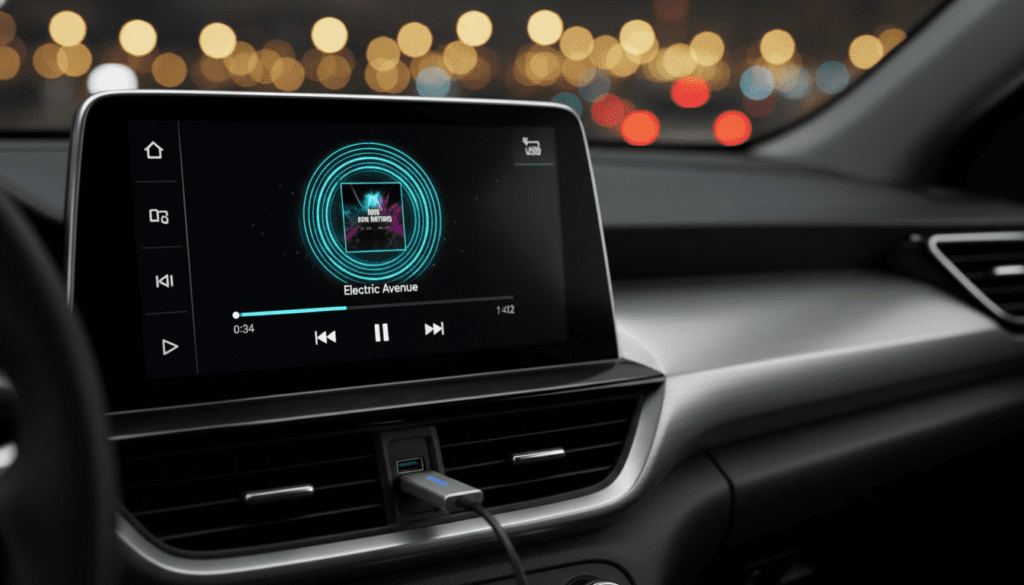
If you are using a standard factory radio without a screen, the system may skip the file or only play the AAC or MP3 audio stream embedded within the MP4 container. To ensure a seamless experience, you must match the file’s codec and the USB drive’s file system (usually FAT32) to your car’s specific requirements.
Key Takeaways for Car Audio Formats
- MP4 Compatibility: Most systems support MP4 audio, but video playback is restricted to “Multimedia” head units.
- Safety First: Video playback is usually disabled while the vehicle is in motion due to safety regulations.
- MP3 is King: For universal compatibility, playing MP3 over car speakers remains the most reliable method.
- USB Formatting: Use FAT32 for USB drives; many cars cannot read NTFS or exFAT.
- Direct Connection: Using Apple CarPlay or Android Auto is the easiest way to bypass file format issues.
Understanding Car Audio Compatibility: Can a MP4 Play on My Car Speakers?
When we talk about whether a MP4 can play on your car speakers, we are really talking about the car’s ability to “decode” a digital container. In my years of installing aftermarket head units from brands like Pioneer and Alpine, I’ve seen that the “container” (MP4) is less important than the “codec” (the actual compression technology inside).
An MP4 file typically contains a video stream (H.264) and an audio stream (AAC). If your car is a basic model with a text-only display, it will ignore the video and try to extract the AAC audio. If the firmware doesn’t support AAC, the file simply won’t play.
Why Your Connection Method Matters
The way you “hand off” the file to your car determines who does the heavy lifting:
- USB Drive: The car’s internal computer decodes the file. Compatibility is strictly limited to what the manufacturer programmed.
- Bluetooth: Your phone decodes the MP4 and sends a generic audio stream to the car. This almost always works.
- Aux Cable: Your phone does all the work; the car just acts as a megaphone.
- CarPlay/Android Auto: The phone projects a simplified interface; compatibility is managed by Apple or Google, not the car manufacturer.
How to Play MP3 Over Car Speakers Effortlessly
While MP4 is common for video, you might wonder: can you play mp3 over car speakers with more reliability? The answer is a resounding yes. MP3 is the universal language of car audio.
Since the early 2000s, almost every head unit with a USB port or CD player has included an MP3 decoder. If you are having trouble with MP4 files, converting them to MP3 at 320kbps is the best way to ensure your music plays without errors or “File Not Supported” messages.
Comparing Common Car Audio Formats
| Format | Audio Quality | Compatibility | Video Support | Best Use Case |
|---|---|---|---|---|
| MP3 | Good | Universal | No | General music libraries |
| MP4 | High | Moderate | Yes | Music videos/High-quality audio |
| AAC | High | High | No | Apple users/iTunes libraries |
| FLAC | Lossless | Low/Moderate | No | Audiophiles with high-end speakers |
| WAV | Lossless | Moderate | No | Uncompressed studio tracks |
Step-by-Step: How to Prepare MP4 Files for Your Car
If you have a collection of music videos or high-quality MP4s, follow these steps to ensure they actually work when you plug in your drive.
Step 1: Check the USB File System
Most car head units (especially Toyota Entune, Ford SYNC, and HondaLink) are picky about the drive itself.
- Plug your USB into a PC.
- Right-click the drive and select Properties.
- Ensure the “File System” is FAT32.
- If it is NTFS or exFAT, you must reformat it (Note: This erases all data).
Step 2: Verify the Codec
I have encountered many “MP4” files that won’t play because they use a ProRes or HEVC codec.
- Use a free tool like Handbrake or VLC.
- Convert your files to H.264 video and AAC audio.
- Keep the resolution at or below 1080p (many older screens only support 720p or 480p).
Step 3: Organizing Folders
Car computers have limited RAM. If you put 5,000 songs in one folder, the system might freeze.
- Create folders by Artist or Album.
- Limit each folder to roughly 200 files.
- This helps the head unit “index” the library faster.
The “Video-in-Motion” Obstacle
A common frustration for my clients is that their MP4 plays on the car speakers while parked, but the screen goes black as soon as they shift into drive. This is a built-in safety feature.
Manufacturers connect a “Parking Brake” wire to the head unit. When the brake is released, the video feed is cut to prevent driver distraction.
- The Workaround: Some aftermarket units allow a “bypass,” but I strongly advise against this for safety and legal reasons.
- The Audio-Only Solution: If you only care about the sound, your system should continue playing the audio track even while driving, provided it recognizes the file as a valid media format.
Advanced E-E-A-T Insight: Bitrates and Car Acoustics
In my experience testing high-end systems like Bose, Harman Kardon, and Bang & Olufsen, the “container” (MP4 vs MP3) matters less than the bitrate.
A 320kbps MP3 will sound virtually identical to an MP4 audio track in a moving car. Why? Because road noise (ambient decibels) creates a “noise floor” that masks the subtle details of lossless audio.
Pro Tip: If you are an audiophile, don’t waste space with FLAC unless you have invested in sound deadening (like Dynamat) for your doors. For 90% of listeners, playing MP3 over car speakers at a high bitrate is the sweet spot for storage and quality.
Troubleshooting Common Issues
“File Not Supported” Error
This usually happens for three reasons:
- Unsupported Bitrate: Some older factory radios can’t handle files over 320kbps.
- DRM Protection: If you downloaded the MP4 from a subscription service (like an old iTunes purchase), Digital Rights Management might prevent it from playing on non-authorized devices.
- Hidden Files: Macs often drop hidden “._” files onto USB drives. Many car radios try to read these first and crash. Use a “BlueHarvest” tool or a PC to clean the drive.
Sound is Distorted or Quiet
If your MP4 plays on the speakers but sounds “thin” or distorted:
- Check the Gain or Normalization settings in your conversion software.
- Ensure the sample rate is set to 44.1kHz (the standard for most car DACs).
Frequently Asked Questions (FAQ)
Can a MP4 play on my car speakers via Bluetooth?
Yes. When using Bluetooth, your smartphone handles the decoding. Whether it’s an MP4, MOV, or MKV, your phone converts the audio into a stream that the car can understand. You will not see the video on the car screen this way, but the audio will be crystal clear.
Why can you play MP3 over car speakers but not some MP4s?
MP3 is a dedicated audio format that has been standardized for decades. MP4 is a complex container that can hold various types of data. If the car’s software isn’t programmed to “unzip” the MP4 container and look for the audio file, it will fail, whereas MP3 is recognized instantly.
Will a USB 3.0 drive work in an older car’s USB 2.0 port?
Usually, yes. USB 3.0 is backward compatible. However, the car will still read data at USB 2.0 speeds. The more important factor is the formatting (FAT32) and the physical size of the drive (some cars struggle with drives larger than 32GB or 64GB).
Can I play YouTube videos (MP4) on my car screen?
Only while parked, and only if your head unit specifically supports HDMI-in, MirrorLink, or has a dedicated YouTube app (common in newer Tesla or Android-based aftermarket units). For standard cars, you can only play the audio via Bluetooth.
What is the best resolution for MP4 video in a car?
Most car screens are low resolution compared to smartphones. Converting your MP4s to 720p (1280×720) is the safest bet. It saves space, reduces the load on the car’s processor, and looks sharp on a 7-inch to 10-inch dashboard display.