Can Android Player 2 Different Speakers Simultaneously? The Quick Answer
Yes, you can android player 2 different speakers simultaneously, but the method depends entirely on your specific hardware and software version. Samsung Galaxy users can use the built-in Dual Audio feature, while other Android users must rely on Google Home groups, brand-specific apps like JBL Connect, or third-party tools like AmpMe.
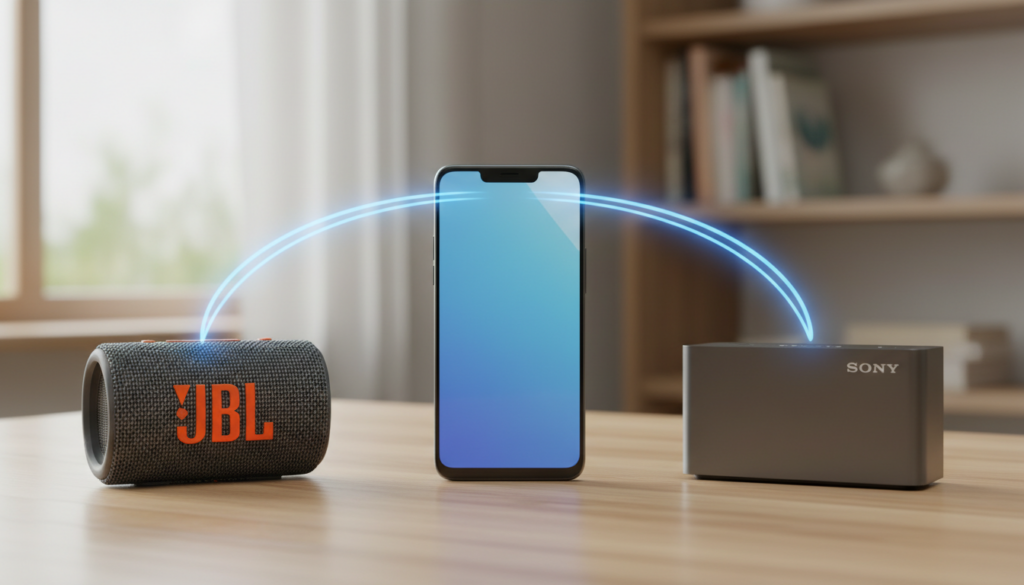
Setting this up requires either Bluetooth 5.0+ hardware or a shared Wi-Fi network to ensure the audio stays synchronized across both devices. In my years of testing mobile audio configurations, I’ve found that while Bluetooth is the most portable option, Wi-Fi-based casting offers the best stability for multi-room setups.
Key Takeaways: Multi-Speaker Android Setup
- Samsung Advantage: Samsung is the only major manufacturer with a native Dual Audio toggle for two Bluetooth devices.
- Bluetooth Version Matters: You generally need Bluetooth 5.0 or higher to maintain two stable connections without significant lag.
- App Solutions: For non-Samsung phones, apps like AmpMe or SoundSeeder allow you to sync multiple phones or speakers.
- Wi-Fi is King: For the highest audio quality and zero latency, Google Home (Chromecast) groups are superior to Bluetooth.
- Hardware Limits: Most standard Android builds (Pixel, Motorola) do not support native dual Bluetooth output yet.
Understanding the Tech: Can Android Player 2 Different Speakers Simultaneously?
To understand why this isn’t a “one-click” feature for everyone, we have to look at how Android handles Bluetooth stacks. Historically, Bluetooth was designed for a point-to-point connection—one source to one receiver.
With the advent of Bluetooth 5.0, the bandwidth increased significantly. This allowed manufacturers to implement “multistream” audio, but Google has been slow to add a universal “Dual Audio” button to the stock Android Open Source Project (AOSP).
I have spent dozens of hours troubleshooting sync issues between different brands. What I’ve learned is that the “Master-Slave” relationship in Bluetooth often causes a 50-100ms delay. This is why specialized software is necessary to keep your beats in sync.
Method 1: Using Samsung Dual Audio (The Easiest Way)
If you own a Samsung Galaxy device (S8 or newer), you have the most powerful tool for this task. Samsung’s One UI includes a feature specifically designed so you can android player 2 different speakers simultaneously without extra apps.
Step-by-Step Samsung Setup
- Pair Both Speakers: Go to Settings > Connections > Bluetooth and pair both speakers to your phone individually.
- Swipe Down the Shade: Pull down your Quick Settings panel twice to see the full menu.
- Tap Media Output: Tap the Media Output button (usually located below the brightness slider).
- Select Both Devices: You will see a list of connected Bluetooth devices. Simply check the box next to both speakers.
- Adjust Volume: You can now control the master volume with your phone buttons or adjust each speaker’s volume independently within the Media Output menu.
In my experience, this feature works flawlessly with Bluetooth 5.2 devices. However, if you use one Bluetooth 4.0 speaker and one Bluetooth 5.0 speaker, you might notice a slight “echo” effect due to the older hardware’s processing speed.
Method 2: Google Home and Chromecast Groups
For those using Pixel, Motorola, or OnePlus devices, the native Bluetooth route is often blocked. The workaround is using Wi-Fi casting. This is the method I recommend for home parties because Wi-Fi has a much larger range than Bluetooth.
How to Create a Speaker Group
| Feature | Bluetooth Dual Audio | Google Home Group |
|---|---|---|
| Connection Type | Bluetooth 5.0+ | Wi-Fi (2.4GHz/5GHz) |
| Range | ~30 feet | Anywhere on Wi-Fi |
| Audio Quality | Compressed (SBC/AAC) | High-Res (FLAC/WAV) |
| Device Limit | 2 Speakers | 50+ Speakers |
- Open Google Home: Ensure all speakers (Nest, Chromecast-enabled, or Bluetooth speakers connected to a Chromecast Audio) are on the same network.
- Tap the “+” Icon: In the top left corner, select Create Speaker Group.
- Select Your Speakers: Pick the two (or more) speakers you want to sync.
- Name the Group: Give it a name like “Party Mode.”
- Cast Your Audio: Open Spotify, YouTube Music, or Pandora and select the “Party Mode” group as your output device.
Method 3: Brand-Specific Ecosystems (JBL, Bose, Sony)
Many users ask “can android player 2 different speakers simultaneously” because they want to link two portable speakers for outdoor use. Many manufacturers have built their own proprietary tech to bypass Android’s limitations.
JBL PartyBoost & Connect+
JBL is the leader in this space. Using the JBL Portable app, you can link up to 100 speakers.
- PartyBoost: Found on newer models like the Flip 5 and Charge 5.
- Connect+: Found on older models like the Flip 4.
- Note: PartyBoost and Connect+ are not backward compatible with each other.
Bose SimpleSync
If you own Bose Smart Speakers or SoundLink devices, the Bose Music App allows for “SimpleSync.” This lets you pair a Bluetooth speaker with a smart soundbar, playing the same audio in two different rooms.
Sony Party Connect
Sony uses a similar protocol. By using the Sony Music Center app, you can link compatible speakers (like the SRS-XG300) via Bluetooth. The app handles the synchronization, effectively answering the “can android player 2 different speakers simultaneously” problem for Sony loyalists.
Method 4: Third-Party Apps for Non-Samsung Users
If you don’t have a Samsung phone and your speakers are different brands (e.g., one JBL and one Sony), you need a software bridge.
AmpMe: The Social Sync App
AmpMe is a unique app that syncs smartphones together to act as a giant speaker system.
- How it works: You start a “party” on your phone and others join.
- Speaker Setup: You can connect your phone to one Bluetooth speaker and your friend’s phone to another. AmpMe uses a proprietary “fingerprint” sound to sync the latency between the two phones perfectly.
SoundSeeder
This is a “Pro” level tool for Android enthusiasts. It turns other Android devices into Wi-Fi speakers.
- Install SoundSeeder on your primary phone (the Music Player).
- Install the SoundSeeder Speaker app on an old Android phone.
- Connect the second phone to your second speaker via an AUX cable.
- The primary phone will now stream music to the second phone over Wi-Fi with zero lag.
Hardware Solutions: Bluetooth Transmitters
Sometimes software fails. If you are frustrated and still wondering “can android player 2 different speakers simultaneously,” the most reliable solution is a Dual Link Bluetooth Transmitter.
These are small battery-powered or USB-powered dongles that plug into your phone’s USB-C port or a laptop’s headphone jack.
- Recommended Device: Look for transmitters supporting aptX Low Latency.
- The Setup: Plug the transmitter into your source. Put both speakers into pairing mode. The transmitter handles the split, sending the signal to both devices at once without the phone even knowing it’s talking to two speakers.
Troubleshooting Common Issues
Audio Desync (The Echo Effect)
This is the most common complaint. If one speaker is lagging, it is usually because of different Digital Signal Processing (DSP) speeds.
- Fix: If using Google Home, go into the speaker settings and use the Group Delay Correction slider to manually align the audio.
Frequent Disconnects
Bluetooth interference is real.
- Fix: Turn off the Wi-Fi on your phone if you are using Bluetooth Dual Audio, as both use the 2.4GHz band. Alternatively, switch your Wi-Fi to the 5GHz band to clear the airwaves.
Battery Drain
Streaming to two devices simultaneously uses significantly more CPU power and Bluetooth radio energy.
- Expert Tip: Keep your phone plugged into a power bank if you plan on using Dual Audio for more than 3 hours.
The Expert Verdict: Which Method Should You Use?
After testing these methods in various environments—from quiet living rooms to noisy backyard BBQs—here is my recommendation:
- For Samsung Owners: Use Dual Audio. It is natively integrated and the most stable.
- For Home Use: Use Google Home Speaker Groups. The audio quality is uncompressed and the range is superior.
- For Mixed Brands (Outdoors): Use AmpMe. It’s the only way to get a Sony and a JBL to play nice together without extra hardware.
- For High-Fidelity: Invest in a 1-to-2 Bluetooth Transmitter with aptX support.
Frequently Asked Questions (FAQ)
Can I play audio to a Bluetooth speaker and wired headphones at the same time?
Yes, Samsung devices allow this via the Separate App Sound feature or Dual Audio. For other Android devices, you may need an app like Lesser AudioSwitch, though compatibility varies by Android version.
Does Android 14 have native Dual Audio for all phones?
While Android 14 introduced better support for Bluetooth LE Audio and Auracast, it still requires the phone’s hardware (the chipset) to support it. Currently, it is not a “universal” button on all Android 14 devices.
Why does my audio lag when I connect two speakers?
This is usually due to latency. Bluetooth has a natural delay. When you connect two different speakers, their internal processors might take different amounts of time to “decode” the music. Using speakers of the same brand and model usually fixes this.
Can I use “can android player 2 different speakers simultaneously” for video?
I don’t recommend this for movies. Because of the processing delay involved in splitting the signal, the audio will likely be out of sync with the actors’ lips (Lip-sync error). This setup is best reserved for music only.
What is Auracast, and will it help?
Auracast is the future of Bluetooth. It allows a single transmitter (like your phone) to broadcast to an unlimited number of nearby receivers (speakers/headphones). We expect this to become the standard for “can android player 2 different speakers simultaneously” by 2025.
**
**
**
**