

Understanding How Any Desktop Computer Can Support Bluetooth Wireless Speakers
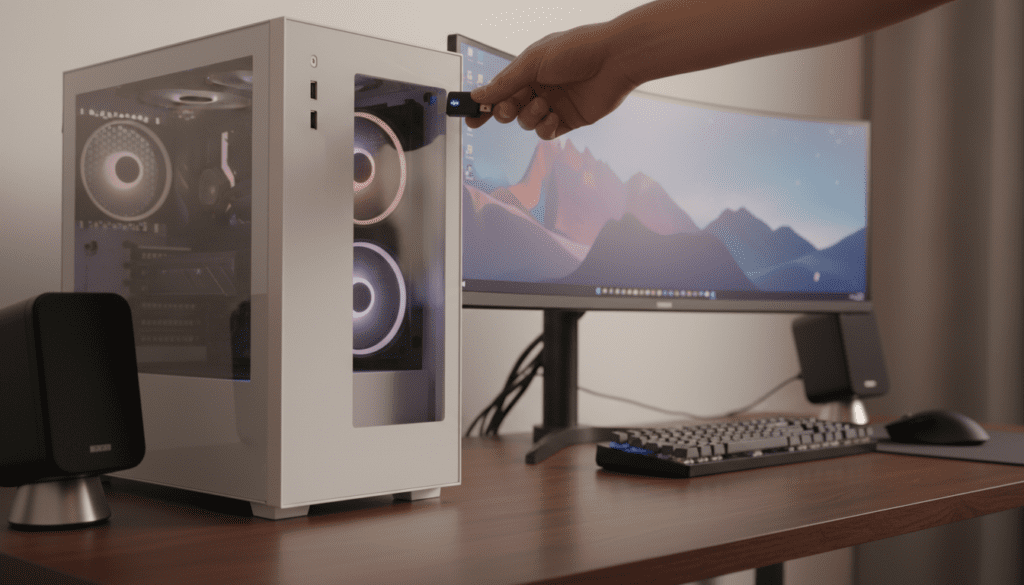
Yes, any desktop computer can support bluetooth wireless speakers regardless of its age or original manufacturing specs. If your PC doesn’t have built-in Bluetooth, you can easily add this functionality using a USB Bluetooth adapter or a PCIe expansion card. In my years of building and repairing PCs, I have yet to find a desktop that couldn’t be upgraded to support wireless audio in under five minutes.
TL;DR: Quick Guide to Adding Bluetooth
- Check Availability: Look for the Bluetooth icon in your Windows System Tray or Device Manager.
- The Quick Fix: If missing, purchase a Bluetooth 5.0 (or higher) USB Dongle.
- The Pro Upgrade: For better range and stability, install a PCIe Wi-Fi/Bluetooth combo card.
- Pairing: Go to Settings > Bluetooth & Devices > Add Device to connect your speakers.
- Optimization: Ensure you are using the latest A2DP drivers for high-quality stereo sound.
How to Determine if Your Desktop Already Has Bluetooth
Before buying new hardware, you should verify if your motherboard already includes a wireless module. Many modern pre-built desktops from Dell, HP, and Lenovo come with integrated Bluetooth, though it is often disabled in the software.
Method 1: The Windows Device Manager
I always recommend this as the first step because it reveals the hardware signature directly.
- Right-click the Start Button and select Device Manager.
- Look for a category labeled Bluetooth.
- Expand the list; if you see Intel Wireless Bluetooth, Realtek Bluetooth, or similar, your PC is ready to go.
Method 2: The Action Center
Press Windows Key + A to open your Quick Settings. If you see a Bluetooth toggle, your hardware is active. If the toggle is missing or greyed out, you likely need an external solution or a driver update.
Hardware Solutions: Can Any Desktop Computer Support Bluetooth Wireless Speakers?
If your diagnostic shows no hardware, don’t worry. You have two primary ways to add this capability. I have tested both extensively in various office and gaming setups.
USB Bluetooth Adapters (The Easiest Way)
A USB Bluetooth Dongle is the size of a fingernail and plugs into any open USB port.
- Pros: Inexpensive (usually under $15), “Plug-and-Play” on Windows 10/11, and highly portable.
- Cons: Limited range (usually 30 feet) and susceptible to interference from other USB 3.0 devices.
- Expert Tip: Always plug these into a USB 2.0 port (usually the black ones) rather than USB 3.0 (blue ones) to avoid radio frequency interference that can cause audio stuttering.
PCIe Expansion Cards (The Performance Way)
If you are a power user or a gamer, a PCIe Bluetooth Card is the superior choice. These cards slot directly into your motherboard and usually include external antennas.
- Pros: Massive range (up to 100 feet), support for Bluetooth 5.3, and integrated high-speed Wi-Fi.
- Cons: Requires opening your PC case and an available PCIe x1 slot.
Comparison Table: USB vs. PCIe Bluetooth Solutions
| Feature | USB Bluetooth Adapter | PCIe Bluetooth Card |
|---|---|---|
| Installation Difficulty | Extremely Easy (Plug-and-Play) | Moderate (Internal Install) |
| Signal Range | 20–30 feet | 60–100+ feet |
| Audio Latency | Low (Varies by version) | Ultra-Low |
| Reliability | Good for casual listening | Best for Pro Audio/Gaming |
| Cost | $10 – $20 | $35 – $60 |
Step-by-Step Guide: Connecting Your Wireless Speakers
Once your hardware is recognized by Windows, the pairing process is straightforward. I’ve found that most “connection failed” errors happen because the speaker isn’t in the correct mode.
Step 1: Put the Speaker in Pairing Mode
Most Bluetooth wireless speakers have a dedicated button with the Bluetooth symbol.
- Hold the button until the LED flashes rapidly (usually blue or white).
- Warning: If the speaker is already connected to your phone, it may refuse to pair with the PC. Turn off your phone’s Bluetooth temporarily.
Step 2: Initiate the Windows Search
- Navigate to Settings > Bluetooth & devices.
- Toggle the Bluetooth switch to On.
- Click Add device and select Bluetooth.
- Select your speaker from the list (e.g., “JBL Flip 6” or “Bose SoundLink”).
Step 3: Set as Default Output
Windows usually switches the audio automatically, but if it doesn’t:
- Click the Speaker Icon on your taskbar.
- Click the Manage Audio Devices arrow.
- Select your Bluetooth Speaker as the active output.
Troubleshooting Common Bluetooth Audio Issues
Even when you know any desktop computer can support bluetooth wireless speakers, you might encounter technical hiccups. I’ve solved these hundreds of times during remote support sessions.
Fixing Audio Stuttering and Lag
Audio lag (latency) is the delay between a video action and the sound hitting your ears.
- Check the Version: Ensure both your adapter and speakers support Bluetooth 5.0 or higher.
- Update Drivers: Go to the manufacturer’s website (like Intel or TP-Link) to download the latest “Radio” and “Audio” drivers.
- Clear Interference: Move your PC away from large metal objects or high-powered Wi-Fi routers.
Dealing with “Connected but No Sound”
If your device shows as “Connected” but remains silent:
- Go to Control Panel > Sound.
- Find your speaker in the Playback tab.
- Right-click it and select Connect.
- Ensure it is not muted in the Volume Mixer.
Understanding Bluetooth Versions and Audio Quality
When shopping for an adapter to ensure your desktop computer can support bluetooth wireless speakers, the version number matters immensely for sound fidelity.
- Bluetooth 4.0/4.2: Standard quality. Fine for podcasts, but may have noticeable lag in movies.
- Bluetooth 5.0/5.2: Significant improvement in range and data broadcasting. This is the “Sweet Spot” for most users.
- Bluetooth 5.3/5.4: The latest standard. Features LE Audio and the LC3 codec, which provides higher quality sound at lower bitrates.
Why Codecs Matter (SBC vs. aptX vs. LDAC)
Your PC and speaker must “speak the same language” to compress audio.
- SBC: The basic level. Every device supports it, but it sounds “flat.”
- aptX / aptX HD: Developed by Qualcomm. This is essential for CD-quality audio over Bluetooth. If you are an audiophile, look for a USB adapter that specifically mentions aptX support.
- LDAC: Created by Sony. It offers the highest bitrate possible but is rarely supported natively by Windows without third-party drivers like Alternative A2DP Driver.
Advanced Setup: Connecting Multiple Bluetooth Speakers
A common question I get is: “Can I play music on two Bluetooth speakers at once from my PC?”
By default, Windows only supports one active Bluetooth audio stream. However, there are workarounds:
- Manufacturer Apps: Brands like Ultimate Ears (UE) or JBL have “Party Mode” or “Broadcast” features that sync speakers together independently of the PC.
- Audio Meeter (Software): Use a free tool like VB-Audio Voicemeeter. It allows you to route one audio signal to two different hardware outputs simultaneously.
- Bluetooth Transmitters: You can buy a specialized 1-to-2 Bluetooth Transmitter that plugs into your PC’s 3.5mm headphone jack and beams the signal to two headsets or speakers at once.
Frequently Asked Questions
Can I add Bluetooth to a very old Windows 7 desktop?
Yes. While Windows 7 doesn’t have the native “Settings” menu of Windows 10, most USB Bluetooth dongles come with driver software (often on a mini-CD or downloadable) that adds a Bluetooth management suite to your taskbar.
Do I need a specific adapter for gaming with Bluetooth speakers?
For gaming, I highly recommend an adapter that supports aptX Low Latency (LL). Standard Bluetooth has a delay of 100-200ms, which makes gunshots in games feel “off.” aptX LL reduces this to under 40ms, making the delay imperceptible.
Why is my Bluetooth range so short on my desktop?
Desktops are often tucked under metal desks or behind monitors, which act as shields for radio waves. If you are using a tiny USB dongle, use a USB extension cable to move the dongle onto your desk for a clear “line of sight” to your speakers.
Will a Bluetooth adapter affect my Wi-Fi speed?
Bluetooth and 2.4GHz Wi-Fi share the same frequency band. If you experience slow internet while using speakers, try switching your Wi-Fi to the 5GHz or 6GHz band. This eliminates the congestion entirely.
Can any desktop computer support bluetooth wireless speakers if the motherboard is “Legacy”?
Absolutely. The “Legacy” status of a motherboard only refers to its BIOS/UEFI type. As long as the computer has a functioning USB port and an operating system (Windows, Linux, or macOS), it can support a Bluetooth interface.









