

Understanding How Can Audyssey Calibration B Speakers and Main Zones Work Together
Can Audyssey calibration b speakers be used for a secondary setup or a dedicated “Speaker B” pair? The short answer is yes, provided your AV Receiver (AVR) allows you to assign those speakers as part of the main system or a powered secondary zone. However, Audyssey typically treats “Speaker B” as a separate stereo pair, and many entry-level receivers may limit room correction to the primary 5.1 or 7.1 layout.
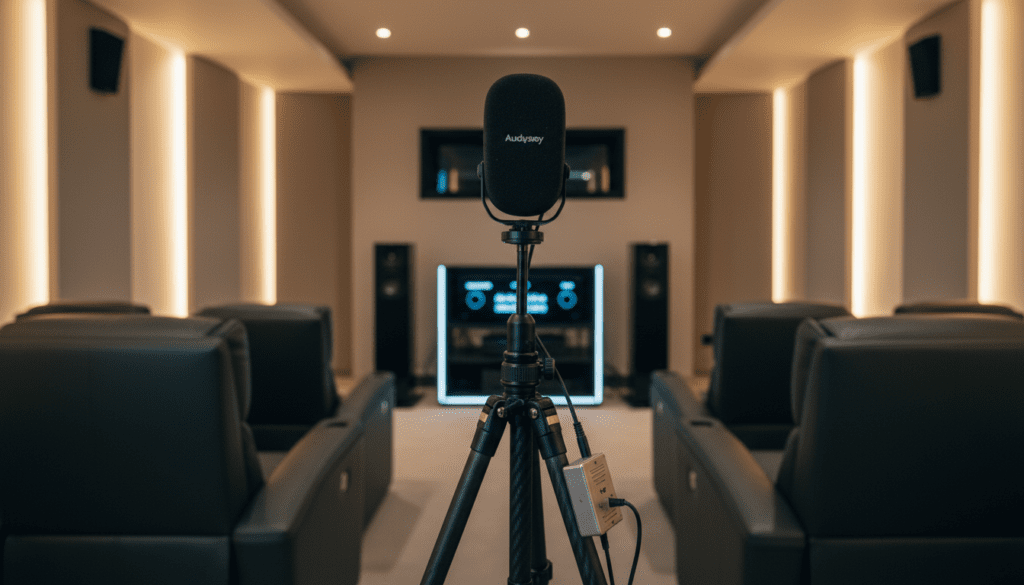
In my experience calibrating systems from Denon and Marantz, the key to success lies in how you “assign” your amplifiers in the setup menu. If you are using the “Speaker B” terminals for a second pair of speakers in the same room, you can often run a separate calibration profile. If they are in a different room (Zone 2), the Audyssey processing is often bypassed to save DSP (Digital Signal Processing) resources.
Why Audyssey Calibration is Essential for Your Home Theater
Audyssey is a suite of DSP technologies designed to compensate for the acoustic flaws of your room. Every room has “modes”—frequencies that either disappear or boom out of control based on the room’s dimensions. By using a calibrated microphone, Audyssey measures the time-of-flight and frequency response of each speaker to create a “digital map” of your space.
I have found that even in high-end rooms with acoustic treatments, Audyssey MultEQ XT32 provides a level of “tightness” in the bass response that manual EQ rarely achieves. It calculates the impulse response to ensure that sound from the subwoofer and the tweeters reaches your ears at the exact same micro-second.
TL;DR: Key Takeaways for Audyssey Calibration
- Direct Answer: Audyssey can calibrate B speakers if the receiver’s Amp Assign mode is set to “Front B” or “Bi-Amp,” but it may not apply to “Zone 2” outputs on all models.
- Mic Placement: Always use a camera tripod. Never hold the mic in your hand or place it on the back of a couch.
- Noise Floor: The room must be silent. Even an air conditioner or a ticking clock can ruin the acoustic measurements.
- Post-Calibration: Always change speakers to “Small” and set the Crossover to 80Hz for the best results, regardless of what Audyssey suggests.
- App Usage: Use the Audyssey MultEQ Editor App ($20) for better control over the “house curve” and to disable Midrange Compensation.
The Different Levels of Audyssey Technology
Not all Audyssey versions are created equal. When asking can audyssey calibration b speakers work effectively, you must identify which version is built into your hardware.
| Feature | MultEQ | MultEQ XT | MultEQ XT32 | MultEQ-X (PC) |
|---|---|---|---|---|
| Filter Resolution | Basic | High | Ultra High | Pro-Grade |
| Subwoofer EQ | Limited | Limited | Dual Sub (HT) | Granular Control |
| Measurement Points | 6 Points | 8 Points | 8 Points | Up to 32 Points |
| Speaker B Support | Rare | Common | Advanced | Fully Custom |
| Precision | Standard | 16x | 512x | 1024x |
Audyssey MultEQ XT32 is the gold standard for most enthusiasts. It offers 512 times the filter resolution of the base version, which is particularly important for the Subwoofer channel. If you are trying to figure out can audyssey calibration b speakers handle high-end bookshelf speakers, XT32 is the minimum level I recommend for true high-fidelity results.
Pre-Calibration Checklist: Setting the Stage for Success
Before you plug in that microphone, you need to prepare your environment. I’ve seen many users fail their calibration because they overlooked a simple detail like a vibrating window or a noisy refrigerator in the next room.
- Silence the Room: Turn off the HVAC, ceiling fans, and projectors (if they have loud fans). Even the hum of a laptop can interfere with high-frequency measurements.
- The Tripod Rule: Use a standard camera tripod. The cardboard “rocket ship” stand included in the box is prone to vibrations. The mic must be at ear height when you are sitting in your primary listening position.
- Subwoofer Gain: Set your Subwoofer’s physical volume knob to approximately the “10 o’clock” or “12 o’clock” position. Audyssey will prompt you to adjust this to hit 75dB before the main tests begin.
- Speaker B Configuration: If your goal is to answer “how can audyssey calibration b speakers be optimized,” ensure the speakers are connected to the correct assignable terminals. Go to Setup > Speakers > Manual Setup > Amp Assign and select Front B.
Step-by-Step Guide: How to Run Audyssey Calibration
Step 1: Physical Connection
Plug the Audyssey microphone into the dedicated jack on the front of your AVR. The receiver should automatically trigger the Calibration Wizard. Ensure your “Speaker B” or “Height” channels are properly wired and recognized in the initial setup screen.
Step 2: The Primary Measurement
Place the mic at Position 1 (the “Sweet Spot”). This is the most critical measurement because it determines the Speaker Distances (delay) and Levels (trim). Keep the mic perfectly vertical.
Step 3: Following the Pattern
Audyssey asks for at least 3 positions, but I strongly recommend doing all 8. However, do not spread the mic positions too far apart. Keep all 8 points within a 2-foot radius of the primary seat. If you measure too close to the walls, the Reflections will confuse the DSP, resulting in a thin, tinny sound.
Step 4: Calculation and Saving
Once the measurements are finished, the AVR will calculate the EQ Filters. This can take a few minutes. If the receiver asks you to enable Dynamic EQ, I suggest saying Yes initially (we can tweak this later).
Critical Post-Calibration Manual Adjustments
Audyssey is brilliant at measuring distances and timing, but its logic for “Speaker Size” is often flawed. It looks for the -3dB point in your room. If your large tower speakers produce a deep bass note once, Audyssey will set them to “Large” (Full Range).
I always recommend the following manual overrides:
- Set Speakers to “Small”: Even if you have massive towers, setting them to “Small” redirects the heavy lifting of bass frequencies to your Subwoofer. This frees up “headroom” in your AVR’s power supply.
- Crossover Frequency: Set this to 80Hz. This is the THX standard and creates a seamless transition between your speakers and the sub.
- Check Distances: Ensure the distances look realistic. If a speaker is 10 feet away but Audyssey says 20 feet, you likely have a significant Acoustic Reflection issue or a phase problem.
- Subwoofer Level: Most users find Audyssey’s bass targets a bit “flat.” It is common practice to go into the Channel Level settings and bump the Subwoofer up by +3dB to +6dB for that cinematic “thump.”
Can Audyssey Calibration B Speakers Benefit from the App?
If you are serious about your audio, you must use the Audyssey MultEQ Editor App (available on iOS and Android). This app allows you to see the “Before and After” frequency response curves.
One of the biggest complaints about Audyssey is the “Midrange Compensation” or “BBC Dip.” This is a deliberate drop in the frequency response around 2kHz. While intended to smooth out harsh tweeters, it often kills the “detail” in modern high-end speakers. The app allows you to toggle this off.
Furthermore, you can use the app to limit the MultEQ Filter Frequency. Many experts, including myself, prefer to let the speakers play naturally above 500Hz and only use Audyssey to fix the “messy” bass frequencies below that point. This preserves the unique “voice” of your speakers.
Common Troubleshooting: Errors and Issues
“Phase Error”
This is the most common error. If you see this, check the speaker wires at both the back of the AVR and the speaker itself. If they are correct, it might be an internal phase shift in the speaker’s crossover. You can usually click “Skip” and continue.
“Ambient Noise Too High”
This happens if the mic picks up a sudden sound (like a dog barking). You must repeat that specific measurement. If it persists, check if the mic cable is damaged.
“No Subwoofer Detected”
If your sub is on but not detected, ensure the Subwoofer’s Crossover knob is turned to its maximum setting (or “LFE” mode). If the sub’s internal filter is too low, the AVR won’t hear the test tones.
FAQ: Frequently Asked Questions about Audyssey
Can Audyssey calibration B speakers work if they are in a different room?
Generally, no. Audyssey is designed to calibrate speakers relative to a single listening position. If “Speaker B” is in a different room, the microphone cannot measure them in relation to your primary seat. However, some flagship Marantz or Denon units allow for two separate Speaker Presets, allowing you to calibrate two different configurations.
Why does my system sound “thin” after running Audyssey?
This is usually because Audyssey corrected for your room’s natural bass “boost,” making it sound flat. To fix this, enable Dynamic EQ, which acts like a sophisticated “Loudness” button, or manually increase the Subwoofer Level in the settings menu.
Should I leave Dynamic Volume on?
For most movie watching, I recommend leaving Dynamic Volume OFF. It compresses the Dynamic Range, making loud explosions quieter and whispers louder. Only use it for late-night listening when you don’t want to wake the neighbors.
How often should I recalibrate my speakers?
You should recalibrate whenever you move a piece of furniture, add acoustic panels, or move your speakers even a few inches. Even small changes in the room’s physical layout can drastically change the Standing Waves.









