

Can Bluetooth Headphones Be Used With Internal Speakers? The Quick Answer
Yes, you can use Bluetooth headphones with internal speakers simultaneously, but most operating systems (Windows, macOS, Android, and iOS) are programmed to mute internal speakers by default when a Bluetooth device is connected. To bypass this, you must use multi-output audio settings, third-party routing software, or external hardware transmitters that support dual-audio output.
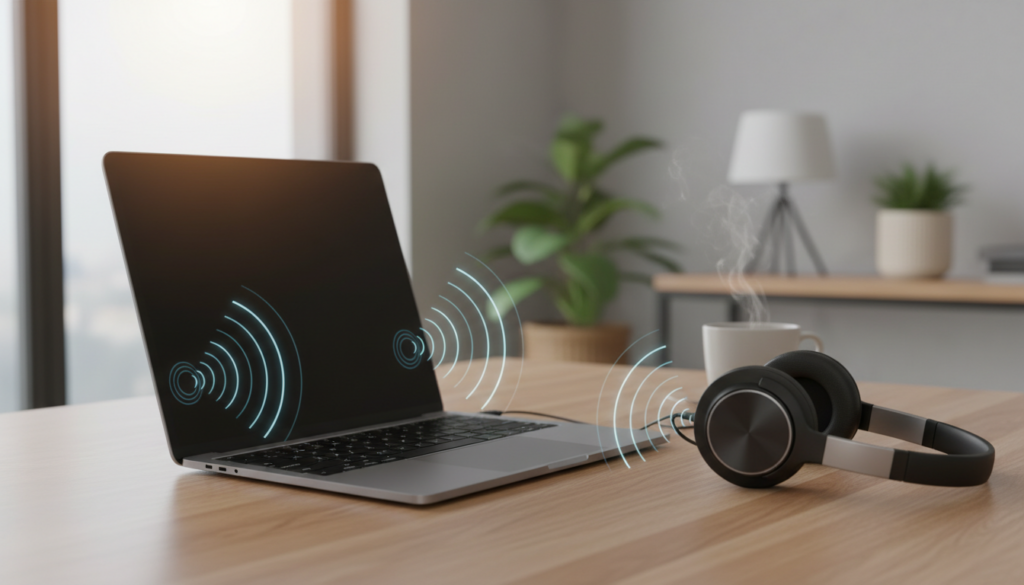
Modern devices prioritize a single audio stream to prevent echoes and sync issues. However, whether you want to share a movie with a friend or need a localized “monitor” while the room hears the main audio, achieving this setup is entirely possible with the right configuration.
Key Takeaways for Dual-Audio Monitoring
- Windows Users: Use the “Listen to this device” feature in the Sound Control Panel or software like Voicemeeter.
- macOS Users: Create a “Multi-Output Device” within the Audio MIDI Setup utility.
- TV Users: Look for “Multi-output Audio” in accessibility settings or use an external Bluetooth Transmitter with a bypass mode.
- Latency is Key: Bluetooth naturally has a delay; using aptX Low Latency codecs is crucial to keep headphones in sync with internal speakers.
Understanding Why Devices Mute Internal Speakers Automatically
In my years of testing audio configurations, I’ve found that the “automatic mute” feature is actually a fail-safe. Manufacturers assume that if you plug in or pair headphones, you want a private listening experience. This prevents audio feedback loops and ensures the processor doesn’t have to work double-time to sync two different hardware clocks.
When you ask, “can bluetooth headphones be used with internal speakers,” you are essentially asking the computer to run two separate sound cards at once. This requires more CPU overhead and a software bridge to keep the signals aligned. Without this bridge, you would hear a distracting “echo” effect because Bluetooth signals take longer to process than wired internal speakers.
How to Use Bluetooth Headphones with Internal Speakers on Windows 10 & 11
Windows is the most flexible platform for this setup. I frequently use this method when I need to record a podcast while allowing someone else in the room to hear the raw audio.
Method 1: The “Stereo Mix” Workaround
This is the “old school” method that works on most hardware without downloading extra software.
- Pair your Bluetooth headphones to your PC.
- Right-click the Speaker icon in the taskbar and select Sound Settings.
- Scroll down to More sound settings (this opens the classic Control Panel).
- Navigate to the Recording tab.
- Right-click anywhere and ensure “Show Disabled Devices” is checked.
- Find Stereo Mix, right-click it, and select Enable.
- Right-click Stereo Mix again and go to Properties.
- Under the Listen tab, check the box for “Listen to this device.”
- In the dropdown menu under “Playback through this device,” select your Bluetooth headphones.
- Set your Internal Speakers as the default playback device in the main Sound menu.
Method 2: Using Voicemeeter (The Pro Choice)
If you find the Stereo Mix method produces too much lag, I recommend Voicemeeter. It is a virtual audio mixer that acts as a bridge. We use this in our studio to route audio to multiple Bluetooth headsets and the main monitors simultaneously.
- Step 1: Download and install Voicemeeter (Banana version).
- Step 2: Set your Windows Default Output to Voicemeeter Input.
- Step 3: In the Voicemeeter app, set A1 (Hardware Out) to your internal speakers.
- Step 4: Set A2 (Hardware Out) to your Bluetooth headphones.
- Step 5: Adjust the “Delay” settings in the menu to perfectly sync the two sources.
Syncing Bluetooth Headphones and Internal Speakers on macOS
Apple makes this surprisingly easy through a hidden utility. Unlike Windows, macOS has a built-in feature called Audio MIDI Setup that handles multi-device routing natively.
Creating a Multi-Output Device
- Open Finder, go to Applications, then Utilities, and launch Audio MIDI Setup.
- Click the plus (+) icon in the bottom left corner and select Create Multi-Output Device.
- On the right-hand panel, you will see a list of available outputs.
- Check the boxes for both Built-in Speakers and your Bluetooth Headphones.
- Ensure the Master Device is set to your internal speakers to maintain the best clock sync.
- Check the Drift Correction box for your Bluetooth headphones. This is vital to prevent the audio from falling out of sync over time.
- Right-click the “Multi-Output Device” in the sidebar and select “Use This Device For Sound Output.”
Expert Tip: In my experience, if you experience stuttering on macOS, try changing the Sample Rate (e.g., from 48.0 kHz to 44.1 kHz) for both devices within the same MIDI menu.
Can I Use Bluetooth Headphones if I Have External Speakers on a TV?
The question “can i use bluetooth headphones if i have external speakers” is most common among TV viewers. Many people want to use headphones for a family member with hearing difficulties while the rest of the family listens through the Soundbar or Internal TV Speakers.
Modern Smart TV Settings (Samsung, LG, Sony)
Many high-end TVs now include this as an accessibility feature.
- Samsung TVs: Go to Settings > General > Accessibility > Multi-output Audio. This allows the TV speakers and a Bluetooth device to play at once.
- LG TVs: Navigate to All Settings > Sound > Sound Out. Look for the option “Bluetooth Device + TV Speaker.”
- Sony (Android TV): Sony generally does not allow this natively. You will likely need the hardware solution mentioned below.
The Hardware Solution: Bluetooth Transmitters
If your TV doesn’t support dual-output, you need a Bluetooth Transmitter with Bypass.
| Feature | Software Solution (PC/Mac) | Hardware Transmitter (TV/Stereo) |
|---|---|---|
| Ease of Setup | Moderate (Requires config) | Plug-and-Play |
| Cost | Free to $20 | $40 – $100 |
| Latency | Variable | Low (with aptX-LL) |
| Best For | Streaming/Work | Movies/Gaming |
I recommend the 1Mii B03 or Avantree Oasis Plus. These devices sit between your TV and your external speakers. They “split” the signal, sending audio to your speakers via wire and to your headphones via Bluetooth simultaneously.
Mobile Limitations: Android and iOS Dual Audio
On mobile devices, the answer to “can bluetooth headphones be used with internal speakers” is generally no without specialized hardware.
Samsung Dual Audio
Samsung is the only major manufacturer that consistently offers Dual Audio. However, this feature is designed to play audio on two pairs of Bluetooth headphones, not the internal phone speaker and headphones.
The Android Workaround (Lesser-Known)
Some apps like AmpMe or SoundSeeder allow you to sync multiple phones to play the same music. You could theoretically pair headphones to one phone and use the internal speaker of another, but this is clunky for video content.
Troubleshooting Sync and Latency Issues
The biggest hurdle when using Bluetooth headphones with internal speakers is the audio delay. Bluetooth uses a compression algorithm that takes time.
- Use aptX Low Latency (LL): If you are using a PC or a transmitter, ensure both the transmitter and the headphones support aptX-LL. This reduces delay to under 40ms, which is imperceptible.
- VLC Media Player: If you are watching a movie on a PC and the headphones are lagging, use the ‘K’ and ‘J’ keys in VLC to shift the audio track forward or backward in 50ms increments.
- Restart the Bluetooth Stack: If the echo gets worse over time, toggle your Bluetooth off and on. This resets the “clock” and usually pulls the devices back into alignment.
Final Thoughts from the Field
Achieving a “split” audio environment is a game-changer for accessibility and shared entertainment. While manufacturers make it difficult by default to ensure “user-friendliness,” the tools I’ve outlined above—Voicemeeter, Audio MIDI Setup, and Hardware Transmitters—give you full control over your soundscape.
If you are looking for the most stable experience, I always recommend the hardware transmitter route for TVs and the Multi-Output Device for Mac users. These methods provide the lowest latency and the most consistent results without taxing your system’s processor.
Frequently Asked Questions
Can I play music through Bluetooth and speakers at the same time on iPhone?
No, iOS does not natively support outputting audio to both the internal speaker and Bluetooth headphones simultaneously. You can use Share Audio to output to two sets of AirPods, but the internal speaker will always remain muted.
Does using both outputs drain the battery faster?
On a laptop or smartphone, yes. The system has to encode the audio stream twice (once for the DAC for internal speakers and once for the Bluetooth radio). You may see a 10-15% increase in power consumption.
Why is there an echo when I use my Bluetooth headphones and speakers together?
This is caused by latency. Bluetooth audio takes time to encode, transmit, and decode. To fix this, you must use software like Voicemeeter to add a “delay” to the internal speakers, allowing the Bluetooth audio time to “catch up.”
Can I use Bluetooth headphones if I have external speakers plugged into my PC?
Yes, this follows the same logic as internal speakers. You can use the Windows Stereo Mix method or Voicemeeter to route the audio to both the 3.5mm jack (external speakers) and the Bluetooth headset.









