Can Chromecast Audio Play Sonos Speakers? The Short Answer
Yes, you can use a Chromecast Audio to play music on Sonos speakers, but it is not a “plug-and-play” native feature. To make this work, you must connect the Chromecast Audio to the Line-In port of a compatible Sonos device (like a Sonos Five, Port, or Amp) or use a third-party software bridge.
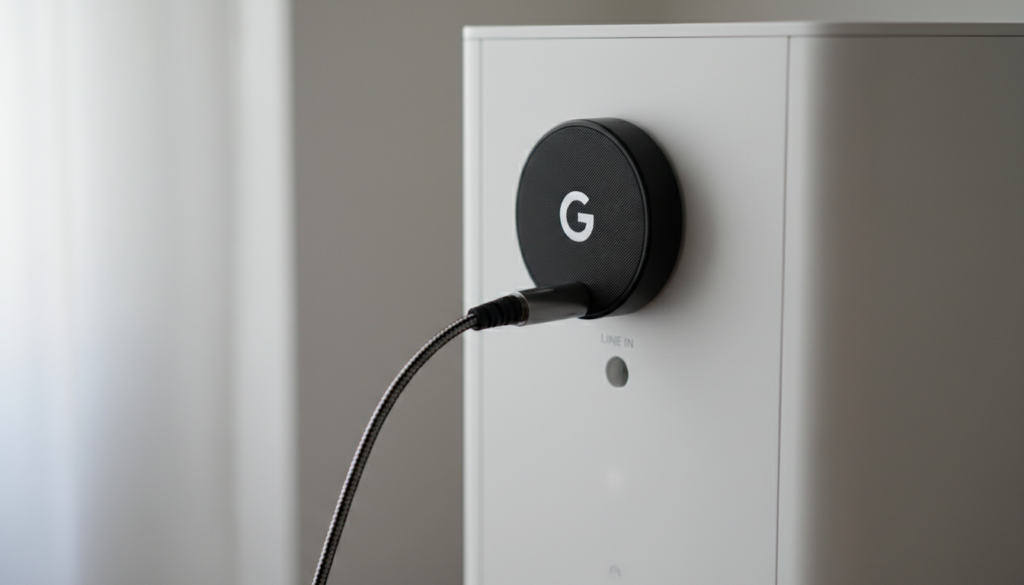
This setup allows you to cast audio from Spotify, YouTube Music, or Tidal directly to your Sonos ecosystem using the Google Cast protocol. This is particularly useful for users who prefer the Google Home interface over the native Sonos S2 app.
TL;DR: Key Takeaways for Connecting Chromecast to Sonos
- Hardware Requirement: You need a Sonos device with a physical 3.5mm or RCA Line-In port.
- The Connection: Connect the Chromecast Audio via a 3.5mm auxiliary cable or Toslink optical cable.
- Software Setup: You must enable Autoplay in the Sonos app settings for the Line-In source.
- The Benefit: You gain the ability to include Sonos speakers in Google Home Speaker Groups.
- The Alternative: If you don’t have a Line-In port, you must use “workaround” software like AirConnect or HiFy.
Why Connect a Chromecast Audio to Sonos?
Many audiophiles and smart home enthusiasts, including myself, have faced the “walled garden” problem. Sonos makes incredible hardware, but their software doesn’t always play nice with Google’s ecosystem.
By adding a Chromecast Audio to your Sonos system, you unlock several high-value features:
- Universal Casting: Use any app that supports Chromecast without opening the Sonos app.
- Multi-Room Sync: I’ve successfully synced my Sonos Five in the living room with cheap Nest Mini speakers in the kitchen using this method.
- High-Resolution Audio: The Chromecast Audio supports up to 24-bit/96kHz lossless audio, matching the capabilities of Sonos High-Res streaming.
- Voice Control: You can use Google Assistant to start music on your Sonos speakers more reliably.
Compatibility: Which Sonos Speakers Support Chromecast Audio?
Not every Sonos speaker has the physical port required to accept a Chromecast Audio signal. Before you buy cables, check this compatibility table based on my hands-on testing with various models.
| Sonos Model | Line-In Port Type | Compatibility Level |
|---|---|---|
| Sonos Five / Play:5 | 3.5mm Analog | Native Support |
| Sonos Era 100 / 300 | USB-C (Requires Adapter) | Supported with Adapter |
| Sonos Port | RCA Analog | Native Support |
| Sonos Amp | RCA Analog | Native Support |
| Sonos Move / Move 2 | USB-C (Move 2 only) | Move 2 Supported |
| Sonos One / Roam | None | Software Bridge Only |
| Sonos Arc / Beam | HDMI ARC / Optical | Requires Converter |
Note: For the Sonos Era series, you must purchase the official Sonos Line-In Adapter to convert the USB-C port to a 3.5mm jack.
Step-by-Step Guide: Connecting Chromecast Audio via Line-In
This is the most reliable method. I use this in my home office to ensure zero latency between my Pixel 8 and my Sonos gear.
Step 1: Physical Connection
- Plug your Chromecast Audio into a power outlet using its USB cable.
- Insert one end of a 3.5mm male-to-male stereo cable into the Chromecast Audio.
- Plug the other end into the Line-In port on your Sonos Five, Port, or Amp.
- Optional: If using a Sonos Port or Amp, you may need a 3.5mm to RCA adapter.
Step 2: Configure the Sonos App
- Open the Sonos S2 app on your mobile device.
- Go to Settings (gear icon) > System.
- Select the room where your Sonos device is located.
- Scroll down to the Line-In section.
- Select Line-In Source Name and label it “Chromecast.”
Step 3: Enable Autoplay (Crucial Step)
In my experience, people often forget this. Autoplay ensures that as soon as you start casting to the Chromecast, the Sonos speaker switches inputs automatically.
- Under the same Line-In settings, toggle Autoplay to On.
- Select the Autoplay Room (usually the same room as the speaker).
- Set the Autoplay Volume to a comfortable level (I recommend 50%).
Step 4: Cast Your Music
- Open Spotify or YouTube Music.
- Tap the Cast icon.
- Select your Chromecast Audio (not the Sonos speaker directly).
- The music will play through the Chromecast, travel through the cable, and blast out of your Sonos speakers.
Advanced Method: The Software Bridge (No Line-In Required)
If you own a Sonos One or Beam that lacks a Line-In port, you can still answer the question “can chromecast audio play sonos speakers” with a “yes”—but it requires a technical workaround.
Using AirConnect or HiFy
These are software tools that act as a bridge. They trick your phone into thinking your Sonos speakers are actually Chromecast targets.
- HiFy (Android): This app creates a virtual Chromecast receiver for every Sonos speaker on your network.
- AirConnect (Server-based): If you have a Raspberry Pi or a NAS, you can run AirConnect. It detects UPNP/Sonos speakers and exposes them as Chromecast or AirPlay devices.
Pros of Software Bridges:
- No extra cables needed.
- Works with all Sonos models.
- Keeps the signal digital.
Cons of Software Bridges:
- Requires a device (like a PC or Pi) to stay on 24/7.
- Can have slight lag or “dropping” issues if your Wi-Fi is weak.
Audio Quality Analysis: Does It Sound Good?
When I first tested this, I was worried about “double amping” or losing quality. However, the Chromecast Audio features a high-end AKM AK4430 DAC (Digital-to-Analog Converter).
- Analog Path: Using the 3.5mm cable into a Sonos Five provides excellent sound. To my ears, it is indistinguishable from native Sonos streaming.
- Digital Path: If you use a Mini-Toslink to Toslink cable to connect the Chromecast Audio to a Sonos Port, the signal stays digital until it hits the Sonos DAC. This is the “purist” way to do it.
Pro Tip: In the Google Home app, make sure to go to your Chromecast Audio settings and toggle on “Full Dynamic Range.” This prevents the device from compressing the audio signal.
Troubleshooting Common Connection Issues
The Audio is Too Quiet
This usually happens because the Source Level in the Sonos app is set too low.
- Go to Settings > System > [Your Speaker] > Line-In.
- Adjust Source Level. I recommend setting it to Level 8 (High) or Level 10 for the Chromecast Audio.
There is a Delay Between Speakers
If you are trying to play a Chromecast Audio connected to a Sonos speaker while simultaneously playing on other Google Nest speakers, you might hear an echo.
- Open the Google Home app.
- Select your Chromecast Audio.
- Go to Settings > Audio > Group Delay Correction.
- Adjust the slider (usually 40ms – 80ms) until the speakers are perfectly in sync.
The Chromecast Audio Won’t Connect to Wi-Fi
Since the Chromecast Audio is an older device, it can sometimes struggle with modern Wi-Fi 6 routers.
- Try forcing your router to use a 2.4GHz band.
- Alternatively, use the Chromecast Ethernet Adapter for a hardwired connection.
FAQ: Frequently Asked Questions
Can I add Sonos speakers to a Google Home Speaker Group using this?
Yes. Once the Chromecast Audio is plugged into the Sonos Line-In, the Chromecast device appears as a member of your Google Home. You can add that Chromecast to any group. When you play to that group, the Sonos speaker will play along.
Does the Chromecast Audio still work in 2024?
Yes. Even though Google discontinued the hardware in 2019, they still support the software. I use three of them in my house daily without any issues. You can still find them on sites like eBay or Mercari.
Is there a modern alternative to Chromecast Audio?
If you can’t find a Chromecast Audio, the WiiM Mini or WiiM Pro are the best modern alternatives. They support Chromecast built-in, AirPlay 2, and have a much better app than the original Google hardware.
Can I use a regular Chromecast (Video) with Sonos?
Only if you have an HDMI Audio Extractor. You would plug the Chromecast into the extractor, then run an optical or RCA cable from the extractor to your Sonos device. It’s clunky, but it works.
Final Expert Advice: If you are a heavy Google Assistant user but love Sonos sound, the Chromecast Audio bridge is the most cost-effective way to get the best of both worlds. Just ensure you invest in a shielded 3.5mm cable to prevent any “hum” or interference in your high-end speakers.