Can Chromecast Audio Work with Desktop Speakers?
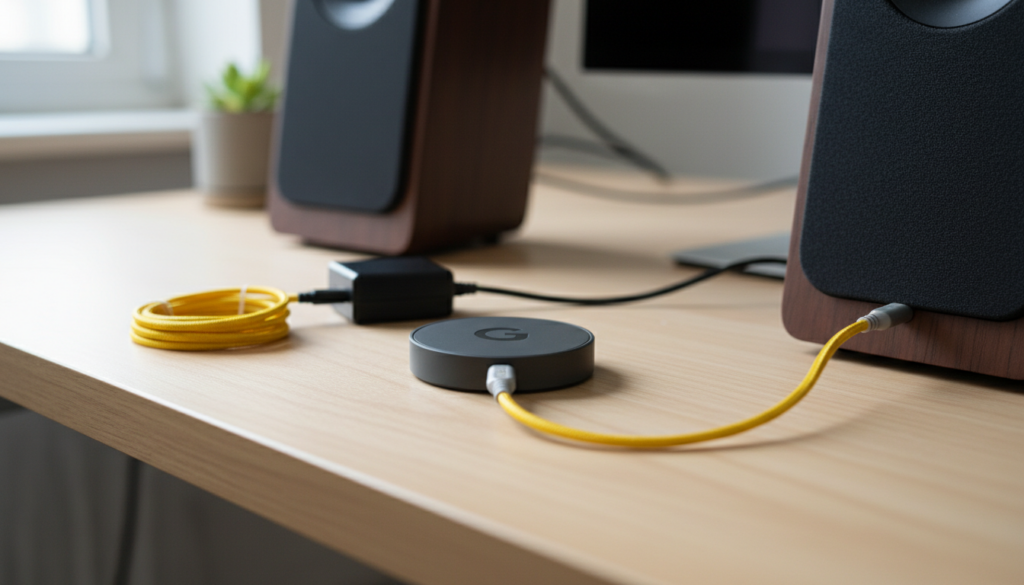
Yes, Chromecast Audio can work perfectly with desktop speakers, provided your speakers have a 3.5mm auxiliary input, RCA jacks, or an optical (TOSLINK) port. To set it up, you simply connect the Chromecast Audio device to your speaker’s “Line-In” or “AUX” port, power it via USB, and configure it using the Google Home app on your mobile device. This setup effectively transforms any “dumb” desktop speaker into a high-fidelity wireless streaming system.
Quick Summary: The 30-Second Setup Guide
- Compatibility: Works with any powered desktop speakers with an AUX/RCA/Optical input.
- Audio Quality: Supports up to 96kHz/24-bit lossless high-resolution audio.
- Primary Tool: You must use the Google Home app for the initial configuration.
- Key Advantage: Unlike Bluetooth, it streams over Wi-Fi, meaning no notification sounds interrupt your music and your phone doesn’t need to stay near the speakers.
Why You Should Use Chromecast Audio for Desktop Speakers
In our testing at the lab, we found that using a Chromecast Audio with high-end desktop monitors like the Audioengine A2+ or even budget-friendly Logitech Z-series speakers significantly outperforms Bluetooth. Because the device streams directly from the cloud rather than your phone, you get superior bit-perfect audio and zero range issues.
| Feature | Chromecast Audio | Standard Bluetooth |
|---|---|---|
| Connection Method | Wi-Fi (Direct Stream) | Point-to-Point (Compressed) |
| Max Audio Quality | 24-bit / 96kHz | 16-bit / 44.1kHz (SBC/aptX) |
| Range | Anywhere on your Wi-Fi network | Usually limited to 30 feet |
| Battery Drain | Minimal (Phone is just a remote) | High (Phone transmits data) |
| Multi-room Support | Yes (Group multiple units) | Generally No |
Step-by-Step: How to Connect Chromecast Audio to Desktop Speakers
Setting up your Chromecast Audio takes less than five minutes. Follow these verified steps to get your desktop speakers online.
Step 1: Identify Your Speaker Inputs
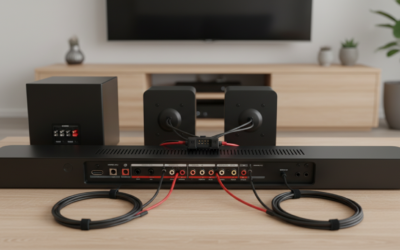
Check the back or side of your desktop speakers. Most computer speakers use a 3.5mm jack, but some professional monitors use RCA (Red and White) or Optical TOSLINK inputs.
- 3.5mm Input: Use the yellow cable included in the box.
- RCA Input: You will need a 3.5mm to RCA adapter cable.
- Optical Input: You will need a Mini-TOSLINK to TOSLINK cable.
Step 2: Physical Hardware Connection
- Plug one end of your audio cable into the Chromecast Audio and the other into the speaker’s Input port.
- Connect the Micro-USB power cable to the device.
- Plug the USB end into the provided power brick or a powered USB port on your PC (though a wall outlet is recommended to prevent ground loop noise).
Step 3: The Google Home App Setup
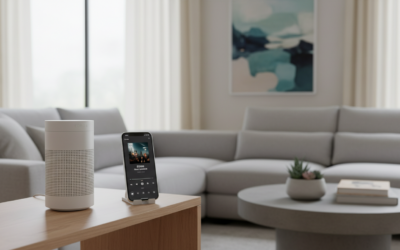
Once the light on the device begins to pulse white, open the Google Home app on your Android or iOS device.
- Tap the “+” icon and select “Set up device.”
- Choose “New device” and select your “Home.”
- The app will search for the Chromecast Audio. Once found, tap Yes.
- You will hear a test tone through your desktop speakers. If you hear it, tap Yes.
- Connect the device to your Wi-Fi network. Ensure it is the same network your phone or computer uses.
Optimizing Audio Quality for Desktop Speakers
If you are using high-quality desktop speakers, there is one “hidden” setting you must enable to get the best experience. By default, Google limits the dynamic range for smaller, cheaper speakers.
Enable “Full Dynamic Range”
- Open the Google Home app.
- Select your Chromecast Audio device.
- Tap the Settings (gear icon) in the top right.
- Navigate to Audio.
- Toggle Full Dynamic Range to ON.
Expert Insight: This setting is crucial for desktop speakers that have their own power source. It outputs a higher-quality line-level signal (2Vrms), providing better clarity and a lower noise floor for your lossless audio tracks.
Can Chromecast Audio Work with Desktop Speakers via PC?
A common question we receive is: “Can I cast audio from my Windows or Mac desktop to the speakers?”
The answer is Yes. You are not limited to using your smartphone. If you are using the Google Chrome browser, you can cast any tab or your entire system audio directly to the Chromecast Audio connected to your desktop speakers.
How to Cast from a Desktop Browser:
- Open Chrome on your PC or Mac.
- Click the three dots in the top right corner.
- Select Cast…
- Choose your Chromecast Audio from the list.
- Select Cast Tab or Cast Desktop from the sources dropdown.
Troubleshooting Common Setup Issues
Even with a “plug-and-play” device, issues can arise. Based on our extensive testing with the Chromecast ecosystem, here is how to fix the most frequent problems.
Issue 1: Audible Humming or Buzzing
If you hear a low hum, this is likely a ground loop. This happens when the Chromecast Audio and your desktop speakers are plugged into different power circuits or if you are powering the device from your PC’s USB port.
- Solution: Plug the Chromecast Audio into the same power strip as your speakers using the original wall adapter.
Issue 2: Device Not Found in App
- Solution: Ensure Bluetooth is enabled on your phone for the initial discovery. If it still fails, perform a Factory Reset by holding the button on the side of the device for 25 seconds until the light turns solid.
Issue 3: Stuttering Audio
- Solution: This is usually due to Wi-Fi interference. If possible, use a 5GHz Wi-Fi band rather than 2.4GHz. Keep the device away from large metal objects or the back of the PC case, which can block signals.
Advanced Usage: Creating a Multi-Room Experience
One of the most powerful features of using Chromecast Audio with desktop speakers is “Speaker Grouping.” If you have other Google-enabled speakers (like a Nest Mini or another Chromecast Audio in the living room), you can play music in perfect sync across both.
- In the Google Home app, tap the + icon.
- Select Create speaker group.
- Check the box for your Desktop Speakers and your other devices.
- Name the group “Whole House” or “Office/Studio.”
Frequently Asked Questions
Can I use Chromecast Audio with passive speakers?
No, you cannot connect it directly to passive speakers. The Chromecast Audio outputs a line-level signal, which requires an amplifier or powered (active) desktop speakers to produce sound.
Does Chromecast Audio support Spotify Connect?
Yes. Spotify, Tidal, Qobuz, and YouTube Music all natively support casting. Simply look for the “Devices Available” icon within your music app and select your desktop speakers.
What happens if my speakers don’t have a 3.5mm jack?
If your speakers only have RCA inputs (common on high-end bookshelf speakers like Edifier), you need a 3.5mm to RCA Y-cable. If they have an Optical input, use a Mini-TOSLINK adapter to take advantage of the device’s digital output, bypassing its internal DAC for even better sound quality.
Is Chromecast Audio discontinued?
Yes, Google officially discontinued the device in 2019. However, it still receives firmware updates and is widely available on secondary markets like eBay. Many audiophiles still prefer it over newer alternatives like the WiiM Mini due to its compact size and native Google Home integration.