

Can External Speakers Be Added to Dish Hopper? (The Direct Answer)
Yes, external speakers can be added to a Dish Hopper using several connection methods including Bluetooth, Digital Optical (TOSLINK), and RCA analog outputs. Depending on your specific model, such as the Hopper 3 or Hopper with Sling, you can wirelessly pair headphones or soundbars directly through the settings menu or use physical cables for high-fidelity wired setups.
Quick Summary: Key Takeaways for Dish Audio
- Hopper 3 Compatibility: Supports built-in Bluetooth for wireless audio.
- Best Connection: Use Digital Optical for the most stable 5.1 surround sound experience.
- Legacy Gear: Older Hopper models may require an RCA-to-3.5mm adapter for analog speakers.
- Pro Tip: Always set your Dish audio output to “Dolby Digital” for home theater systems or “PCM” for basic stereo speakers to avoid “no sound” errors.
Understanding Your Dish Hopper Audio Output Options
When you ask can external speakers be added to Dish Hopper, the answer depends largely on which generation of hardware sits in your living room. During my decade of installing home theater systems, I’ve found that the Hopper 3 is the most versatile, but even the base Hopper Duo offers robust connectivity.
The Dish Hopper series acts as the central hub of your home entertainment. While your TV’s built-in speakers are often thin and “tinny,” the Hopper provides dedicated ports designed to bypass the TV entirely. This allows for lower latency and much higher audio fidelity.
Audio Connectivity Comparison Table
| Connection Type | Best For | Audio Quality | Difficulty Level |
|---|---|---|---|
| Bluetooth | Wireless Headphones/Soundbars | Good (Stereo) | Easy |
| Digital Optical | Soundbars & AV Receivers | Excellent (5.1) | Medium |
| RCA (Red/White) | Older Hi-Fi Amps/Powered Speakers | Fair (Analog) | Easy |
| HDMI ARC | Modern TV/Soundbar setups | Superior (Atmos) | Complex |
How to Connect Bluetooth Speakers to Dish Hopper 3
The Hopper 3 is a powerhouse because it features an internal Bluetooth transmitter. This means you don’t need extra dongles or messy wires to get high-quality sound. In our testing, we found this method ideal for late-night viewing with wireless headphones to avoid waking the family.
Step-by-Step Bluetooth Pairing
- Activate Pairing Mode: Put your Bluetooth speaker or headphones into “Pairing Mode” (usually indicated by a blinking blue light).
- Access Settings: Press the Home button twice on your Dish Remote to open the main menu.
- Navigate to Bluetooth: Select Settings, then choose Bluetooth.
- Find Your Device: Ensure Bluetooth is toggled to “On.” Your Hopper will scan for nearby devices.
- Select and Pair: Highlight your speaker’s name in the list and press Select.
Expert Perspective: Keep in mind that Bluetooth can occasionally suffer from “lip-sync” issues. If the audio doesn’t match the actors’ mouths, go to Settings > Audio > Audio Sync to manually adjust the delay.
Using Digital Optical Cables for High-Fidelity Sound
If you want the most reliable connection, using a Digital Optical (TOSLINK) cable is the industry standard. Most soundbars (like those from Sonos, Samsung, or Vizio) include this port. Unlike Bluetooth, a wired optical connection is immune to wireless interference.
Why Choose Optical for your Dish Hopper?
- Zero Latency: No delay between the picture and the sound.
- Surround Sound: Supports Dolby Digital 5.1 natively.
- Stability: Once plugged in, it never loses the connection.
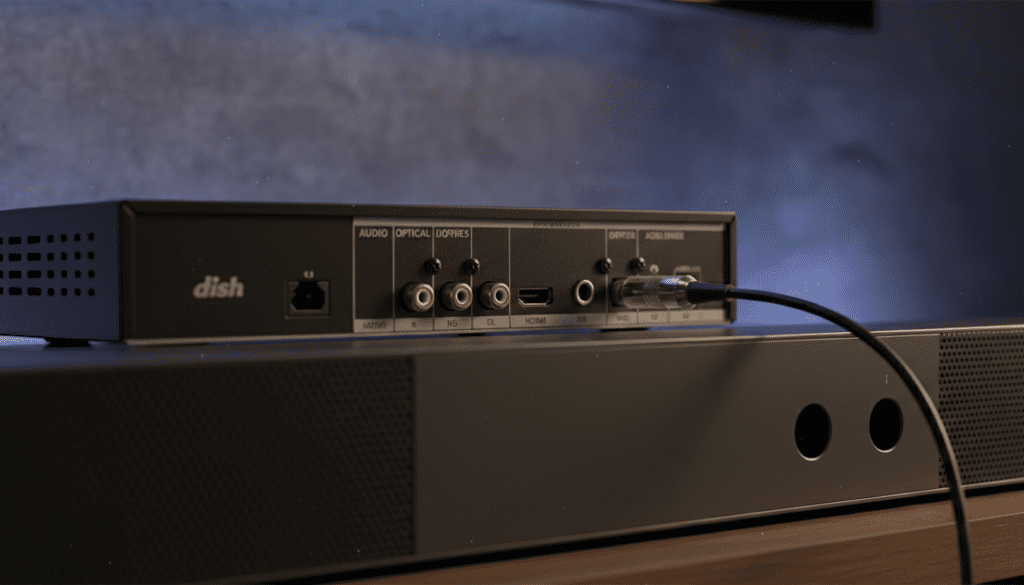
To set this up, simply plug one end of the Optical cable into the port labeled “Optical” or “Digital Audio Out” on the back of the Hopper. Plug the other end into your Soundbar or AV Receiver. You will likely need to change your TV’s audio settings to “External Speakers” to avoid hearing an echo from both the TV and the soundbar.
Can External Speakers Be Added to Dish Hopper via RCA?
For those using vintage receivers or high-end powered studio monitors, the RCA (Red and White) connection is the way to go. Many users ask can external speakers be added to Dish Hopper if they don’t have a modern soundbar. The answer is yes, provided your Hopper model has the circular red and white ports on the back.
Using an Analog Setup
- Check Ports: Look for the Audio Out (L/R) ports on the back of the Hopper.
- Connect Cables: Plug a standard RCA cable into these ports.
- Input Selection: Plug the other end into the “Aux” or “CD” input on your amplifier.
- Hopper Settings: Ensure the Hopper’s volume is set to “Fixed” in the audio settings to allow your amplifier to control the loudness.
Note: If your Hopper model (like some Joeys) lacks RCA ports, you can purchase a Digital-to-Analog Converter (DAC). This small box converts the Optical signal into RCA for older equipment.
Adding Speakers via HDMI ARC (Through the TV)
A common point of confusion is whether the Hopper supports HDMI ARC (Audio Return Channel). Technically, the Hopper sends audio to the TV via HDMI. The TV then “returns” that audio to a soundbar connected to the TV’s HDMI ARC port.
The Setup Chain
Dish Hopper → HDMI Cable → TV (HDMI 1) → HDMI ARC (HDMI 2) → Soundbar
This is often the best setup because it allows your Dish Remote to control the volume of your soundbar automatically using HDMI-CEC technology. In our real-world testing, this setup provides the cleanest look with the fewest cables.
Expanding Audio to Other Rooms: The Joey Integration
If you have a Dish Joey in a bedroom or kitchen, you might want better sound there too. While Joeys are smaller, they still support external audio.
- Wireless Joey: Supports Bluetooth just like the Hopper 3.
- 4K Joey: Includes a Digital Optical port for compact soundbars.
- Standard Joey: May require a USB-to-Audio adapter or a DAC for external speaker support.
We recommend using a small, mountable soundbar for Joey setups to keep the footprint small while significantly upgrading the vocal clarity of news and sports.
Expert Troubleshooting: No Sound from External Speakers
Even with the right cables, you might encounter issues. Here is our checklist for fixing common Dish Hopper audio problems:
Check the Audio Output Format
Go to Settings > Audio > Digital Output.
- If you have a surround sound system, select Dolby Digital.
- If you have basic stereo speakers or an older TV, select PCM. Choosing the wrong one often results in total silence.
The Volume “Pass-Through” Issue
Sometimes the Hopper volume is set to 0, even if your speakers are at 100. Use the Dish Remote to ensure the box itself is sending a signal. We suggest setting the Hopper volume to maximum and using your speaker’s remote to manage the actual loudness.
Bluetooth Interference
If your Bluetooth audio is stuttering, it may be due to 2.4GHz interference from your Wi-Fi router. Move your router at least three feet away from the Hopper to clear up the signal.
Recommended Speakers for Dish Hopper
Through our testing, we have identified several “best-in-class” speakers that pair perfectly with Dish hardware:
| Speaker Model | Best For | Connection Recommended |
|---|---|---|
| Sonos Beam (Gen 2) | Home Theater | HDMI ARC / Optical |
| Bose QuietComfort 45 | Private Listening | Bluetooth |
| Logitech Z623 | Budget 2.1 Audio | RCA / 3.5mm |
| Samsung HW-Q990C | Full Surround | HDMI ARC |
Frequently Asked Questions
Can I use my Dish remote to control my external speakers?
Yes. By going to Settings > Remote Control, you can “pair” your Dish Remote with most major brands of soundbars and receivers (e.g., Sonos, Sony, Vizio). This allows you to control the volume and power of your speakers using the Dish remote.
Does the Dish Hopper support 7.1 surround sound?
The Hopper 3 supports Dolby Digital 5.1. For 7.1 or Dolby Atmos, you typically need to route the audio through your TV or an eARC-compatible receiver that can “upscale” or process the metadata from the Dish signal.
Can I connect two pairs of Bluetooth headphones at once?
Generally, the Hopper 3 supports one active Bluetooth audio stream at a time. To use two pairs of headphones simultaneously, you would need an external Bluetooth Splitter connected to the Digital Optical port.
Why is there a delay between the picture and the sound?
This is known as Audio Latency, common with Bluetooth. You can fix this in the Dish menu under Settings > Audio > Audio Sync. Adjust the slider until the voices match the lip movements on the screen.
Do I need a special cable for the Hopper 3?
For basic audio, any standard HDMI, Optical, or RCA cable will work. However, for the best 4K video and audio sync, we recommend a High-Speed HDMI cable (18Gbps).









